
Create the store page (bio link)
The Página da loja (Store page) is your store’s public link at bio.tec.pet/nome-da-loja, made to sit in your Instagram bio, WhatsApp, Google and the counter QR code. It has two parts that you turn on separately: the Bio, a showcase with your store’s look (logo, colors, services with prices, plans, address and WhatsApp button), and the Link de agendamento (Booking link), where the pet owner logs in with their phone and books alone, 24 hours a day, using the free slots in your schedule and the prices from your service catalog. This article shows how to set up and publish the page. The booking rules (who can book, notice time, prices, pick-up and drop-off) are in Configurar o link de agendamento (Configure the booking link), and what the pet owner sees is in Como o tutor agenda pelo link (How the pet owner books through the link).
How many pet owners give up before you reply? #
A bio link that only leads to WhatsApp
Whoever clicks on your Instagram wants to book now, not wait for an answer.
“The shop that lets pet owners book on their own, at any hour, gets the grooming appointments of those who were in a hurry.”
The pet owner sees your post at eleven at night, taps the bio link and lands in a WhatsApp chat. They send "any slot on Saturday?" and go to sleep. In the morning your team is in the middle of the baths, the reply goes out in the afternoon and, by then, they have already booked with whoever answered first. The interest was real, what was missing was a short path.
With the tecpet Store page, the same bio link becomes a showcase with your shop's look and a real booking: the pet owner logs in with their phone, picks the pet, the service and a free slot from your schedule and books alone, with the right price for the size and coat. The booking goes straight into your schedule, and you follow in the dashboard how many people visited, logged in and booked.
Step 1: Open the Página da loja screen
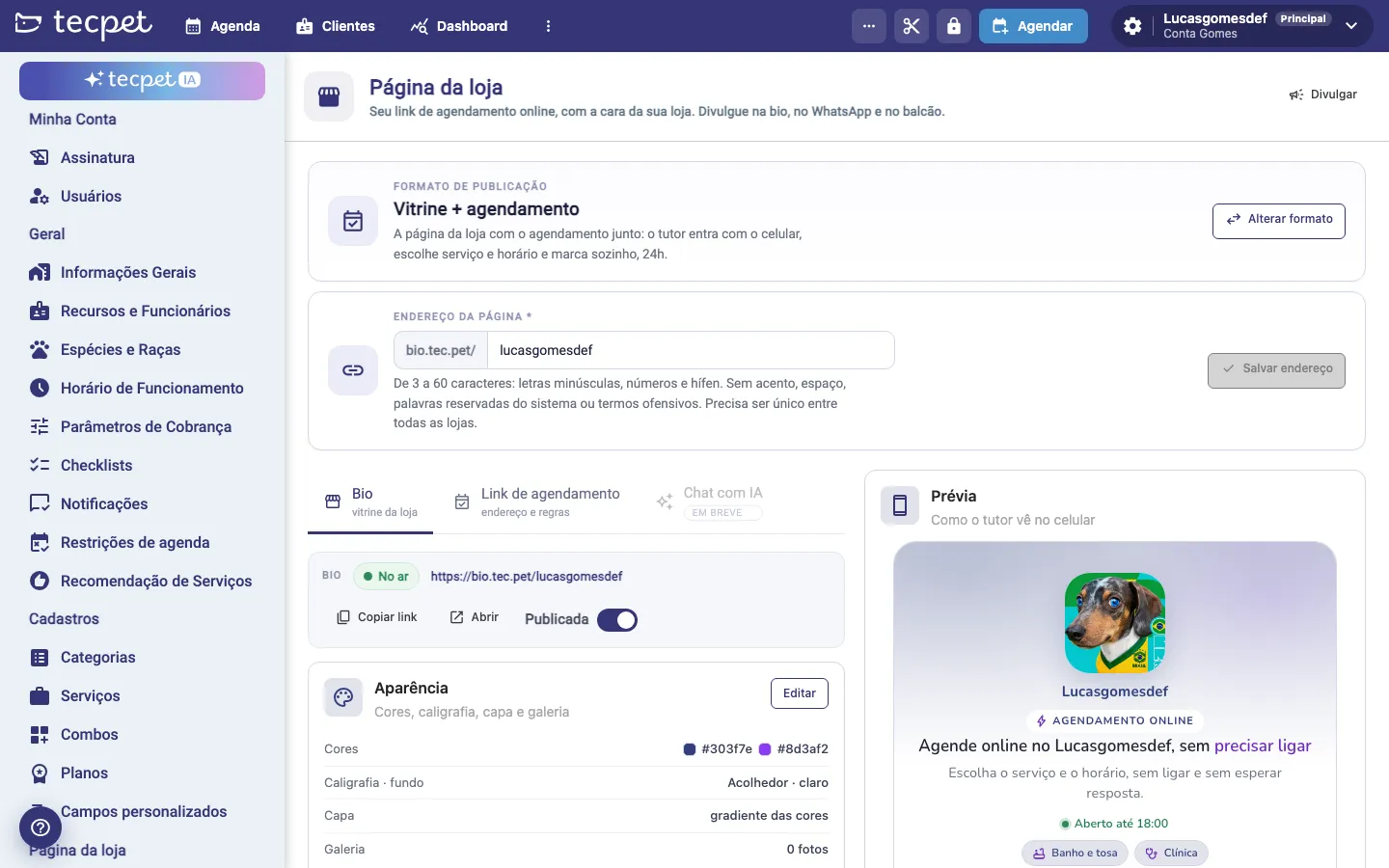
Section titled “Step 1: Open the Página da loja screen”Go into Configurações (Settings, the gear icon next to the store name, in the top right corner) and enter the administrator password if it is requested. In the side menu, scroll down to the Página da loja (Store page) group and click Link da bio (Bio link).
The screen opens with the Formato de publicação (Publishing format) and the Endereço da página (Page address) at the top, the tabs Bio, Link de agendamento (Booking link) and Chat com IA (AI chat, coming soon) in the middle and, on the right, the Prévia (Preview), which shows the page the way the pet owner sees it on their phone. In the top right corner is the Divulgar (Share) button.
If the yellow warning O módulo Página da loja ainda não está ativo nesta conta (The Store page module is not active on this account yet) appears, you can already configure everything, but you can only publish after support enables the module. It is included in the plan (see System modules).
Step 2: Choose the publishing format
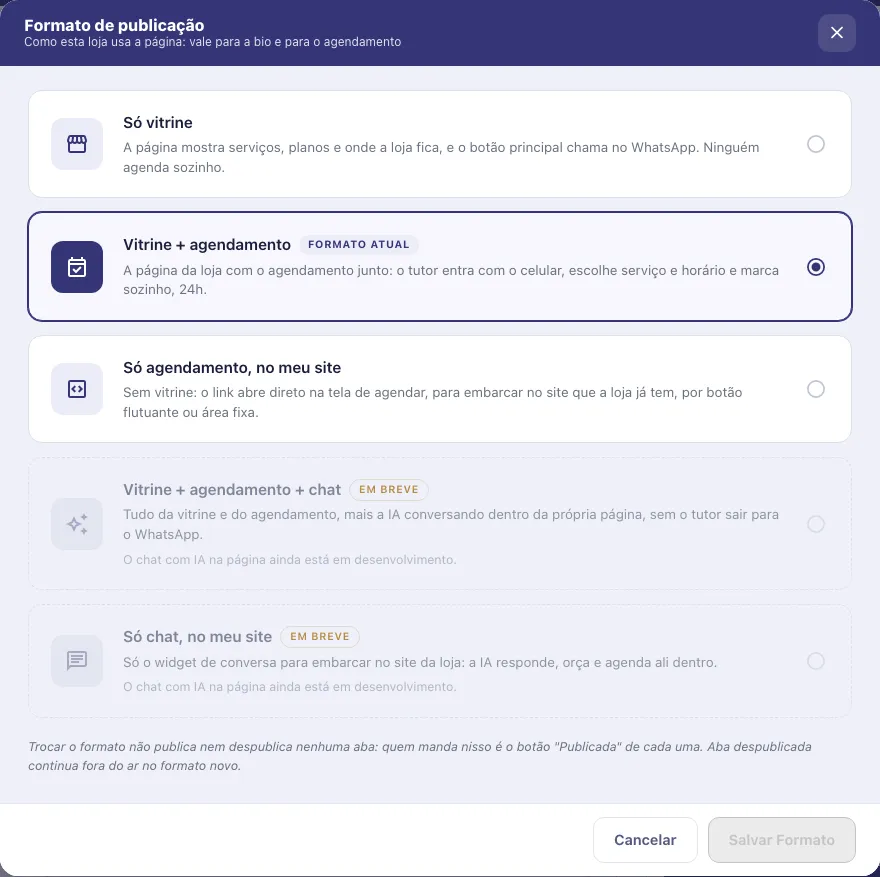
Section titled “Step 2: Choose the publishing format”The format says how the store uses the page and applies to both the bio and the booking. Click Alterar formato (Change format), choose one of the options and click Salvar formato (Save format):
- Só vitrine (Showcase only): the page shows services, plans and where the store is, and the main button opens WhatsApp. Nobody books on their own. It is the format of every new page.
- Vitrine + agendamento (Showcase + booking): the store page with booking included. The pet owner logs in with their phone, chooses a service and a time and books alone, 24h.
- Só agendamento, no meu site (Booking only, on my website): no showcase. The link opens straight on the booking screen, to place on the website the store already has, with a floating button or fixed area (see the No meu site (On my website) tab in Configurar o link de agendamento).
- Vitrine + agendamento + chat and Só chat, no meu site: appear with the Em breve (Coming soon) badge and cannot be chosen yet. The AI chat inside the page is under development.
The current format shows the Formato atual (Current format) badge.
Step 3: Set the page address
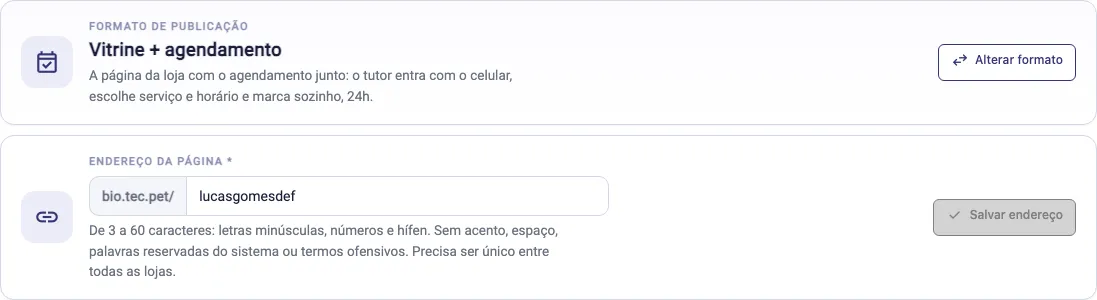
Section titled “Step 3: Set the page address”In the Endereço da página * (Page address) card, type the end of the link after bio.tec.pet/. When the store has no address yet, the field already comes with a suggestion taken from the store name (or a Sugestão: (Suggestion) link to apply). While you type, the screen checks and shows Endereço disponível (Address available) or the reason for refusal. Click Salvar endereço (Save address).
Address rules: 3 to 60 characters, only lowercase letters, numbers and hyphens, no accents or spaces. It cannot use reserved system words or offensive terms, and it must be unique among all tecpet stores (if it is already in use, you see “Esse endereço já está em uso por outra loja” (This address is already used by another store)).
The address generates two links: bio.tec.pet/your-address (the bio) and bio.tec.pet/your-address/agendar (straight to the booking).
Step 4: Adjust the look
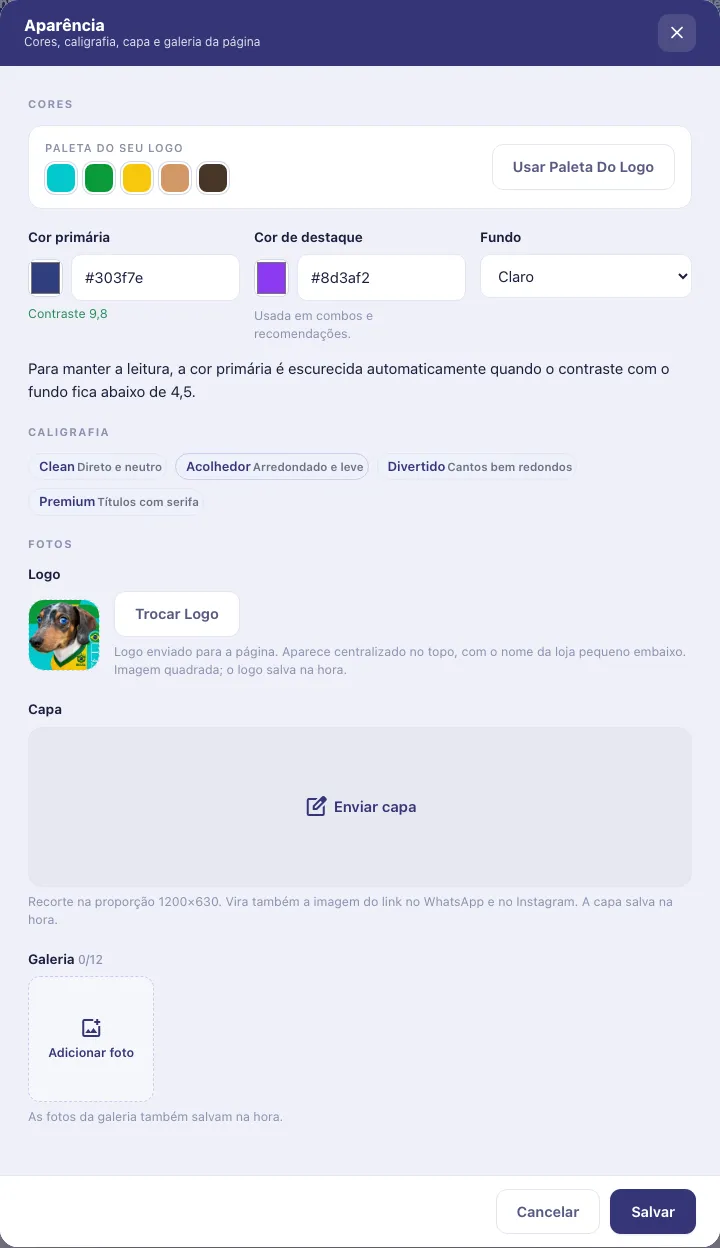
Section titled “Step 4: Adjust the look”On the Bio tab, in the Aparência (Appearance) card, click Editar (Edit). The fields:
Cores (Colors)
- Paleta do seu logo (Your logo palette): appears when the store has a logo. It shows the colors taken from the logo; click a color to use it as primary, or Usar paleta do logo (Use logo palette) to apply the suggested palette.
- Cor primária (Primary color): color of buttons and titles. Below it appears the Contraste (Contrast) with the background; if it is below 4.5, the screen warns “vamos escurecer ao salvar” (we will darken it when saving) and the color is darkened automatically to keep it readable.
- Cor de destaque (Accent color): used in combos and recommendations.
- Fundo (Background): Claro (Light) or Escuro (Dark).
Caligrafia (Typography): the style of the letters and corners. Clean (direct and neutral), Acolhedor (Welcoming, rounded and light), Divertido (Fun, very round corners) or Premium (titles with serif).
Fotos (Photos)
- Logo: square image, shown centered at the top with the store name small underneath. Without its own logo, the page uses the logo registered in the store; with none, it shows the name highlighted.
- Capa (Cover): cropped to the 1200×630 ratio. It also becomes the link image when it is shared on WhatsApp and Instagram. Without a cover, the top uses a gradient of your colors.
- Galeria (Gallery): up to 12 photos, square, that you reorder with the arrows and remove with the X. With at least one photo, the page gets the Nossos momentos (Our moments) section.
Logo, cover and gallery photos save right away, as soon as you finish cropping. Colors and typography only apply after you click Salvar (Save).
Step 5: Choose which sections appear
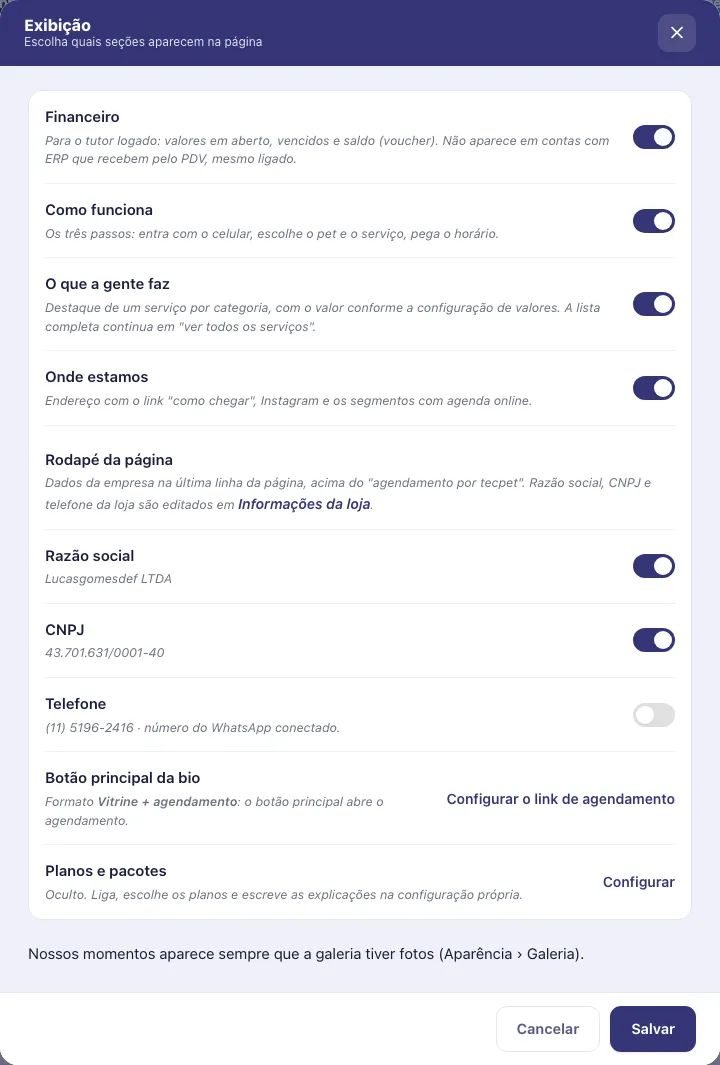
Section titled “Step 5: Choose which sections appear”In the Exibição (Display) card, click Editar (Edit). Each row turns a part of the page on or off:
- Financeiro (Financial): for the logged-in pet owner, shows open amounts, overdue amounts and voucher balance. It does not appear on accounts with an ERP that receive payments through the POS, even if turned on.
- Como funciona (How it works): the three steps (log in with the phone, choose the pet and the service, get the time).
- O que a gente faz (What we do): highlights one service per category, with the price according to the link’s price settings. The full list stays under ver todos os serviços (see all services).
- Onde estamos (Where we are): address with the como chegar (directions) link, Instagram and the segments with online booking.
- Rodapé da página (Page footer): company data on the last line, above agendamento por tecpet (booking by tecpet). Turn Razão social (Legal name), CNPJ and Telefone (Phone) on or off (the phone uses the connected WhatsApp or, without it, the phone in the registration). Missing data appears as ”-” while turned on; legal name, CNPJ and phone are edited in General information.
- Botão principal da bio (Bio main button): shows what the big button does in the current format (opens the booking or opens WhatsApp) and leads to the link settings.
- Planos e pacotes (Plans and packages): shortcut to Step 7.
Click Salvar (Save).
Step 6: Fill in the store information
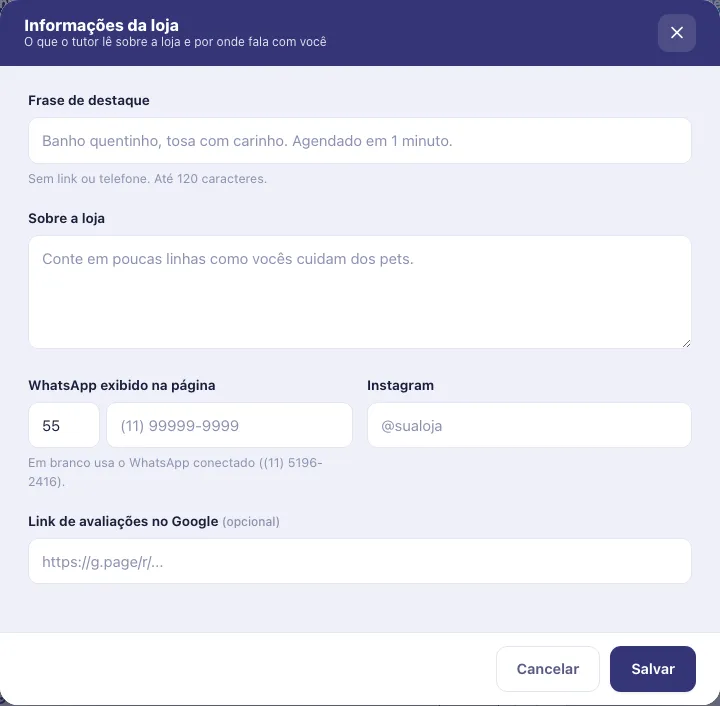
Section titled “Step 6: Fill in the store information”In the Informações da loja (Store information) card, click Editar (Edit):
- Frase de destaque (Headline): the big title at the top, up to 120 characters, with no link or phone. If blank, the page uses a default phrase with the store name.
- Sobre a loja (About the store): a short text about how you care for pets, up to 1,200 characters.
- WhatsApp exibido na página (WhatsApp shown on the page): country code and number of the WhatsApp button. If blank, it uses the WhatsApp connected to tecpet or, if there is none, the phone in the store registration (the hint below the field shows which number will be used).
- Instagram: the store’s @.
- Link de avaliações no Google (Google reviews link) (optional): the link to your Google profile so the pet owner can leave a review.
Click Salvar (Save).
Step 7: Show plans and packages (optional)
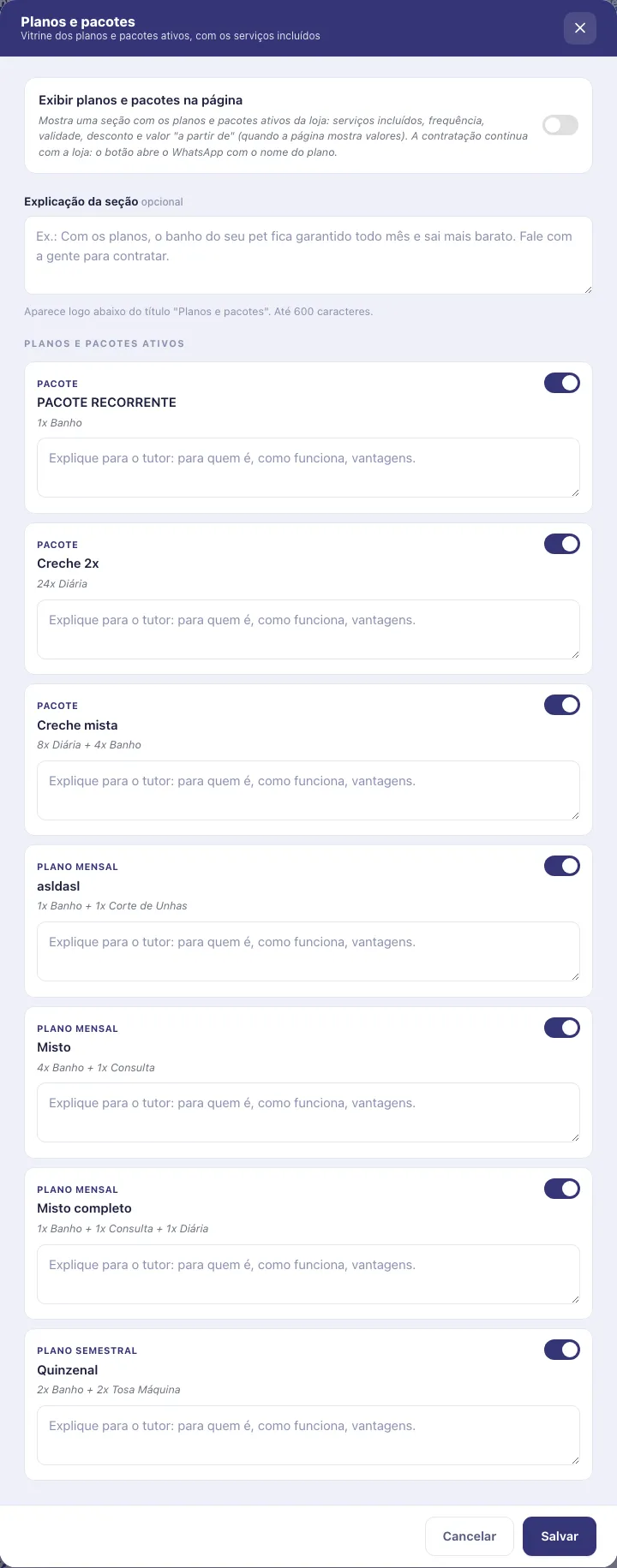
Section titled “Step 7: Show plans and packages (optional)”In the Planos e pacotes (Plans and packages) card, click Editar (Edit):
- Exibir planos e pacotes na página (Show plans and packages on the page): turns on a section with the store’s active plans and packages, with included services, frequency, validity, discount and “from” price (when the page shows prices). Hiring stays with the store: the plan button opens WhatsApp with the plan’s name.
- Explicação da seção (Section explanation) (optional): appears right below the title, up to 600 characters.
- Planos e pacotes ativos (Active plans and packages): each plan has a switch to appear or not and, when on, a text field to explain to the pet owner who it is for and how it works (up to 400 characters). If blank, it uses the description from the plan’s registration. A plan without services does not appear.
Click Salvar (Save).
Step 8: Publish the bio
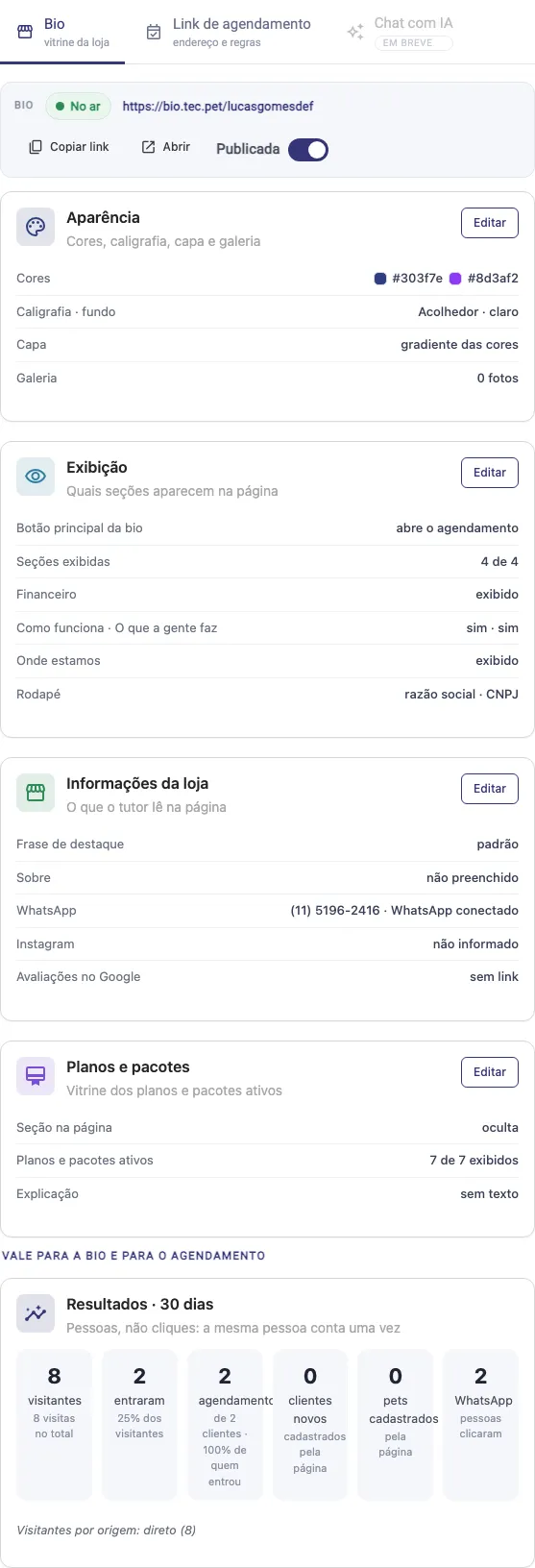
Section titled “Step 8: Publish the bio”On the Bio tab, the strip at the top shows the showcase status: No ar (Online), Desligada (Off) or Fora do formato (Outside the format), the bio link and the Copiar link (Copy link) and Abrir (Open) buttons. Turn on the Publicada (Published) switch to put the bio online. To publish you need a valid address and the module active.
The booking is published separately, with the Publicado (Published) switch on the Link de agendamento (Booking link) tab (see Configurar o link de agendamento). The two parts work independently: the booking link works alone even with the bio off, and with the booking off the bio’s main button becomes the store’s WhatsApp.
Below the cards, the Vale para a bio e para o agendamento (Applies to the bio and the booking) block holds the Resultados · 30 dias (Results, 30 days) card (see Track the results, further below).
Step 9: Check the preview
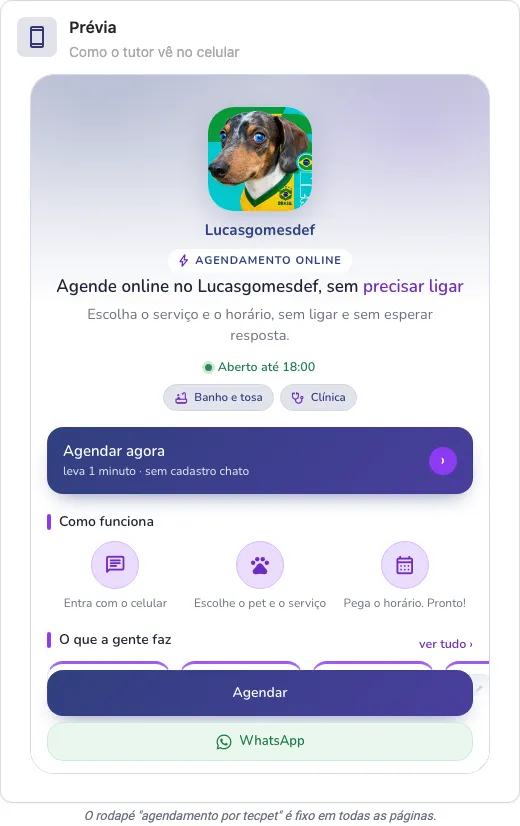
Section titled “Step 9: Check the preview”The Prévia (Preview) column shows the page the way the pet owner sees it on their phone and updates after each saved change. It only appears with the page published (before that, it shows Sem prévia (No preview)). The footer agendamento por tecpet (booking by tecpet) is fixed on all pages. To see the whole page in the browser, use the Abrir (Open) button.
Step 10: Share the link
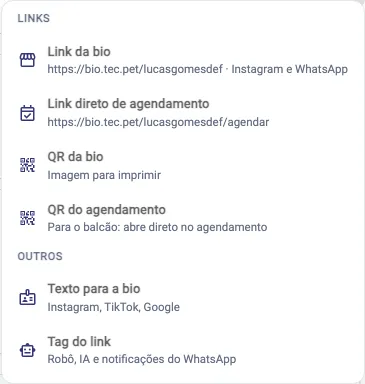
Section titled “Step 10: Share the link”Click Divulgar (Share), in the top right corner. The menu has:
Links
- Link da bio (Bio link): copies bio.tec.pet/your-address, for Instagram and WhatsApp.
- Link direto de agendamento (Direct booking link): copies bio.tec.pet/your-address/agendar, which opens straight on the booking.
- QR da bio (Bio QR): downloads the bio QR Code image to print.
- QR do agendamento (Booking QR): downloads the QR that opens straight on the booking, ideal for the counter.
Outros (Others)
- Texto para a bio (Text for the bio): copies a ready text (Agende online no nome da loja 🐾 + link) for Instagram, TikTok and Google.
- Tag do link (Link tag): copies
{LINK_PAGINA_LOJA}. Paste this tag in the bot and AI messages and in the automatic notifications: when sent, it becomes the store’s published link (the bio or, if the bio is off, the booking link).
Copied links and QR codes already come tagged with their source (Instagram, counter), which feeds the Visitantes por origem (Visitors by source) line of the results.
Track the results
Section titled “Track the results”The Resultados · 30 dias (Results, 30 days) card counts people, not clicks (the same person counts once):
- visitantes (visitors): how many people opened the page, with the total visits underneath;
- entraram (logged in): how many confirmed their phone with the code, and the percentage of visitors;
- agendamentos (bookings): how many bookings were made through the page, from how many clients, and the percentage of those who logged in;
- clientes novos (new clients) and pets cadastrados (registered pets): records created by the page itself;
- WhatsApp: how many people clicked the WhatsApp button.
Below appears Visitantes por origem (Visitors by source), with the source of each visit (for example direto, instagram or qr). With no visits yet, the tip is to put the link in your bio and in the automatic messages.
How to edit or take it offline later
Section titled “How to edit or take it offline later”Go back to Configurações › Página da loja › Link da bio (Settings › Store page › Bio link) at any time. Each card has its own Editar (Edit), and saved changes show up on the page right away. To take the showcase offline, turn off Publicada (Published) on the Bio tab; to stop the booking, turn off Publicado (Published) on the Link de agendamento (Booking link) tab. The address and all the settings stay saved, and you just turn it back on to return. Remember that turning the page off does not erase the links already shared: whoever opens an old link will not find the page.
Standalone shop, master and branch
Section titled “Standalone shop, master and branch”The screen is called Página da loja (Store page) and everything in this article applies as described: the shop chooses the format, the address, the look and the rules, and publishes whenever it wants.
Chain master account
The screen is called Página da rede (Chain page). It is a single link for the whole chain: the pet owner chooses the unit (chains with more than 10 units in more than one city ask for the city first) and books there. Look, texts and rules defined here apply to all units on the link. The Unidades (Units) card appears, with the Gerenciar (Manage) button, where you set one of three options for each unit: No link da rede (In the chain link, it shows up in the choice and gets the direct address bio.tec.pet/rede/unidade), Link próprio liberado (Own link allowed, it leaves the chain link and the unit can build its own page) or Não aparece (Does not appear, no online booking). The Padrão pelo sincronismo (Default by sync) button puts the synced units in the chain link. Each row has buttons to copy the link, download the QR and copy the code for the unit’s website. A unit marked as No link da rede but without the module active does not show up for the pet owner. The Resultados (Results) card also shows the numbers per unit.
Chain branch
If the master put the unit in the chain link, the branch sees a read-only card (Sua unidade está na página da rede, Your unit is on the chain page) with the unit’s direct address, the Copiar link (Copy link) and Baixar QR (Download QR) buttons and the Copiar tag (Copy tag) button for messages. Look, texts and rules are defined by the master account. If the master allowed an own link, the branch sees the full screen from this article and builds its own page. If the master chose Não aparece (Does not appear), the screen warns that online booking was not enabled for the unit: talk to whoever manages the master account.