Create a plan or package
Plan and package are the same record: what changes is what you pick on the first step. On this screen you build the template your shop will sell: which services are included, how often, how long it lasts, how the client is charged and the price for each type of pet. This template is what shows up later when you sell a plan and what the WhatsApp AI can offer on its own. To just track plans already sold, use Track plans and packages.
Step 1: Open Plans
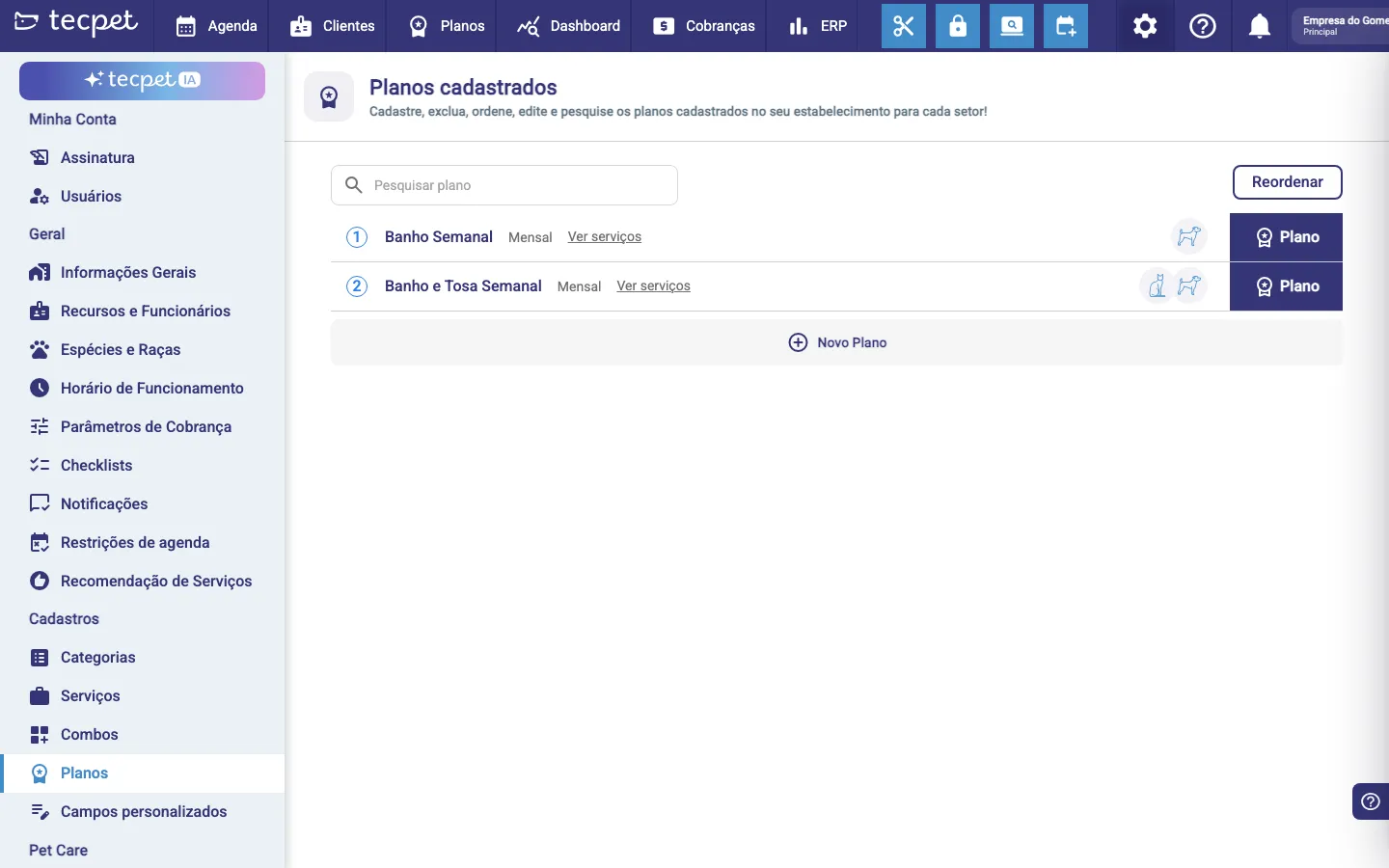
Section titled “Step 1: Open Plans”In the side menu, go to Settings (it will ask for the admin password) and open Records → Plans. The Registered plans screen lists what already exists, with a search field and the Reorder button to change the order they appear in during a sale.
Hover over a plan’s row to see the edit actions. (This screen sits next to Combos, don’t mix them up: a combo is a set of services sold together in a single visit; a plan or package is recurring or has an expiry date.)
Step 2: Click New Plan and choose the type
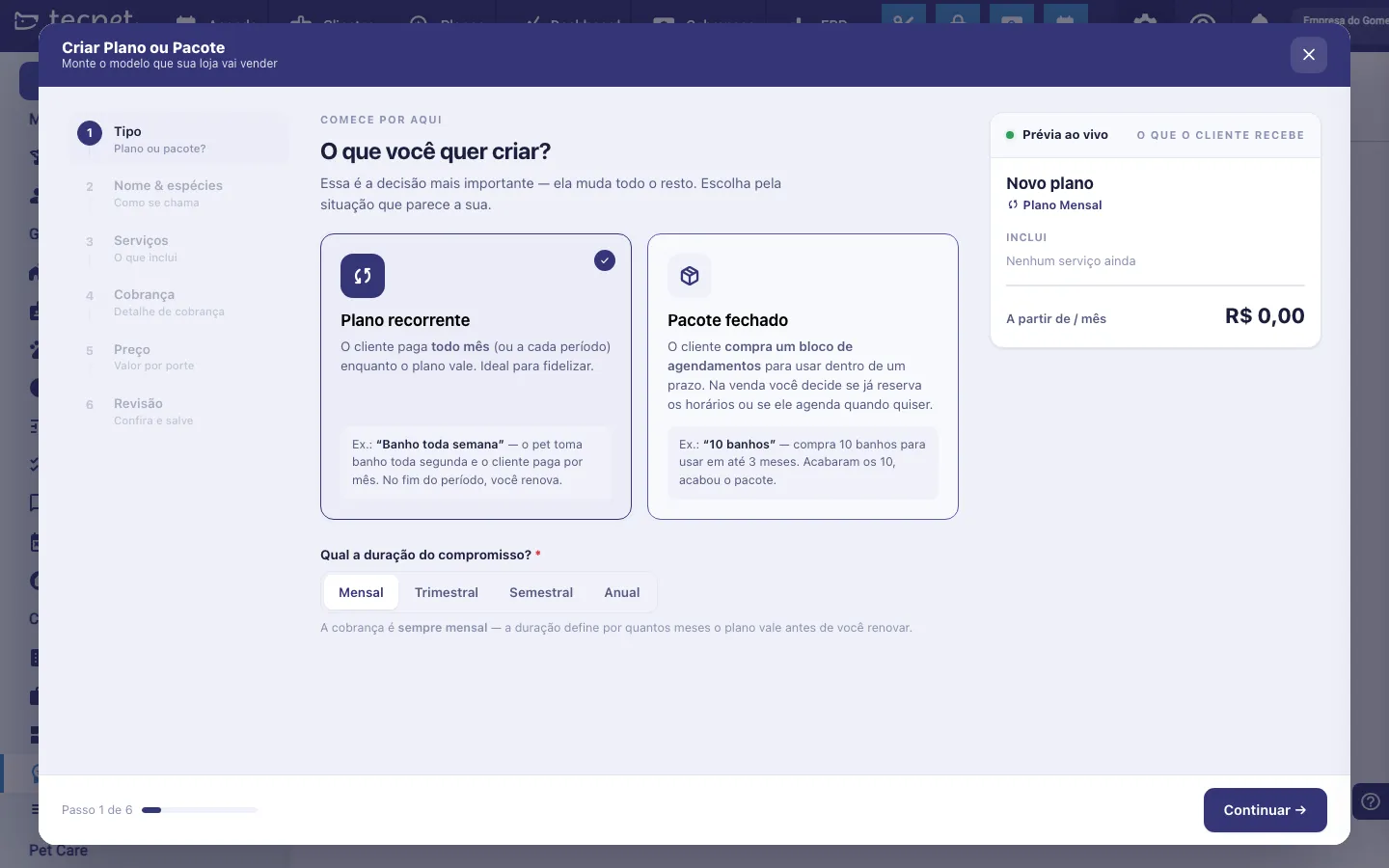
Section titled “Step 2: Click New Plan and choose the type”At the end of the list, click New Plan. The Create Plan or Package wizard opens, with 6 steps in the left column and a Live preview on the right that builds up as you fill things in.
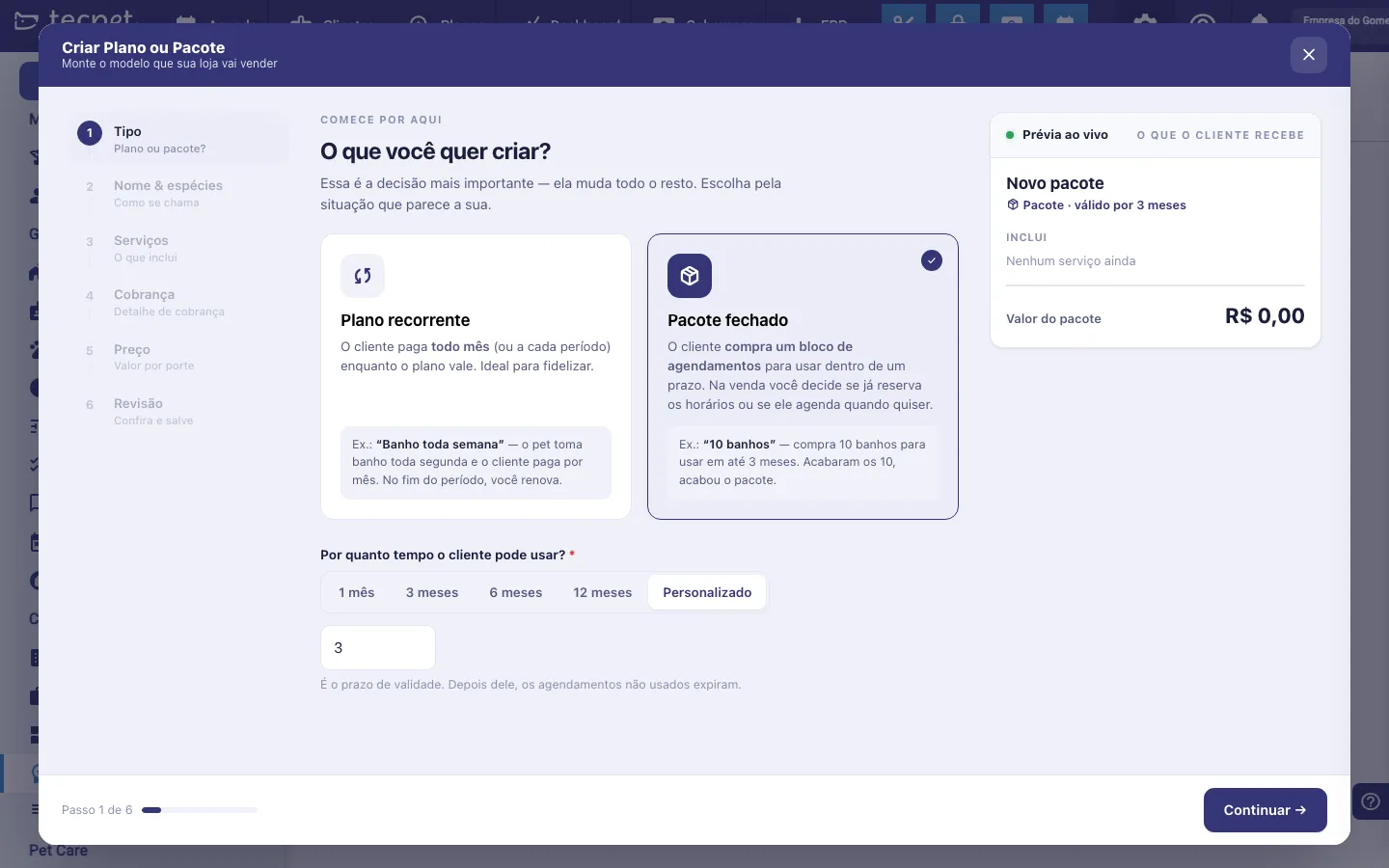
The first step is the most important decision:
- Recurring plan: the client pays every month (or every period) while the plan is active. Ideal for loyalty. E.g. “Bath every week”, the pet is bathed every Monday and the client pays monthly; at the end of the period you renew.
- Closed package: the client buys a block of appointments to use within a deadline. At the sale you decide whether the slots are booked right away or the client schedules whenever they want. E.g. “10 baths”, buys 10 baths to use within 3 months; once the 10 are gone, the package is over.
The duration changes with the type
Section titled “The duration changes with the type”Right below the cards is the duration, and it asks different things:
- On a recurring plan: How long is the commitment?: Monthly, Quarterly, Half-yearly or Yearly. Billing is always monthly; the duration defines for how many months the plan runs before you renew it.
- On a closed package: For how long can the client use it?: 1 month, 3 months, 6 months, 12 months or Custom. This is the expiry: after it, unused appointments expire.
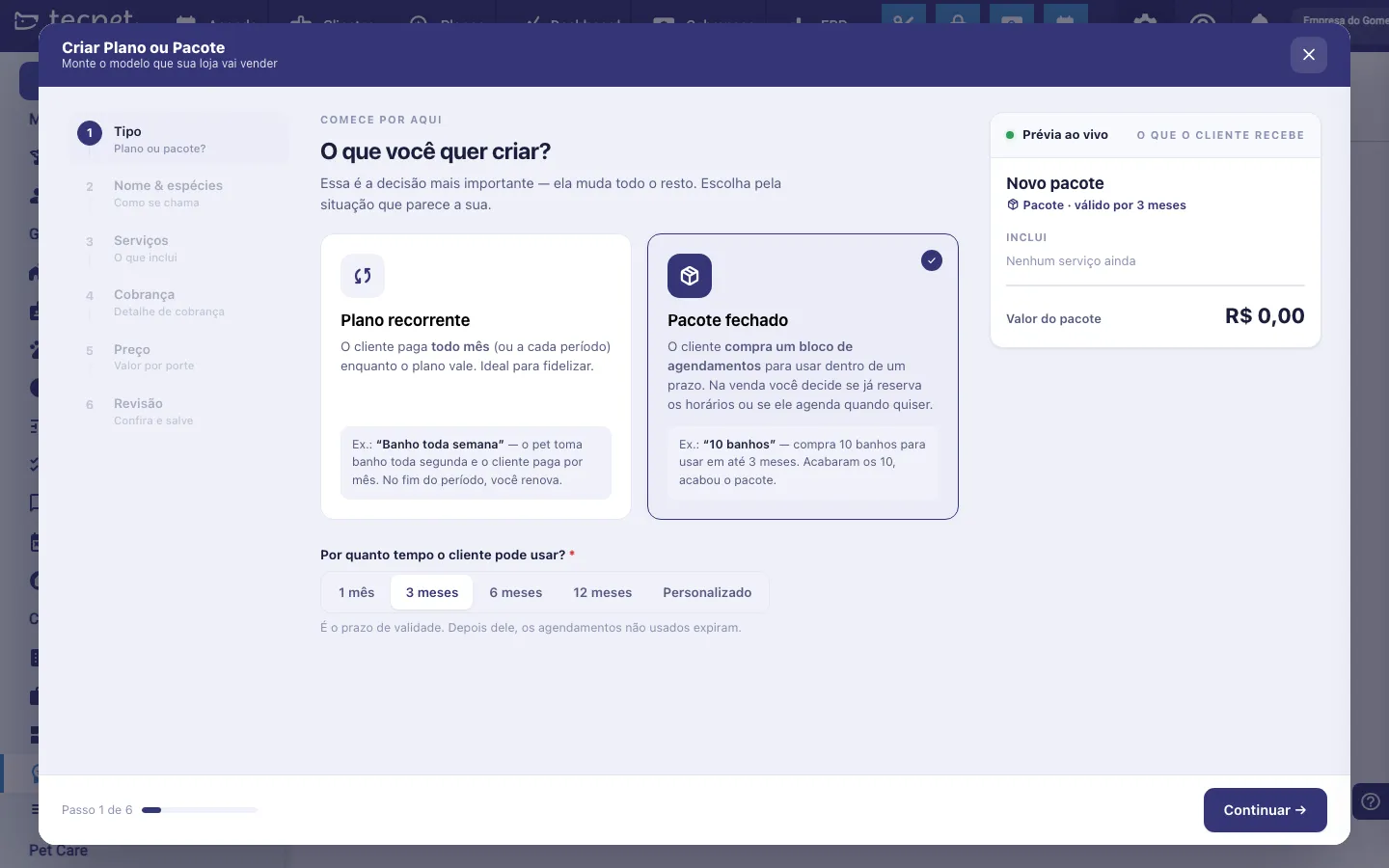
Choose Custom when you need a period that is not on the list, the field opens for you to type the number of months.
Step 3: Name and species
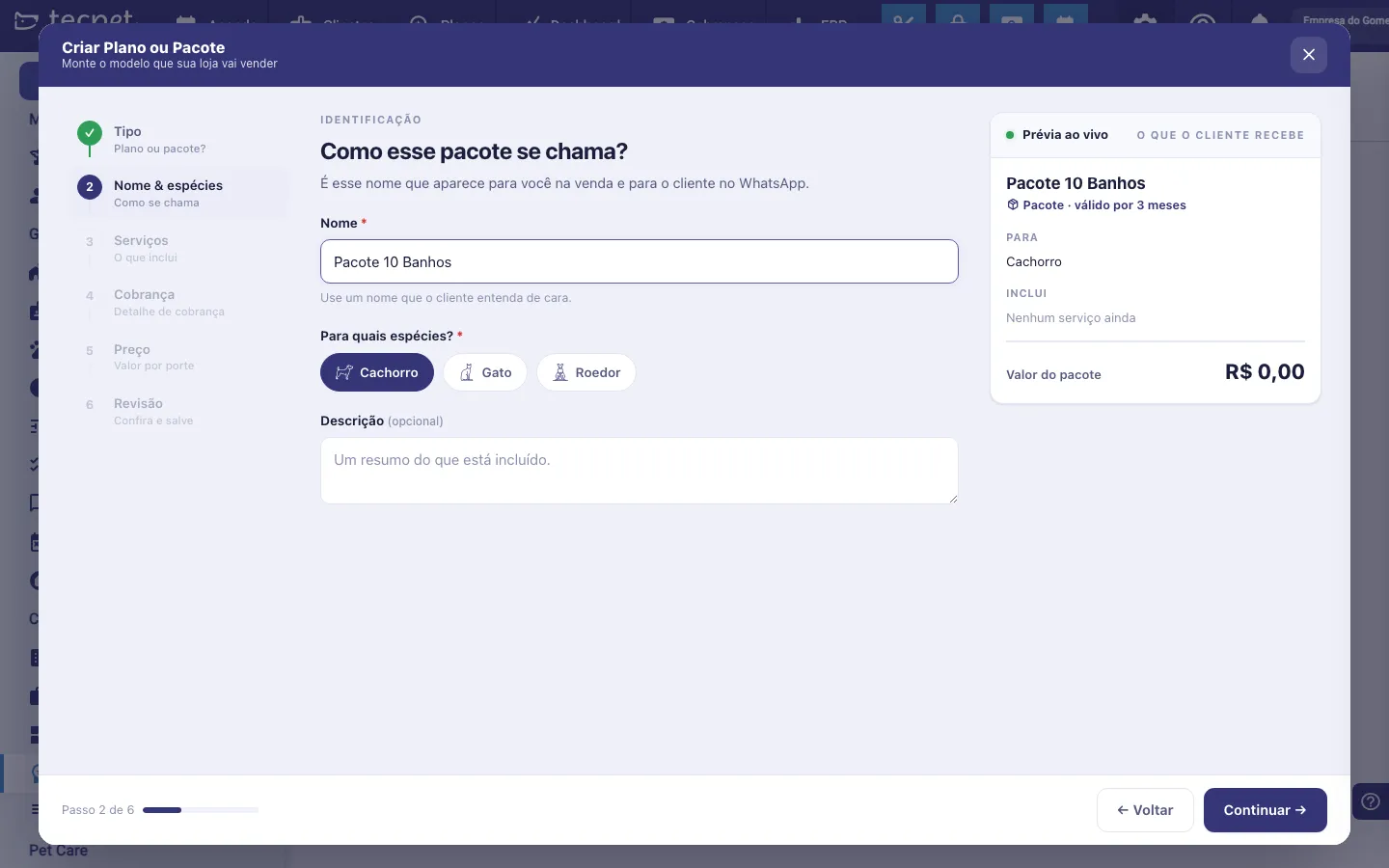
Section titled “Step 3: Name and species”This step is the identification:
- Name*: the name that appears to you during the sale and to the client on WhatsApp. It needs at least 3 letters. Use something the client understands right away;
- For which species?*: tick the species served (Dog, Cat, Rodent…). The first one is already ticked: click to untick it or to add others. The available species are the ones your shop registered under Species and breeds;
- Description (optional), a summary of what is included.
Step 4: The included services
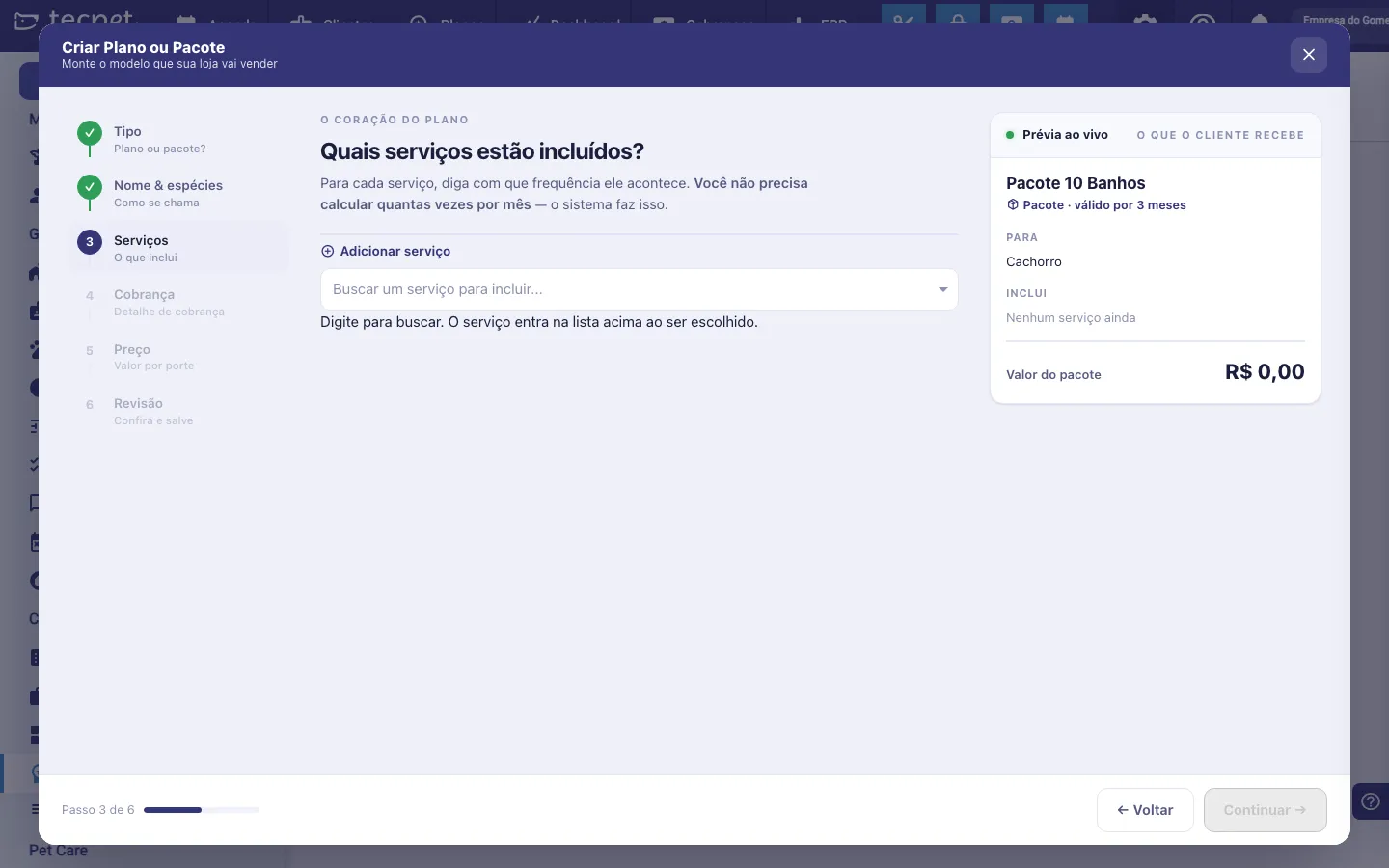
Section titled “Step 4: The included services”Here you build what the plan entitles the client to. Use Add service and search by name, the service joins the list above as soon as it is picked. If you need to create a service first, see Create a service.
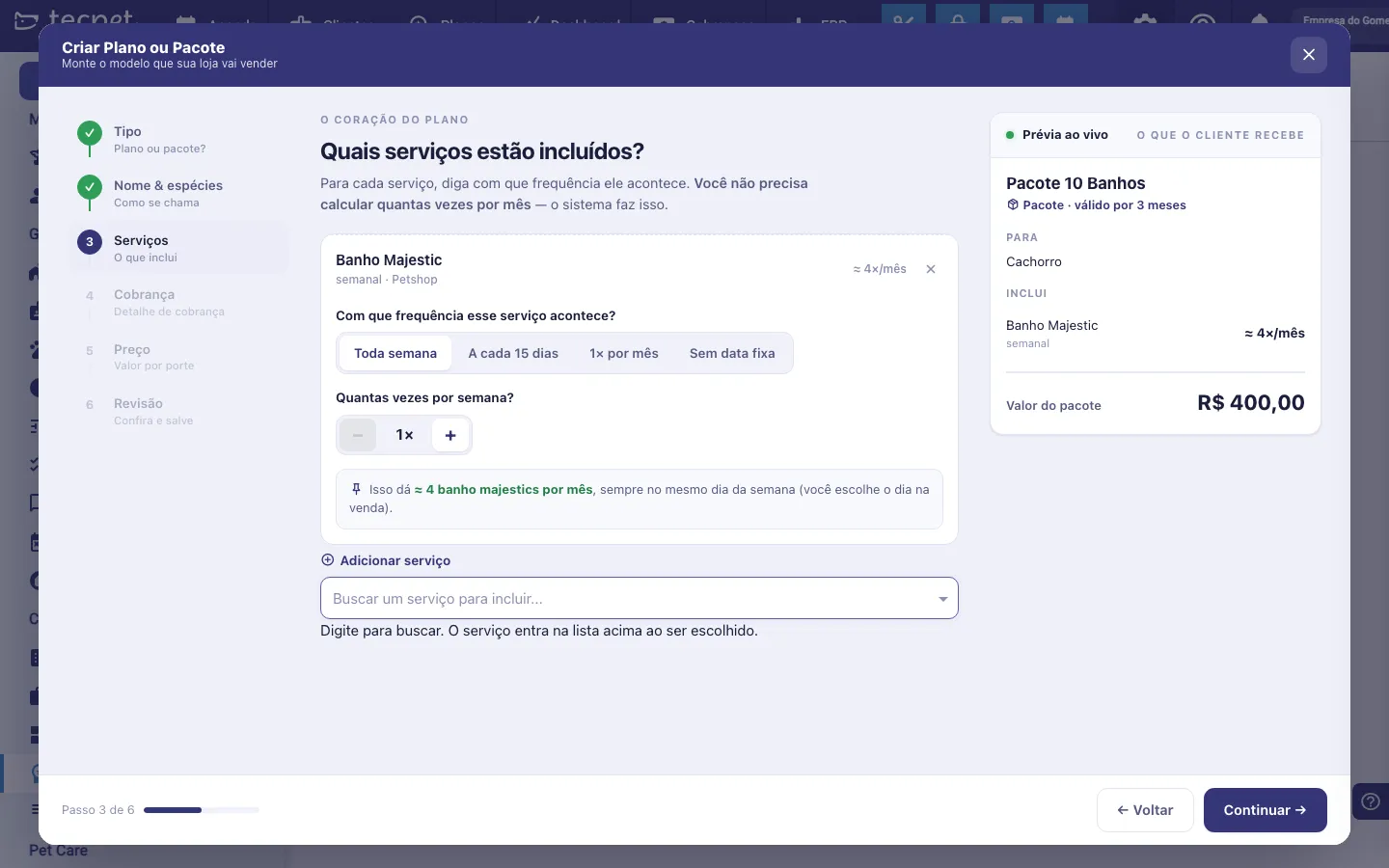
For each service added, answer how often it happens:
- Every week: which then shows How many times a week?, from 1 upwards;
- Every 15 days;
- Once a month;
- No fixed date: the client uses it whenever they want, within the validity.
You don’t have to work out how many times that makes per month: the wizard shows the maths itself (e.g. “That’s ≈ 4 baths a month, always on the same weekday”). The weekday is chosen at the sale, not here.
Use the X in the service corner to remove it from the plan.
Step 5: How the client pays
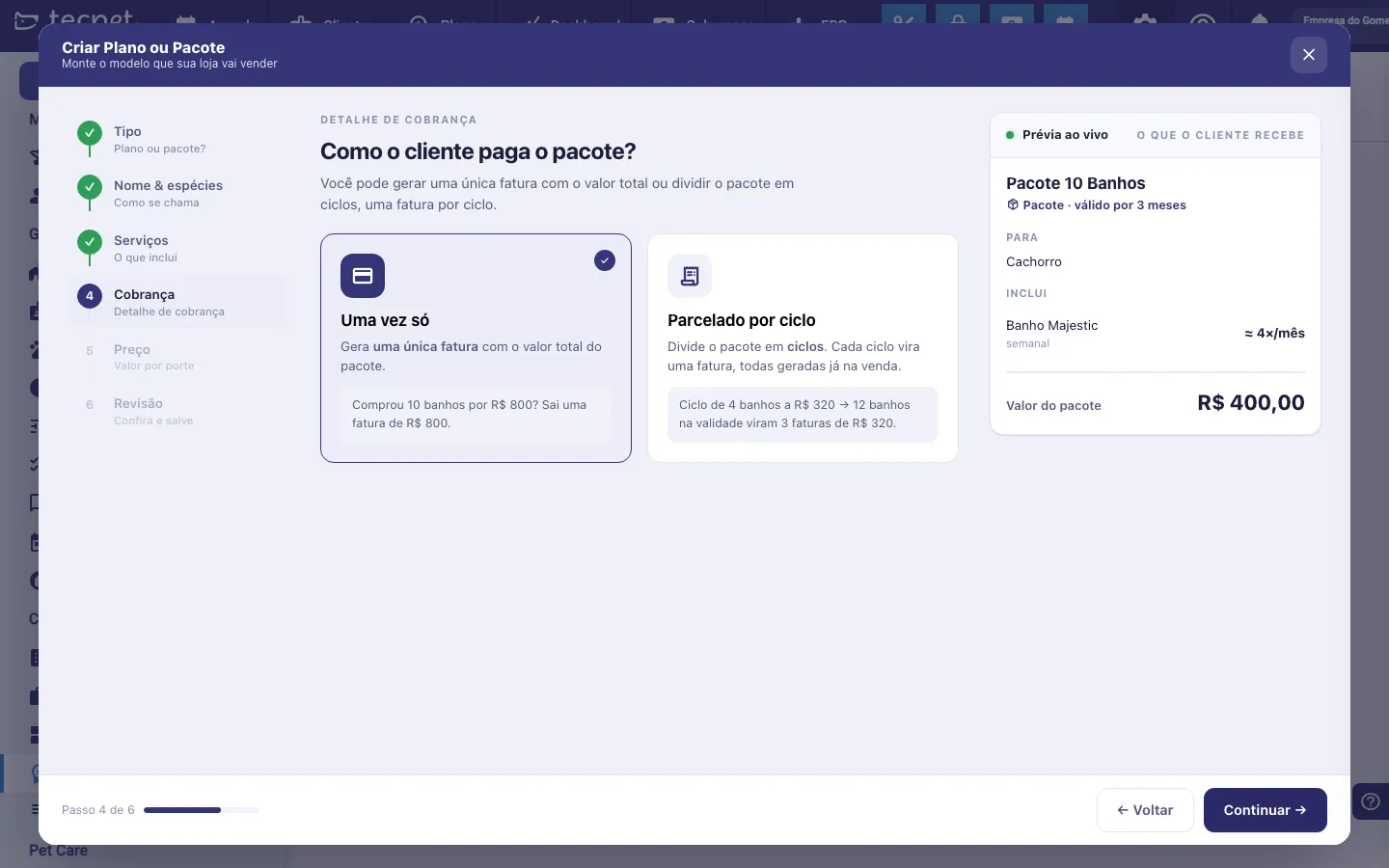
Section titled “Step 5: How the client pays”This step changes with the type chosen on Step 1. On a closed package, the options are:
- One-off: generates a single invoice with the total value of the package. E.g. bought 10 baths for R$ 800 → one invoice of R$ 800.
- Split by cycle: splits the package into cycles, and each cycle becomes an invoice, all generated at the sale. E.g. a cycle of 4 baths at R$ 320 → 12 baths within the validity become 3 invoices of R$ 320.
On a recurring plan: the 5th week of the month
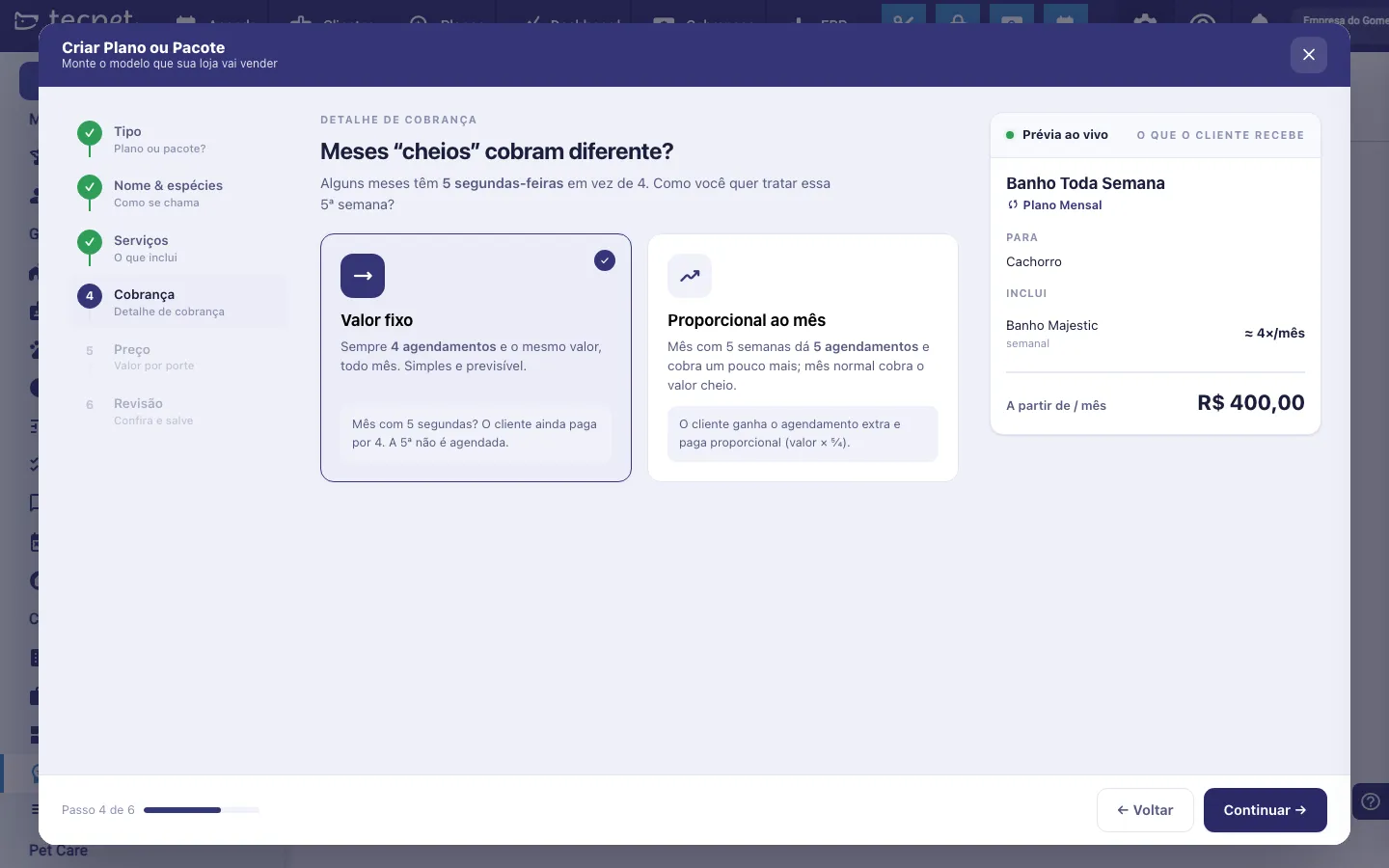
Section titled “On a recurring plan: the 5th week of the month”Some months have 5 Mondays instead of 4. On a recurring plan, this step asks how to handle that extra week:
- Fixed amount: always 4 appointments and the same value, every month. Simple and predictable. A month with 5 Mondays? The client still pays for 4, and the 5th is not booked.
- Pro-rata by month: a month with 5 weeks gives 5 appointments and charges a bit more; a normal month charges the full value. The client gets the extra appointment and pays pro-rata (value × 5⁄4). This is what the system calls a hybrid plan.
Pro-rata on what? (visits or services)
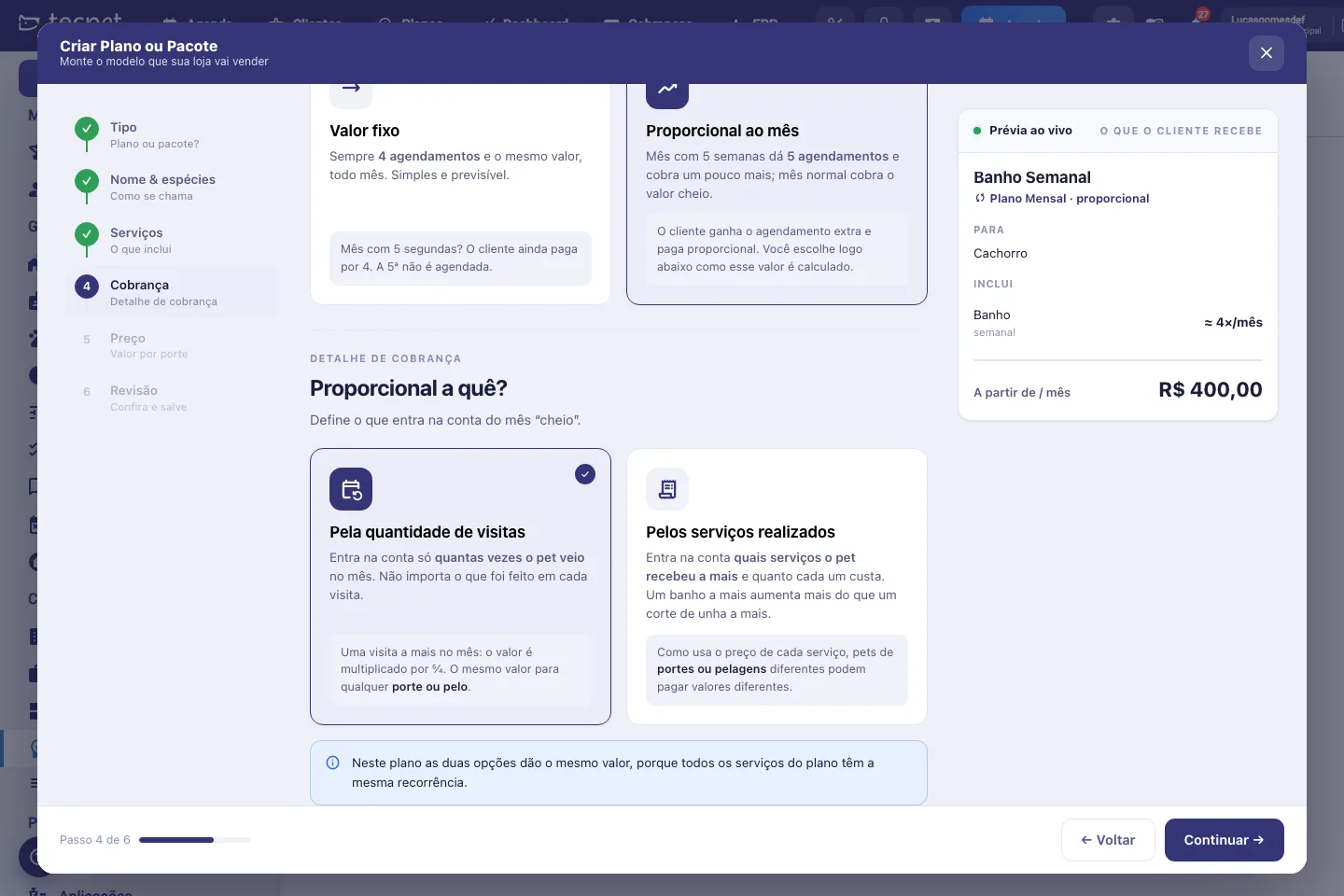
Section titled “Pro-rata on what? (visits or services)”When you pick Pro-rata by month, the wizard asks a second question right below: what makes the price go up? The two options can produce very different bills:
- By number of visits: only how many times the pet came in the month counts, no matter what was done on each visit. A month with 5 weeks instead of 4 becomes price × 5⁄4; on a fortnightly plan, price × 3⁄2. The price goes up the same for any size, coat or breed.
- By services performed: what counts is which services the pet got extra and how much each one costs. One extra bath raises the bill more than one extra nail trim. Because it uses each service’s price, pets of different sizes, coats or breeds can pay different amounts on the same plan.
Once saved, the plan keeps that choice: on the plan list the · Hybrid tag shows the mode on hover, and the sale screen explains the calculation before you close the sale.
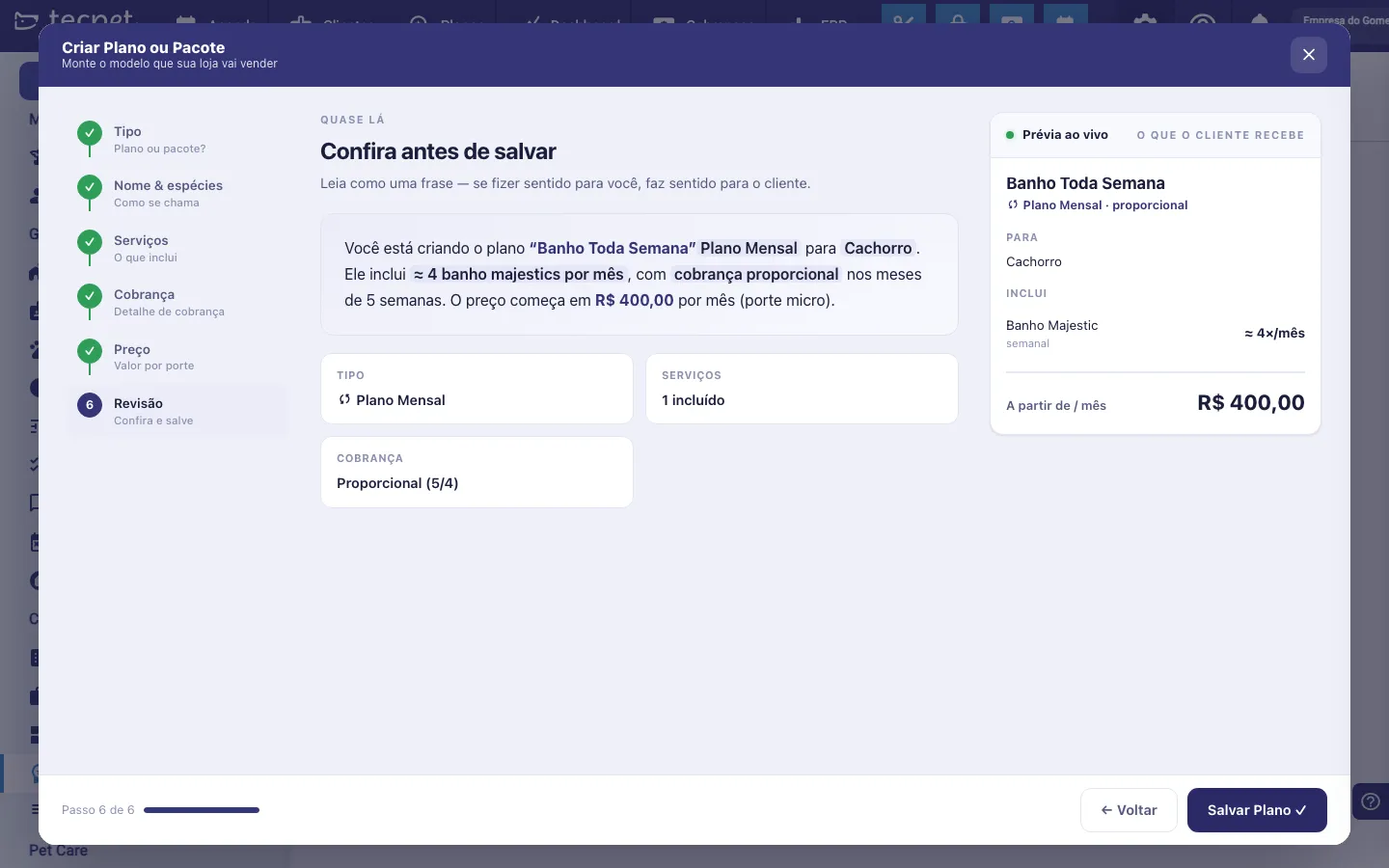
When you pick Pro-rata by month, the review records billing as Pro-rata (5/4) and the summary sentence says “with pro-rata billing on months with 5 weeks”. On the plan list, that plan gets the · Hybrid tag.
Step 6: The price
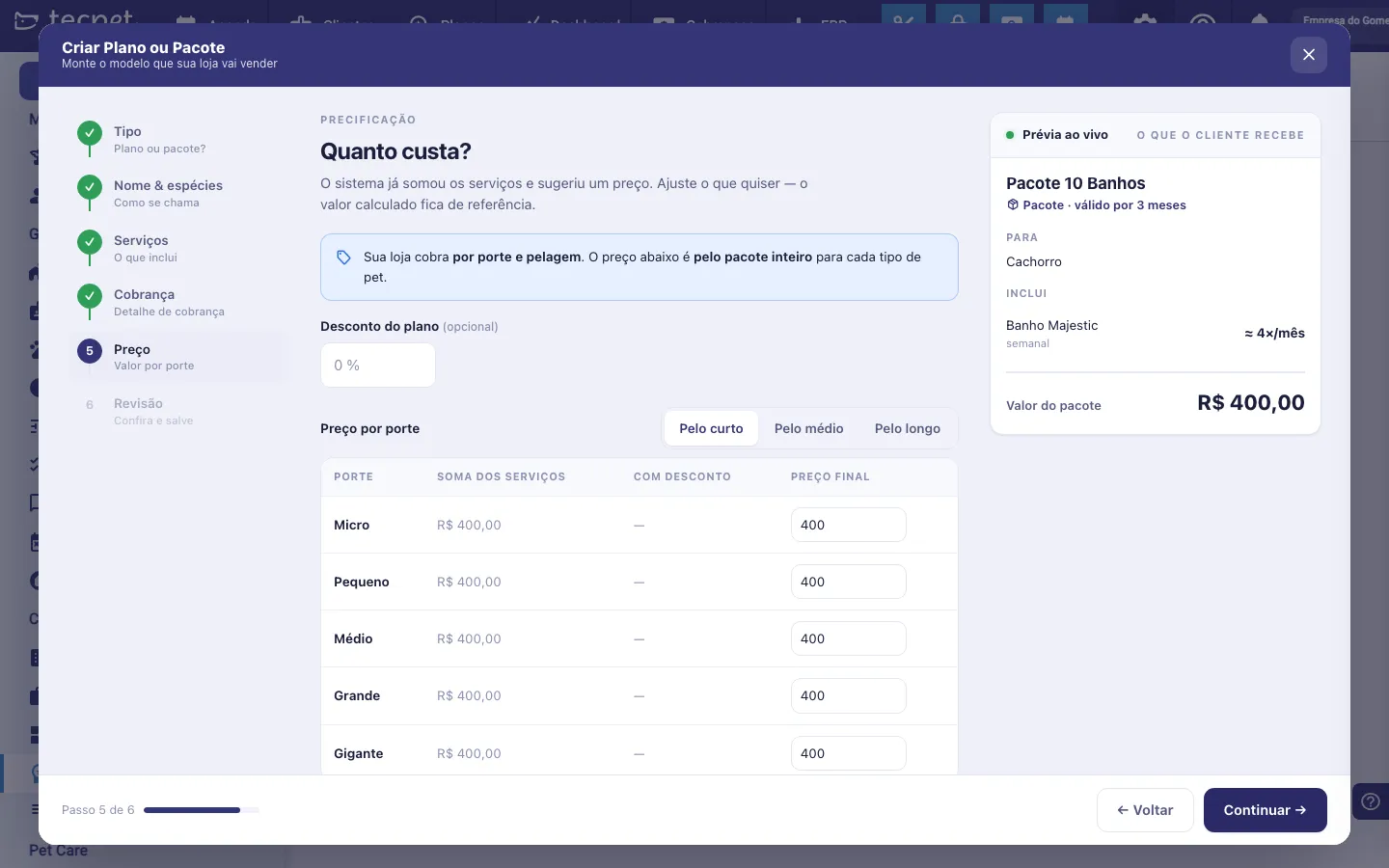
Section titled “Step 6: The price”The system has already added up the services and suggested a price. The table format depends on your shop’s pricing mode: pick your case in the selector at the top of the article and see the matching section further down.
There is also the Plan discount field (optional), which takes a percentage off the sum of the services.
Step 7: Review and save
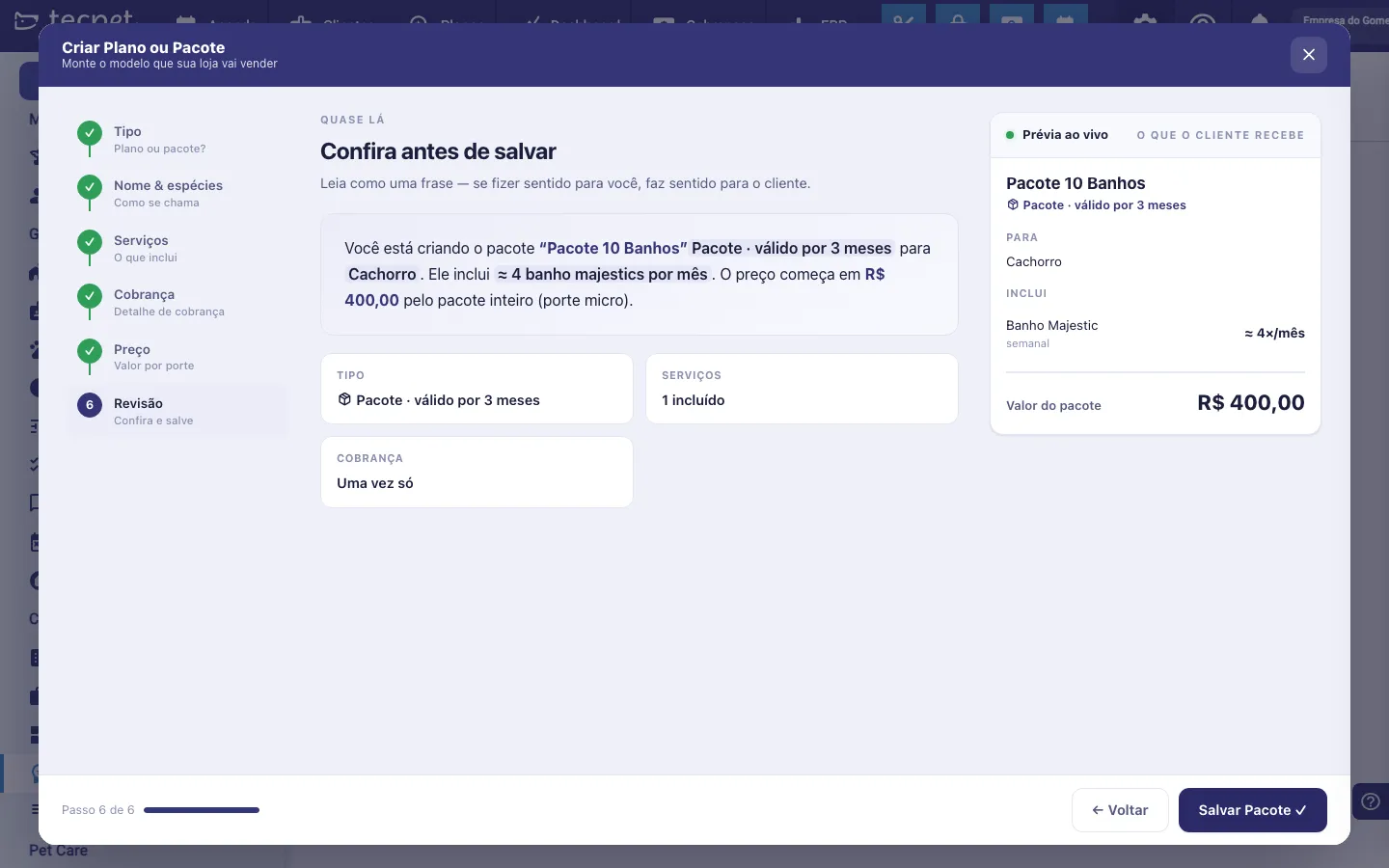
Section titled “Step 7: Review and save”The last step builds a summary as a sentence: the idea being that if it makes sense read like that, it makes sense to the client. For example: “You are creating the package ‘Pacote 10 Banhos’. Package · valid for 3 months for Dog. It includes ≈ 4 baths a month. The price starts at R$ 400.00 for the whole package (micro size).”
Below it, the Type, Services and Billing cards repeat what was chosen. Check it and click Save: the plan then appears in the list and is ready to sell.
How to edit or remove it later
Section titled “How to edit or remove it later”On the Plans list, click the plan to reopen the wizard in edit mode, change what you need and save. To delete it, use the Remove button in the wizard footer, which asks for confirmation. The full walkthrough is in Edit or remove a plan.
The price table according to your pricing mode
Section titled “The price table according to your pricing mode”Your shop charges by size and coat. The price step brings one row per size (Micro, Small, Medium, Large, Giant) and one column per coat: Short coat, Medium coat and Long coat. On each row the system shows the Sum of services, the value With discount (the sum already with the Plan discount) and the Final price. The price used is the calculated one, unless you type a value, then it becomes fixed on that row.
By breed
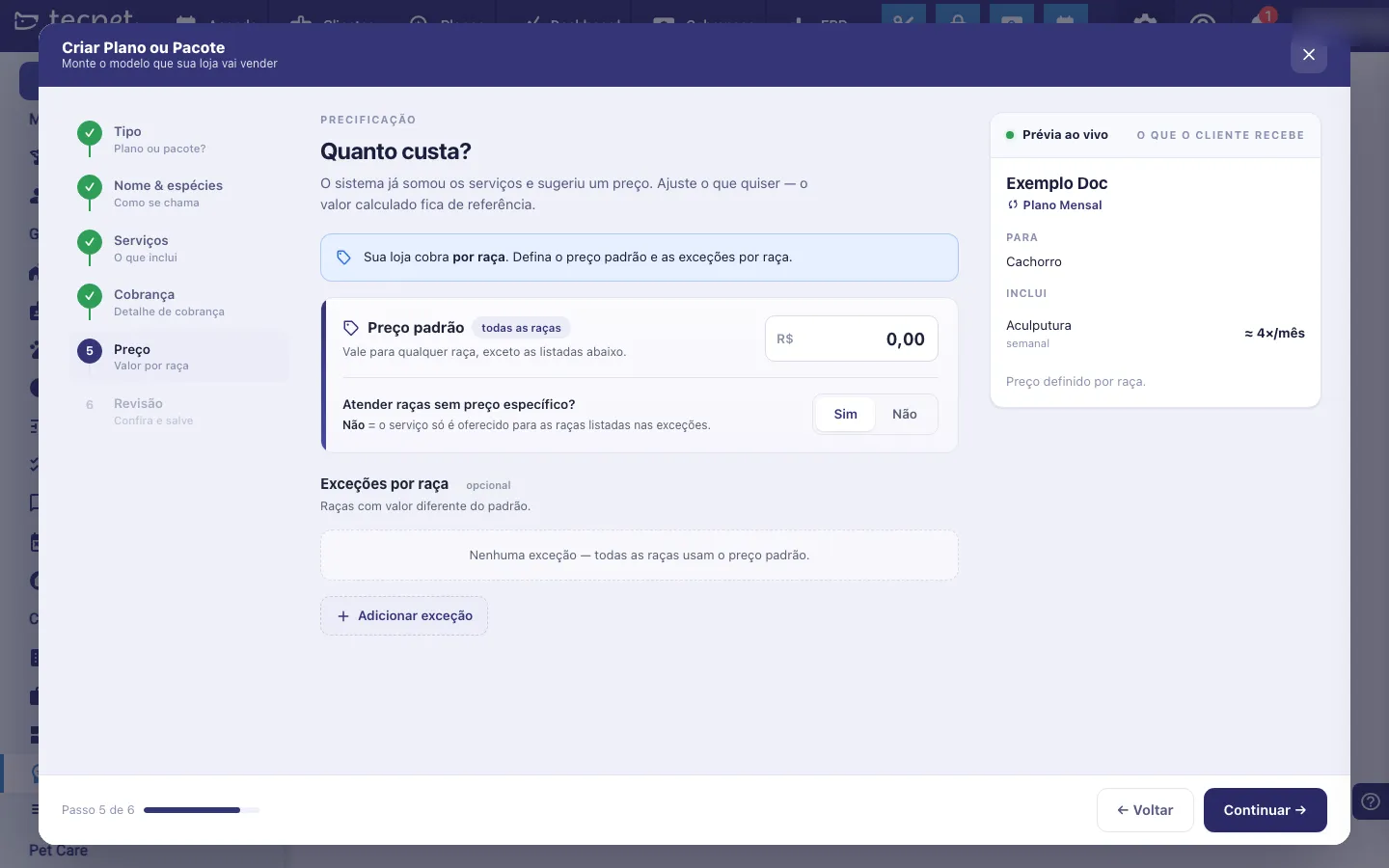
Your shop charges by breed. Instead of the size×coat table, the price step works with a default price and exceptions:
- Default price (all breeds), applies to any breed except those listed in the exceptions;
- Serve breeds with no specific price?: Yes or No. With No, the plan is only offered to the breeds listed in the exceptions;
- Exceptions by breed (optional), use Add exception for breeds priced differently from the default. While there is none, the block reads “No exceptions, all breeds use the default price.”
The live preview on the right then shows Price set by breed instead of the amount. (Breed pricing mode is set in Billing parameters.)