
Overbooking and blocking overbooking
When the calendar has no free slot left for the day, you can still force the booking in: that is overbooking. In tecpet there are two ways to do it, and the difference is only one: whether the booking takes up the professional’s time or not. Choosing the right one is what keeps the calendar from promising the same slot twice.
What is it worth to say yes with a full calendar? #

Calendar full, customer walking away
Every no for lack of a slot is revenue walking out and landing at the competitor.
“A full calendar is not a closed calendar.”
The customer calls on Friday wanting a bath on Saturday. The calendar shows no slot and the front desk says it cannot be done. Except it could: one more bath fit between two bookings, and whoever was at the table knew it. What was missing was a safe way to record it.
With tecpet overbooking you book outside the offered slots without losing control: blocking overbooking reserves the professional's time and removes that slot from the list, including from the AI on WhatsApp, and plain overbooking goes on top when the service takes up nobody. In both cases the booking sits on the calendar, with a visible mark and a history entry.
The two ways to fit a booking in
Section titled “The two ways to fit a booking in”Blocking overbooking: the slot becomes the professional’s. It leaves the list of offered slots, both for the front desk and for the AI on WhatsApp. Use it when the service really consumes that person’s time (an extra bath, a grooming that runs afterwards).
Plain overbooking: the booking goes on top of the calendar, without taking anyone’s time. The slot keeps being offered to other customers. Use it when the service does not require the professional to be standing there (something that runs in parallel, a delivery, a side arrangement).
When in doubt, prefer blocking overbooking: it mirrors what happens at the table and protects the calendar from two customers in the same minute.
How to spot it on the calendar
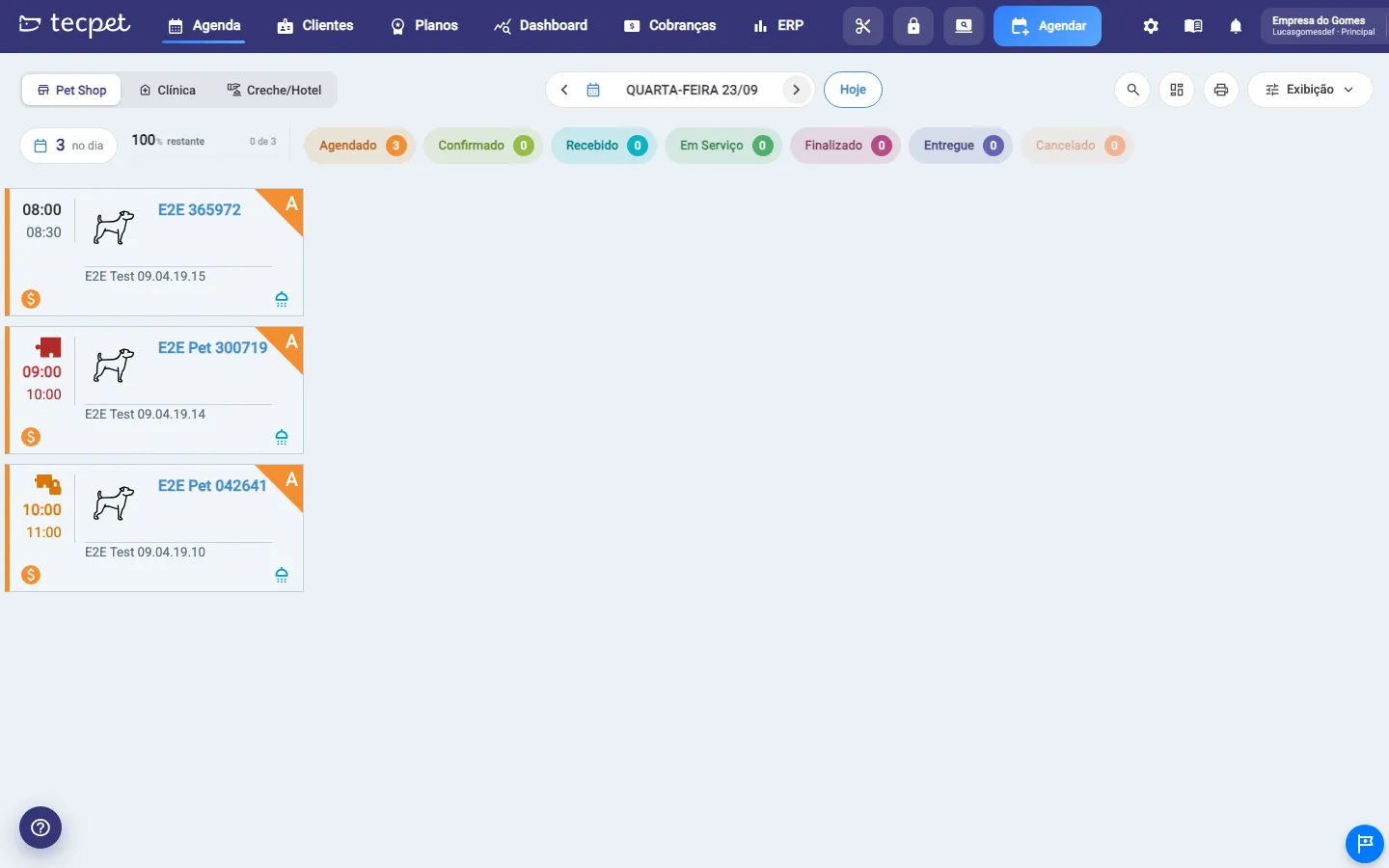
Section titled “How to spot it on the calendar”Every card shows a small mark right above the start time:
- orange mark with a padlock: blocking overbooking, the slot is reserved for the professional;
- red mark: plain overbooking, the slot is still free for other bookings;
- no mark: a normal booking, made on a slot the calendar was already offering.
The same mark appears service by service inside the booking. That matters because one booking can have a normal bath plus a grooming added later as blocking overbooking: opening the booking shows exactly which is which. The marks also appear on the Services Area cards.
Overbooking a brand new booking
Section titled “Overbooking a brand new booking”In the new booking modal, after picking customer, pet and services, you reach the date and time step. If there is no free slot, the notice No free slot? Pick an overbooking shows the two options, in this order:
- Blocking overbooking: takes up the professional at that time, and the slot stops being offered to other bookings;
- Overbooking: takes up nobody, the professional stays free.
Once picked, you set the start time and the duration. Use the + and − arrows to move one step at a time, or type it in. On blocking overbooking the step and the duration follow the calendar’s working rhythm (every 30 minutes, for instance), and the time is adjusted automatically to land exactly on it. Plain overbooking has no such constraint: it can last whatever you want, including zero.
Adding a service to an existing booking
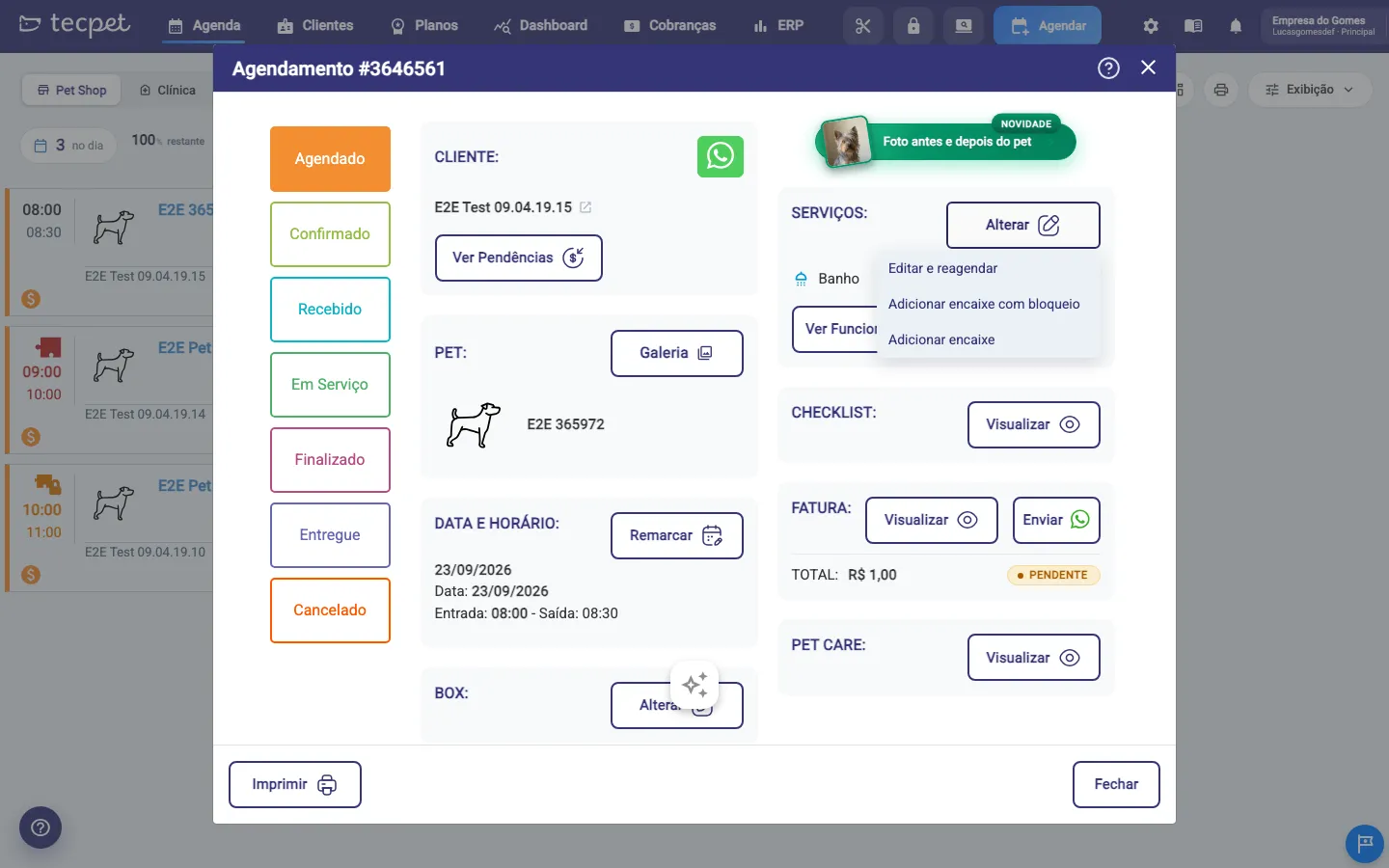
Section titled “Adding a service to an existing booking”Open the booking on the calendar and click Change, in the SERVICES block. The menu offers three paths:
- Edit and reschedule: redoes the whole booking, recalculating the time;
- Add blocking overbooking: adds the service taking up the professional;
- Add overbooking: adds the service without taking anyone’s time.
What happens when you add with blocking overbooking
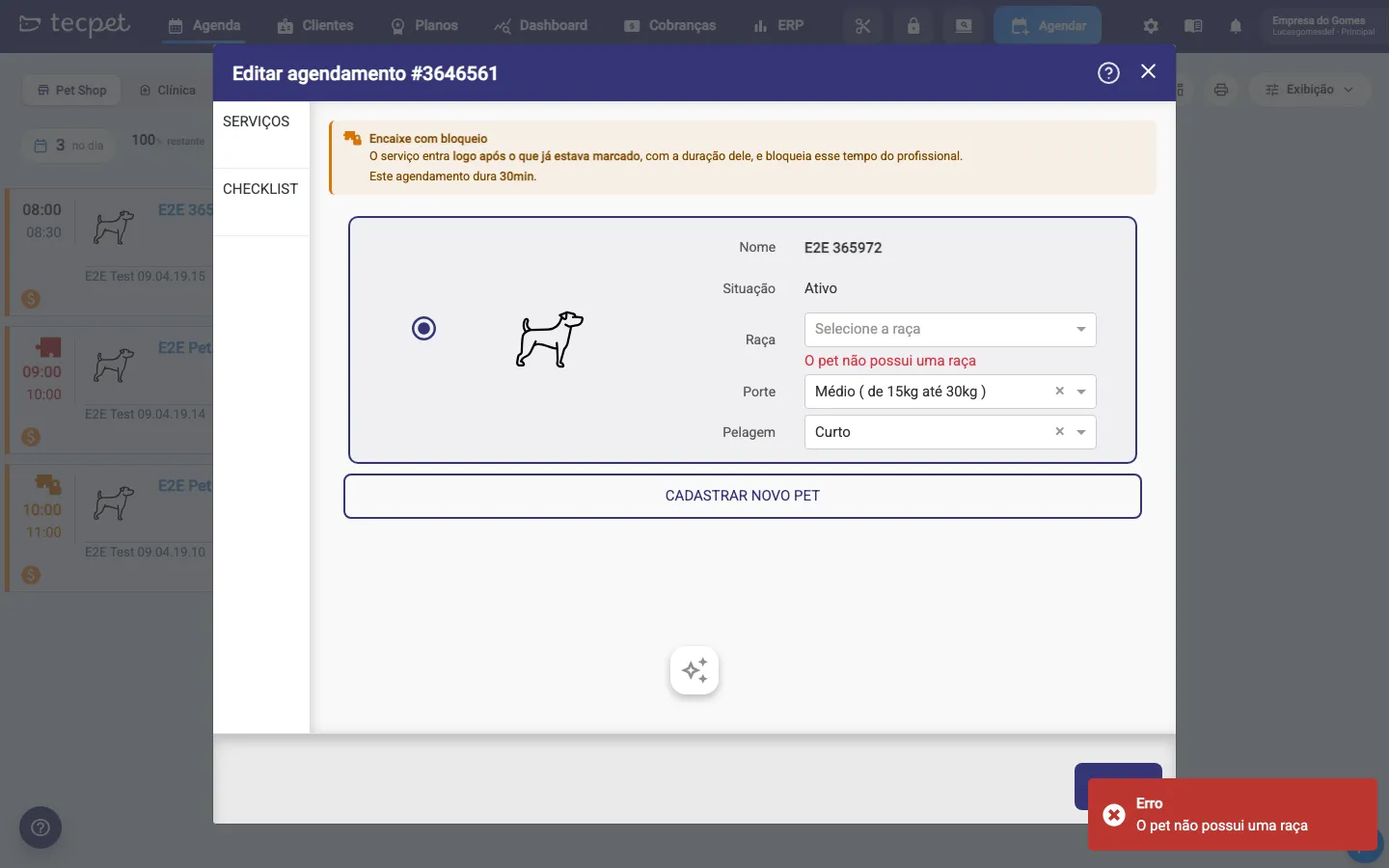
Section titled “What happens when you add with blocking overbooking”The new service does not split the existing booking window: it starts right after what was already booked, with its own duration. If the pet had a bath from 08:00 to 08:30 and you add a 1 hour grooming as blocking overbooking, the grooming runs from 08:30 to 09:30, and the booking now ends at 09:30.
The notice at the top reminds you of that and tells how long the booking lasts today. A service with no duration registered goes into the booking normally, but blocks no time at all.
Who performs the new service: tecpet prefers the professional already on the booking, as long as they handle the added service’s category. That is what happens at the table: whoever has the pet keeps it. If that professional does not do that kind of service, or if the overbooking is on a new booking with no professional chosen, tecpet picks among those who handle the category and the pet’s species following the same rule as How the system picks who serves: whoever has fewer services on the day (the default), whoever has more, or the order of the staff list. Blocking overbooking does not look at working hours, days off, blocks or free slots: it occupies the preferred professional at the time you set. If nobody in the category can be picked, tecpet asks you to point someone out under Choose staff.
In the booking history the change is logged with the type inside, for example: Services added as BLOCKING OVERBOOKING: Grooming.
Blocking overbooking on plan sales and fixed schedules
Section titled “Blocking overbooking on plan sales and fixed schedules”Blocking overbooking is also available in the two flows that create several bookings at once:
- Selling a plan or package: when picking each visit’s time, dates with no free slot accept blocking overbooking, so you finish the sale without giving up the agreed date;
- Fixed schedule: the recurring booking can be created as blocking overbooking, and every new occurrence generated month after month is born with that mark.
In both, the overbooking is recorded per visit, so you can see on the calendar which dates of that plan were forced in.
Why blocking overbooking follows the calendar rhythm
Section titled “Why blocking overbooking follows the calendar rhythm”Every calendar works in fixed intervals (every 15, 30 or 60 minutes, according to the segment setting). Since blocking overbooking does take up the professional, it has to land inside that interval: otherwise a leftover piece of time would remain that the calendar can neither offer nor block.
So, when building a blocking overbooking, tecpet rounds the time up until it closes the interval. When adding a service through Change, that adjustment is automatic and you do not have to do anything: the time comes from the service’s own duration.
Plain overbooking does not follow this rule, because it blocks nothing.