
Automatic notifications
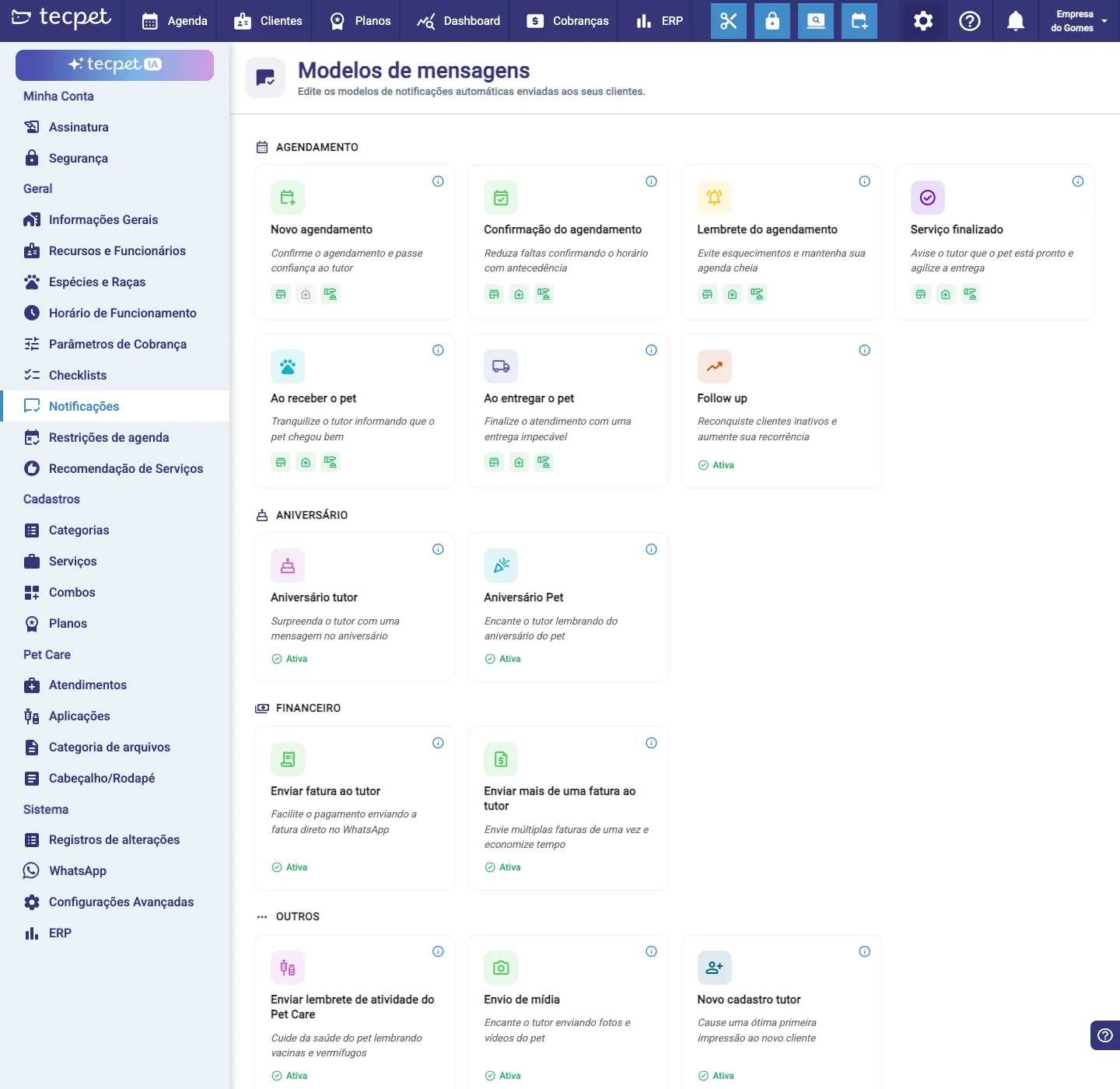
Under Settings → Notifications are the Message templates: the messages the system sends to the owner via WhatsApp (most of them automatically, some on demand). The templates come grouped into categories: Appointment, Birthday, Finance and Others, and each one is a card. Almost everything depends on the store having WhatsApp connected (see what changes with the integration).
How to fill your calendar without living on the phone? #
An empty chair is a loss
Every slot lost to a no-show is money that doesn't come back.
“The owner didn't skip on purpose. They just forgot, and no one reminded them.”
Reminding every customer of their slot, confirming the day before, letting them know the pet is ready… in the rush at the counter it doesn't happen, and the calendar gets holes.
Automatic notifications send confirmation, reminder and updates over WhatsApp at the right time, on their own. The owner confirms with one tap and your calendar fills without anyone stopping to call.
Appointment
Section titled “Appointment”These are the messages tied to the calendar. Each has its own trigger:
- New appointment: when a service is scheduled in the system;
- Appointment confirmation: before the slot, asking the owner to confirm (the exact moment is configurable, see “The send moment”);
- Appointment reminder: on the day of the service, a few hours before (only if the appointment was already confirmed);
- Service finished: right when the visit is completed (“come pick up your pet”);
- On receiving the pet: when the pet checks into the establishment;
- On delivering the pet: when the pet is delivered or leaves for delivery;
- Follow up: 15 days after the last bath, offering a new service to whoever disappeared (not sent to plan/package holders).
Birthday
Section titled “Birthday”Relationship messages, sent on the date:
- Owner’s birthday: congratulates the owner on their birthday;
- Pet’s birthday: congratulates on the pet’s birthday (requires the date of birth to be filled in on the pet’s record).
For both, you choose the time window for sending.
Finance
Section titled “Finance”Messages tied to billing:
- Send invoice to owner: sends the invoice link over WhatsApp; it is on demand (you trigger it from the invoice, it doesn’t go out on its own);
- Send multiple invoices to owner: bundles several invoice links into one message, also on demand.
- Send payment request via voucher: this template only appears for stores on a specific chain that uses voucher payment; on most accounts it isn’t even shown.
Others
Section titled “Others”- New owner registration: a welcome message on the day the owner is registered;
- Pet Care activity reminder: warns, the day before, about vaccines, dewormers and other Pet Care applications;
- Media delivery: sends the owner a photo or video recorded in Pet Care; it is on demand.
- Document delivery: sends the owner the link to a Pet Care document (prescription, exam, terms, pathology report, anamnesis or generic document); it is on demand, you trigger it with the Send to owner button on the record itself. If this template is switched off, the button warns you and nothing is sent.
How the card shows the status
Section titled “How the card shows the status”Each template’s card shows an Active (green) or Inactive (gray) label, only active ones are sent. For Appointment templates, instead of a single label the card shows one icon per segment (Pet Shop, Clinic and Daycare/Hotel), because each can be on or off separately. There is no switch on the card itself: to turn on, turn off or edit, you click the card and open the editor.
How to edit a template
Section titled “How to edit a template”Click the template’s card to open the editor (Edit notification template). Inside it you have:
- Notification active / inactive: the switch that turns sending of that template on or off;
- The message text: a box where you write what the owner receives. To insert a value that changes on each send, type @ and pick the keyword from the list (e.g. Owner’s name, Pet’s name, Appointment date, Appointment time, Invoice link, Establishment name, Checklist, Appointment services guidance). These markers show up highlighted and are swapped for the real value at send time;
- Send moment: shows when that template fires (see the next section);
- Some appointment templates also have extra settings, like Pickup & Delivery (send only to those who use the service) and redirection buttons.
At the end, click Save.
Enrich the message with the Checklist and the service guidance
Section titled “Enrich the message with the Checklist and the service guidance”Besides the basic data (name, date, time), you can send the owner complementary details of the visit using two keywords:
- Checklist (
@→ Checklist), sends, inside the notification text, the checklist the team filled in for that visit. Since the checklist is tied to the appointment stage, the value only goes out if the pet has already reached that stage and the checklist was filled in. Example: when the pet is received (check-in) and the check-in checklist is filled in, if the When the pet is received notification has the Checklist keyword, the filled checklist goes along in the message. The same applies to New appointment, Confirmation, Service finished and When the pet is delivered: each one sends the checklist of its respective stage. - Appointment services guidance (
@→ Appointment services guidance), sends the guidance registered on the services of that appointment (the guidance text you set when creating the service), handy for passing recommendations and care instructions to the owner.
This way the automatic notifications become richer: on top of the alert, they deliver to the owner what was checked on the pet and the service guidance.
The send moment (lead time)
Section titled “The send moment (lead time)”Each template fires on a fixed trigger (at scheduling, at delivery, on the birthday, on demand, etc.). For some, Confirmation, Reminder, Follow up and the two Birthday ones, you can customize the send moment (the time window and the lead time) inside the editor. This fine-tuning is a feature released by tecpet: if the option appears locked, the system shows a notice with a button to talk to Sales and request it.
By segment (Pet Shop, Clinic, Daycare/Hotel)
Section titled “By segment (Pet Shop, Clinic, Daycare/Hotel)”If your store works with more than one segment, the Appointment notifications can be turned on/off and have different texts per segment. In the editor of these templates tabs appear (Pet Shop, Clinic, Daycare/Hotel): pick the segment’s tab, adjust the switch and the text, then save. This lets you, for example, keep the reminder only for the Clinic, or use specific wording for the Daycare. The other categories (Birthday, Finance, Others) are not split by segment.
When the store uses the official WhatsApp API (Meta)
Section titled “When the store uses the official WhatsApp API (Meta)”If the store is on the official Meta API, each template needs a Meta-approved template. In that case the card shows the template’s status: Approved, Pending, Rejected or No Meta template (when it hasn’t been linked yet). Templates without an approved template can’t be sent, choose/link the approved template inside the editor before relying on the send.