
Inside an invoice
Almost everything in tecpet generates an invoice: an appointment, a counter sale, the purchase of a plan/package. They all live under Billing. Here we explain the invoice from the inside: what you see and do when you open it. (To track the list day to day, see Track billing.)
Invoice types
Section titled “Invoice types”By Type, an invoice can be:
- Appointment: generated by an appointment (linked to it);
- Plan/Package: for the purchase or use of a plan;
- Standalone: a charge created manually, with no appointment;
- Voucher: related to a credit/voucher.
The type influences what you can edit and the footer texts.
Sell a product (standalone sale)
Section titled “Sell a product (standalone sale)”To sell a product or charge for something without an appointment, create a standalone sale:
- Open the customer profile and click New sale: the New Invoice window opens;
- Under Items, click the +. In the Type field, choose Product (the list also has Service, Voucher, Pickup & delivery and Other);
- Fill in the Product name, the Value (R$) and the Quantity, then click Save;
- Repeat to add more items. If you like, write a Note and adjust the Due date;
- Click Pay to get paid right away, or Send to deliver the charge via WhatsApp.
ERP products on the invoice
Section titled “ERP products on the invoice”If your store has an ERP integration (VHSYS), you can add ERP products to the same invoice, alongside the service items, not only on stand-alone sales. The feature is rolled out gradually: ask support to enable it. Whoever adds products also needs the Gerenciar produtos na fatura (manage products on the invoice) permission (see Resources and staff).
When you add an item of type Produto (product), the product search opens (Buscar produto por nome ou código…, search by name or code), which looks in your local catalog and the ERP too. Once a product is chosen, enter the Quantidade (quantity, the system shows the available stock); the Valor (value) comes pre-filled from the ERP and isn’t editable. When the product has more than one stock location or lot control, those fields appear too. There’s also the Insumo (supply) type, for internal-use items (e.g. vaccines), which write off stock but don’t appear as a service line.
In the item list, the product is tagged Produto (and Insumo for internal-use ones), with the item’s photo. Products can’t be edited after being added, because the data is synced with the ERP, to change one, remove it and add it again.
In the ERP, the invoice’s product becomes a line on a Sales Order (PV) in VHSYS, alongside the services’ Service Order. See What changes with the integration on and VHSYS integration.
Without ERP: stores with no integration keep typing the product name freely on the stand-alone sale, with no catalog or stock write-off.
Find the invoice (filters)
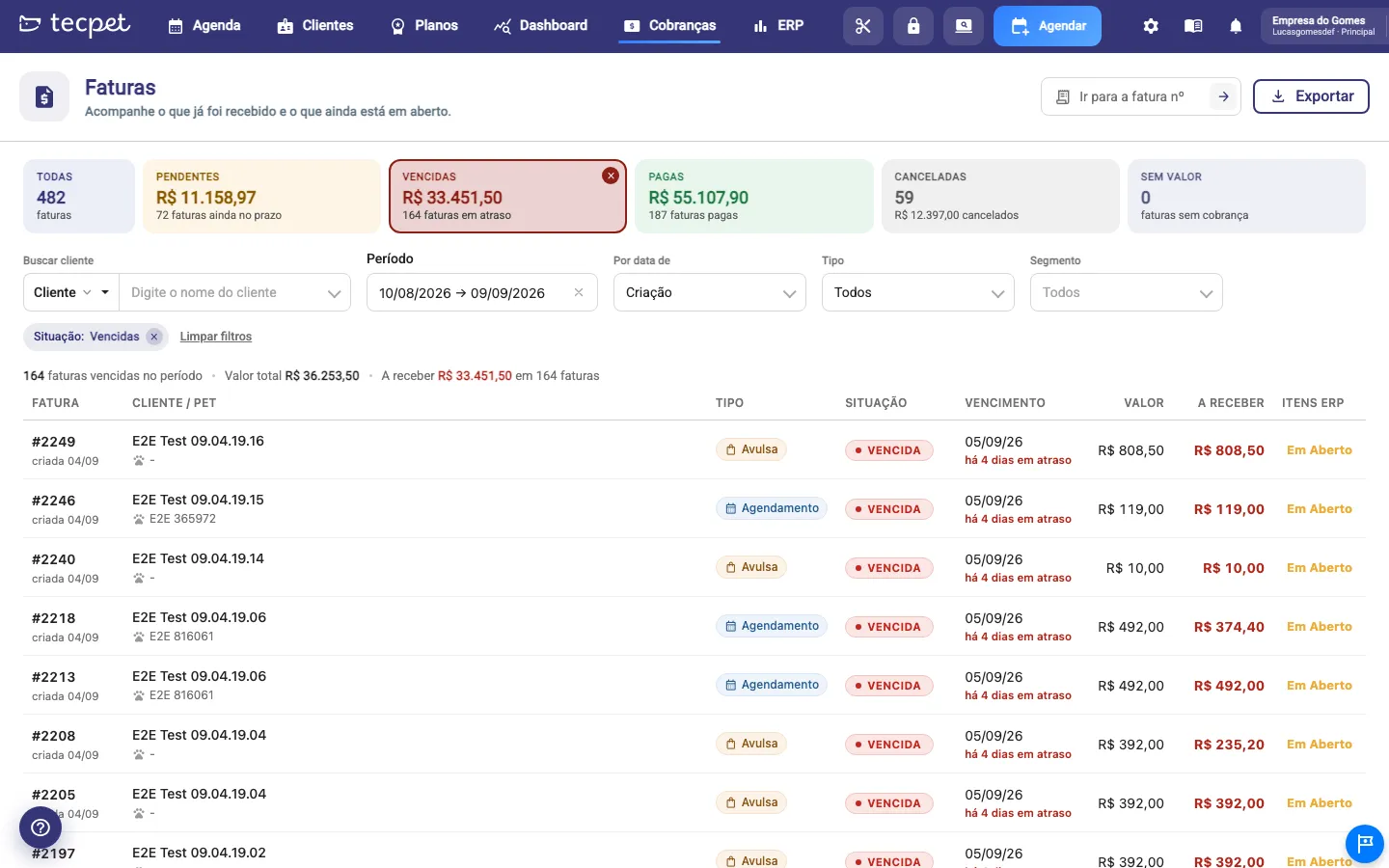
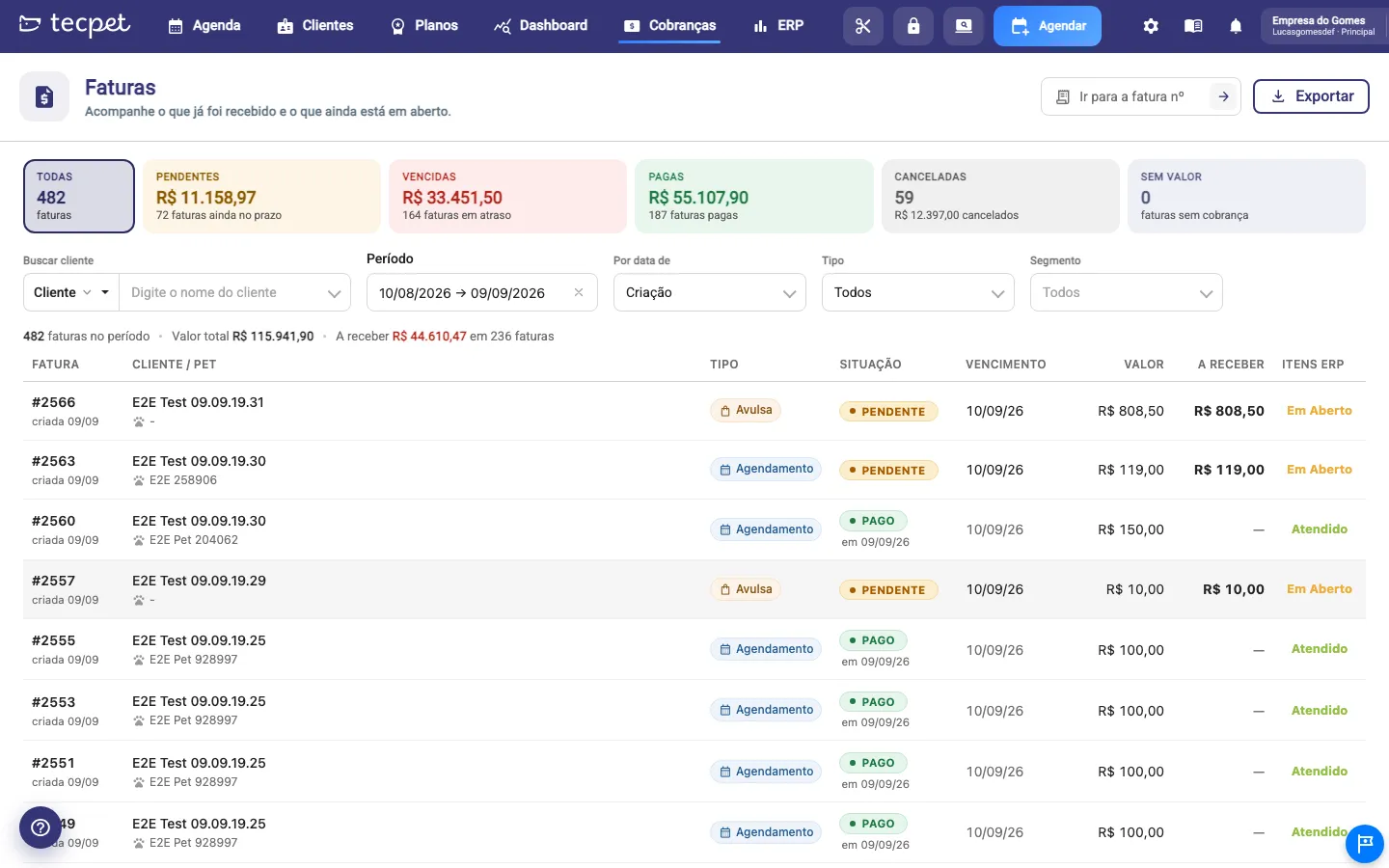
Section titled “Find the invoice (filters)”Under Billing, the filters live on the screen itself, on the row below the status indicators: client search (by name, pet or phone), period and by date of (creation, due date or payment), type (Booking, Plan/Package, Standalone, Voucher) and, if the shop has more than one, segment. To filter by status, click the matching card at the top (Pending, Overdue, Paid, Canceled, No value). The list reloads on every change. To find an invoice by number, use Go to invoice no.. The full walkthrough is in Track your billing.
Open an invoice
Section titled “Open an invoice”In the list, click anywhere on the row (or on the invoice number) to open the full invoice. There are no action buttons in the list: Pay, Send and Reverse live inside the invoice.
Inside the invoice
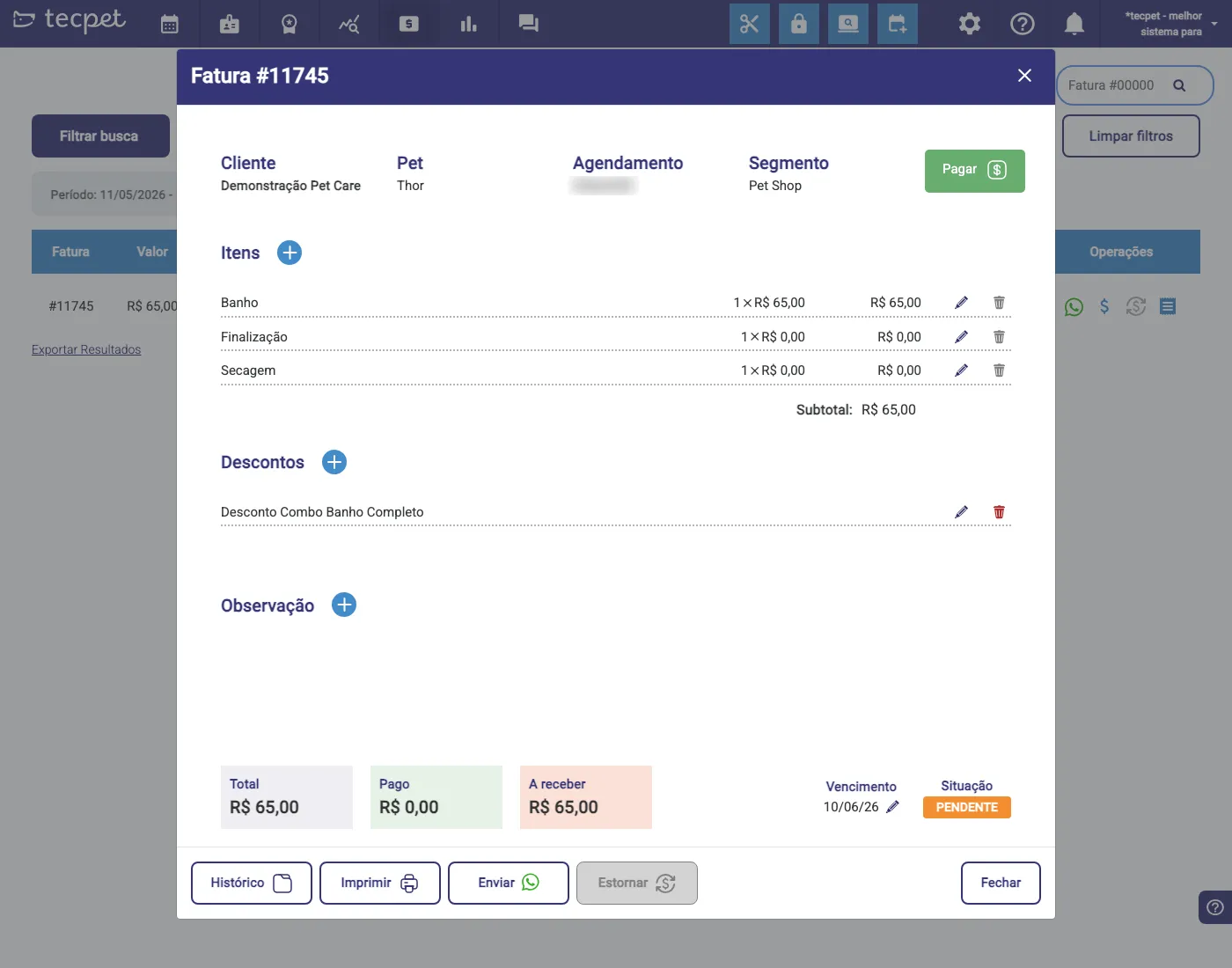
Section titled “Inside the invoice”The window shows, at the top, Customer, Pet, Appointment (when there is one), Segment and the Pay button. Below:
- Items: the services/products charged; + adds an item, the pencil edits the value/quantity and the trash removes it;
- Discounts: discounts applied (e.g. a combo discount); you can add/edit;
- Note: a free note on the invoice;
- Subtotal and, in the footer, Total, Paid and To receive, plus the Due date (editable) and the Status (Pending, Paid, Overdue…).
The footer buttons
Section titled “The footer buttons”At the bottom of the window:
- Pay (at the top), registers the invoice payment;
- History: all changes to the invoice;
- Print: generates the invoice for printing;
- Send: delivers the charge via WhatsApp;
- Reverse: undoes the payment (only on an already-paid invoice);
- Close.