
Sell a plan to a customer
Selling a plan is what turns a catalog plan into something real for a customer: it generates the invoices and, if you want, books the time slots in the calendar right away. The sale always happens inside a customer’s profile, on the Plans & Packages tab, and requires the customer to have at least one pet registered. From there, a 5-stage wizard walks you through the sale from start to finish, with a Sale summary always visible on the right. If the customer doesn’t exist yet, register the customer and register the pet first. (The plan catalog is built in Create a plan or package; here we just sell one that already exists.)
How to turn one-off clients into loyal regulars? #

A one-off client is a client who can vanish
Without recurrence, you restart the sale at every single bath.
“Whoever leaves with the whole month booked has no reason to disappear.”
The one-off client vanishes without notice, and you spend energy (and discounts) to win back someone who was already yours.
With a plan, the client leaves with the month (or the year) already booked and billing on autopilot. It becomes recurring, predictable revenue, and the pet always comes back.
Step 1: Open the customer’s Plans & Packages tab
Section titled “Step 1: Open the customer’s Plans & Packages tab”Find the customer in Customers and open their profile. In the profile’s side menu, click Plans & Packages.
The screen shows one section per pet (with the pet’s name as the heading) and, inside each one, the cards of the plans that pet already has plus the dotted card with + and the text Sell plan. At the top there’s the Showing bar, with one pill per status and a counter on each: Active, Pending, Overdue, Booked, Finished, Cancelling and Cancelled. Click a pill to show or hide that status, Cancelled starts turned off, so the screen isn’t cluttered with old plans.
Click Sell plan on the pet that will get the plan.
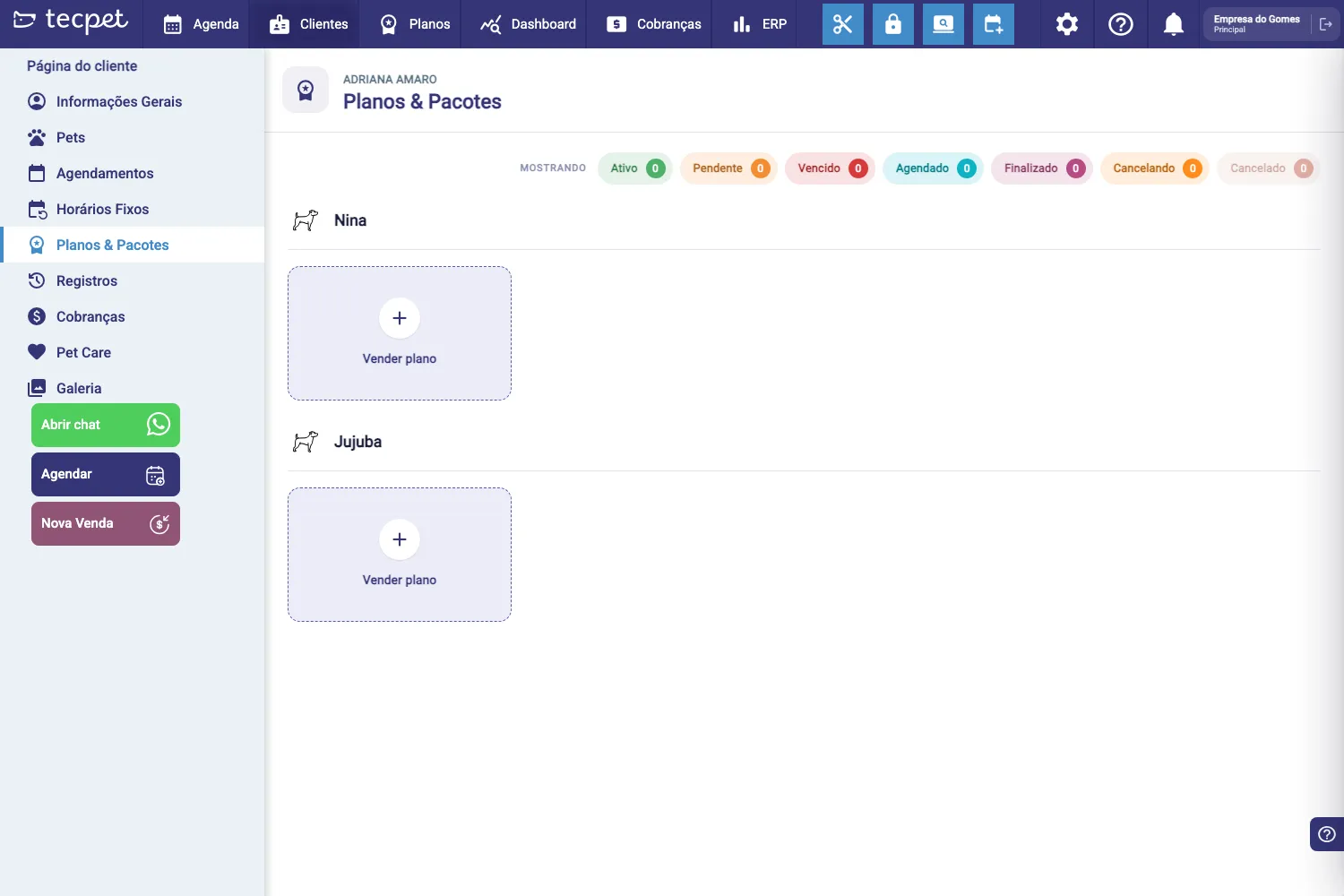
If the customer has no pet yet, the screen shows “No pet for this customer” and “Register a pet in order to sell a plan or package.”, in that case, register the pet first.
Step 2: Confirm the pet (wizard stage 1)
Section titled “Step 2: Confirm the pet (wizard stage 1)”The Sell Plan, for <customer name> wizard opens. On the left is the trail of the 5 stages (Customer & pet, Plan, Schedule, Price and Review); at the bottom, Step X of 5, the progress bar and the Cancel / ← Back and Continue → buttons.
On the first stage (Who it’s for, Which pet will use the plan?) you see the cards of the customer’s pets, each with a photo, breed, Size, Coat and status (Active, Inactive…). The pet whose Sell plan card you clicked comes pre-selected; click another card to switch.
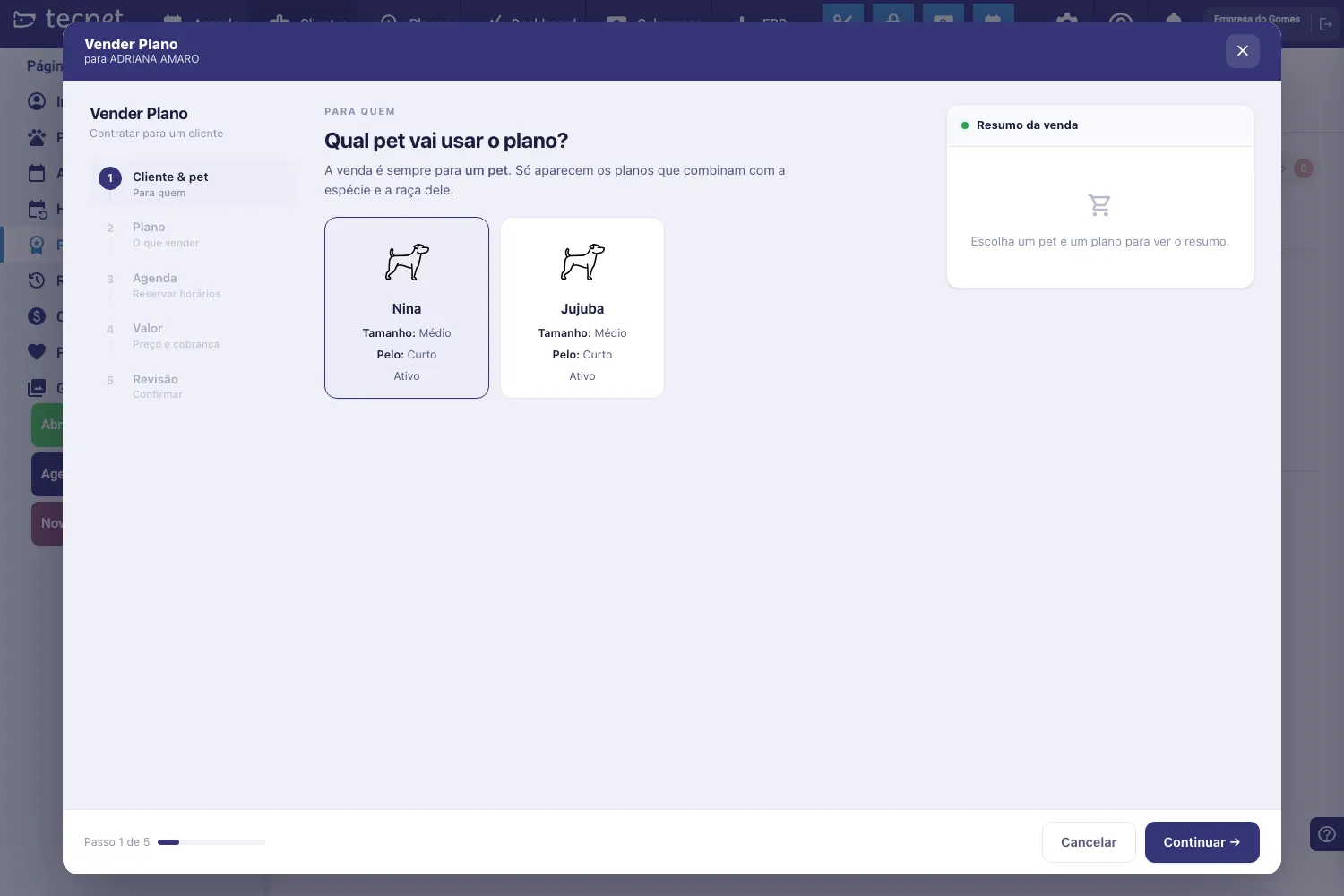
Click Continue →.
Step 3: Choose the plan or package (stage 2)
Section titled “Step 3: Choose the plan or package (stage 2)”Under What to sell, Choose the plan or package, open the Plan * field (Select plan). The list is already filtered by the pet’s species and breed: only what fits that pet shows up.
Each item in the list shows the type in parentheses:
- <Name> (Monthly / Quarterly / Half-yearly / Yearly Plan): a recurring plan, billed every month;
- <Name> (Package lasting N months): a package with a fixed term;
- the suffix · Hybrid appears on hybrid plans.
Once a plan is chosen, the Included services label lists what’s inside, as chips in the format 4× Majestic Bath. If the plan has a description on file, it appears just above, in a blue note.
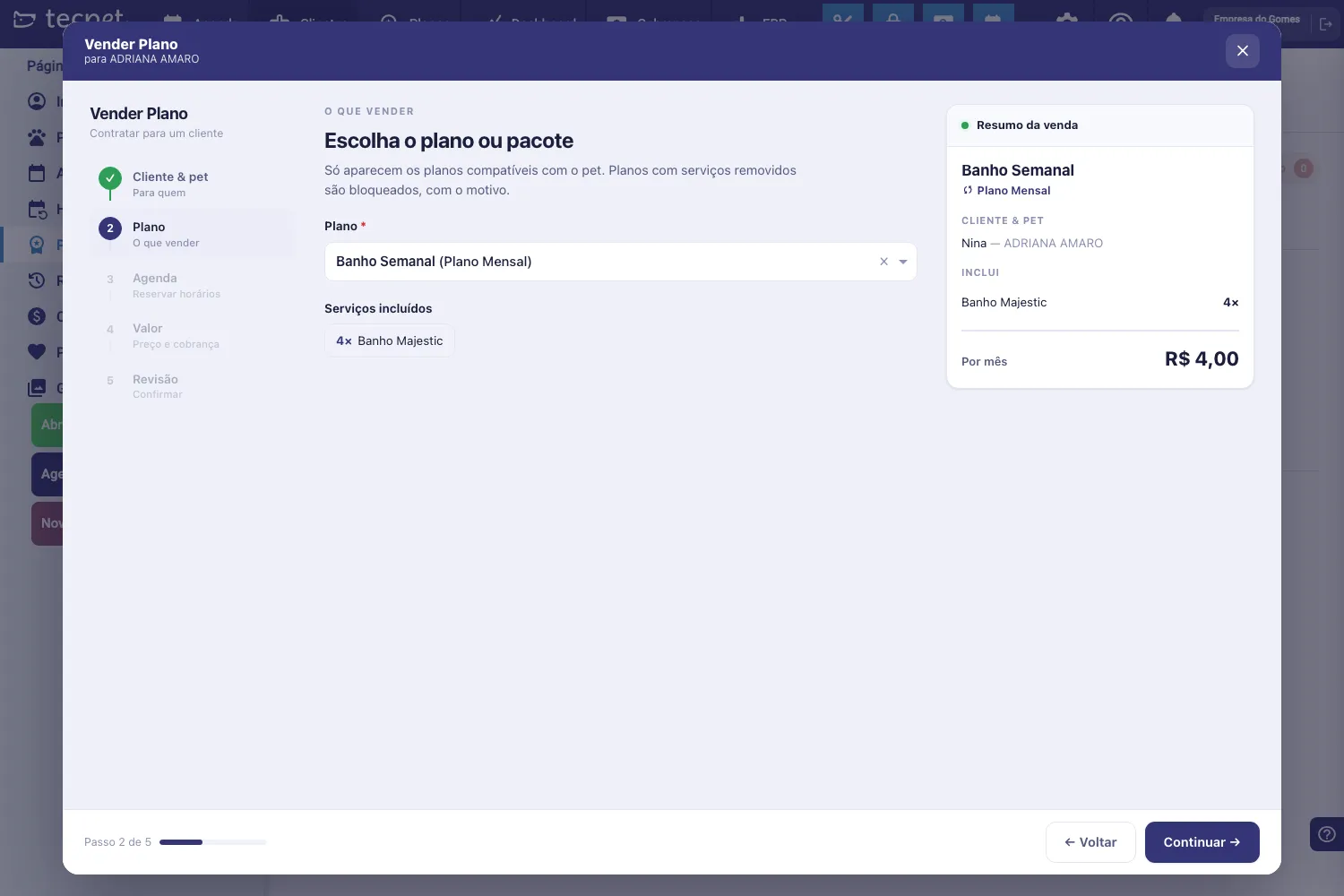
Situations that come up here:
- “No plan available for this pet”: no catalog plan accepts that species/breed. Adjust the plan in Create a plan or package or the accepted species and breeds.
- Blocked plan with the reason: plans left with services that were removed from the catalog can’t be sold; the message under the field says why.
- Hybrid plan with time booking: a blue note explaining the calculation, in the charge mode the plan uses (set in Create a plan or package). Charging by number of visits: “Hybrid plan: on months with one extra occurrence, the price goes up in the same proportion as the visits (a month with 5 instead of 4 = price × 5/4). The price shown is the base price of the standard month.” Charging by services performed: “Hybrid plan: on months with one extra occurrence, the price goes up according to the extra services performed and the price of each one. The price shown is the base price of the standard month.”
- Hybrid plan without time booking: yellow note: “This plan is hybrid, but without time booking the charge will follow the plan’s standard monthly billing.”
Step 4: Set the schedule (stage 3)
Section titled “Step 4: Set the schedule (stage 3)”Under Schedule, How will the bookings work? you say where the services will be used, when the plan starts and, if you want, book the time slots right away.
Fields at the top:
- Segment: where the plan’s services will be used: Pet Shop, Clinic, Day Care/Hotel or None. It comes pre-filled based on the plan’s services.
- Start date:: when the plan takes effect. It can be today or a future date.
- End date:: calculated automatically from the start date and the plan type (Monthly adds 1 month, Quarterly 3 months, and so on; a Package uses its configured duration). You don’t fill this field.
- Billing:: shows “Monthly, every day X”, the day of the month the invoice is due. It doesn’t appear on a Package, which has a different billing logic (see Step 5).
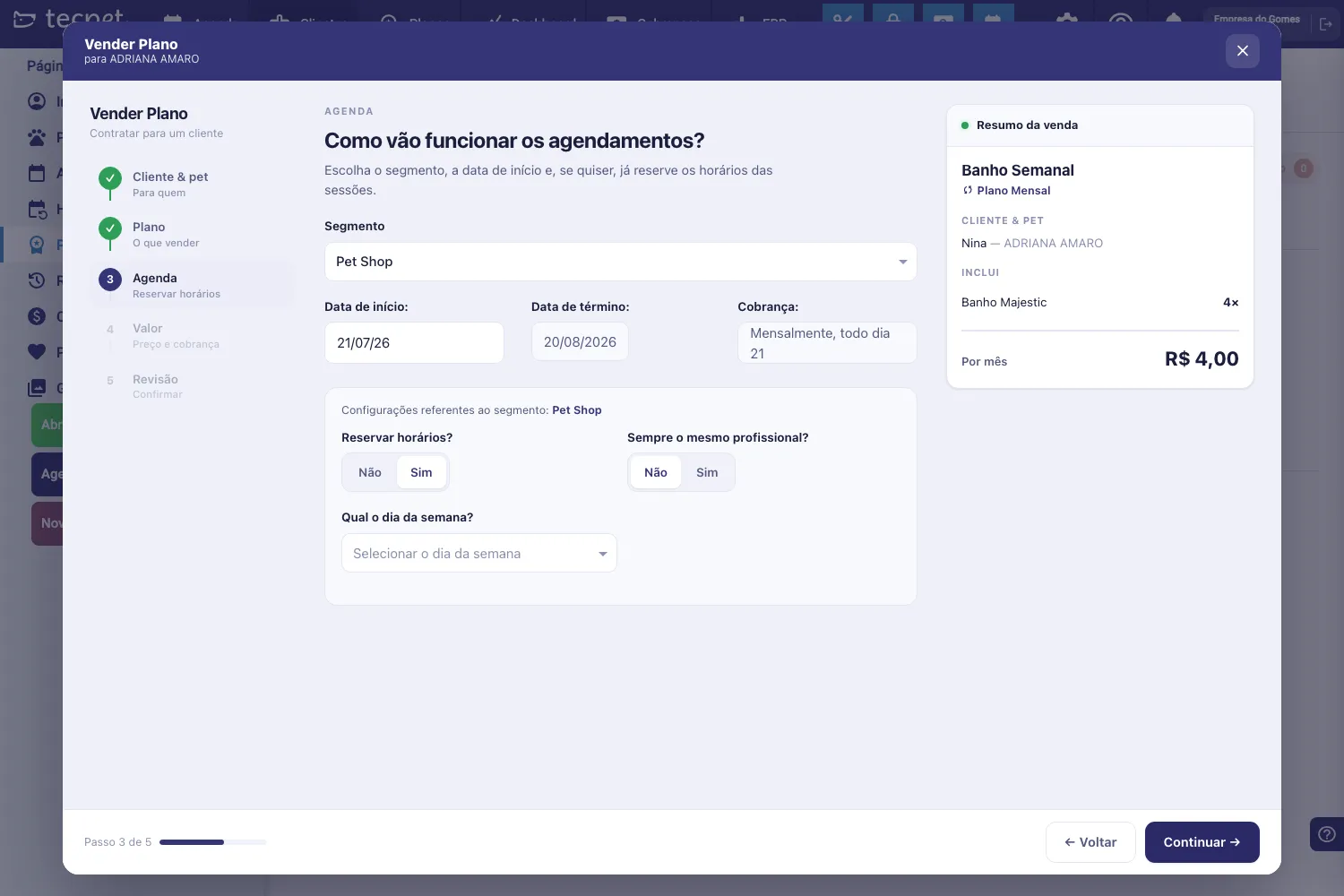
Below comes one card per segment, titled “Settings for the segment: <segment>”. If that segment has no recurring service in the plan, it only shows “No settings to define for this segment.” Otherwise, the fields are:
- Book times?: No / Yes. It comes as Yes when the plan has a recurring service. With No, the plan is sold without creating any booking.
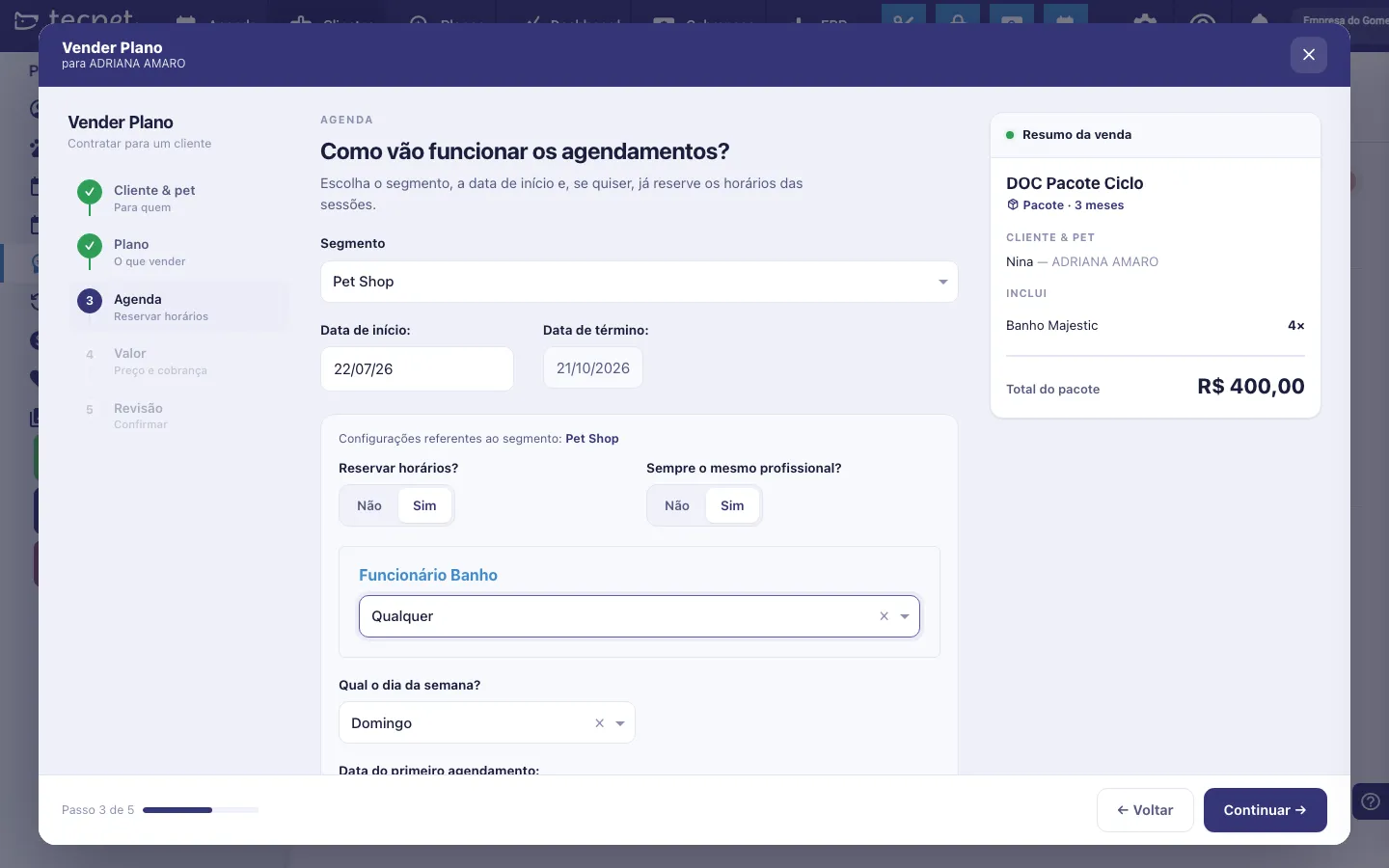
- Always the same professional?: No / Yes. With Yes, an <category> employee picker opens for each service category (who does the bath, who does the grooming…). This field does not appear in the Day Care/Hotel segment.
- Which day of the week?: the fixed day for the bookings: Sunday, Monday, Tuesday, Wednesday, Thursday, Friday or Saturday. If the plan needs more than one day per week, Select N days of the week with checkboxes appears instead.
- Date of the first booking:: an inline calendar that only enables the dates of the weekday you chose.
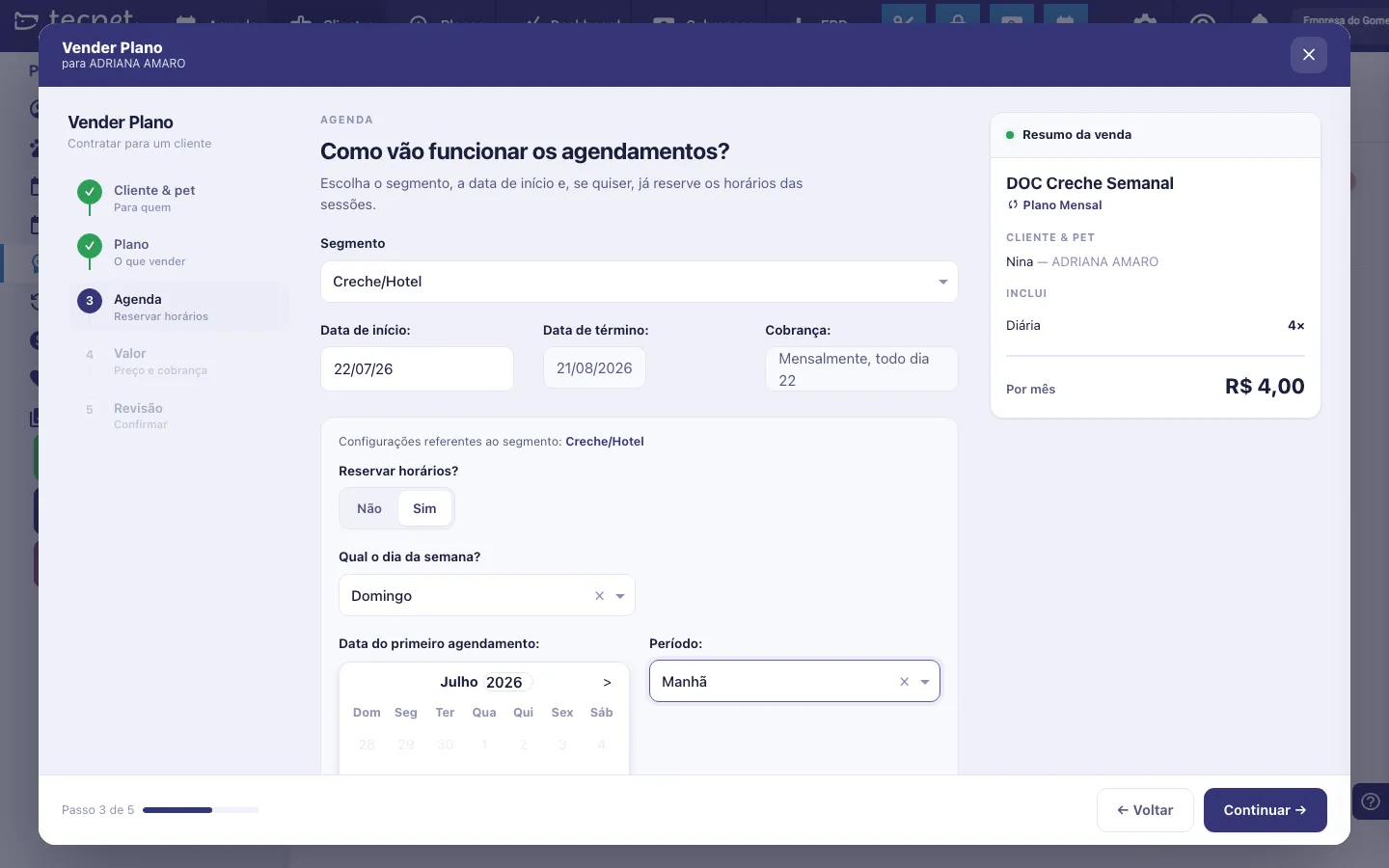
- Period:: only in the Day Care/Hotel segment, to choose the period of the day.
- Pick a time:: the grid of free times. Click the time that will become the plan’s fixed time.
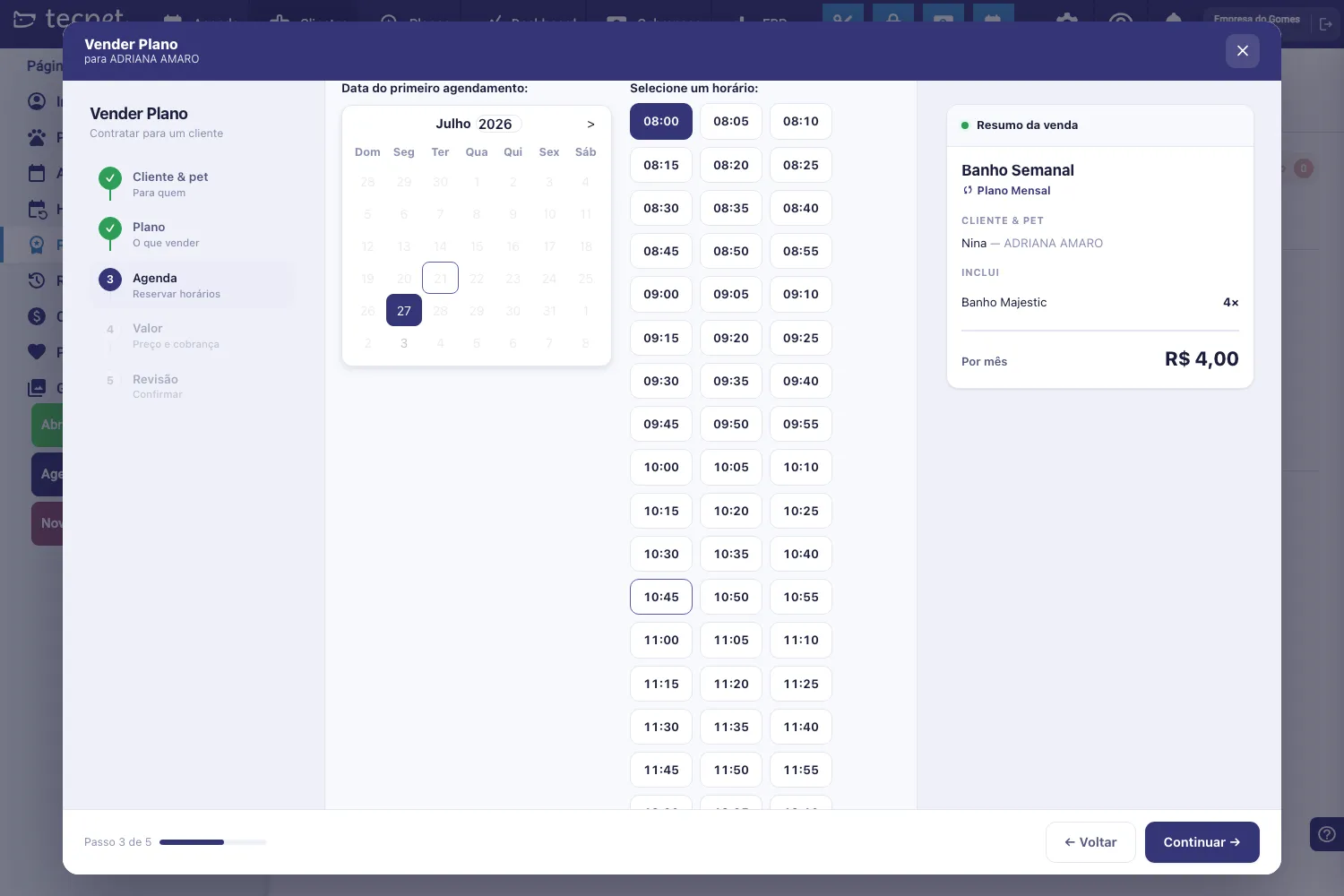
With Always the same professional? = Yes, a picker appears for each service category, below, the Bath employee. Leave it on Any for the system to choose.
In the Day Care/Hotel segment the step changes: Always the same professional? disappears and Period: comes in, with the periods enabled on the service (Morning, Afternoon or Full day).
If the time you want isn’t there:
- the message “No time available.” means that weekday is full;
- the times that only fit by overbooking on part of the dates appear in the same grid, in the group “Only with overbooking on some dates:”, each with the fraction of dates that would come in as overbooking (e.g. 24 of 48 dates). When you pick one of them, the selector “On the dates where the slot is not free:” shows up right below with the two options: Blocking overbooking (takes up the professional at that time) or Overbooking (takes up nobody). Dates with a free slot go in as normal bookings. See Overbooking and blocking overbooking.
The wizard warns you when something is missing
Section titled “The wizard warns you when something is missing”If you click Continue → with the time setup incomplete, the wizard doesn’t move on and shows a yellow warning inside the segment card, saying exactly what’s missing:
- “Select the day of the week.”
- “Select N days of the week.” (when the plan needs more than one day)
- “Select the date of the first booking.”
- “Select a time for the booking.”
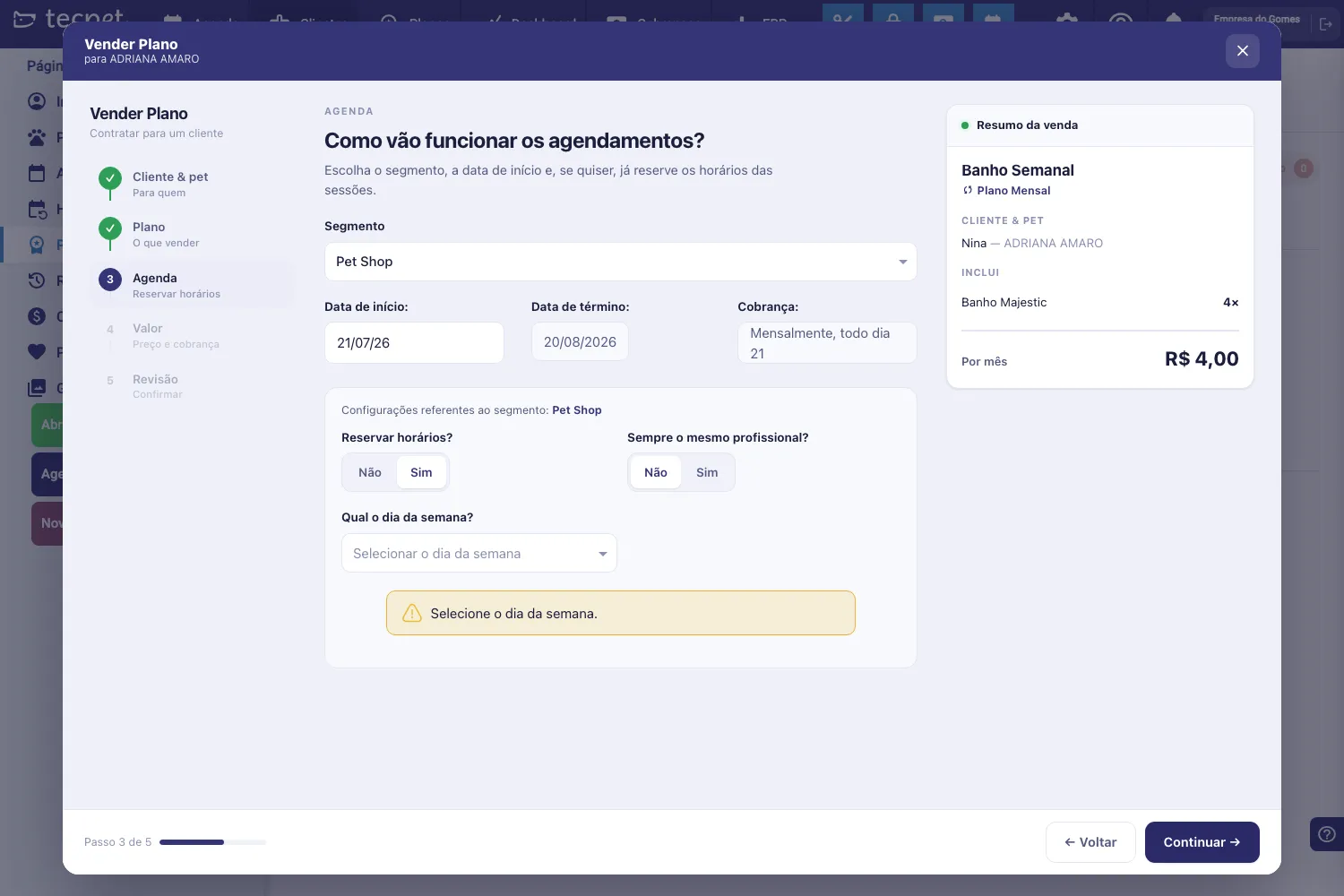
Just fill in what it pointed out and click Continue → again. The warning also disappears if you go back a stage.
Step 5: Confirm the price and billing (stage 4)
Section titled “Step 5: Confirm the price and billing (stage 4)”Under Price and billing, Confirm the price, the price already comes from the plan’s table for that pet. Fields:
- Plan price: two buttons: Table price (shows the line “Table price for this pet: R$ X”, calculated from the pet’s size and coat, or from the breed, in stores that charge by breed) or Agree on another price, which opens a money field for you to type the agreed amount.
- Pick-up & drop-off (optional): the Include in the plan switch. Turning it on opens the field for the home pick-up and drop-off amount. That amount goes into the total and shows in the summary as “includes Pick-up & Drop-off R$ X”.
- Cycle billing: only appears on a Package with a defined cycle. Choose between At the start of the block and At the end of the block, with the hint “Defines whether each block’s invoice is due on the first or the last session.” On recurring plans (Monthly, Quarterly…) the field doesn’t exist: billing is always monthly, on the day of the sale.
- Requesting employee (optional): who originated the sale. It goes on the invoice and counts towards commission. The on-screen hint makes it clear: “It’s different from whoever confirms with the password on the last stage.”
- Notes (optional): a free field, with the placeholder “Any special arrangement with the customer?”. It’s kept on the sold plan.
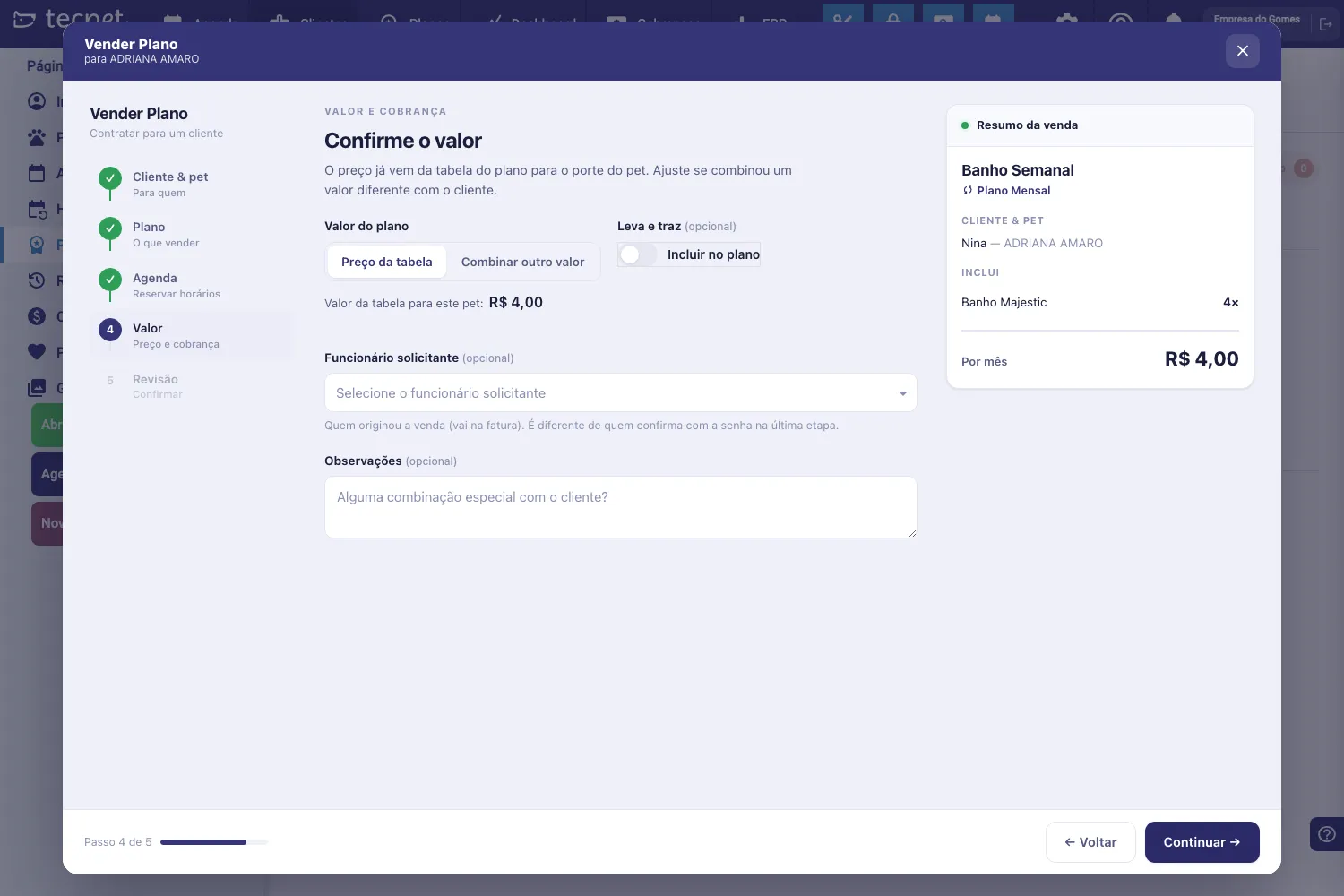
The payment method (Pix, card, cash) is not set here: it’s chosen later, when collecting each invoice, in Charges.
Step 6: Review and sell (stage 5)
Section titled “Step 6: Review and sell (stage 5)”Under Confirmation, Review and confirm the sale, the screen sums everything up as a sentence, “You are selling «Weekly Bath» for Nina, of customer ADRIANA AMARO. Billing will be monthly, R$ 4.00 per month.” (on a package, “An invoice will be generated for…”), and repeats the four key facts as cards: Pet, Plan, Start and Price.
The blue note with the padlock explains what happens next: “On confirming, the system asks for the responsible employee’s code and then creates the bookings and the invoices. You can close the window, the rest happens on its own.”
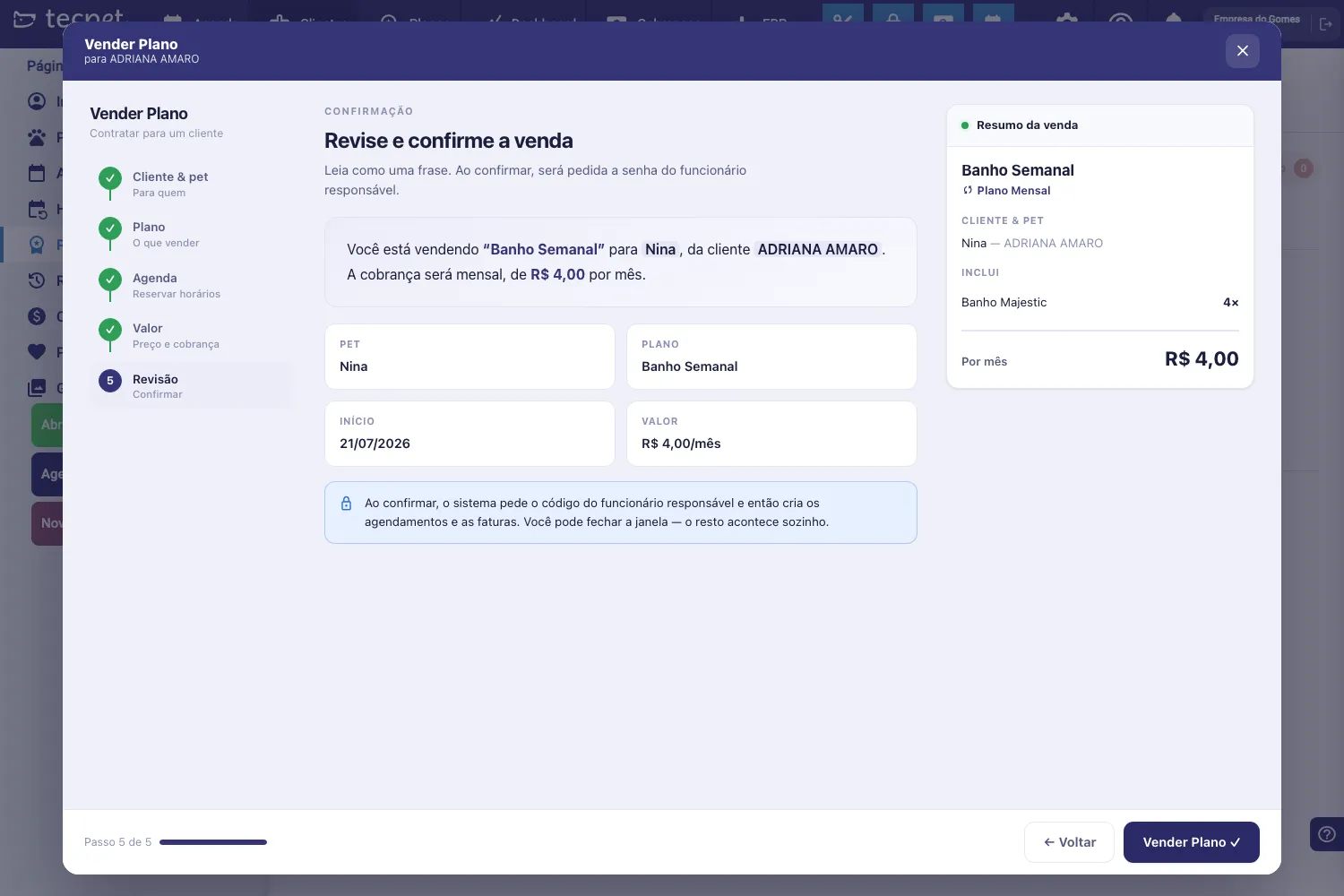
Click Sell plan ✓ and confirm with the responsible employee’s code. While the bookings are being created, the window shows “We’re reserving this time in your calendar.” and “If you prefer, you can close this window and the bookings will keep being made for you.”
Done: the plan starts showing on the customer’s Plans & Packages tab and the invoices are generated automatically, you track and collect each one in Charges.
The Sale summary panel
Section titled “The Sale summary panel”On the right, the Sale summary follows you through every stage. Before you pick a pet and a plan it shows “Choose a pet and a plan to see the summary.”; after that, it displays the plan name, the type (Monthly Plan or Package), the Customer & pet block, the Includes block (one line per service, with the quantity on the right) and the total, Per month on a recurring plan, Package total on a package.
Use this panel as your final check: it’s the same math that becomes an invoice.
Going back and fixing things before selling
Section titled “Going back and fixing things before selling”Stages you’ve already completed get a green check on the side trail and are clickable: you can jump straight back to stage 2 and swap the plan, for example. The ← Back button does the same, one stage at a time. As long as you haven’t clicked Sell plan ✓, nothing is created: no invoices, no bookings. To give up, use Cancel (on the first stage) or the × in the header.
After the sale: the plan screen
Section titled “After the sale: the plan screen”Click the plan card inside Plans & Packages to open the sold plan’s screen. At the top is the bar with Status: and the status tag (Active, Overdue, Finished…), plus the action buttons:
- Change day: “Reschedules future bookings”. It only appears when the plan was sold with booked times. It opens the Change the plan’s day window, where you pick the New day of the week, the Date of the first booking on the new day and the new time (with overbooking, if needed). The note in the window is explicit: “This plan’s future bookings will be rescheduled to the new day and time. It does not change prices, invoices or counters.”
- Extend validity: “Courtesy, no charge”. See below.
- Cancel plan: “Cancels the plan and future bookings”.
- Renew plan: only available inside the renewal window; if the plan was already renewed, the button tells you the date.
Further down, the screen shows the Type, Billing, Signed on, Start, End, Recurrence (e.g. Wednesday · PET SHOP: 14:10), Employee, Pick-up & drop-off and Note cards, plus the Invoices, the usage Counters and the Usage history with all the bookings.
Extending the validity (courtesy)
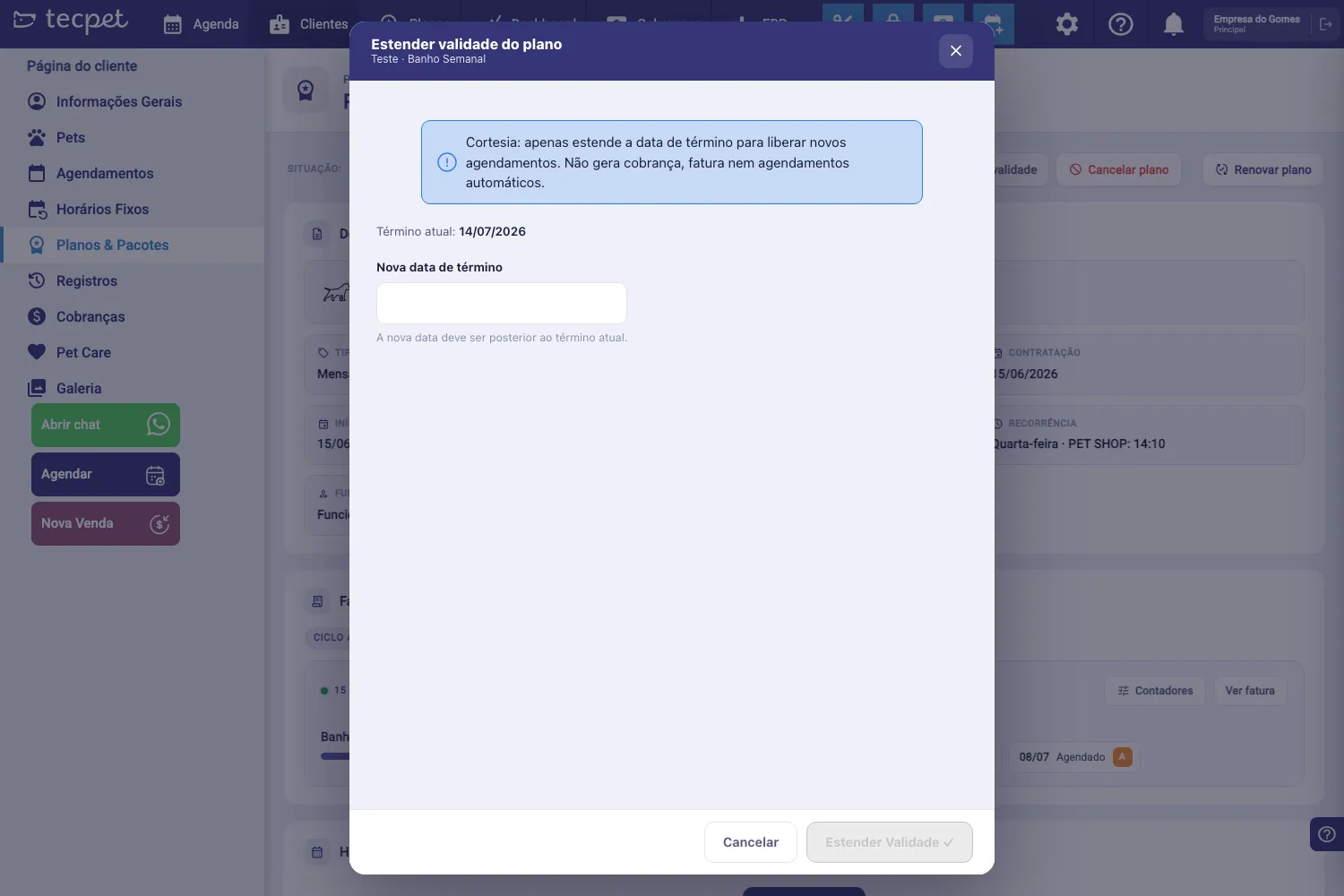
Section titled “Extending the validity (courtesy)”Extend validity is there to give some slack to a customer who couldn’t use everything within the term, for example, the pet got sick and lost two weeks of baths.
The Extend the plan’s validity window shows the pet and the plan in the subtitle, the blue note “Courtesy: it only extends the end date to allow new bookings. It does not generate a charge, an invoice or automatic bookings.”, the Current end: line with the plan’s current date and the New end date field, with the hint “The new date must be after the current end date.” The Extend validity ✓ button only enables once you pick the date.
When a booking falls outside the plan’s validity
Section titled “When a booking falls outside the plan’s validity”When you book (or reschedule) a booking using a plan, the system checks whether the date is within the validity. When it isn’t, the message explains why instead of showing a generic error:
- “The chosen date is before the plan/package start. Choose a date within the validity.”: you tried to book before the start date.
- “The chosen date is after the plan/package end. To book after that date, extend the plan/package validity.”: the way out is the Extend validity described above.
- “This plan/package was cancelled and no longer allows bookings.”: a cancelled (or cancelling) plan takes no new bookings.
What changes after the sale
Section titled “What changes after the sale”From the sale onward, that pet’s plan is an independent copy of the catalog plan: the price, services and validity are frozen as they were at the moment of sale. Editing or deleting the plan in settings does not affect this sale.
To see usage (how many baths have been used, invoices, history), open the plan inside the customer’s profile; for the whole store’s overview, use the Plans menu, described in Track plans and packages. To understand the difference between a plan and a package, see What are plans and packages.