
Edit the establishment information
Under General Information are the establishment’s data: name, contact, tax ID, address and the store description. This data appears on documents, feeds the automatic notifications and the service AI, and defines the breeds the store doesn’t serve. It’s also where you reach the calendar blocks for the whole store.
Step 1: Open Settings → General Information
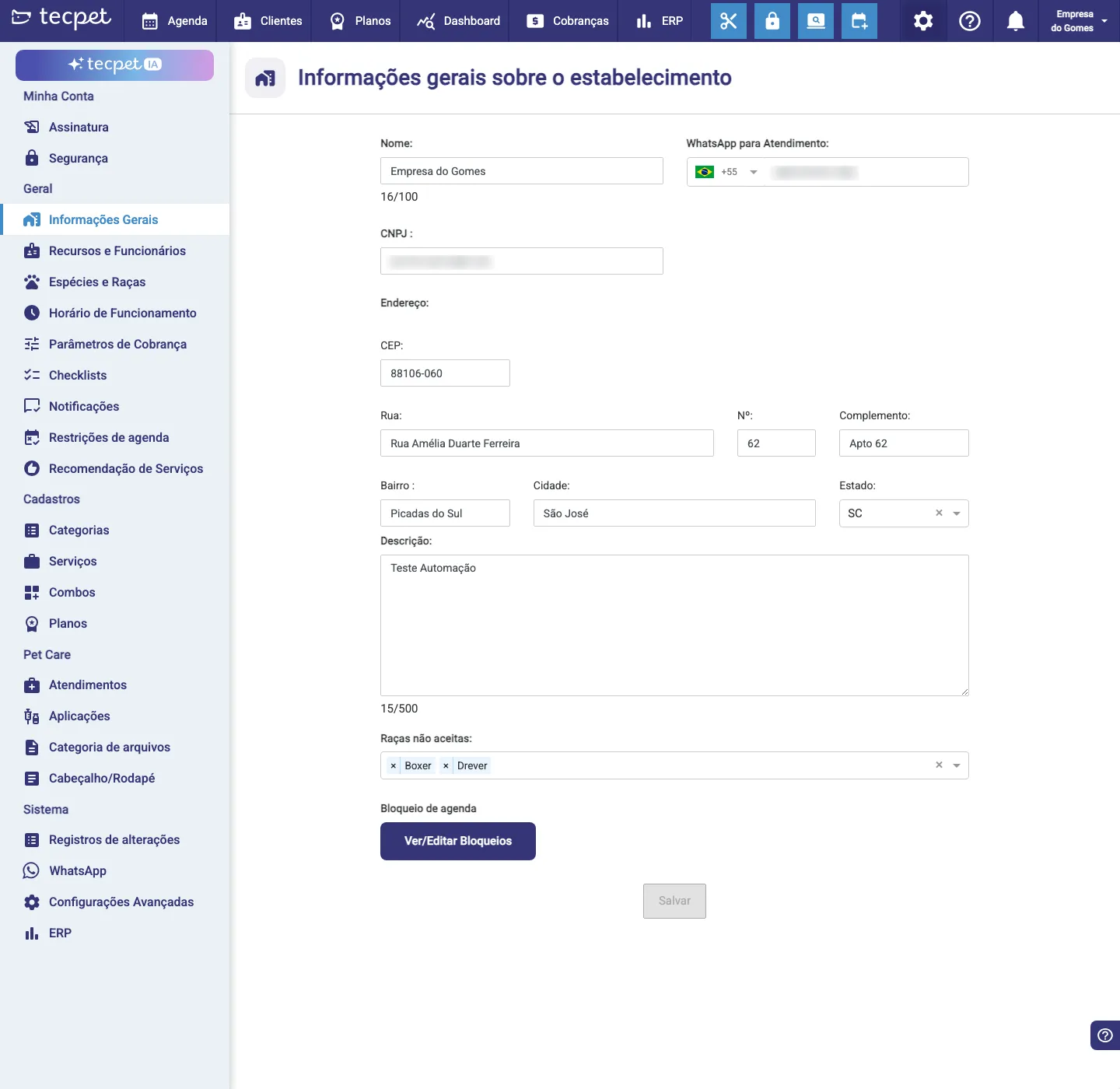
Section titled “Step 1: Open Settings → General Information”In the top menu, open Settings and click General Information. The General information about the establishment screen opens with every field already filled in with the store’s current data.
Step 2: Adjust the store fields
Section titled “Step 2: Adjust the store fields”Change whatever you need in the fields below. Fields marked with an asterisk (*) are required: if any is left empty, the “Required” warning appears right under it. The other fields are optional. See below what each one is.
Identification and contact
Section titled “Identification and contact”- Name*: the establishment’s name (required);
- Service WhatsApp*: the store’s WhatsApp number, with the country code (DDI) next to it (required). This is the number the service AI and the automatic notifications use to talk to the customer, it’s not just a display field;
- Tax ID: optional; used on documents and on fiscal invoicing.
Address
Section titled “Address”All address fields are optional, but filling them is made easier:
- Postal code: when you type the full postal code, the system looks it up and auto-fills Street, Neighborhood, City and State. If the code doesn’t exist, “Postal code not found!” appears;
- Street;
- Number;
- Complement: e.g. room, block;
- Neighborhood;
- City;
- State: a selector with the list of states; type or scroll to choose.
Description and non-accepted breeds
Section titled “Description and non-accepted breeds”- Description: optional; a presentation of the company (up to 500 characters);
- Non-accepted breeds: a multi-select field: pick the breeds the store doesn’t serve. It’s not just informative, when you try to book a pet of a breed marked here, the booking screen warns “Breed not accepted at the establishment”. The available breeds come from the ones the store set up in Accepted species and breeds.
Step 3: Save
Section titled “Step 3: Save”Once you’ve adjusted the fields, click Save. If a required field is missing, the button stays disabled until you fill it. On save, the “General settings saved” confirmation appears and the changes apply to the following documents, notifications and bookings.
Store calendar blocks
Section titled “Store calendar blocks”Still on this screen, below the fields, the View/Edit Blocks button opens the calendar blocks for the whole store (holidays, collective days off, maintenance), blocks that apply to every employee. See Calendar block for the step by step to create and remove blocks.
How to edit later
Section titled “How to edit later”To change any data, just go back to Settings → General Information, edit the field and click Save again. The per-breed service price, on the other hand, lives in Billing parameters, not here.
Branch of a chain
If your store is a branch of a chain, the Service WhatsApp field (and the country code) may appear locked for editing: that number is controlled by the head office. You can still edit name, tax ID, address, description and non-accepted breeds normally. See Network: head office and branches.
In a single store or the head office of a chain, every field is editable, including the Service WhatsApp and the country code. This is the default case.