
New chatbot
The new chatbot lets you build the WhatsApp service yourself, messages, action menu, data collection and booking, on a visual screen, without relying on support. It’s the same screen as the AI, just with artificial intelligence turned off: here the bot follows exactly what you set (menu and buttons), without interpreting free text.
Open it under Settings → IA → Atendimento.
Who answers your WhatsApp when no one can? #

An unanswered message is a lost client
While your team works, WhatsApp piles up and the sale goes cold.
“The pet parent won't wait. They want to pick, book and get on with their day.”
The phone never stops: schedule, prices, hours, rebooking, talk to someone. In the middle of a groom, no one can reply in time, and a slow reply is a client who already opened another chat.
The new chatbot is the robot you build yourself: a welcome message, a menu of actions, and it answers and books on WhatsApp without anyone stopping. It follows exactly what you set up, and when the conversation needs a real person, it hands off to an agent. (Want it to understand free text and actually converse? That's the smarter sibling: the AI.)
The modes (at the top)
Section titled “The modes (at the top)”- Off: the bot replies nothing.
- Auto Reply: always replies with a single standard message (no menu).
- Simulation: to test the flows without sending anything for real.
- Self Service: the bot live in production, serving for real.
Switching modes requires saving any pending change first.
Initial message
Section titled “Initial message”It’s the first message the customer gets, along with the action menu. You write two versions:
- For new customers: never served before;
- For registered customers: already have a profile.
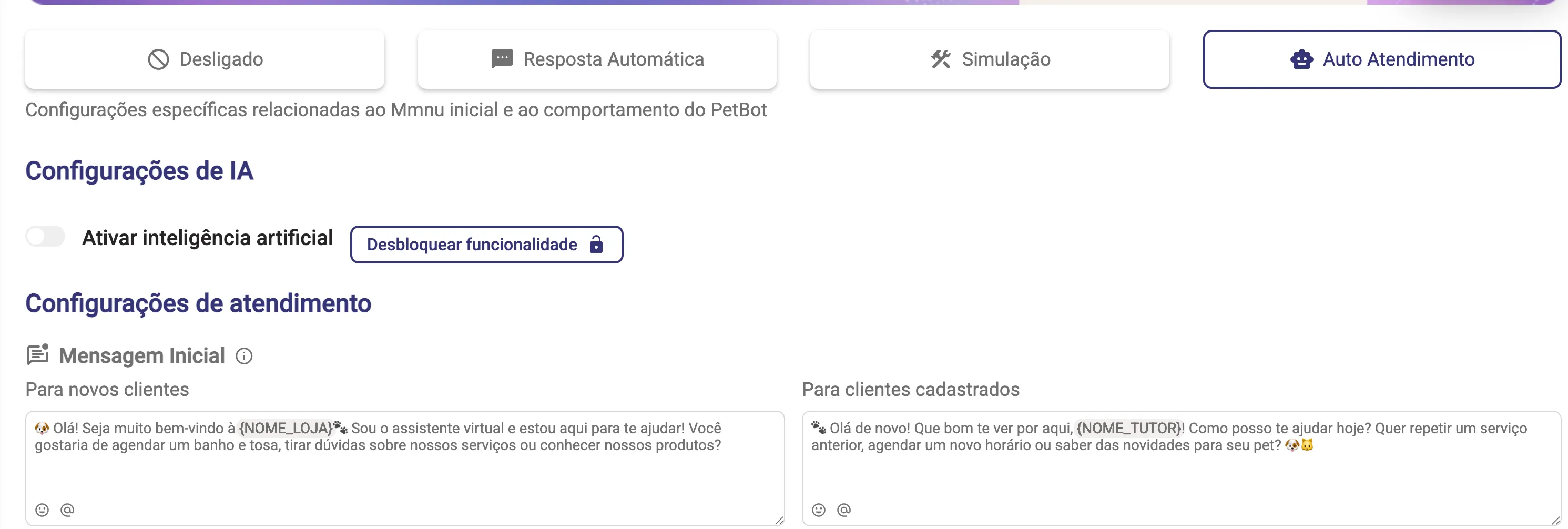
In the messages you can use variables in parentheses, replaced by the real data at send time. The main ones:
- Shop:
(NOME_LOJA),(ENDERECO_LOJA),(TELEFONE_LOJA); - Owner:
(NOME_TUTOR),(CREDITO_TUTOR); - Pet:
(NOME_PET); - Booking:
(NOME_SERVICO),(DATA_AGENDAMENTO),(HORARIO_AGENDAMENTO); - Finance:
(LINK_FATURA),(VALOR_TOTAL),(VALOR_ABERTO).
PetBot actions
Section titled “PetBot actions”Actions are the menu options the customer picks. Each has an on/off toggle. The main ones:
- Book grooming & bath;
- Book at the clinic (consultations, vaccines and exams);
- Book daycare, boarding or hotel;
- Check appointments (reschedule or cancel);
- Talk to an agent;
- New action: a custom option you create.
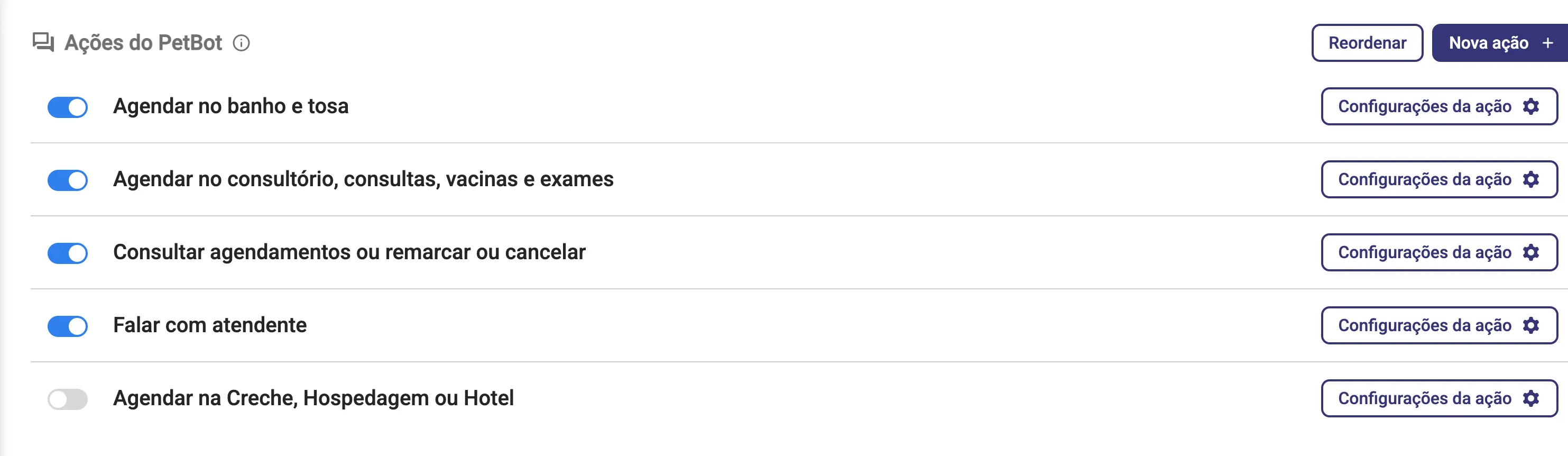
Use Reorder to drag and change the order they appear, and New action + to create your own option (up to 10 active actions).
Each action’s settings
Section titled “Each action’s settings”The Action settings button opens the details. The booking actions (grooming, clinic, daycare) follow the same pattern:
- Menu settings: the name shown on WhatsApp, who can book (Everyone / only returning / only new) and the description;
- Information: blocks in layers (text, image, video, audio or document) sent to the customer, and who to show them to;
- Pet data collection: what the bot asks (name, species, breed, size & coat, etc.) and whether it allows registering a new pet;
- Service selection: show prices or not, recommend services, let the customer pick the professional;
- After booking: what to do at the end (close, keep the chat open, or transfer to an agent).
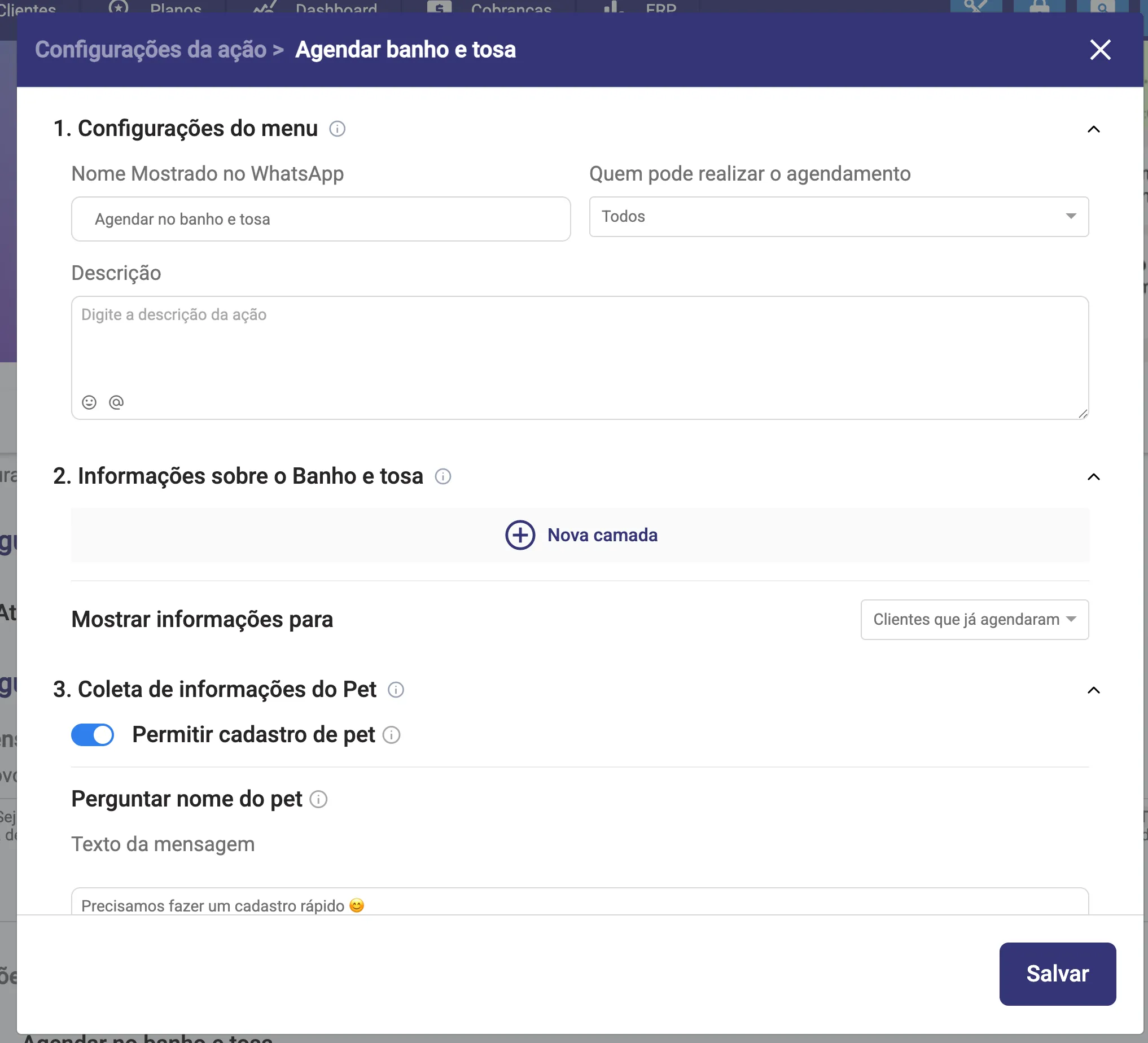
Each type has its own tweaks, for example:
- Check appointments: allow reschedule and allow cancel (with each one’s text);
- Talk to an agent: in/out of business-hours messages and the business hours per weekday;
- New (custom) action: build the information layers and set the routing at the end (back to home, transfer to agent, go to petshop/clinic, or end).
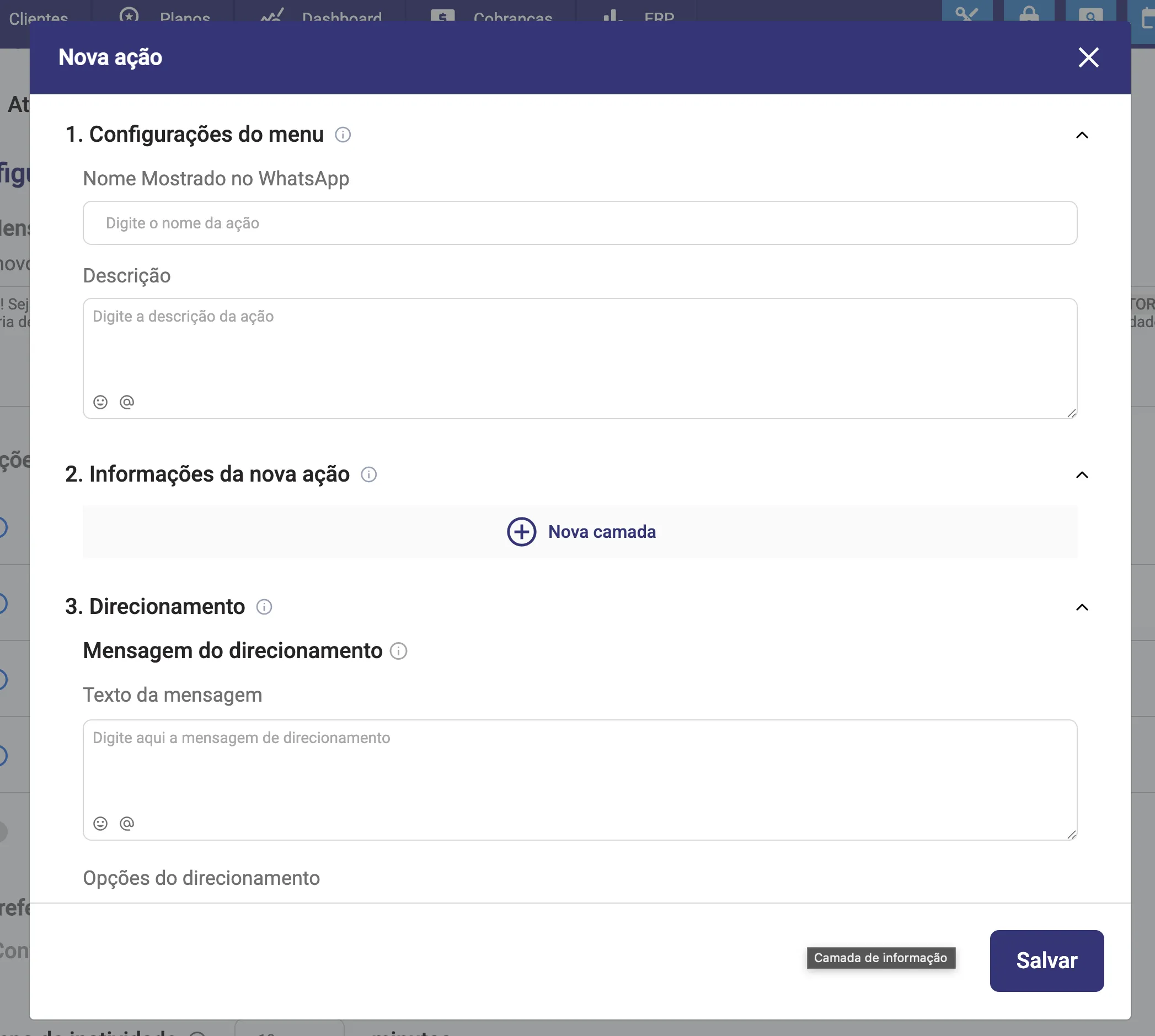
Inactivity preferences
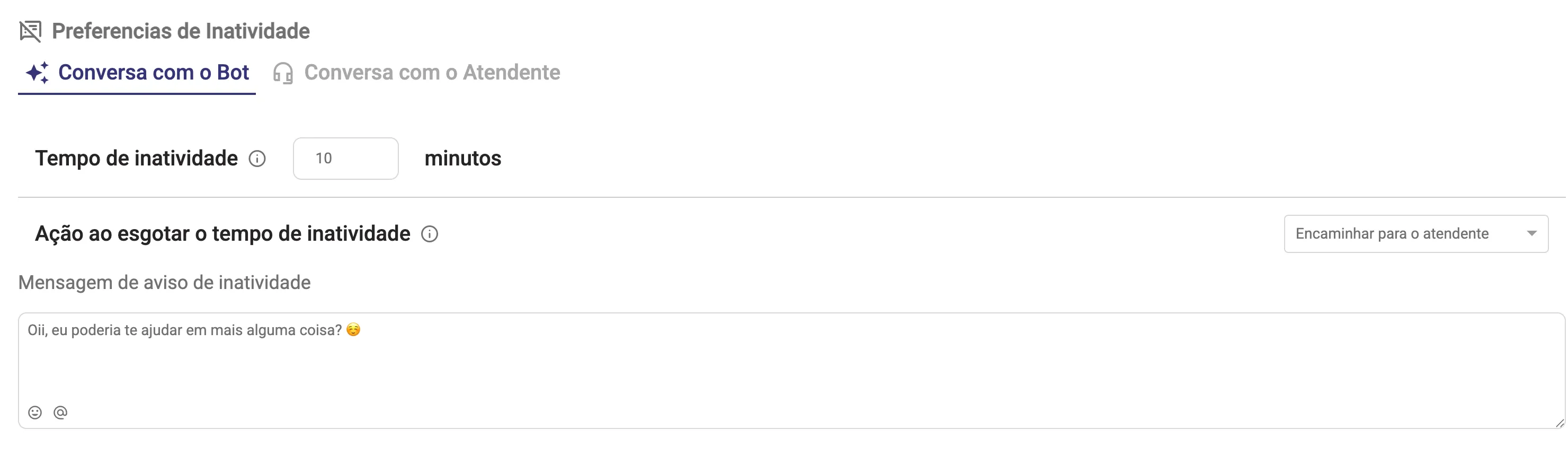
Section titled “Inactivity preferences”They control what happens when the chat stalls. Two tabs:
- Chat with the Bot: the inactivity time, the action when it runs out (transfer to an agent, end with a message, or do nothing) and the warning/closing messages.
- Chat with the Agent: the chat’s inactivity time and closing time, and what to do with an inactive employee (notify someone or do nothing).
Triggers (keywords)
Section titled “Triggers (keywords)”You can create triggers: when the customer types a keyword (exact match or “contains”), the bot jumps straight to an action. Handy for campaigns.
The simulator
Section titled “The simulator”In the corner of the screen (in Simulation and Self Service modes) sits the Pet Bot to test the conversation. Choose to simulate as an active customer (pick a real one) or a new customer (create a test one), click Start chat and talk as if you were the customer. It sends nothing on real WhatsApp: it’s just a test.
Saving
Section titled “Saving”Whenever you change a field, Save and Cancel appear. Save to apply (the system validates required fields first).