
Set up the booking link
The Link de agendamento (Booking link) is the part of the Store page where the pet owner books on their own: they log in with their phone, pick the pet, the services and a free time slot, and the appointment goes straight into your schedule. The times offered are the same ones the schedule calculates (opening hours, employees, blocks and restrictions), and prices come from the table of each service for the pet’s size and coat. Here you set the rules for this booking. The link works on its own, even with the bio turned off, at bio.tec.pet/your-address/agendar. To see the path from the pet owner’s side, read How the pet owner books through the link.
Step 1: Open the Link de agendamento tab
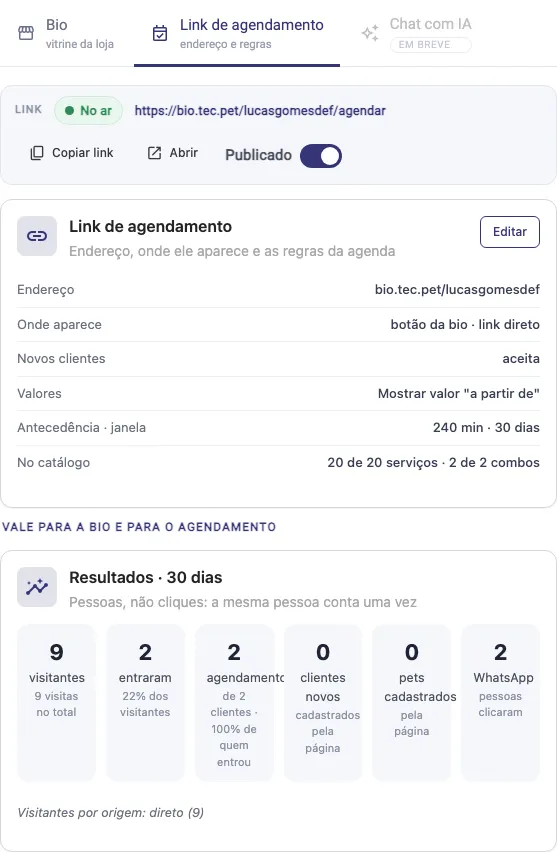
Section titled “Step 1: Open the Link de agendamento tab”In Configurações › Página da loja › Link da bio (Settings › Store page › Bio link), click the Link de agendamento (Booking link) tab. The top bar shows the status (No ar (Live), Desligado (Off) or Fora do formato (Wrong format)), the booking link and the Copiar link (Copy link) and Abrir (Open) buttons, plus the Publicado (Published) switch. The Link de agendamento card summarizes the current setup: address, where the link appears, whether it accepts new customers, how prices are shown, lead time and window, and how many services and combos are in the catalog.
For the link to go live, the publishing format must include booking (Vitrine + agendamento (Showcase + booking) or Só agendamento, no meu site (Booking only, on my site)). With Só vitrine (Showcase only), the screen warns that the link stays offline even with Publicado turned on.
Click Editar (Edit) on the card. The window has five tabs: Endereço (Address), Quem agenda (Who books), Serviços e valores (Services and prices), Agenda (Schedule) and No meu site (On my site). You can go through all of them before saving: the Salvar (Save) button in the footer saves all five at once.
Step 2: Endereço tab, publishing and AI rules
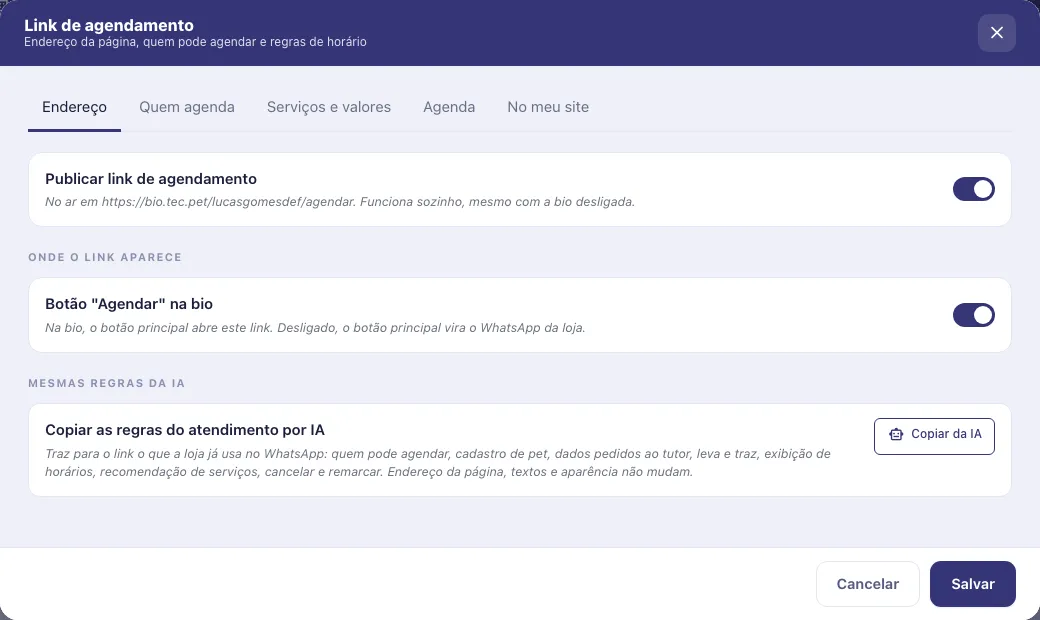
Section titled “Step 2: Endereço tab, publishing and AI rules”- Publicar link de agendamento (Publish booking link): turns booking on or off (it is the same Publicado switch as the tab). The hint below shows what happens: live on your link; published but in the wrong format; or off, in which case booking, logging in and meus agendamentos (my appointments) become unavailable and the main bio button turns into the shop’s WhatsApp.
- Botão “Agendar” na bio (“Book” button on the bio, under Onde o link aparece, Where the link appears): when on, the main bio button opens booking. When off, the main button becomes the shop’s WhatsApp, but the direct link keeps working.
- Copiar da IA (Copy from the AI, under Mesmas regras da IA, Same rules as the AI): brings to the link the rules the shop already uses in the AI on WhatsApp service: who can book, pet registration, data requested from the pet owner, pickup and delivery, how times are displayed, service recommendations, cancel and reschedule. Page address, texts and look do not change. When you click, the screen asks for confirmation (“As regras de agendamento desta página serão substituídas pelas que a IA usa hoje” (The booking rules on this page will be replaced by the ones the AI uses today)); click Sim, copiar (Yes, copy).
Step 3: Quem agenda tab
Section titled “Step 3: Quem agenda tab”Who can book
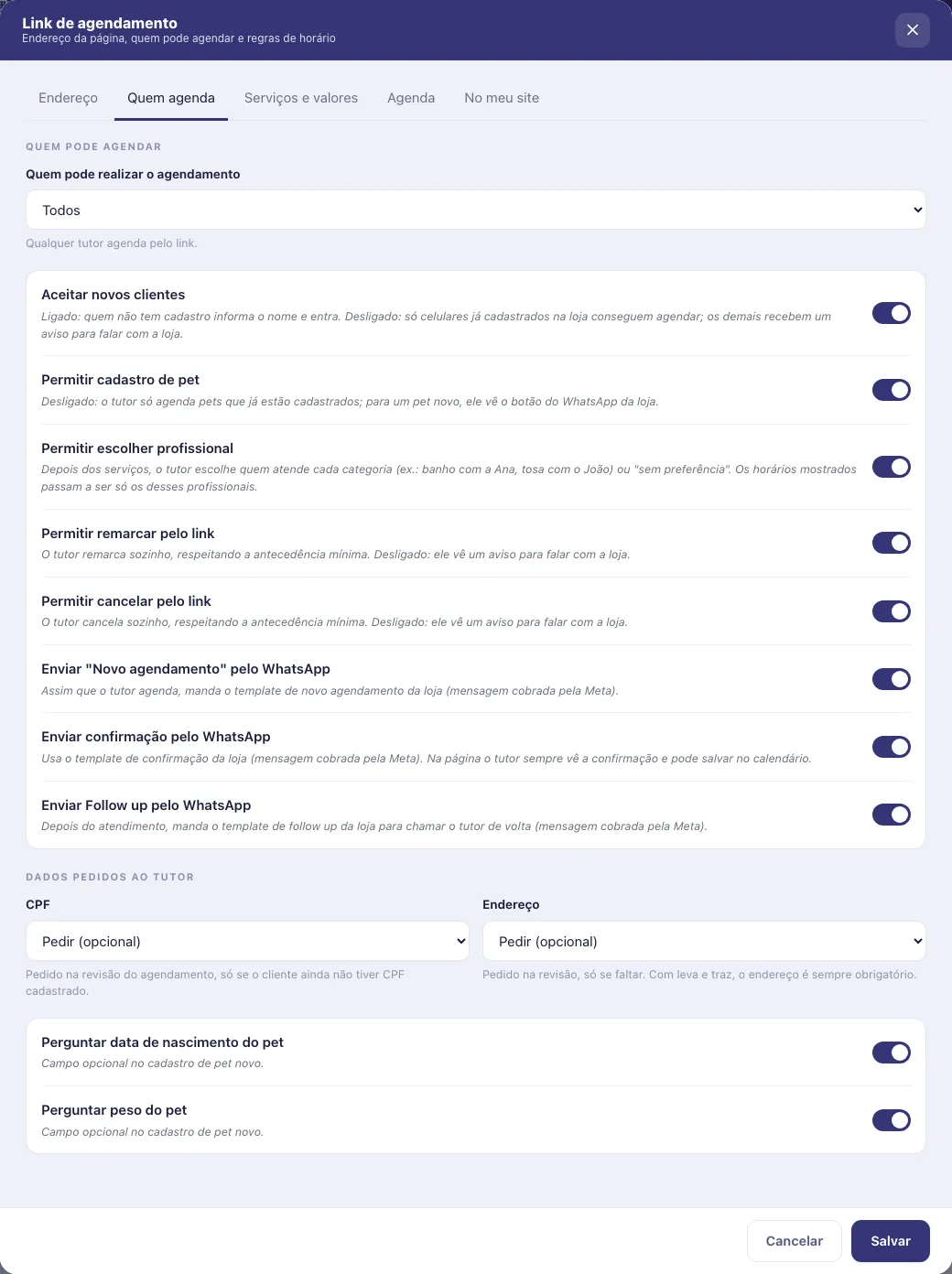
- Quem pode realizar o agendamento (Who can book): Todos (All, any pet owner can book through the link); Clientes que já agendaram (Customers who have booked before, only people who already have an appointment at the shop; anyone who has never booked sees a notice with the shop’s WhatsApp, and registering a new customer is blocked); or Clientes que nunca agendaram (Customers who have never booked, first visit only; existing customers see the notice with the WhatsApp).
- Aceitar novos clientes (Accept new customers): when on, someone with no registration enters just their name and gets in. When off, only phone numbers already registered at the shop can book; everyone else gets a notice to contact the shop.
- Permitir cadastro de pet (Allow pet registration): when off, the pet owner can only book pets that are already registered; for a new pet, they see the shop’s WhatsApp button.
- Permitir escolher profissional (Allow choosing a professional): after the services, the pet owner chooses who handles each category (for example bath with Ana, grooming with João) or Sem preferência (No preference). Times become only those of those professionals.
- Permitir remarcar pelo link (Allow rescheduling through the link) and Permitir cancelar pelo link (Allow canceling through the link): the pet owner reschedules or cancels on their own in Meus agendamentos (My appointments), respecting the minimum lead time. When off, they see a notice to contact the shop.
- Enviar confirmação pelo WhatsApp (Send confirmation by WhatsApp): sends the shop’s confirmation message by WhatsApp (a message charged by Meta, see How much the official WhatsApp costs). When off, the pet owner still sees the confirmation on the page and can save it to the phone calendar.
- Enviar “Novo agendamento” pelo WhatsApp (Send “New booking” by WhatsApp): as soon as the pet owner books, sends the shop’s Novo agendamento (New booking) template (a message charged by Meta). On by default. It works separately from the confirmation: you can send only one of the two.
- Enviar Follow up pelo WhatsApp (Send Follow up by WhatsApp): after the service, sends the shop’s Follow up template to bring the pet owner back (a message charged by Meta). On by default.
These three switches only apply to bookings made on the page, and the message only goes out if the template is active in Automatic notifications. When the pet owner reschedules through the link, the confirmation and the Follow up follow the same switches (the messages for the old date are canceled); the “Novo agendamento” is not sent again on a reschedule.
Data requested from the pet owner
- CPF and Endereço (Address): Não pedir (Do not ask), Pedir (opcional) (Ask, optional) or Pedir (obrigatório) (Ask, required). They are asked at the booking review, and only when the customer does not have that data on file yet. If the account requires the customer’s CPF or address in Advanced settings, the field is locked to required. With pickup and delivery, the address is always required.
- Perguntar data de nascimento do pet (Ask the pet’s birth date) and Perguntar peso do pet (Ask the pet’s weight): add these optional fields to the new pet registration.
Step 4: Serviços e valores tab
Section titled “Step 4: Serviços e valores tab”Services
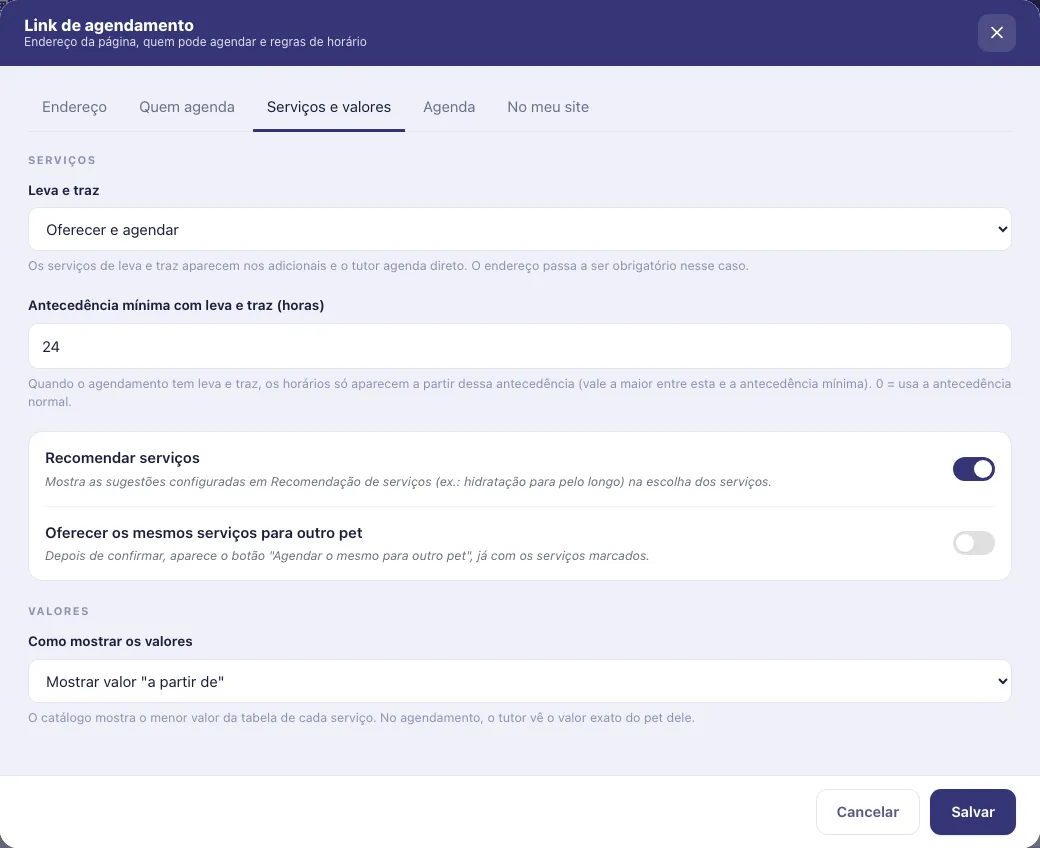
- Leva e traz (Pickup and delivery): Oferecer e agendar (Offer and book: the pickup and delivery services show up as add-ons and the pet owner books them directly; the address becomes required); Oferecer e combinar pelo WhatsApp (Offer and arrange by WhatsApp: pickup and delivery shows up, but it cannot be booked: the pet owner books the service and arranges the pickup with the shop by WhatsApp); or Não oferecer (Do not offer: the pickup and delivery services do not appear on the page or in the catalog).
- Antecedência mínima com leva e traz (horas) (Minimum lead time with pickup and delivery, in hours): only appears when pickup and delivery is offered. With pickup and delivery in the booking, times only appear from this lead time on (the larger of this one and the general minimum lead time applies). 0 uses the normal lead time. Maximum of 72 hours.
- Recomendar serviços (Recommend services): shows, when choosing services, the suggestions set up in Service recommendation (for example hydration for long coats).
- Oferecer os mesmos serviços para outro pet (Offer the same services for another pet): after confirming, the Agendar o mesmo para outro pet (Book the same for another pet) button appears, with the services already selected.
Prices
- Como mostrar os valores (How to show prices): Não mostrar valores (Do not show prices: no price appears on the page or in the booking; the pet owner arranges the price with the shop); Mostrar valor “a partir de” (Show “starting at” price: the catalog shows the lowest value in each service’s table and, in the booking, the pet owner sees the exact price for their pet); or Mostrar valor exato (Show exact price: the catalog shows the full table, by size and coat, and the booking shows the exact price for the pet).
Step 5: Agenda tab
Section titled “Step 5: Agenda tab”Time rules
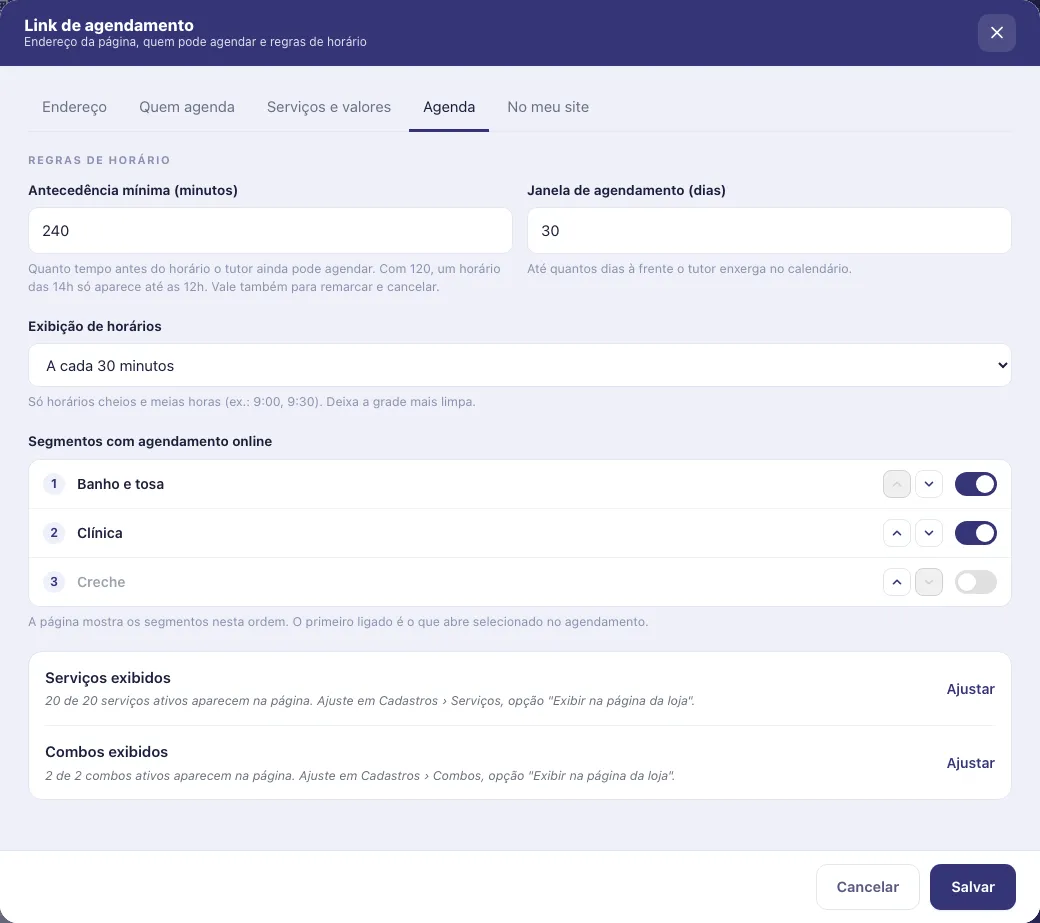
- Antecedência mínima (minutos) (Minimum lead time, in minutes): how long before the time slot the pet owner can still book. With 120, a 2 PM slot only shows up until 12 PM. It also applies to rescheduling and canceling through the link (the pet owner sees it in the review, for example “Remarcação e cancelamento por aqui até 4h antes” (Rescheduling and canceling here up to 4h before)).
- Janela de agendamento (dias) (Booking window, in days): how many days ahead the pet owner can see on the calendar, from 1 to 120.
- Exibição de horários (Time display): Todos os horários disponíveis (All available times, every free slot in the schedule); A cada 30 minutos (Every 30 minutes, only full hours and half hours, like 9:00 and 9:30, for a cleaner grid); or A cada 1 hora (Every 1 hour, full hours only).
- Segmentos com agendamento online (Segments with online booking): appears when the shop has more than one segment (for example Banho e tosa, Clínica, Creche). Turn on the segments that accept booking through the link and use the arrows to set the order: the page shows the segments in that order, and the first one turned on is the one that opens selected in the booking.
Catalog
- Serviços exibidos (Services shown) and Combos exibidos (Combos shown): show how many active services and combos appear on the page. To remove an item from the page, click Ajustar (Adjust) and uncheck the Exibir na página da loja (Show on the store page) option in the service or combo record.
Step 6: No meu site tab (optional)
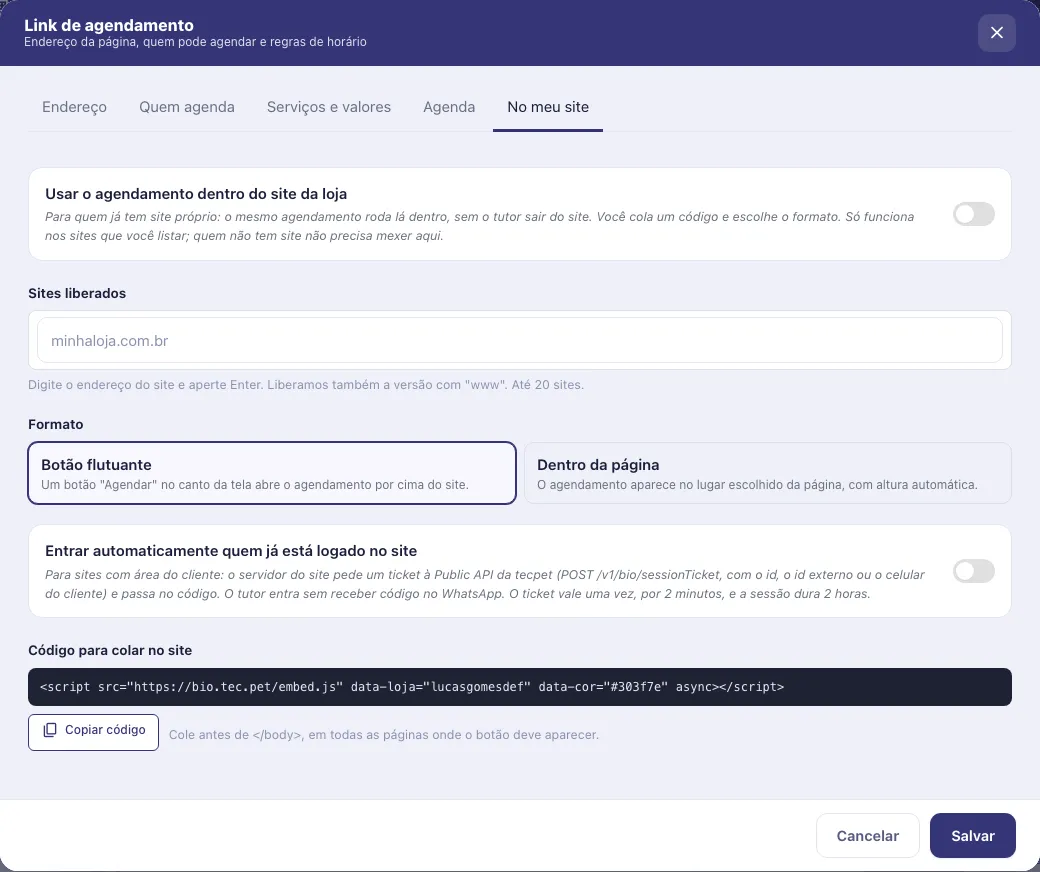
Section titled “Step 6: No meu site tab (optional)”Only for those who already have their own website. Here the same booking runs inside the shop’s website, without the pet owner leaving it. If you do not have a website, you do not need to touch this tab.
- Usar o agendamento dentro do site da loja (Use booking inside the shop’s website): turns the feature on.
- Sites liberados (Allowed sites): type the website address (for example minhaloja.com.br) and press Enter. The www version is allowed along with it. Up to 20 sites. Booking only works on the sites in the list; on any other, Agendamento indisponível neste site (Booking unavailable on this site) appears. With the feature on, you must enter at least one site to save.
- Formato (Format): Botão flutuante (Floating button: a Agendar button in the corner of the screen opens booking over the website) or Dentro da página (Inside the page: booking appears in the place you choose on the page, with automatic height).
- Entrar automaticamente quem já está logado no site (Automatically sign in people already logged in on the site): for websites with a customer area. The site asks tecpet for a one-time authorization for the logged-in customer, and they enter booking without receiving a code on WhatsApp. This authorization is valid once, for 2 minutes, and the session lasts 2 hours. It needs a Public API key with the permission Abrir sessão no link de agendamento (Open a session on the booking link): if there is none, the screen tells you to ask support. This is a setting for the website developer.
- Código para colar no site (Code to paste on the site): click Copiar código (Copy code) and hand it to whoever manages the site. For the floating button, the code goes before
</body>on every page where the button should appear; for the inside-the-page format, it goes where the booking should appear.
To use only this channel, choose the Só agendamento, no meu site format.
Step 7: Save and publish
Section titled “Step 7: Save and publish”Click Salvar (Save) in the footer of the window. The rules take effect right away for anyone who opens the link. Check that the Publicado switch on the Link de agendamento tab is on and that the format includes booking. Then copy the link with Copiar link or from the Divulgar (Share) menu (direct link and booking QR code), as shown in Create the store page.
How to edit later
Section titled “How to edit later”Go back to the Link de agendamento tab and click Editar on the card. Any change takes effect after Salvar. To pause booking without losing anything, turn off Publicado: booking, logging in and Meus agendamentos become unavailable, the main bio button turns into WhatsApp, and the rules stay saved for when you turn it back on. If you want to go back to the AI rules, use Copiar da IA again.