
Track and convert quotes
Once a quote is created and sent, its life goes on in the Quotes panel (Dashboard) and in the Quotes tab of the customer profile. That is where you see who opened the link, who accepted, who refused and why, resend the reminder, record the answer given at the counter, turn the accepted quote into a booking and measure the team’s conversion. This article explains each status, each action and what happens to the quote in each one.
The quote statuses
Section titled “The quote statuses”Every quote goes through these statuses, in this order:
- Draft: saved, never sent. It is the only status in which it can still be edited;
- Sent: the link went out on WhatsApp or was copied;
- Viewed: the link was opened for the first time;
- Accepted: the pet owner accepted through the link, or you recorded the acceptance;
- Converted: it became a booking. This is the end point: it cannot be deleted or changed.
Two statuses close the quote without a sale: Refused (with the reason) and Expired (validity passed without an answer). An overdue quote shows as Expired everywhere in tecpet even before the day turns; the definitive update happens every day in the early hours.
Step 1: Open the Quotes panel
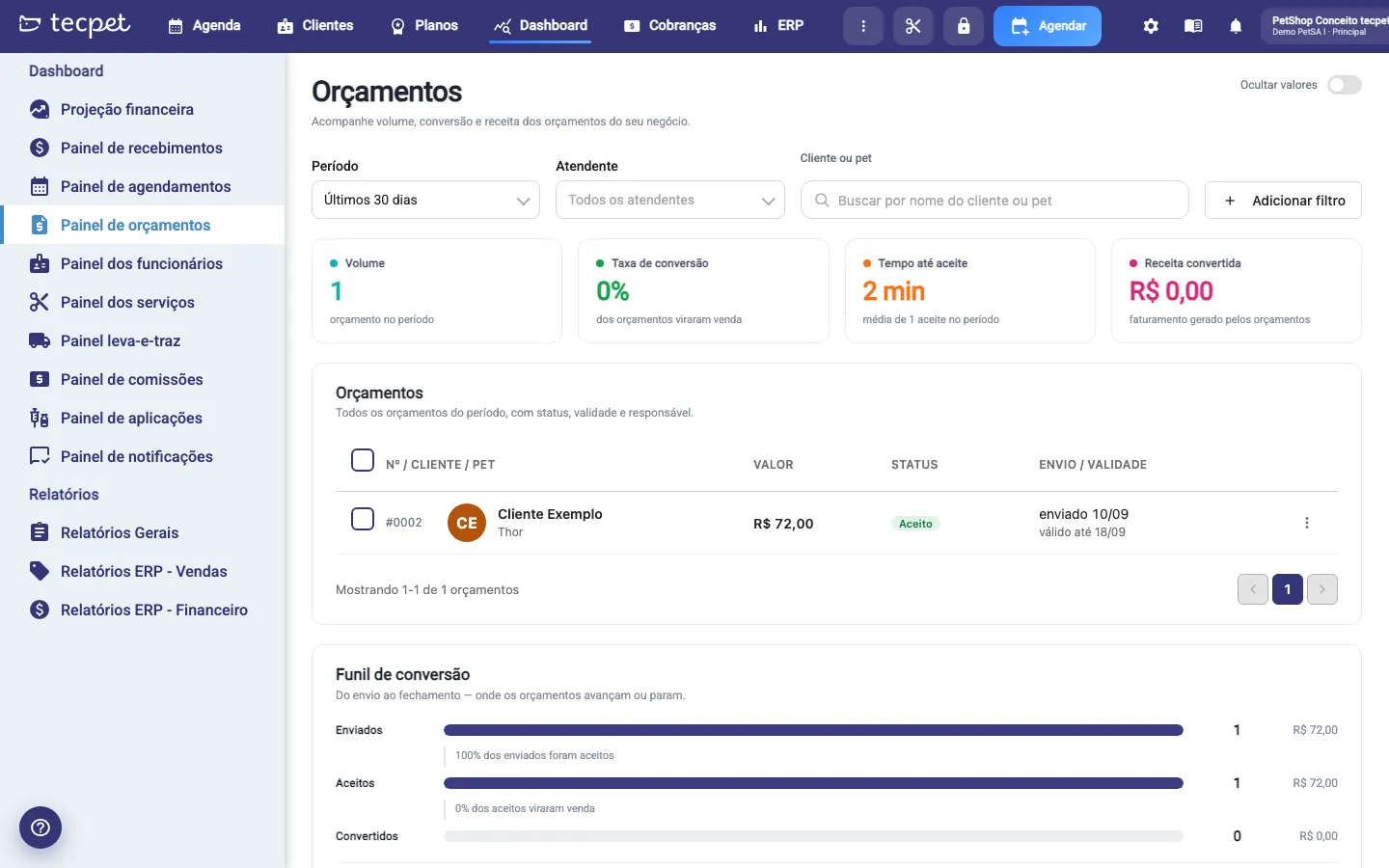
Section titled “Step 1: Open the Quotes panel”On the top menu, click Dashboard and then Quotes panel, on the side menu. The screen opens with the filters at the top, four indicators, the quotes list and, below, the funnel and the conversion by attendant. The Hide values button hides the amounts in reais on the screen, useful when the screen is visible at the counter.
Step 2: Filter and read the indicators
Section titled “Step 2: Filter and read the indicators”The filters apply to the list, the indicators and the funnel:
- Period: Today, Last 7 days, Last 30 days, This month or All time, always by creation date;
- Attendant: who confirmed the quote with the operator code;
- Customer or pet: searches by the customer’s name, by the name given on an unregistered-customer quote or by the quote number;
- Add filter opens two more: Status (several at once) and Lead origin (Counter, Phone, WhatsApp, Website).
The four cards summarize the period: Volume (how many quotes), Conversion rate (how many became bookings), Time to accept (average between sending and acceptance) and Converted revenue (the sum of converted quotes).
Step 3: Understand the list
Section titled “Step 3: Understand the list”Each row brings the number (e.g. #0002), the customer and the pets, the value (with the number of items and the discount), the status and the Sending / Validity column, which shows when it was sent or created and until when it is valid (expires in 2 days, expires today, expired on…). Click the row to open the detail. The list shows 6 quotes per page, newest first. Tick the box of several rows to use the bulk actions: Resend reminder, Mark as refused and Mark as expired.
Step 4: Use the row actions menu
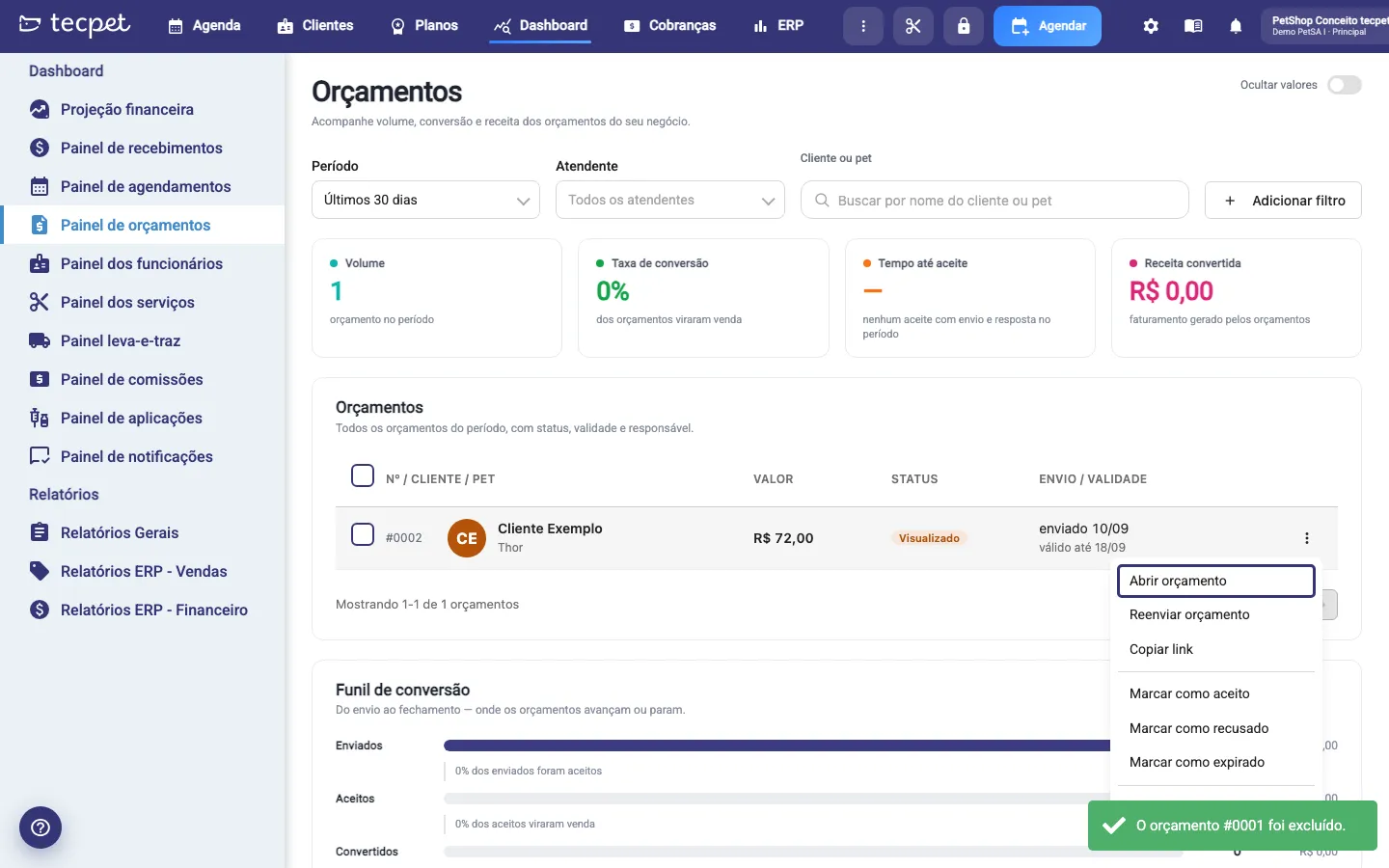
Section titled “Step 4: Use the row actions menu”The three dots button at the end of the row opens the quote actions:
- Open quote: the full detail;
- Resend quote: sends the link again on WhatsApp (tecpet confirms first). A quote for an unregistered customer gets no automatic message: the link is left for you to send by hand;
- Copy link: copies the public address (only after the first send);
- Turn lead into customer: only on an unregistered-customer quote (see below);
- Mark as accepted, Mark as refused and Mark as expired: record at the counter the answer the pet owner gave outside the link;
- Delete quote: removes it for good (see the warning at the end of the article).
Actions that make no sense for the current status appear disabled.
Recording a refusal
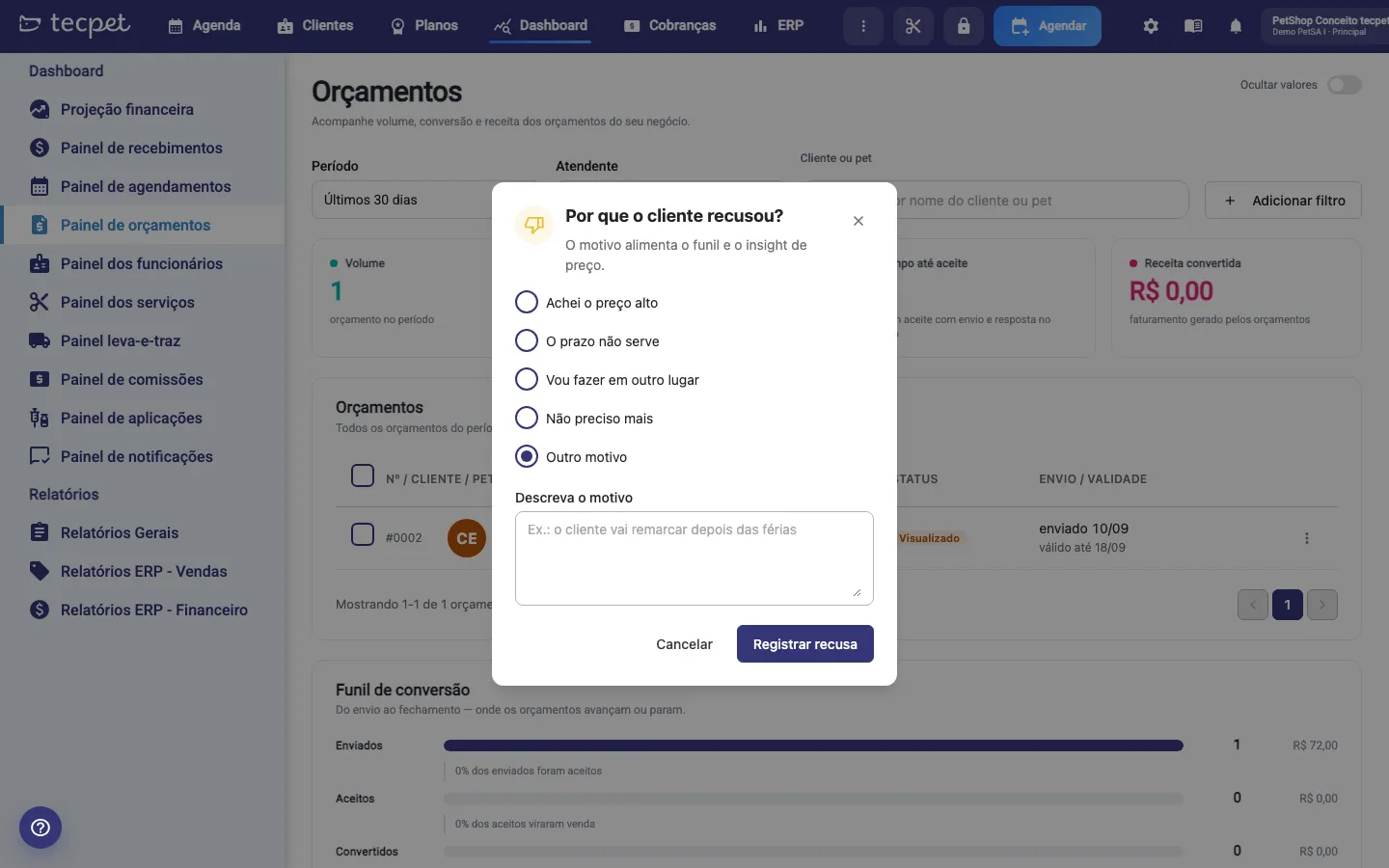
Section titled “Recording a refusal”When you Mark as refused (on the row, in bulk or through the Customer refused button in the detail), tecpet asks Why did the customer refuse? with the same reasons the pet owner sees on the link: Price too high, The deadline does not fit, Going somewhere else, No longer needed and Other reason (with a required description). The reason feeds the funnel and stays in the customer’s history.
Step 5: Open the quote detail
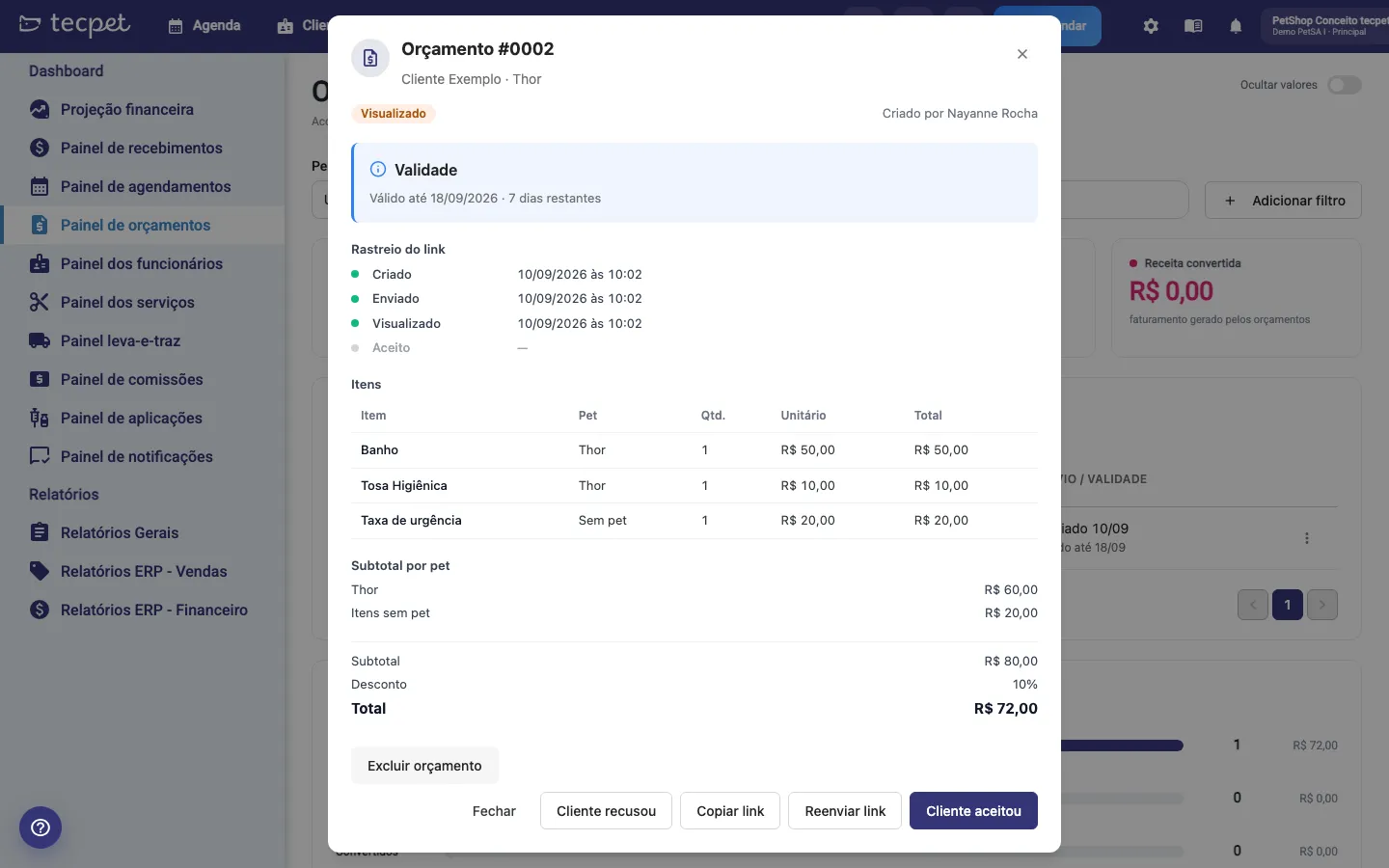
Section titled “Step 5: Open the quote detail”The detail shows the status, who created it (Created by), the context box (validity and days left, acceptance date, refusal reason or the booking generated), the Link tracking (Created, Sent, Viewed, Accepted or Refused, Converted, each with date and time), the Items table with pet, quantity, unit price and total, the totals and the Customer link. The footer buttons change with the status:
- Draft: Send quote;
- Sent or Viewed: Customer refused, Copy link, Resend link and Customer accepted;
- Accepted: Copy link and Turn into booking;
- Refused or Expired: Requote;
- Converted: See booking.
Customer accepted and Customer refused are internal records: the pet owner gets no notice.
Step 6: Turn the accepted quote into a booking
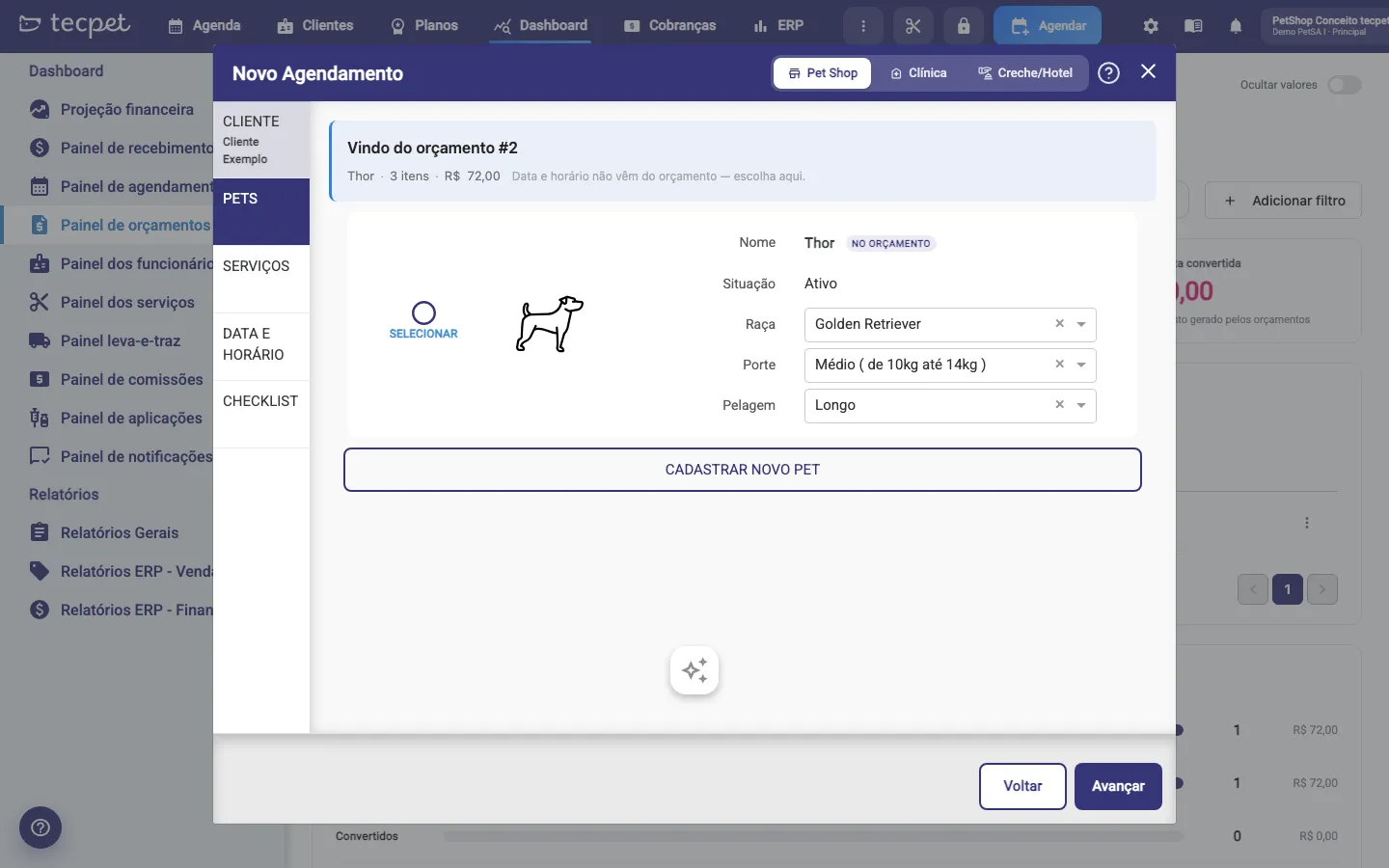
Section titled “Step 6: Turn the accepted quote into a booking”With the quote Accepted, click Turn into booking. tecpet opens the booking wizard with the From quote #N banner at the top, the customer already resolved and the quote’s pets marked. You pick the pet (one booking serves one pet), confirm the services and set the date and time, which never come from the quote. When you save the booking, the quote moves to Converted and gets the See booking button. If you close the wizard without booking, the quote stays Accepted.
What carries over from the quote to the booking: with one pet, the services, the discount (in reais) and the pickup and delivery. With two or more pets, only the pets are marked, and discount and pickup and delivery must be entered on the booking, because they applied to the whole set. Plans and custom items do not carry over: a plan is sold through the plan sale flow, and a custom item does not exist on a booking. The booking price is always today’s table price.
Requoting a refused or expired quote
Section titled “Requoting a refused or expired quote”On a Refused or Expired quote, the Requote button creates a new quote, with a new number and link, the same items and today’s prices. The old one stays in the history with the status it had. It is also the way to go when the pet owner clicks Request new quote on the expired link: the panel tells you they asked, and you requote.
Turning a lead into a customer
Section titled “Turning a lead into a customer”A quote made for an unregistered customer has the Turn lead into customer action (on the row menu and in the detail). The window already comes with the Name and the WhatsApp typed on the quote; fill in E-mail and CPF if you want and click Create customer. The record is created and linked to the quote, which stays the same. The pets typed on the quote do not become registered pets: register them on the customer profile before converting into a booking.
Funnel and conversion by attendant
Section titled “Funnel and conversion by attendant”Below the list, the Conversion funnel shows how many quotes of the period reached Sent, Accepted and Converted, with the value of each step and the percentages between them. Next to it, Conversion by attendant lists, per employee, how many they quoted, how many they converted and the rate, with the Team average at the bottom. An acceptance recorded at the counter without sending counts as accepted, so keep the habit of sending the link so the funnel reflects reality.
The quotes on the customer profile
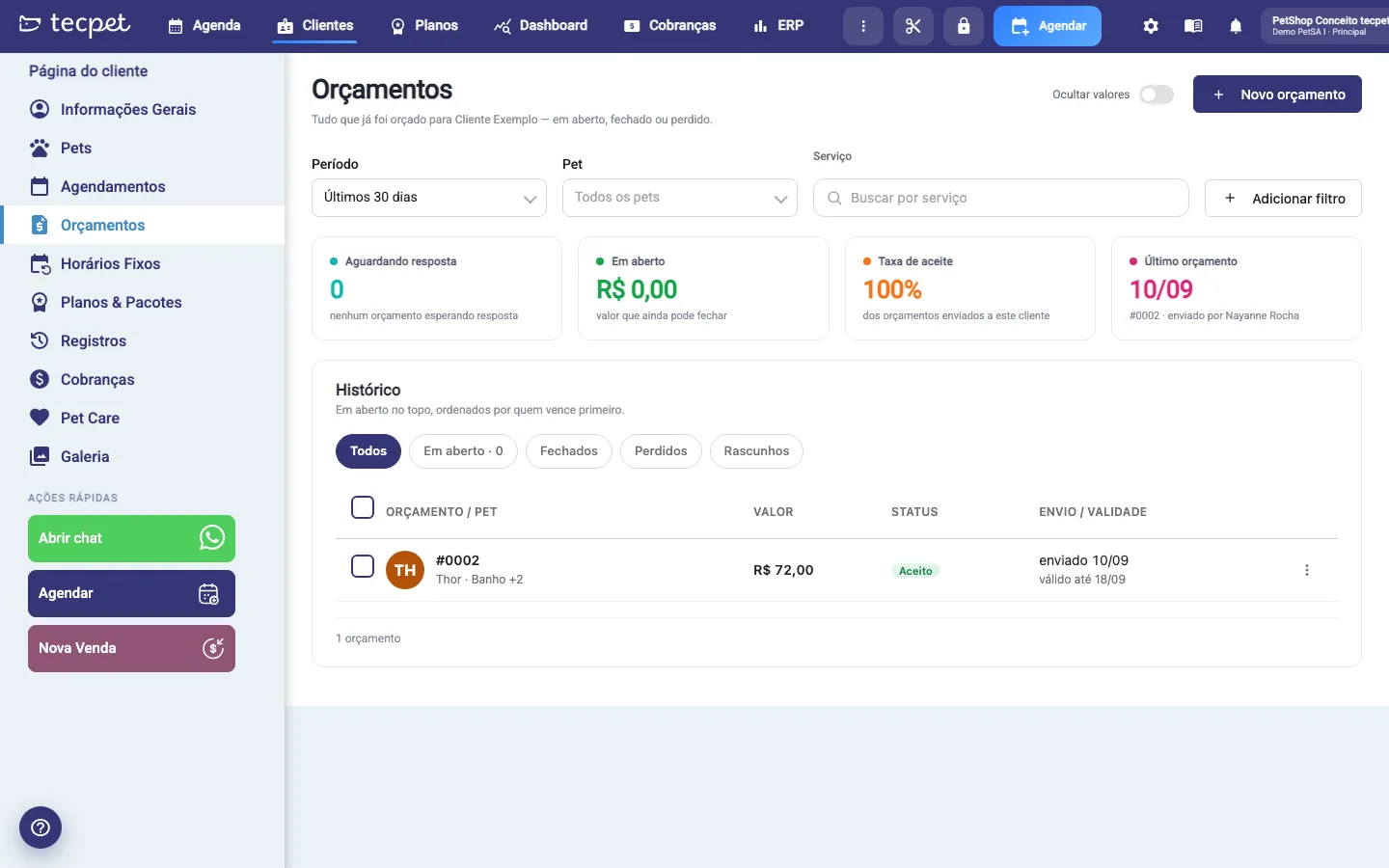
Section titled “The quotes on the customer profile”On the customer profile, the Quotes tab gathers everything ever quoted for them: the Awaiting reply, Open (value that can still close), Acceptance rate and Last quote cards, the filters by Period, Pet, Service and Attendant, and the History with the groups All, Open, Closed, Lost and Drafts. The New quote button opens the wizard already with the customer and the pets. The Quotes item on the side menu shows a counter with the quotes awaiting reply. The actions are the same as on the panel.
Deleting a quote
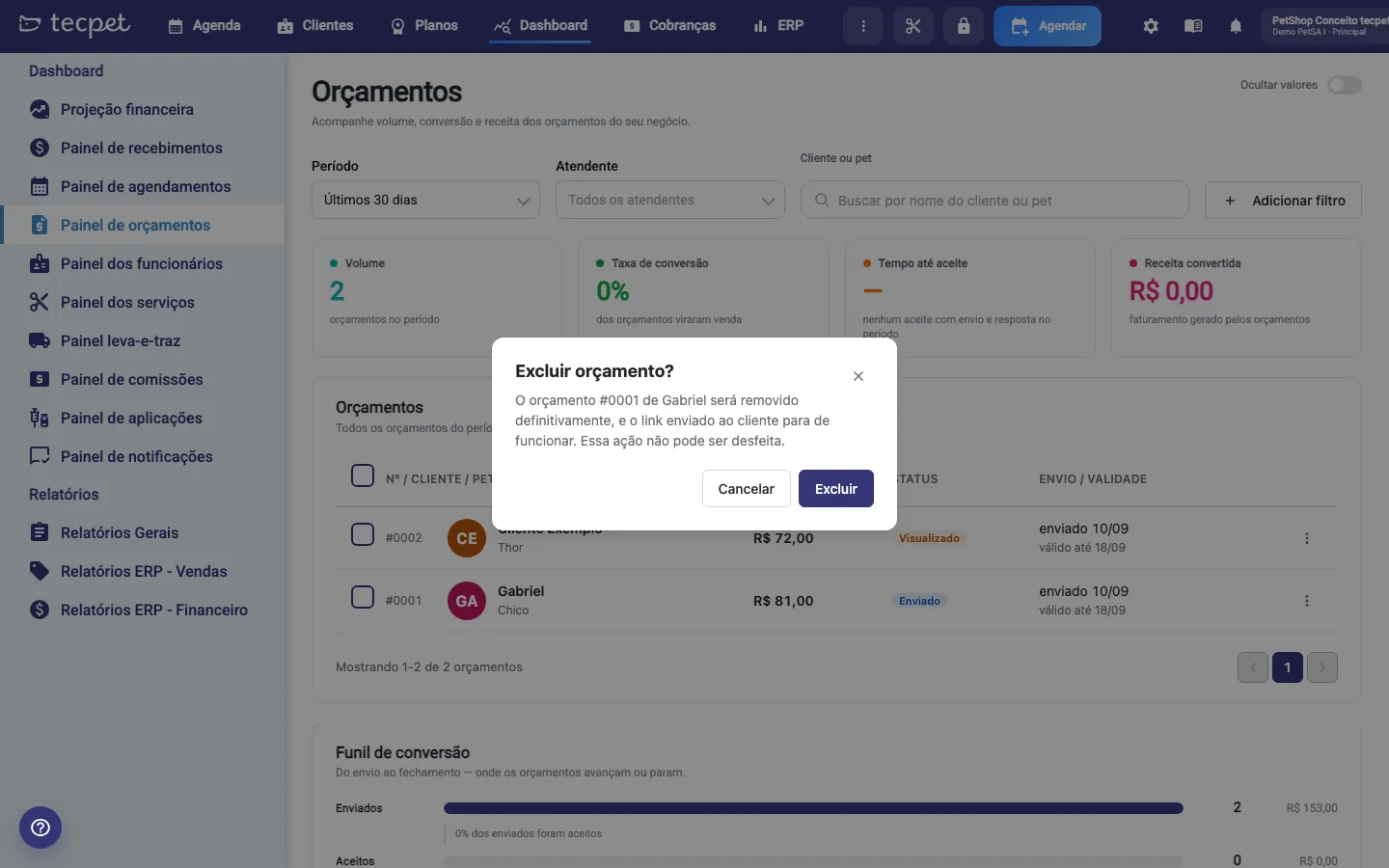
Section titled “Deleting a quote”Delete quote (on the row menu or in the detail) removes the quote from every list and disables the link the pet owner received. The number is not reused. A Converted quote cannot be deleted, because it is the origin record of the booking.
How to edit or undo later
Section titled “How to edit or undo later”A sent quote cannot be edited: use Requote to generate a new version. An acceptance or refusal recorded at the counter cannot be reverted; if you made a mistake, requote. Deleting is final. The booking generated by the conversion is a regular booking: it can be changed or cancelled as usual, and the quote remains Converted with the notice that the origin booking is no longer available.