
Network: head office and branches
tecpet serves everything from single stores to networks with several units. In a network there’s a head-office account (the hub) and the branches (each unit). The differences show up in two places: the Dashboard (the head office sees the whole network; a branch, only itself) and Settings (the head office controls the network’s catalog and rules; a branch only adjusts what’s its own). The top menus (Calendar, Customers, Billing…) are the same for everyone.
How to tell if you’re on the head office or a branch
Section titled “How to tell if you’re on the head office or a branch”Look at the account name in the top-right corner:
- If it shows something like ”… - Conta Master”, you’re on the head office (network view);
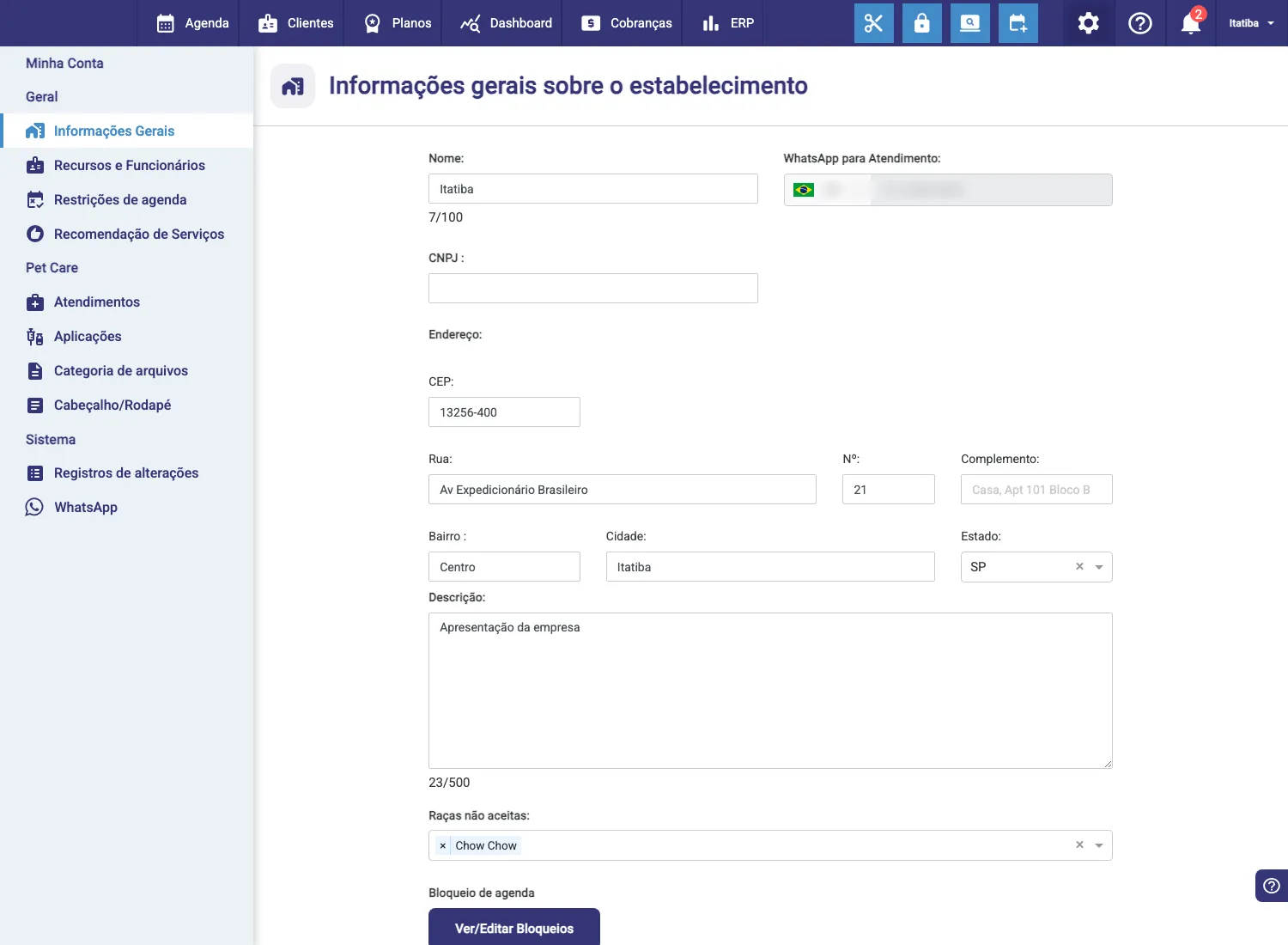
- If it shows a unit’s name (e.g. “Itatiba”), you’re on a branch.
In a single store (not part of a network), there’s no such distinction.
On the head office: the network rollup
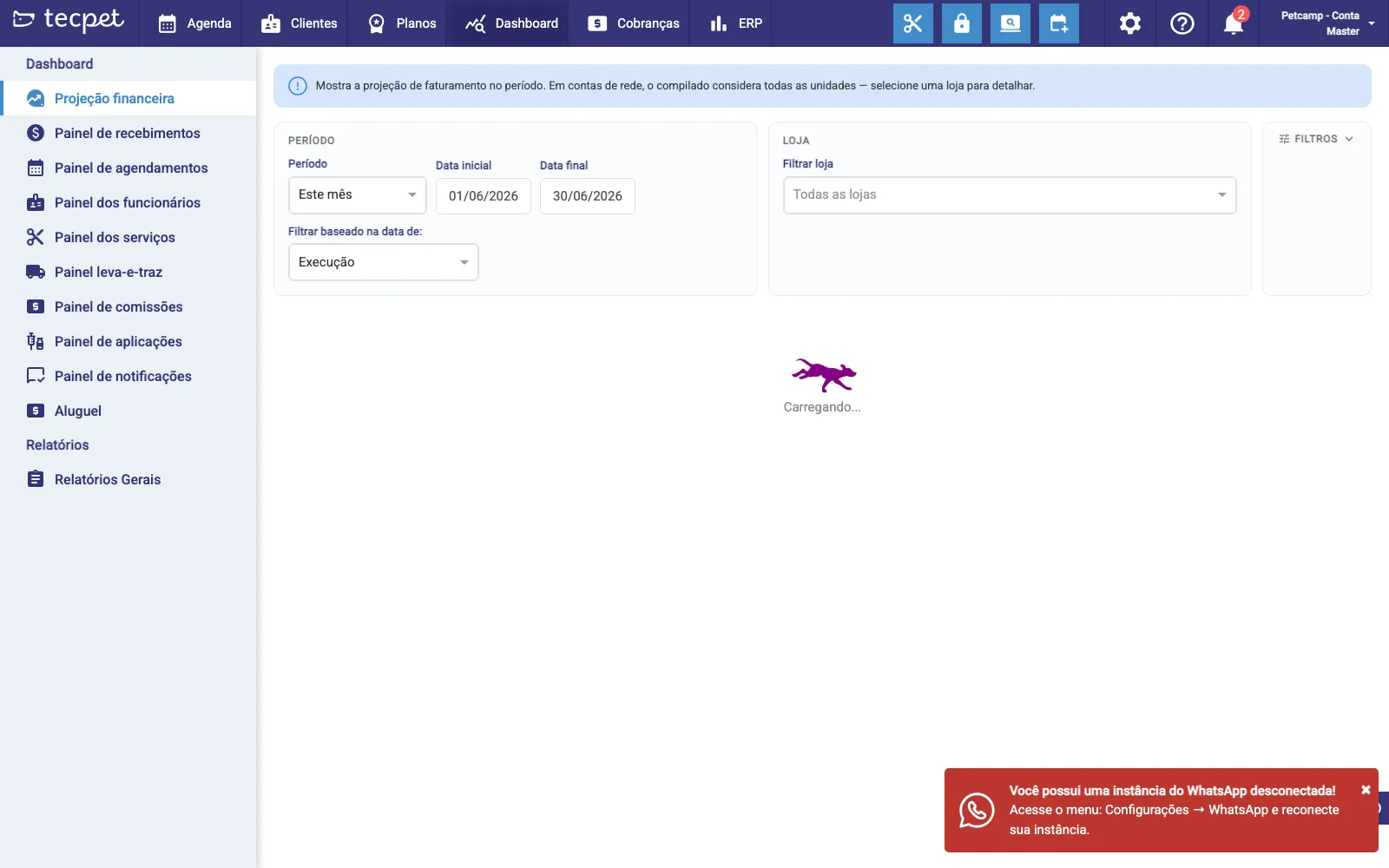
Section titled “On the head office: the network rollup”On the head-office account, the Dashboard gains a Store filter. By default it’s set to “All stores”: meaning the numbers shown are the rollup of every unit in the network. A note at the top reminds you: “On network accounts, the rollup considers all units, select a store to drill down”.
Drill into a specific unit
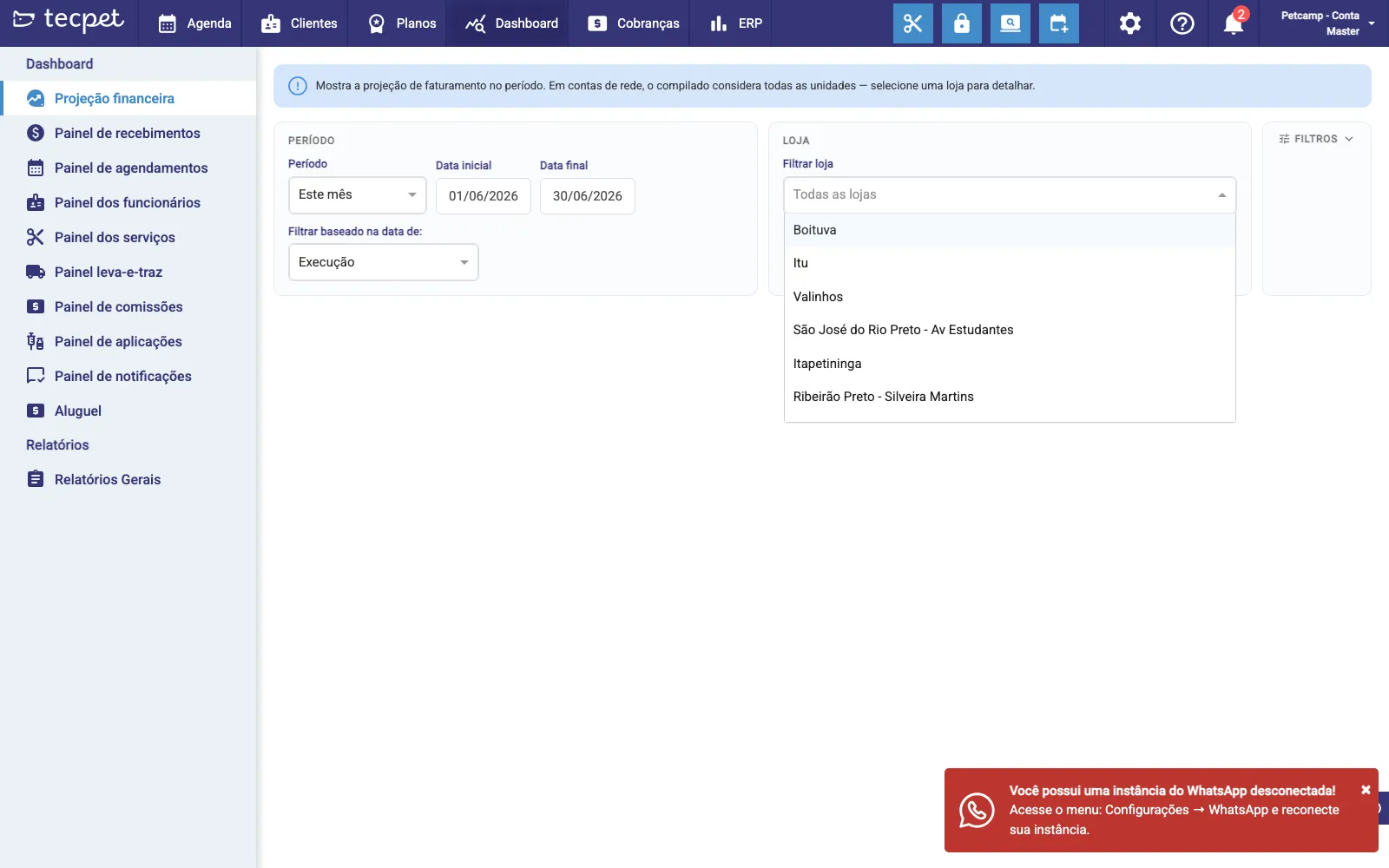
Section titled “Drill into a specific unit”To see the numbers of a single unit, open the Store filter and pick the unit from the list. The Dashboard recalculates everything for that store. Go back to “All stores” whenever you want the rollup again.
On a branch: only your unit
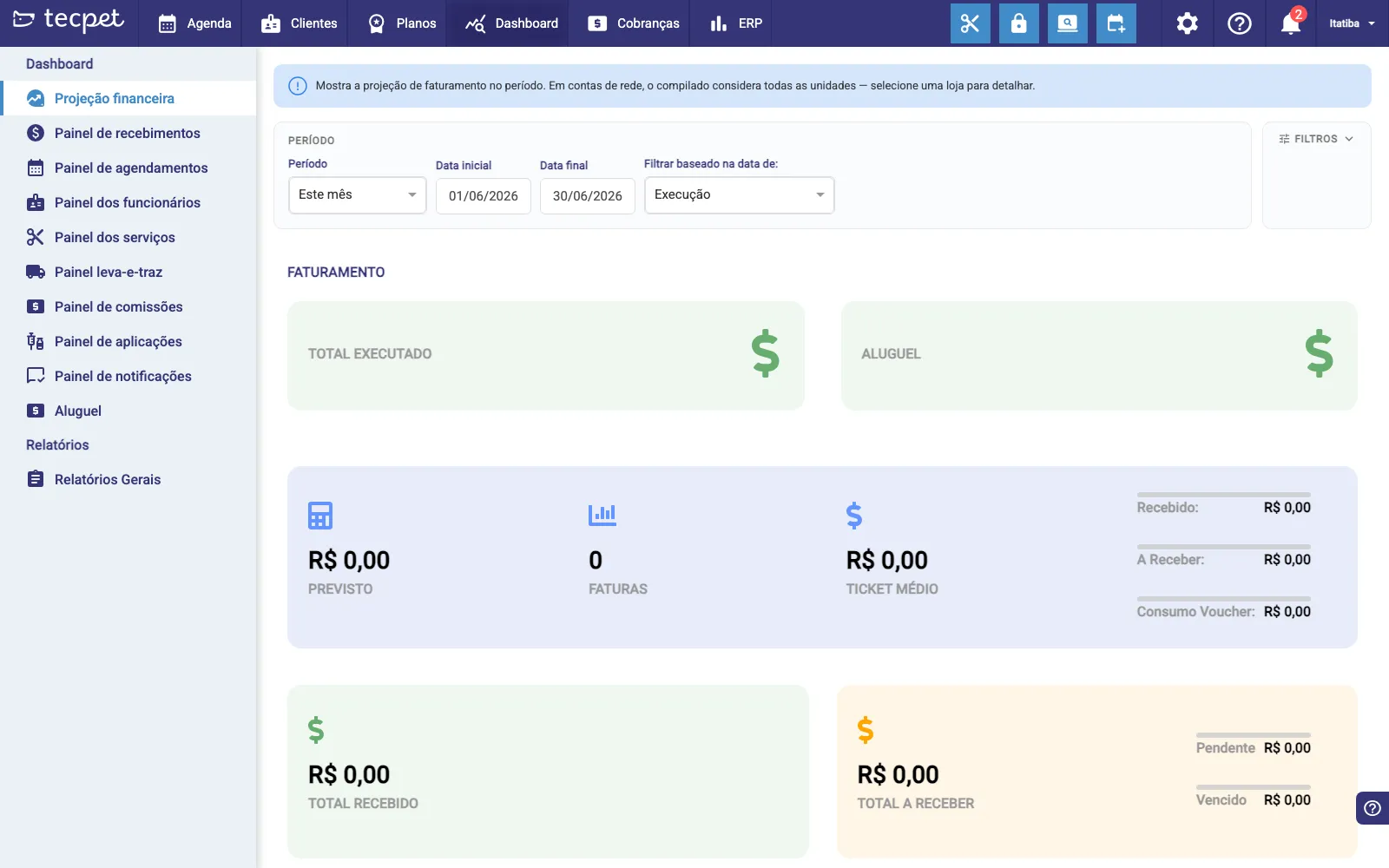
Section titled “On a branch: only your unit”On a branch account, the Dashboard has no store filter: it shows that unit’s own numbers directly (revenue, receipts, appointments, etc.). Whoever needs the whole-network view uses the head-office account.
It applies to every panel
Section titled “It applies to every panel”This rule is the same across all Dashboard panels, Financial projection, Receipts, Appointments, Staff, Services, Pickup & delivery, Commissions, Applications and Notifications. On the head office, each one brings the network rollup with the store filter; on a branch, each one brings only that unit’s data.
Settings: what the head office controls for the network
Section titled “Settings: what the head office controls for the network”The second difference is in Settings. The head-office account has a full menu and manages centrally what applies to the whole network:
- Registers: Categories, Services, Combos and Plans (the catalog is defined at the head office and applies to every unit);
- Species & Breeds, Business hours, Billing parameters, Checklists, Notifications and Invoicing;
- the network management: Manage stores (the units), Payees, Groups, Rules, Automated commission and POS.
Settings on a branch: only what’s its own
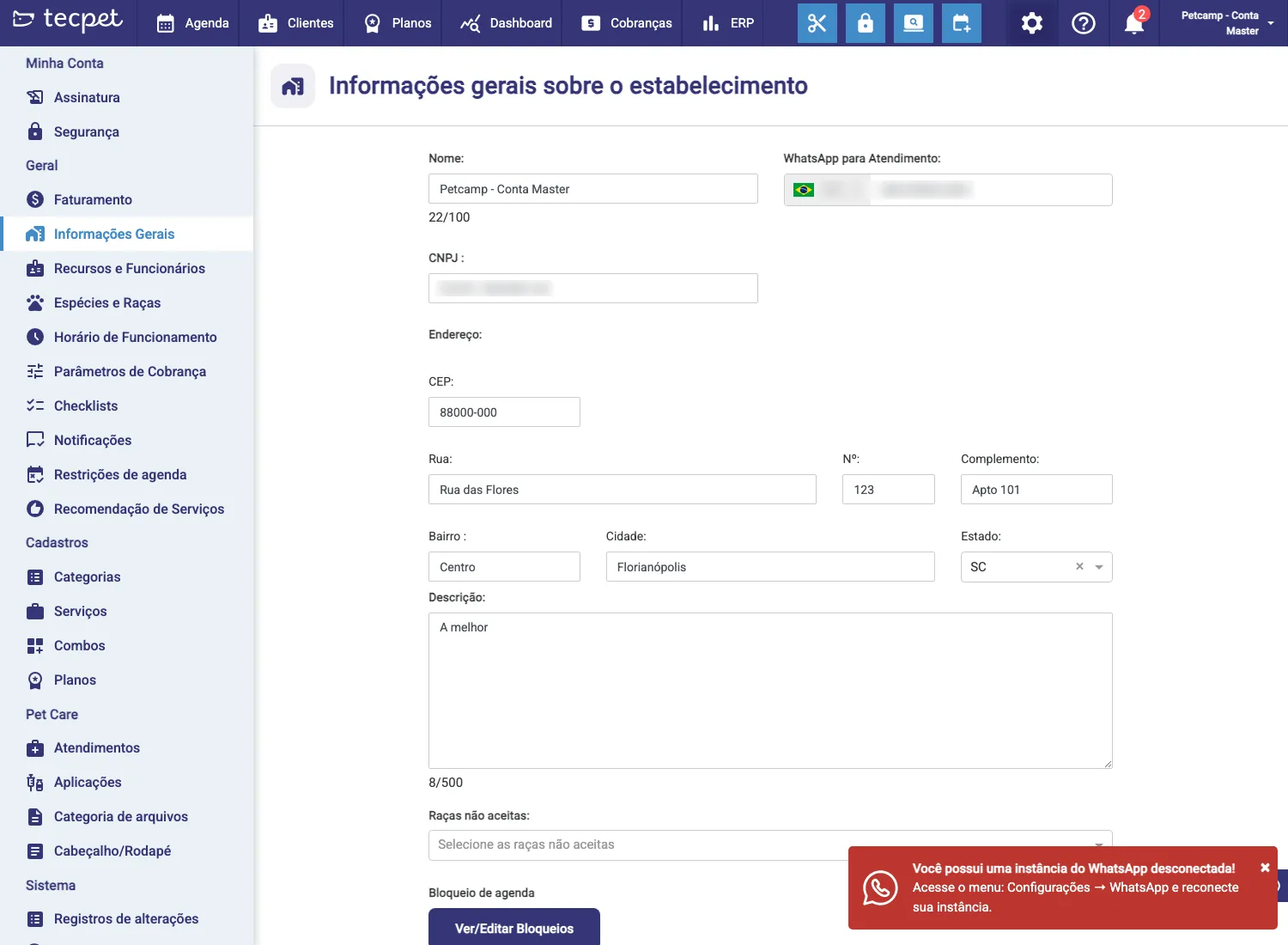
Section titled “Settings on a branch: only what’s its own”On a branch, the Settings menu is lean. It only adjusts what belongs to the unit itself:
- General information (the unit’s name, address, WhatsApp);
- Resources & Staff (that store’s team);
- Schedule restrictions and Service recommendation;
- the unit’s Pet Care and WhatsApp.
The catalog (services, combos, plans) and the general rules come from the head office ready-made, that’s why they don’t show up here to edit.
For your account type
Section titled “For your account type”Head office
You’re on a head-office account: the Dashboard shows the whole-network rollup (“All stores”) and you can drill into a unit; and in Settings you manage the whole network’s catalog and rules (services, combos, plans, hours, etc.) plus the units under Manage stores.
Branch
You’re on a branch: the Dashboard shows only your unit’s numbers (no store filter) and Settings are lean: you adjust only what’s your store’s (info, staff, restrictions, Pet Care). The catalog and rules come ready-made from the head office.
You have a single store (not part of a network): the store filter doesn’t appear and all Dashboard numbers are your store’s.