
Create and send a quote
A Quote is the price proposal you put together for a customer (or for someone who is not even registered yet) and send on WhatsApp before booking. It gathers services, plans and custom items for one or more pets, freezes the price for the validity period you choose and generates a link where the pet owner accepts or refuses on their own. When they accept, the quote becomes a booking in one click. A quote does not create an invoice or a charge: money only comes in when the service is booked and done. To follow everything that was quoted, the funnel and the conversion, see Track and convert quotes.
How many quotes do you lose without a reply? #
A price in a voice note does not close
The quote that stays in the chat is the sale your competitor closes.
“Whoever sends an organized price, with a deadline and an accept button, gets the yes faster.”
The pet owner asks the price of bath and grooming for both pets, you work it out in your head, reply with a voice note and the chat disappears among fifty others. Days later nobody remembers the agreed value, the promised discount or whether they ever replied. Every quote lost that way is a booking that did not happen.
With tecpet's Quote, you build the proposal in four steps with the prices of your own table, set the validity and send a link on WhatsApp. The pet owner sees everything organized, accepts or refuses with a reason, and you follow on the panel who opened, who accepted and who stalled. Accepted? It becomes a booking in one click.
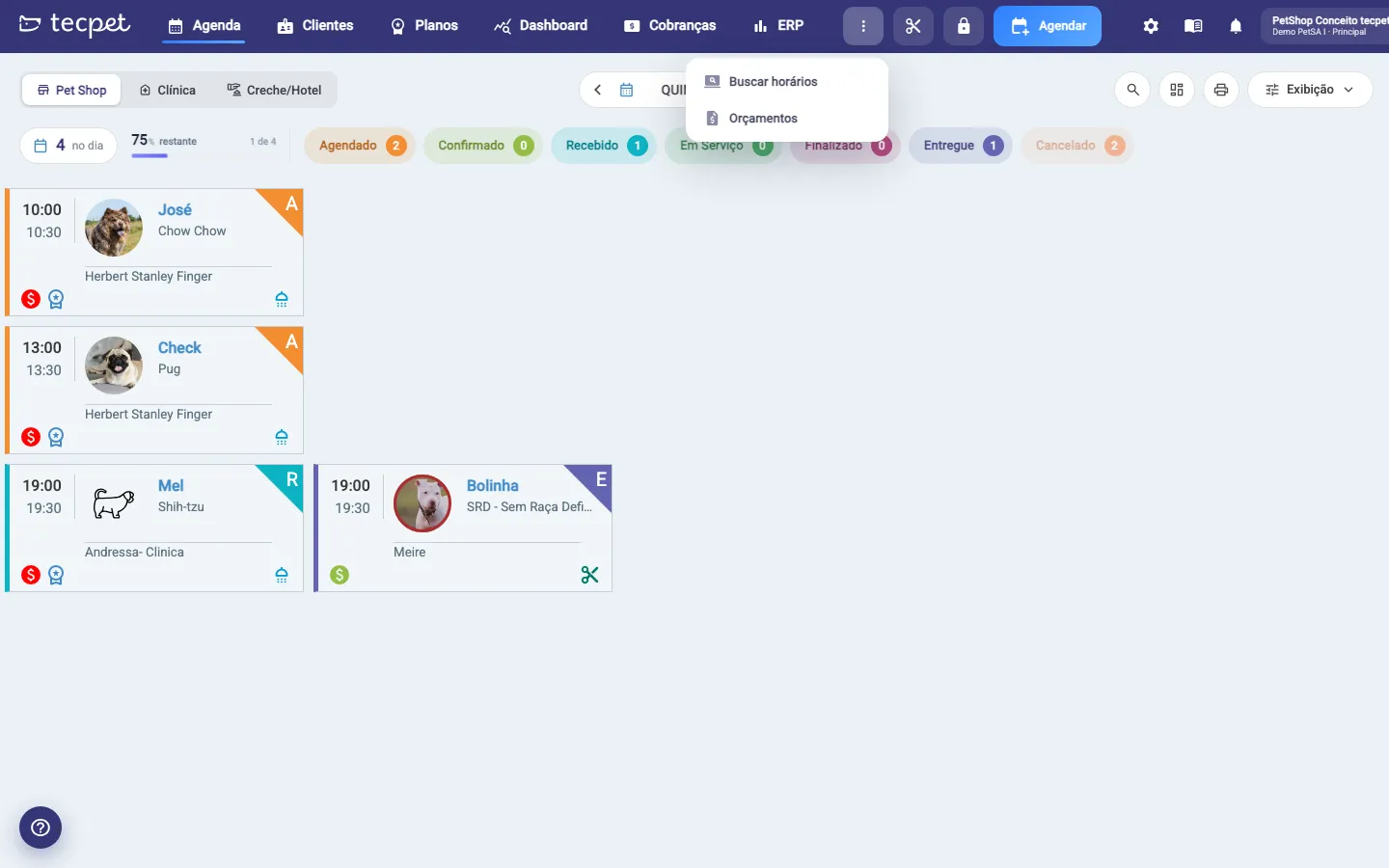
Step 1: Open the More actions menu and click Quotes
Section titled “Step 1: Open the More actions menu and click Quotes”On the top bar, click the three dots button (tooltip More actions), the first one in the icon row. In the menu that opens, click Quotes. This works from any screen. The Quote window opens with four steps on the side: CUSTOMER, PETS, ITEMS and OUTCOME. At the top, the segment tabs (Pet Shop, Clinic, Daycare/Hotel) define which catalog the services come from.
Other ways to get there: on the customer profile, the Quotes tab has the New quote button (already filled with the customer and the pets); on mobile, the Quotes item lives in the corner menu.
Step 2: Pick the customer
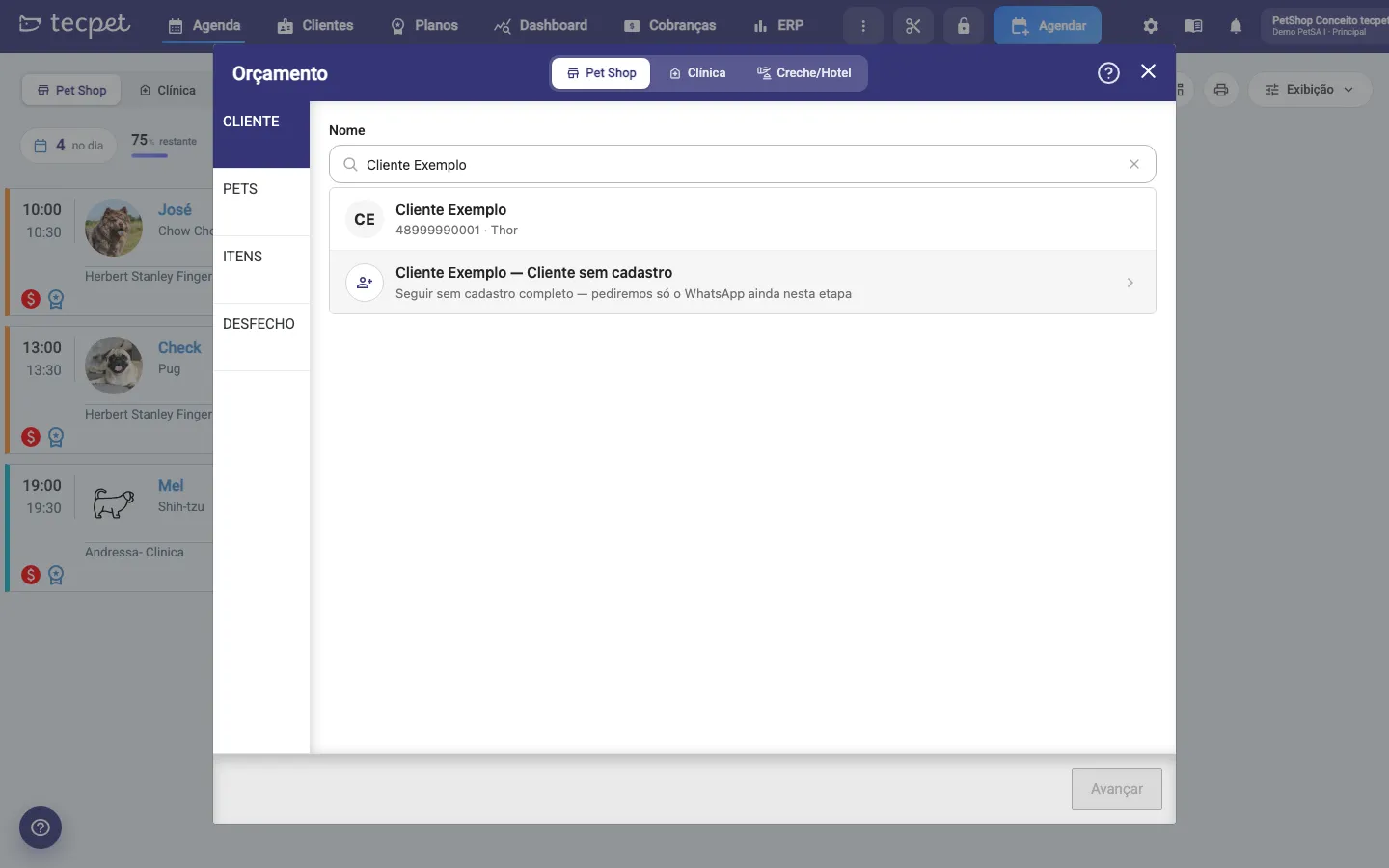
Section titled “Step 2: Pick the customer”In the CUSTOMER step, type at least 3 characters of the name, tax ID or phone in the Search by name, CPF or phone field. The list shows the customers found, with their phone and pets. Click the customer to select them: they show up in a card with a Switch button in case you want to change. Then click Next.
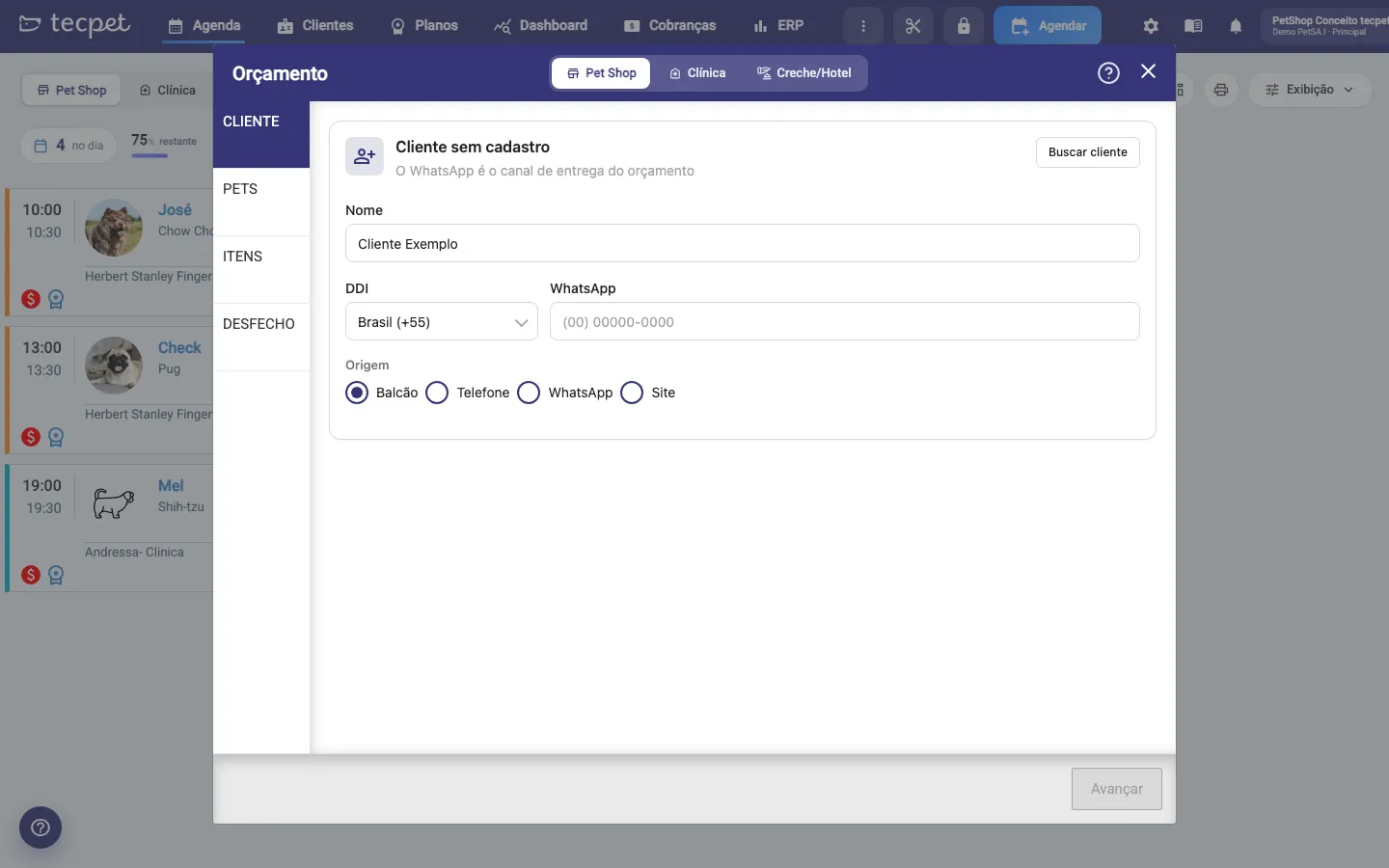
Quote for someone who is not a customer yet
Section titled “Quote for someone who is not a customer yet”The last row of the search is always Unregistered customer. Use it when the person asked for a price at the counter, by phone or on WhatsApp and has no record yet. In this mode you only fill in:
- Name*: the person’s name;
- Country code and WhatsApp*: the number that will receive the quote (WhatsApp is the delivery channel, so it is required);
- Origin: where the request came from: Counter, Phone, WhatsApp or Website. It feeds the Lead origin filter on the panel.
The Search customer button goes back to the registered customers search. Once saved, a quote for an unregistered customer can become a real record with Turn lead into customer (see the tracking article).
Step 3: Check the pets
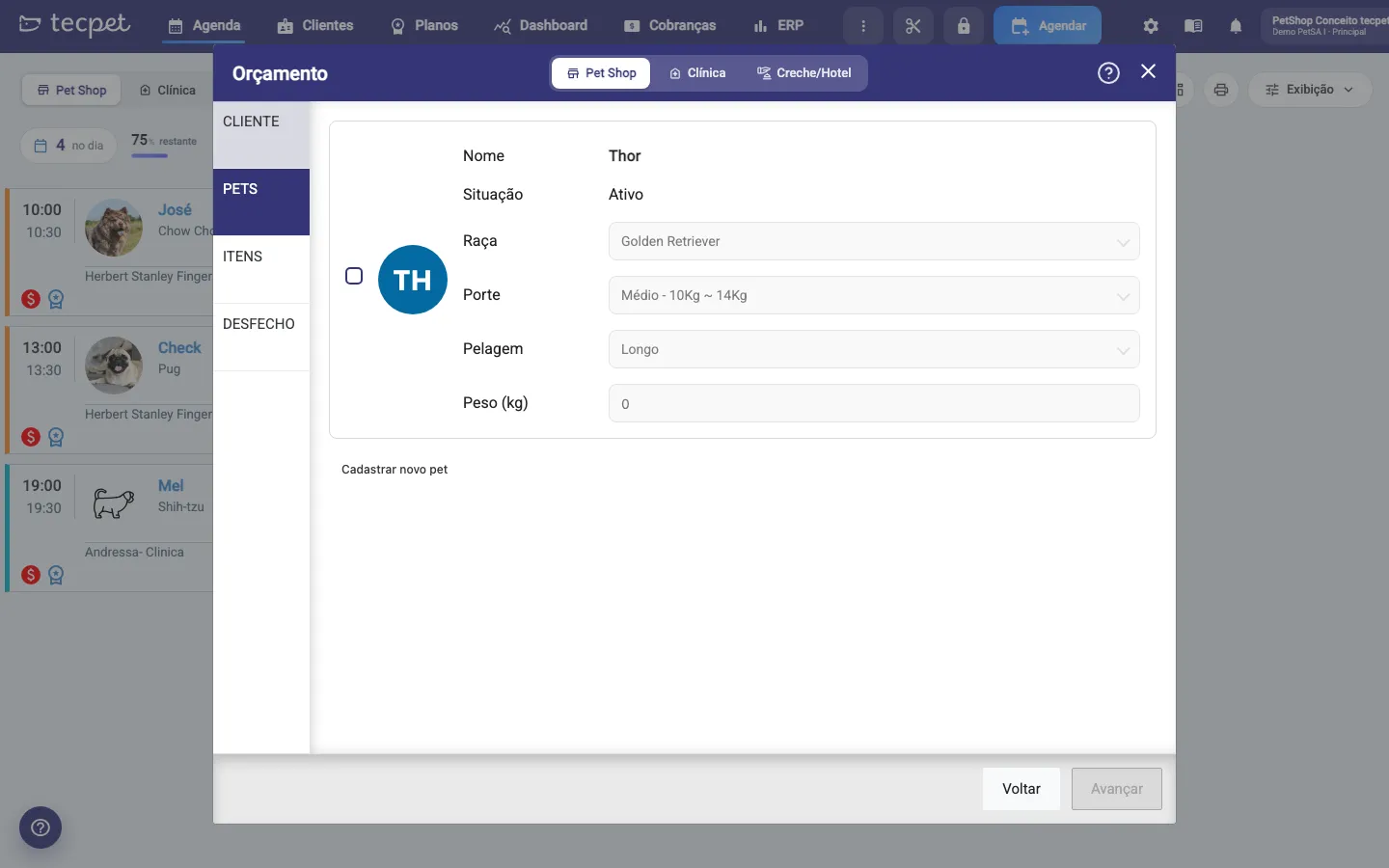
Section titled “Step 3: Check the pets”The PETS step shows one card per pet of the customer, with Name, Status, Breed, Size, Coat and Weight read-only: the price of each service comes from the pet’s record, so you cannot simulate another size here. Tick the box of each pet that goes in the quote (it can be more than one) and click Next. If a pet is missing, register it on the customer profile and come back: it shows up in this list.
For an unregistered customer, you type the data of each pet: Species*, Name* and, depending on your price table, Size* and Coat* or Breed*. The Add another pet button includes one more.
Step 4: Choose services, plans and items
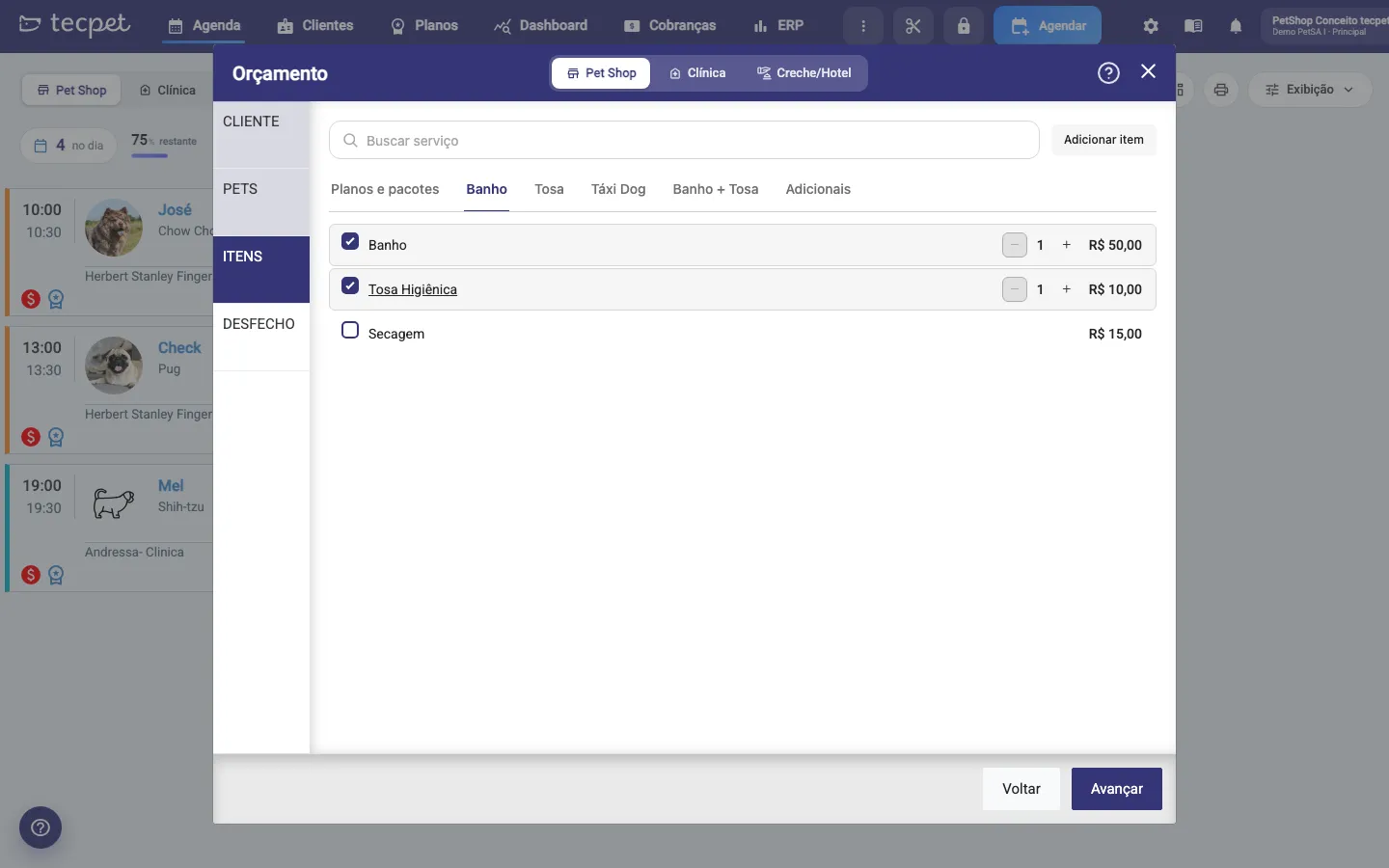
Section titled “Step 4: Choose services, plans and items”In the ITEMS step the segment catalog shows up in tabs: Plans and packages first (only when there is a plan with a service from that segment) and then the shop’s service categories (Bath, Grooming, Add-ons…). Each row shows the price for the selected pet. Click the row to include it; a quantity counter appears to repeat the same service. The Search service field filters by name.
With two or more pets, the All pets / Per pet switch appears:
- All pets: ticking a service includes it for every pet that has a registered price, and the row shows the sum;
- Per pet: pick the pet on the chips and tick only what applies to it. If you tick the same service for a second pet, tecpet asks Merge into equal services?.
Plans and packages go in through their card; Unavailable for this pet means there is no price for its size or breed.
Custom item
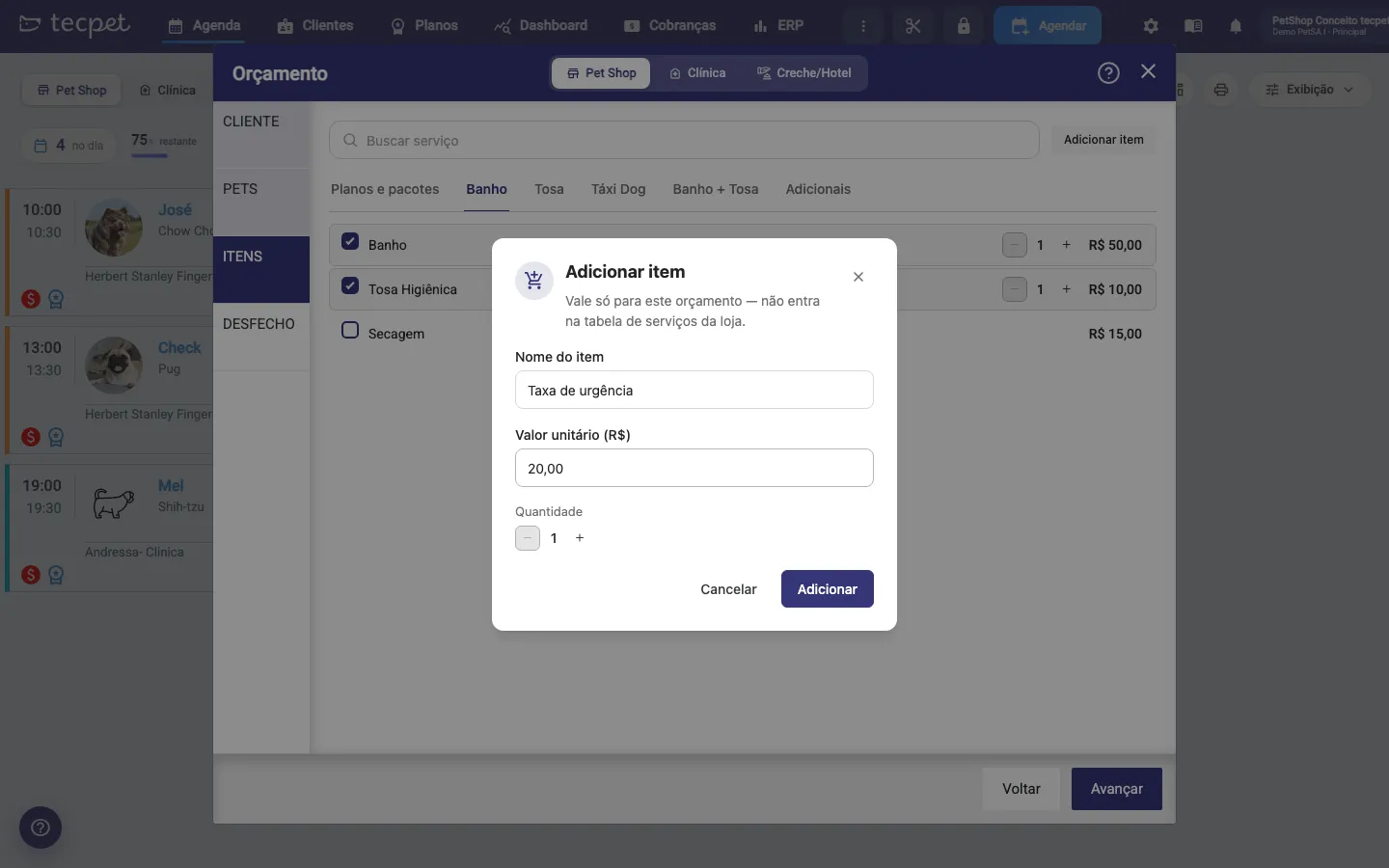
Section titled “Custom item”The Add item button creates a charge that is not in the service table (an urgency fee, a product, a trip). Fill in Item name*, Unit value (R$)* and Quantity and click Add. The item is valid only for this quote and is not tied to a pet. In the outcome it shows up with an Edit button.
Step 5: Review the outcome
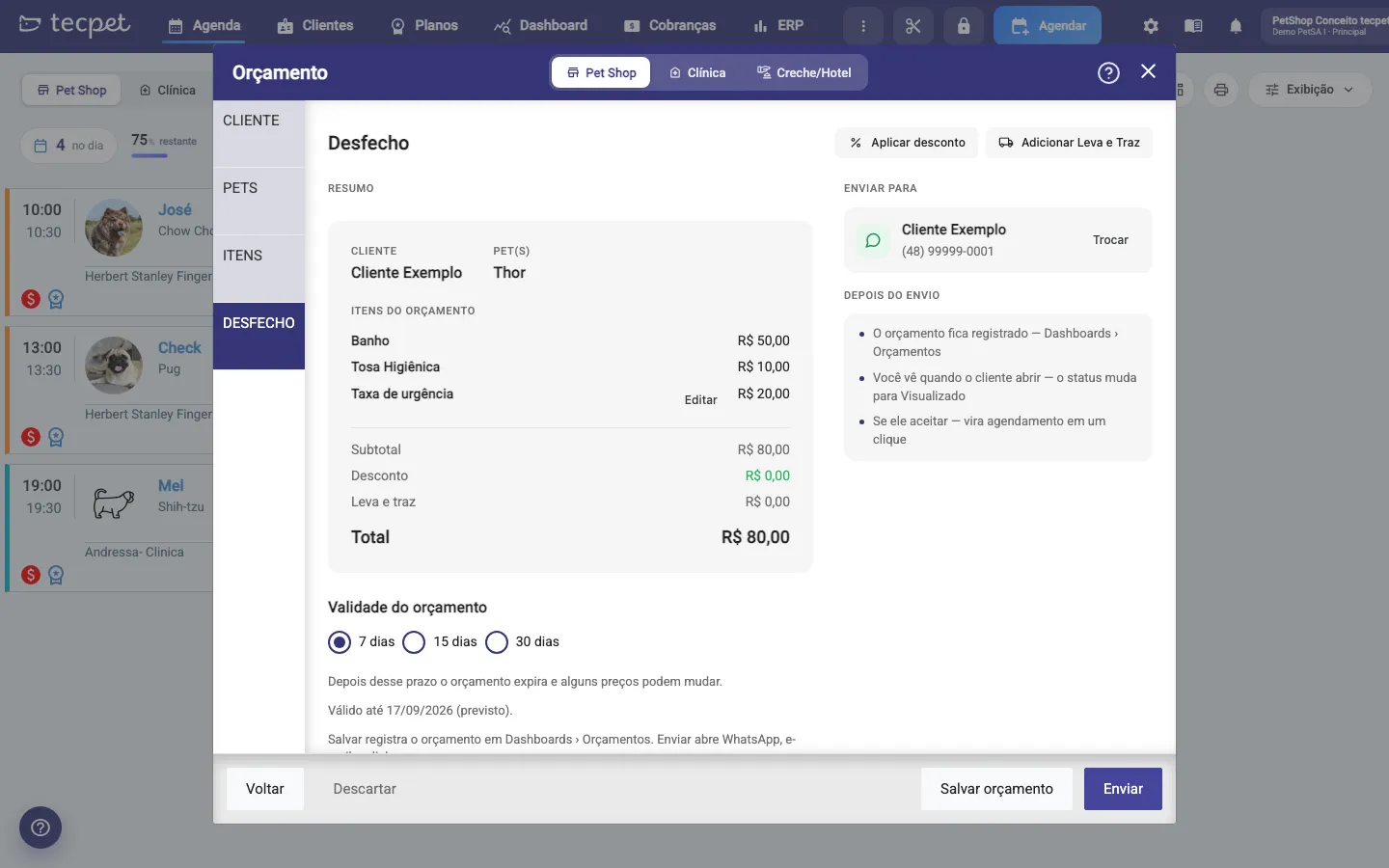
Section titled “Step 5: Review the outcome”The OUTCOME step shows the Summary with customer, pets, the items (grouped by pet when the choices differ) and the totals: Subtotal, Discount, Pickup and delivery and Total. Below, the Quote validity: 7 days (default), 15 days or 30 days. After that period the quote expires and the pet owner needs to ask for a new one, because prices may change. On the right, under Send to, is the WhatsApp that will receive the link; Switch (or Inform, if the customer has no number) changes the phone for this send only, without changing the record.
Discount and Pickup and delivery
Section titled “Discount and Pickup and delivery”At the top of the outcome:
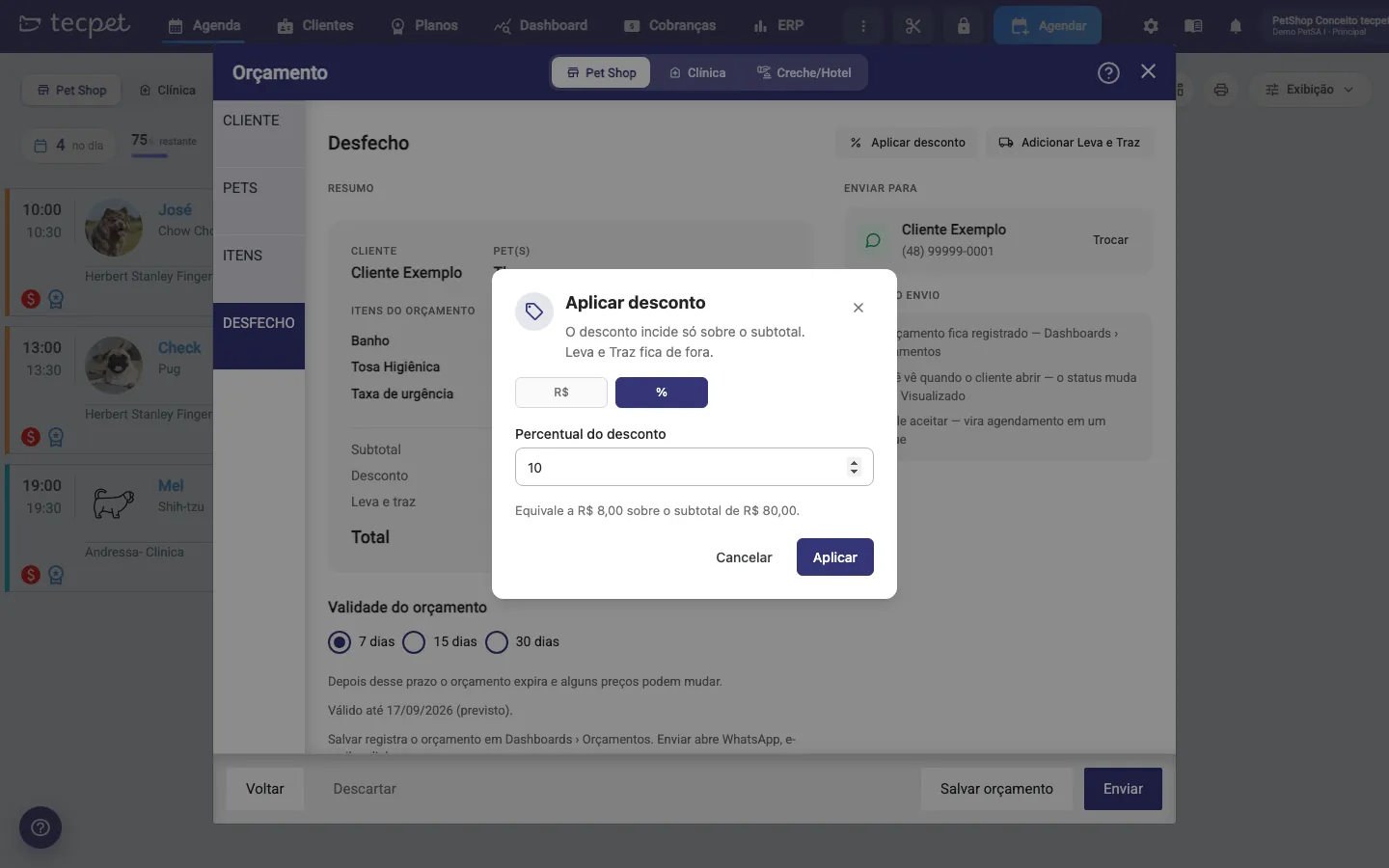
- Apply discount: choose R$ or % and enter the value. The discount applies only to the subtotal and cannot exceed it. In percentage, the window already shows how much it is in reais;
- Add Pickup and delivery: enter the transport value. It goes into the total after the discount, so the discount never reduces the pickup and delivery.
Both buttons become Edit discount and Edit Pickup and delivery once filled, with a Remove option.
Step 6: Save or send
Section titled “Step 6: Save or send”The bottom bar has three actions:
- Save quote: saves as a Draft and closes the window. Nothing has been sent yet;
- Send: saves and opens the send window right away (next step);
- Discard: closes without saving anything (tecpet confirms first).
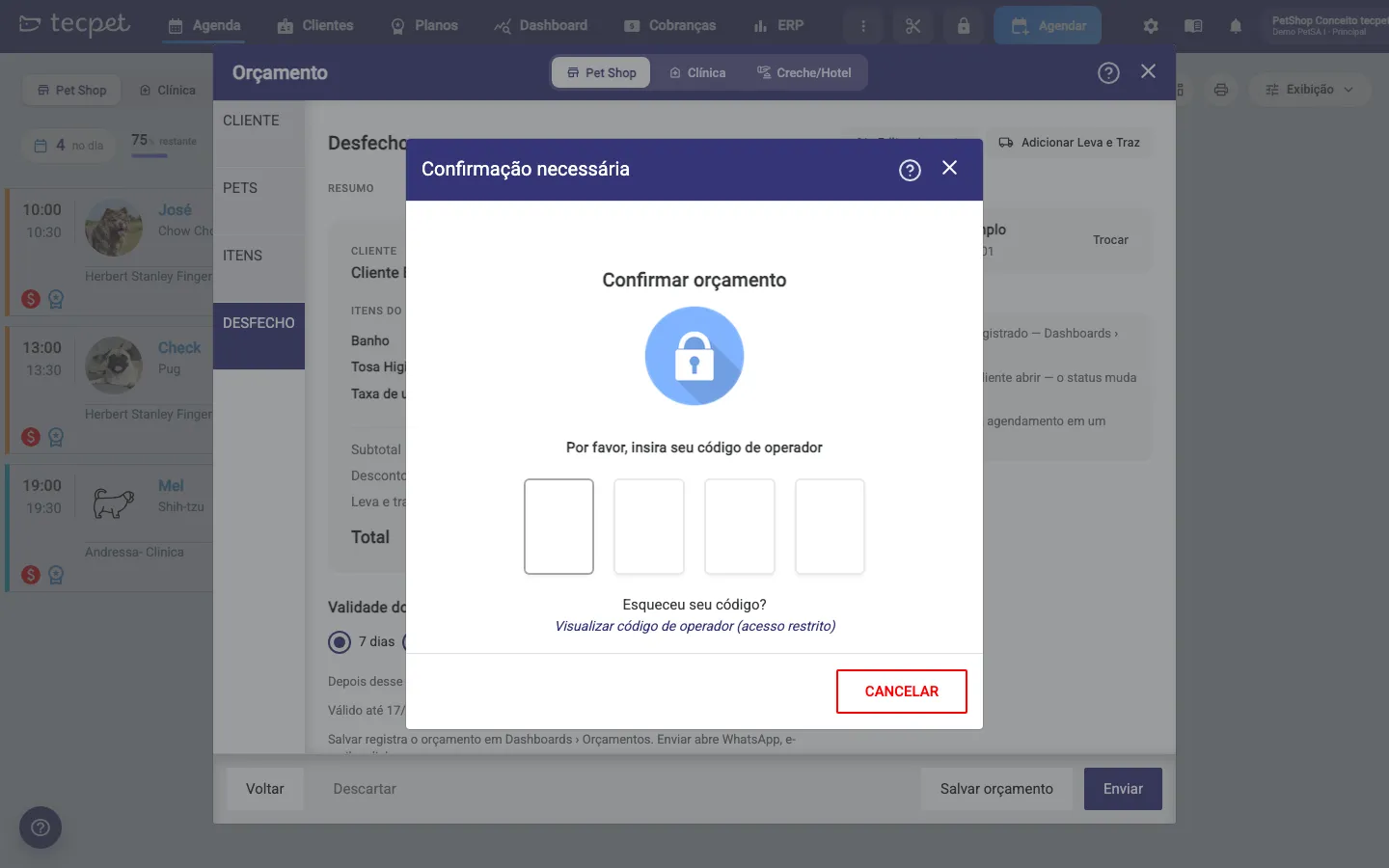
Both to save and to send, tecpet asks for the operator code (4 digits) in the Confirm quote window. Whoever types the code is recorded as the quote’s attendant, the same name that appears in the conversion by attendant report. The employee needs the permission to manage quotes.
Step 7: Choose how the quote reaches the pet owner
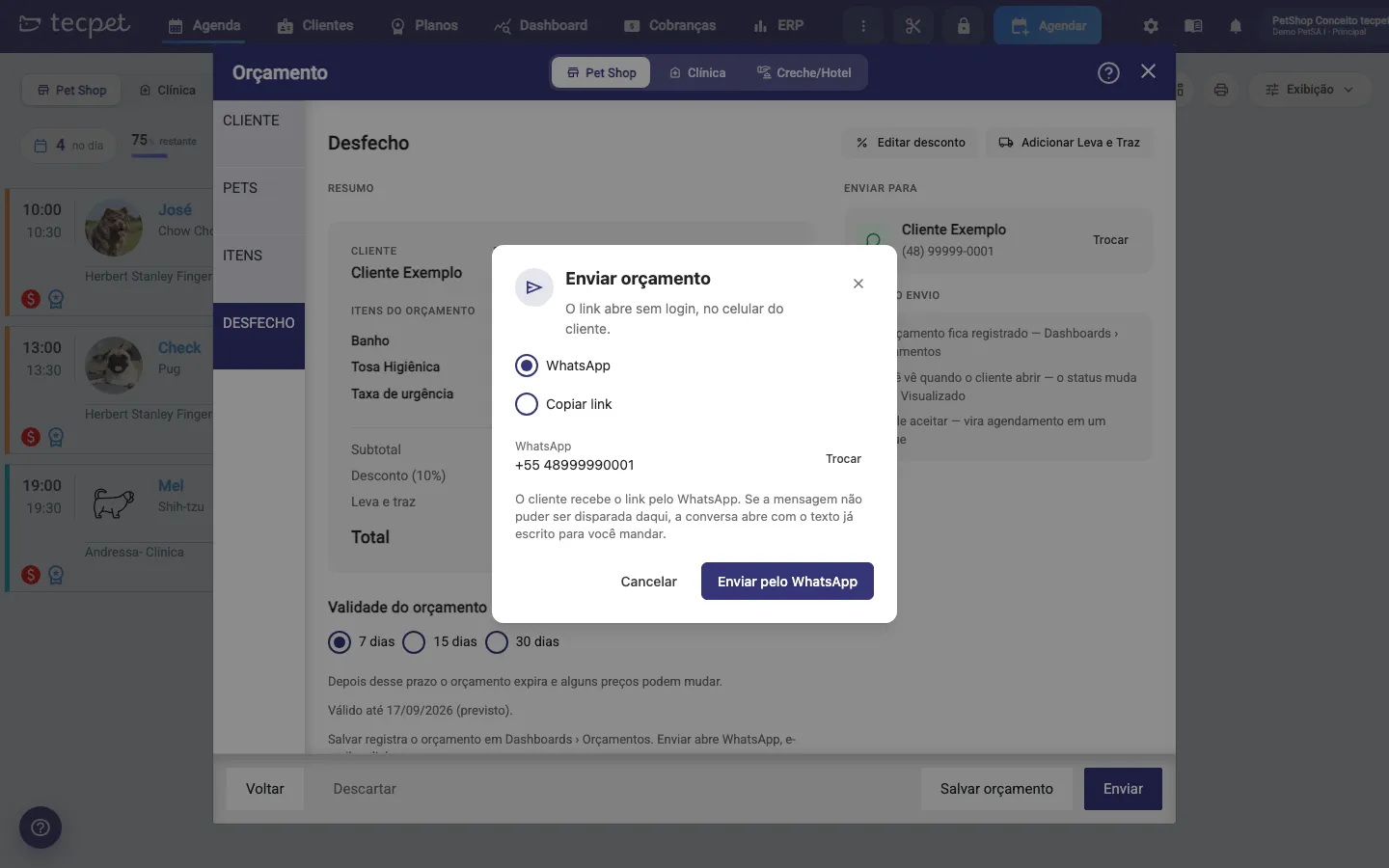
Section titled “Step 7: Choose how the quote reaches the pet owner”In the Send quote window pick the channel:
- WhatsApp (default): tecpet sends the automatic message with the link to the number shown. If the message cannot go out from here (unregistered customer, notification turned off or sending failure), the WhatsApp conversation opens with the text ready for you to send;
- Copy link: copies the quote address and marks it as Sent, without sending a message. Good to paste into a conversation that is already open.
After sending, the quote moves to the Sent status. When the pet owner opens the link for the first time, it changes to Viewed, and you follow that on the panel.
What the pet owner sees
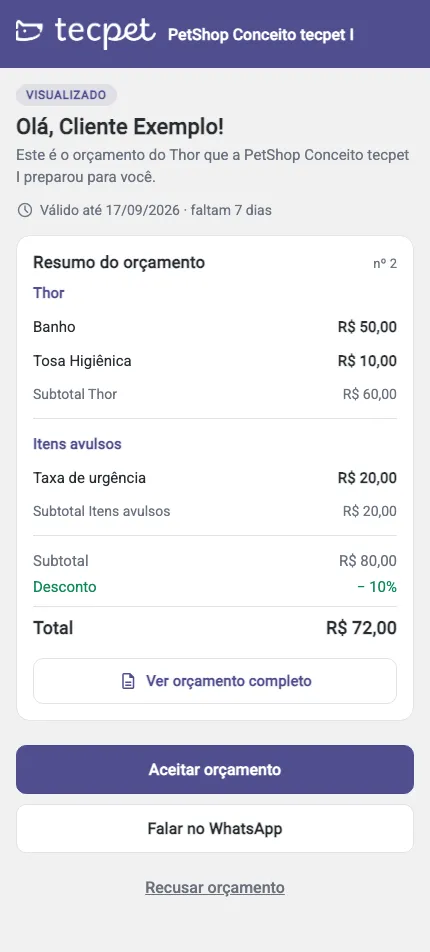
Section titled “What the pet owner sees”The link opens without login, on the pet owner’s phone, with the shop’s name and logo. They see the status, the greeting with their name, the Quote summary per pet (items, subtotal per pet, discount, pickup and delivery and total) and the validity with the days left. The buttons are:
- Accept quote: the status becomes Accepted and the shop’s panel is notified right away;
- Talk on WhatsApp: opens a conversation with the shop’s phone, without changing the status;
- Refuse quote: asks for the reason (see below);
- See full quote: opens the pre-invoice, a printable sheet with all the items. It makes clear it is not a fiscal document and does not generate a charge.
If the quote has expired, the pet owner sees the notice and the Request new quote button, which tells the shop to requote.
If the pet owner refuses
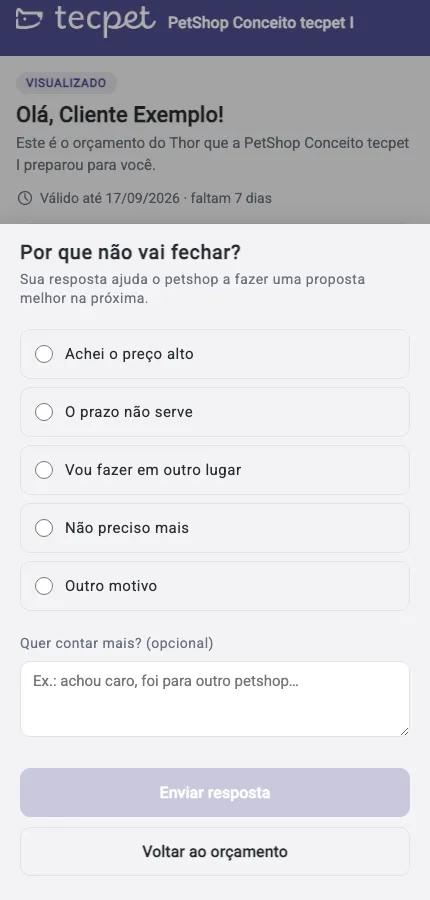
Section titled “If the pet owner refuses”When tapping Refuse quote, the pet owner picks a reason: Price too high, The deadline does not fit, Going somewhere else, No longer needed or Other reason (with a field to explain). The reason is saved on the quote and appears on the panel and in the customer’s history, so you understand what is holding sales back.
The message that goes out on WhatsApp
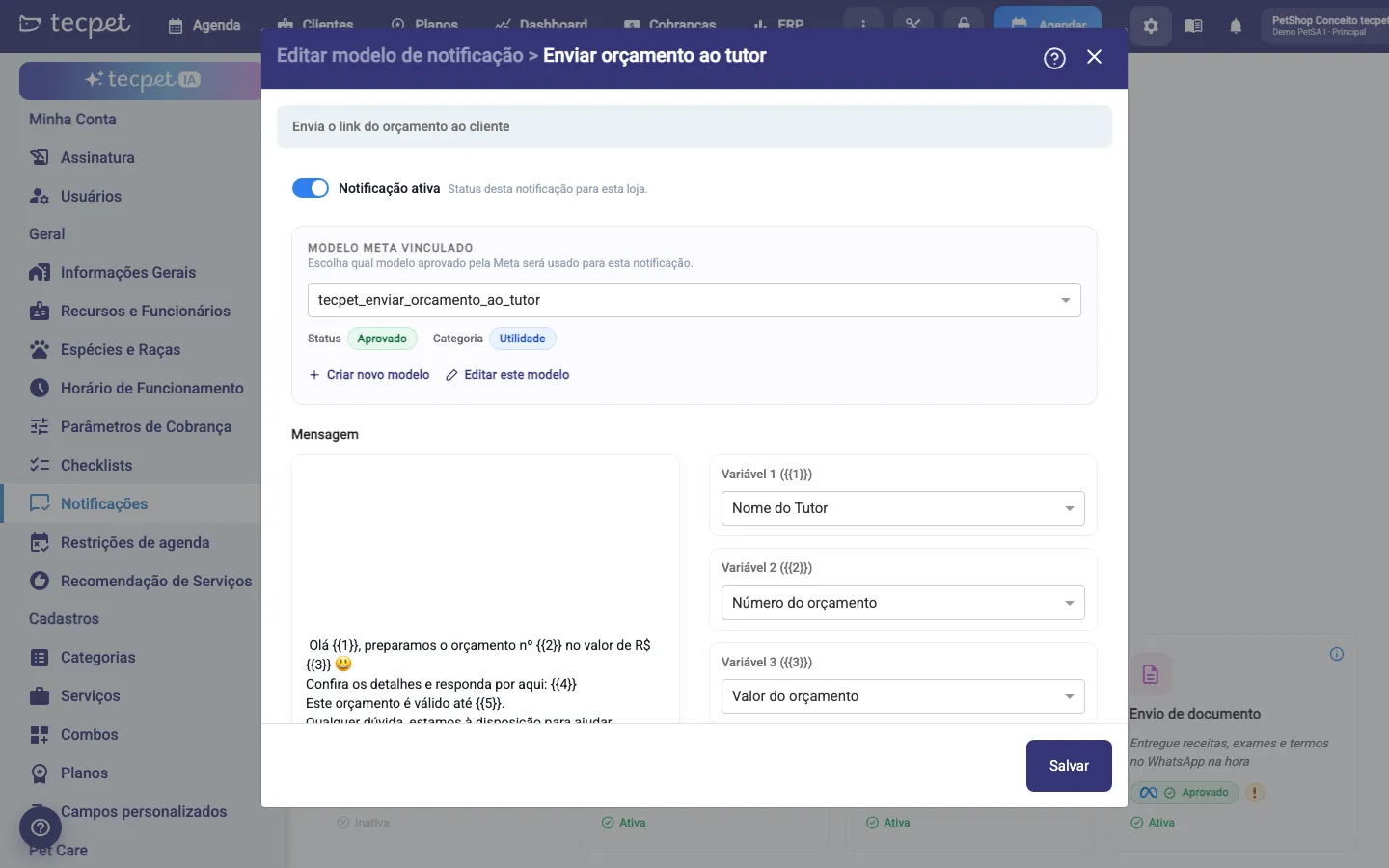
Section titled “The message that goes out on WhatsApp”The text sent is the Send quote to pet owner notification, in the Finance category of Settings → Notifications. The default says: “Hi {Pet owner name}, we prepared quote no. {Number} worth R$ {Value}. Check the details and reply here: {Link}. This quote is valid until {Validity}.” with the Open Link button. You can edit the text and use the variables Quote number, Quote value, Quote link and Quote validity, plus the shop and pet owner variables. If you turn the notification off, sending falls back to manual mode (the conversation opens with the text ready). In shops on the official WhatsApp (Meta), the text must be approved as a template, like the other automatic notifications.
How to edit or undo later
Section titled “How to edit or undo later”A quote can only be changed while it is a Draft, inside its own window, before saving and closing. Once sent, the way to change it is Requote (creates a new quote, with today’s prices) on the quotes panel. There you also resend the link, record an acceptance or refusal made at the counter, turn an accepted quote into a booking and delete a quote that should no longer be valid.
What changes with your pricing model
Section titled “What changes with your pricing model”For an unregistered customer, the PETS step asks for the Size and Coat of each pet, and that is what tecpet uses to look up the price in your service table. Sizes appear with their weight range (e.g. Large, 15Kg ~ 20Kg).
If your price is by breed
For an unregistered customer, the PETS step asks for the Breed of each pet (the field only unlocks after choosing the Species). The price comes from the breed’s row in your table; if the breed has no row of its own, tecpet uses the table’s default price.