
Search times and prices (quick search)
The Busca rápida de horários e preços (Quick search for times and prices) is the shortcut for the most common question on the phone and WhatsApp: quanto custa e quando tem horário? (how much is it and when is there a slot?) You only enter the pet’s species and size and coat (or breed), check the services, and instantly see the price and the free times for any day, without choosing a client and without registering anything. It is just a lookup: nothing is booked or reserved, and the time shown may be taken by another appointment right after. To actually book, use the new appointment; to send the price in writing, the quote. Prices come from the table of each service and times are calculated as in the schedule, with the business hours, the staff and the blocks.
Step 1: Open the quick search
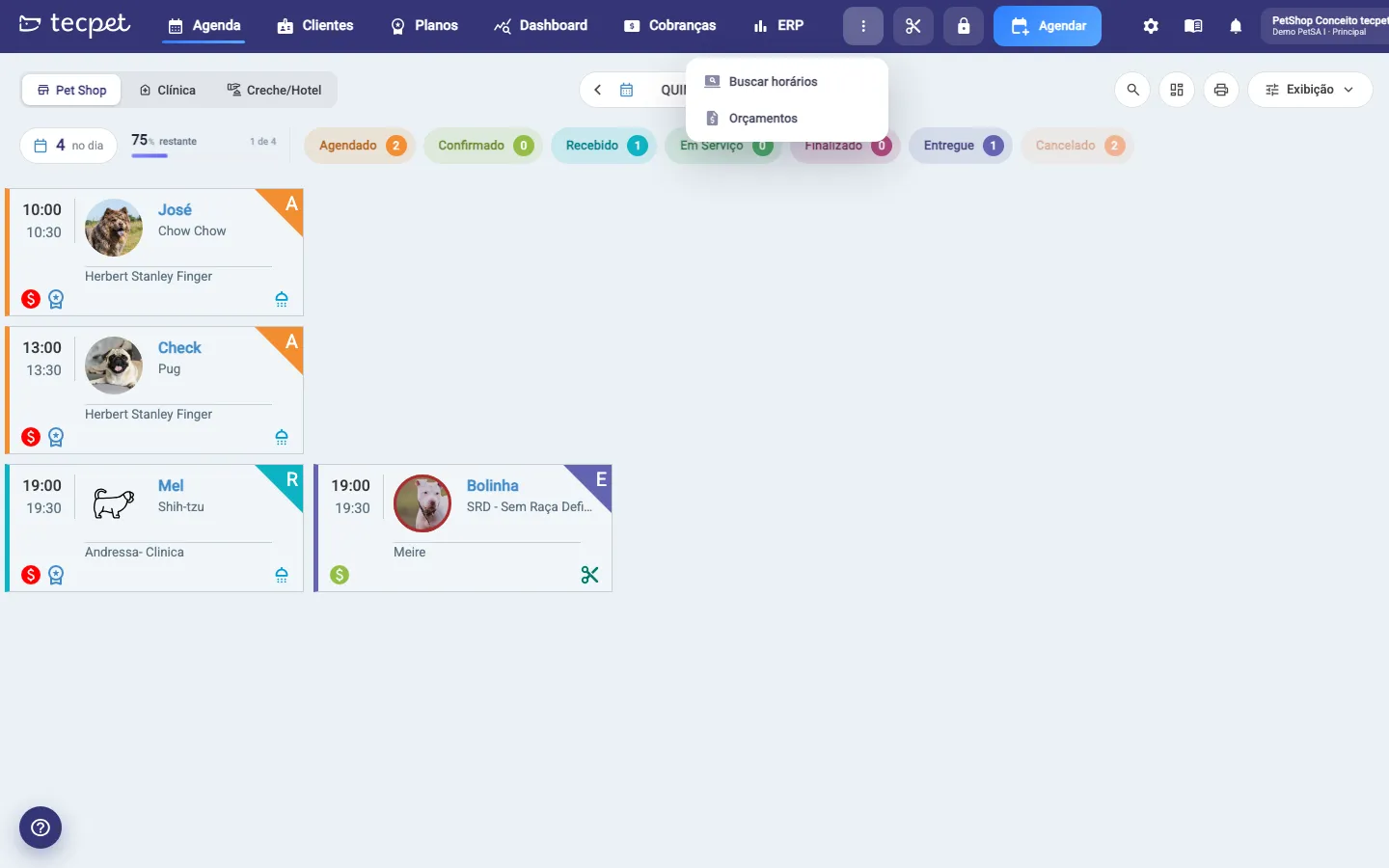
Section titled “Step 1: Open the quick search”In the top bar, click the three dots button (Mais ações, More actions) and then Buscar horários (Search times). It works on any screen. The Busca rápida de horários e preços (Quick search for times and prices) window opens with three steps on the side: PET, SERVIÇOS (Services) and DATA E HORÁRIO (Date and time). At the top are the segment tabs (Pet Shop, Clínica (Clinic), Creche/Hotel (Daycare/Hotel)), which define which catalog the services come from; the footer always shows Subtotal, Desconto (Discount), Leva e Traz (Pick-up and Drop-off) and Total.
Step 2: Enter the pet
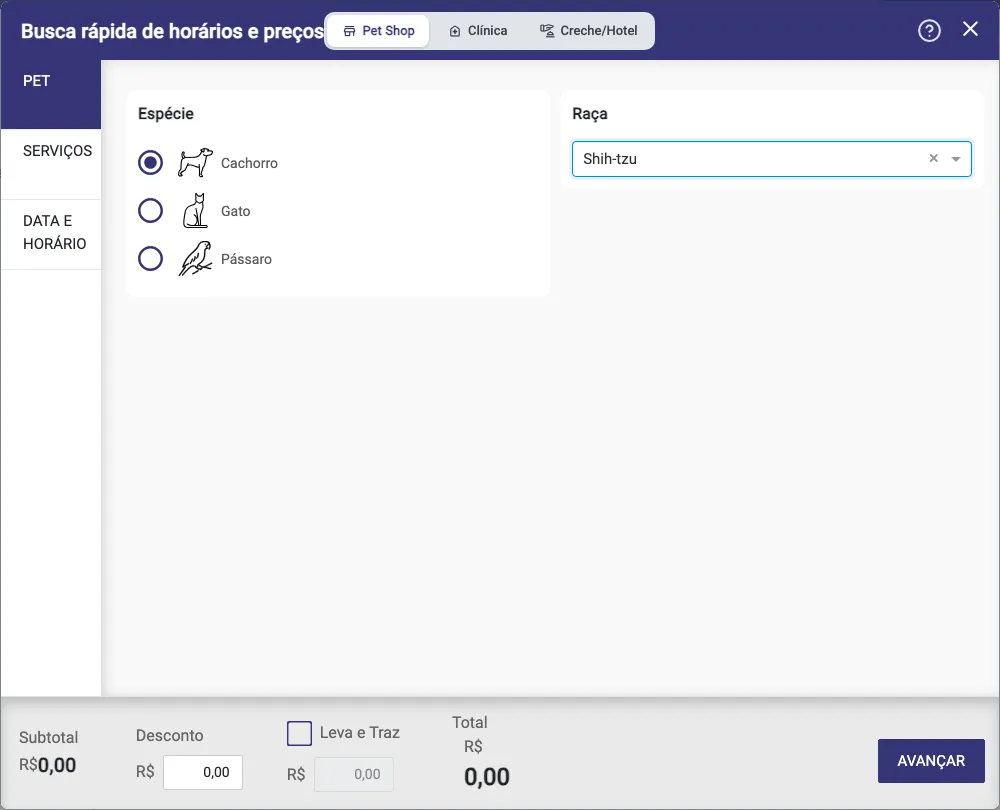
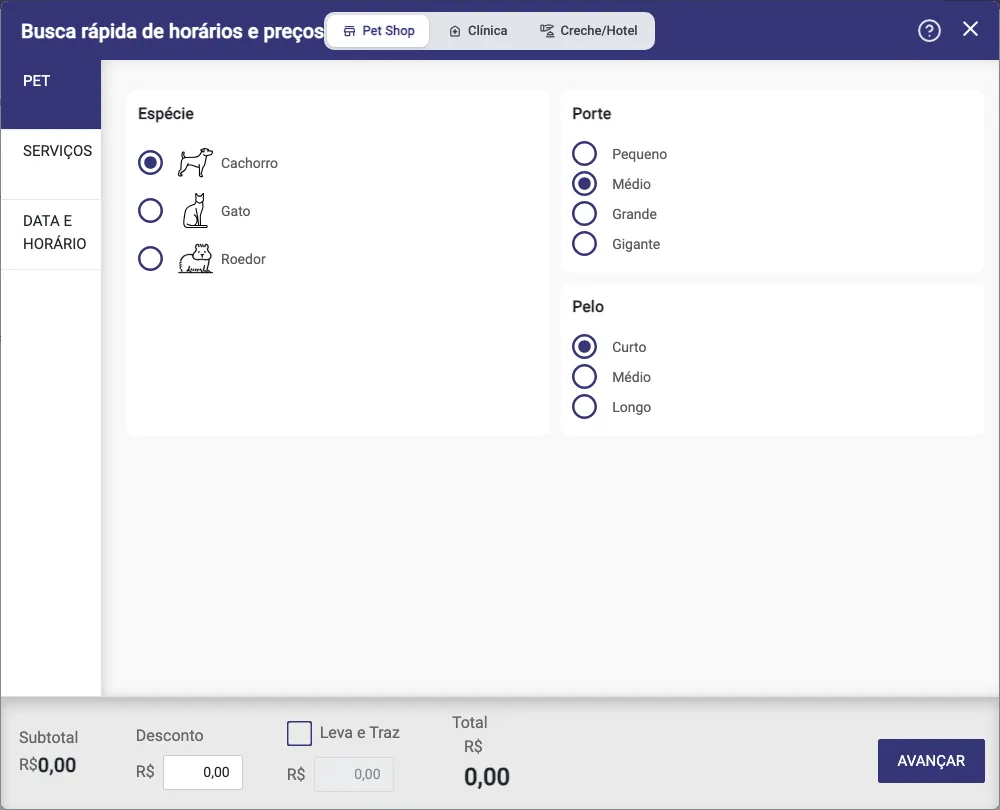
Section titled “Step 2: Enter the pet”In the PET step, choose the Espécie (Species) (the ones your shop serves, e.g. Dog, Cat) and, depending on your shop’s pricing method, Porte (Size) and Pelo (Coat) or the Raça (Breed) (see O que muda com a sua forma de precificar (What changes with your pricing method), at the end of the article). There is no name or pet owner: only what defines the price. Click AVANÇAR (Next).
Step 3: Check the services
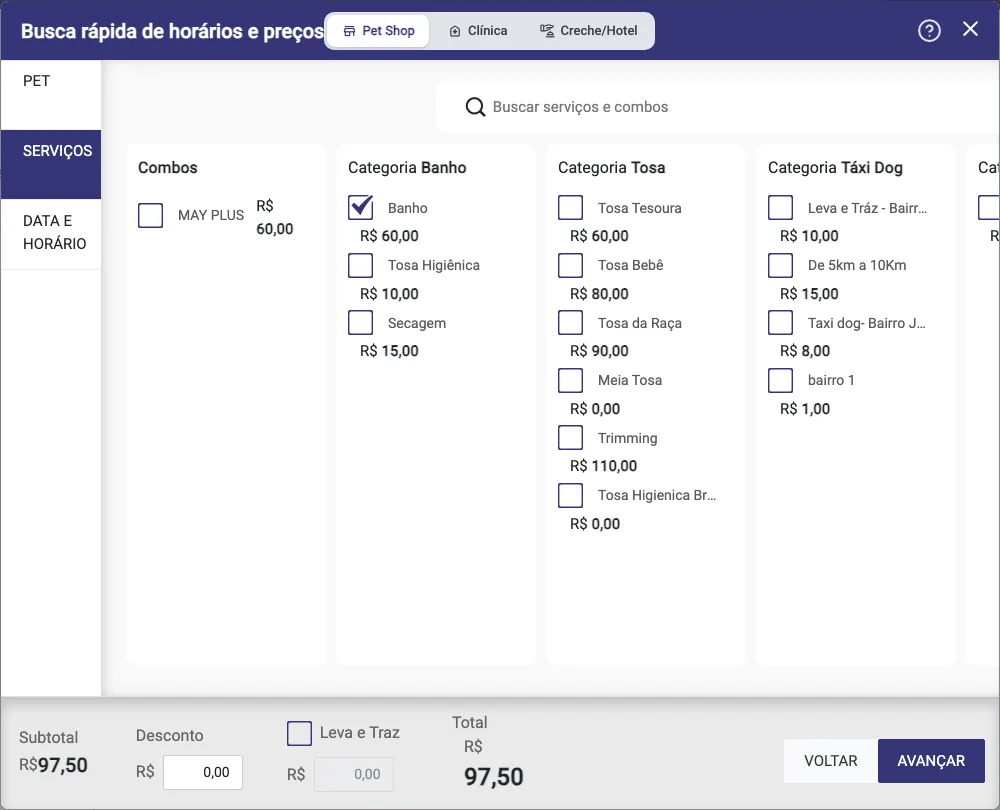
Section titled “Step 3: Check the services”The SERVIÇOS (Services) step shows the segment catalog in columns: Combos first (when the shop has them) and then one column per category (Bath, Grooming, Dog Taxi, Add-ons…). Each item already shows the price for the pet from Step 2. Check as many as you like: the Subtotal and Total in the footer add up right away. The Buscar serviços e combos (Search services and combos) field filters by name across all columns, and limpar (clear) undoes the search. In Creche/Hotel (Daycare/Hotel), each service also has a period selector (with the price of each one), and only one service can be checked at a time. Click AVANÇAR (Next).
Step 4: Pick the day and see the times
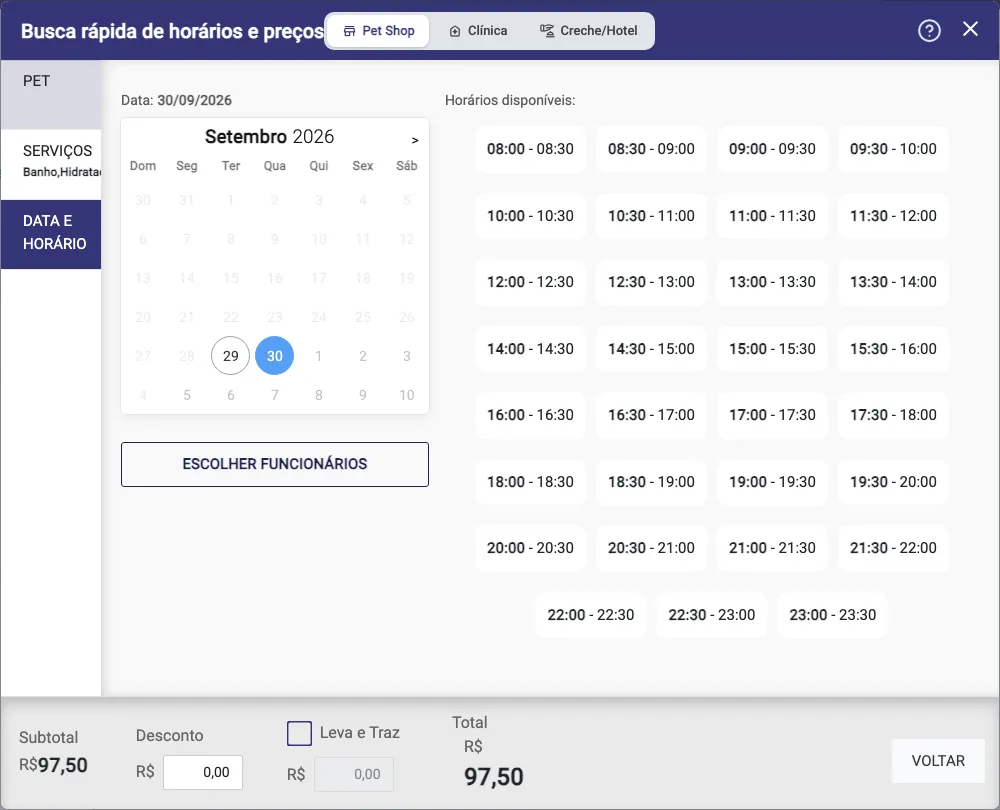
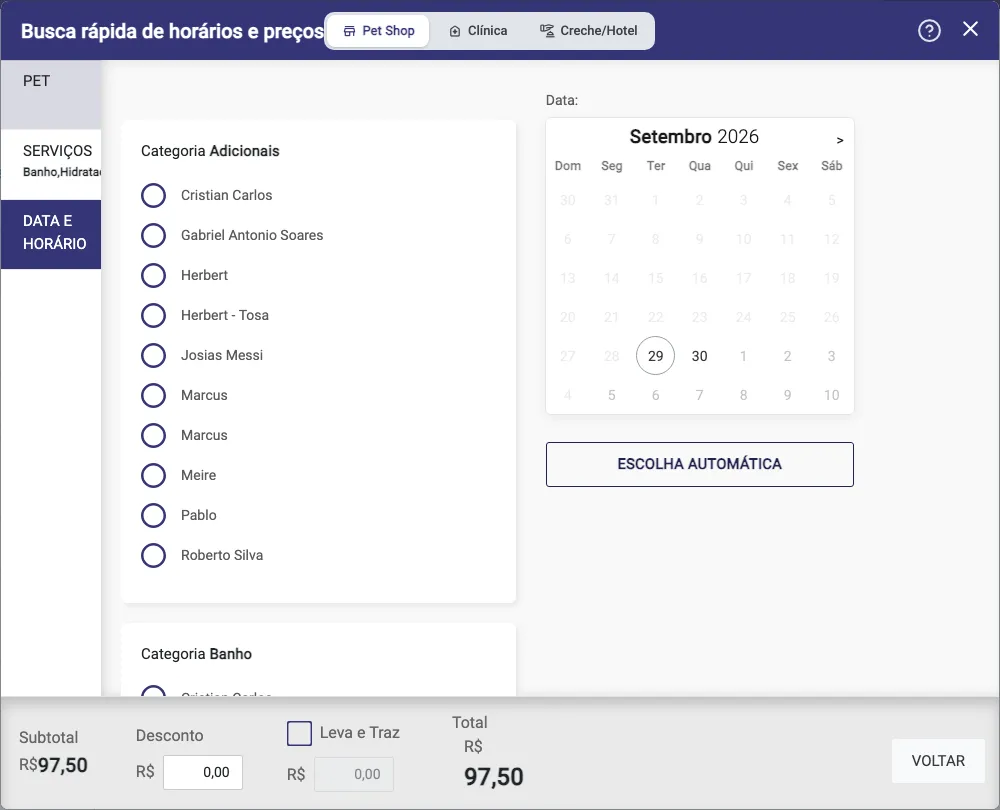
Section titled “Step 4: Pick the day and see the times”In the DATA E HORÁRIO (Date and time) step, click a day on the calendar (past days, closed days and blocked days are grayed out). tecpet searches and lists the Horários disponíveis (Available times) of that day for the set of services, with the start and end of each option. The more orange the time, the more spread out the service is in that slot (the pet waits longer between one service and another); the white times are the ones that fit best. If there is no opening, you will see Nenhum horário disponível em [data] para os serviços selecionados (No time available on [date] for the selected services): try another day.
In Creche/Hotel (Daycare/Hotel), instead of times you see the Períodos disponíveis (Available periods), with the default check-in and check-out time and the occupancy (spots used out of capacity, with a green, yellow or red bar).
Clicking a time only highlights it: it does not create an appointment. To go back and change services or pet, use VOLTAR (Back) or click the step on the side.
See times for a specific staff member
Section titled “See times for a specific staff member”In Pet Shop and Clínica (Clinic), below the calendar, the ESCOLHER FUNCIONÁRIOS (Choose staff) button switches the automatic search to manual selection: a list appears by category of the checked services, and you choose who handles each one. The times then show only those staff members, and the calendar grays out the days when they do not work or are blocked. While someone is still missing, the screen warns Selecione um funcionário para cada categoria (Select a staff member for each category). To go back to searching with any staff member, click ESCOLHA AUTOMÁTICA (Automatic choice).
Discount and Pick-up and Drop-off
Section titled “Discount and Pick-up and Drop-off”In the footer, at any step:
- Desconto (Discount): type the amount in reais to see the Total with the discount;
- Leva e Traz (Pick-up and Drop-off): check the box and enter the transport fee, which is added to the total.
Both are only for the quote you give the pet owner. Nothing is saved: when you close the window, everything is lost.
How to close or start over
Section titled “How to close or start over”Close with the X at the top. The search leaves no trace: it does not create a client, pet, appointment or quote, and it does not appear in any report. For a new simulation, open Buscar horários (Search times) again or go back to the PET step and change the data. If the pet owner accepts, book through the new appointment, which repeats the time search with their pet.
What changes with your pricing method
Section titled “What changes with your pricing method”In the PET step, next to Espécie (Species) you will see Porte (Size) (e.g. Small, Medium, Large, Giant) and Pelo (Coat) (e.g. Short, Medium, Long), with the options your shop registered. Both are required: without them Avançar (Next) warns Selecione o Porte (Select the size) or Selecione o Pelo (Select the coat). The price of each service comes from the size and coat row of the service table.
If your pricing is by breed
In the PET step, next to Espécie (Species) you will see the Raça (Breed) field (Selecione a raça do Pet, Select the pet’s breed), with search by name. The breed is required: without it Avançar (Next) warns Selecione a Raça (Select the breed). The price of each service comes from that breed’s row in the service table.