How the pet owner books through the link
This article shows the store page from the pet owner’s side, on a phone, from the first tap to the confirmed booking. It helps the store explain the path to customers and helps support understand a question. A booking made here lands on the store’s schedule like any other, at the chosen time and with the chosen professionals. What shows on each screen depends on the rules in Set up the booking link (for example whether it shows prices, lets the owner pick a professional or register a pet). The screenshots come from a test store with the Vitrine + agendamento (Showcase + booking) format.
Step 1: The pet owner opens the store page
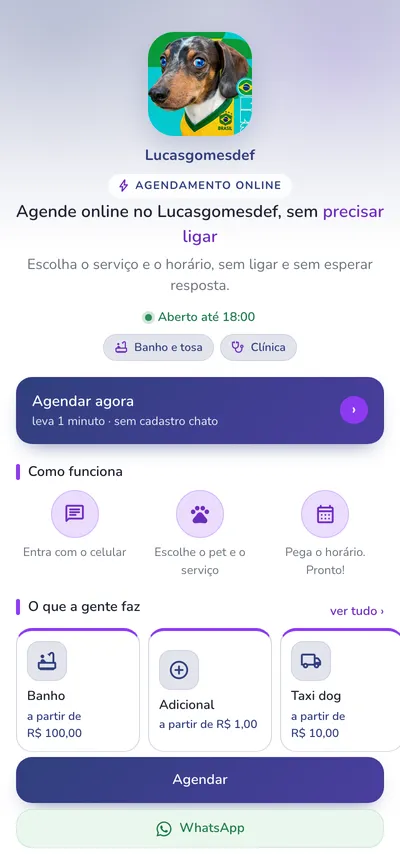
Section titled “Step 1: The pet owner opens the store page”Through the bio link, the counter QR code or a message, the pet owner opens bio.tec.pet/nome-da-loja. At the top you see the logo, the name, the Agendamento online (Online booking) badge, the highlight phrase, whether the store is open right now (for example Aberto até 18:00, Open until 18:00) and the segments with online booking. Right below is the main button Agendar agora (Book now) and, further down, the sections the store turned on: Como funciona (How it works), O que a gente faz (What we do, services with prices), Planos e pacotes (Plans and packages), Nossos momentos (Our moments), Onde estamos (Where we are) and the footer with the company details. The Agendar (Book) and WhatsApp buttons stay fixed at the bottom of the screen.\n\nIf the link received is the direct one (/agendar), the pet owner goes straight to Step 2.
Step 2: Sign in with the phone number
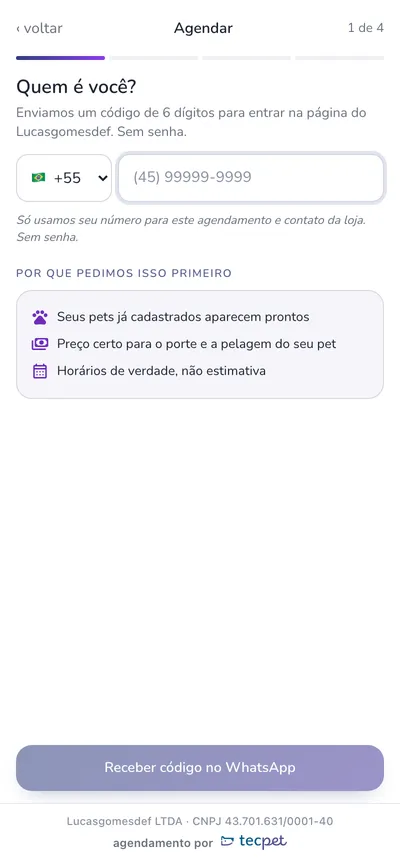
Section titled “Step 2: Sign in with the phone number”After tapping Agendar agora (Book now), the Quem é você? (Who are you?) screen asks for the mobile number with area code (with a country selector, Brazil by default). There is no password: the pet owner taps Receber código no WhatsApp (Get code on WhatsApp). A landline or incomplete number is refused with “Informe um celular válido com DDD” (Enter a valid mobile number with area code). The screen explains why it asks for the phone first: pets already registered show up ready, the price comes out right for the size and coat, and the times shown are the ones truly free.
Step 3: Confirm the WhatsApp code
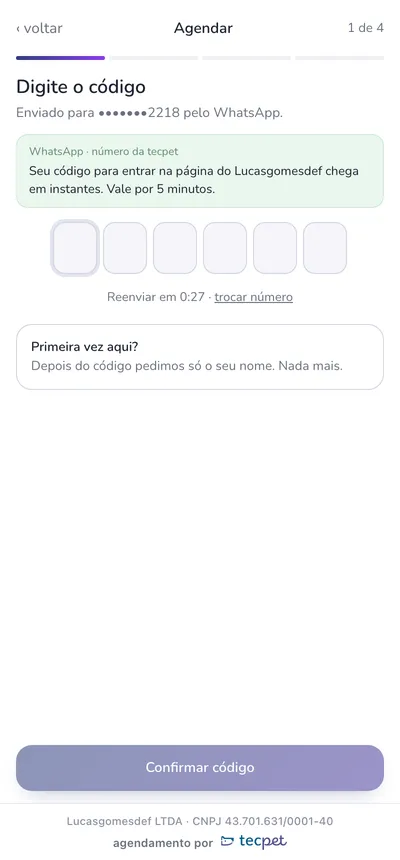
Section titled “Step 3: Confirm the WhatsApp code”The 6-digit code arrives through the tecpet WhatsApp (not the store’s number) and is valid for 5 minutes. The pet owner types the code and taps Confirmar código (Confirm code). If it does not arrive, it can be resent after the countdown, or the number can be changed.\n\n- Customer already registered at the store (the phone matches the record): goes straight in and is greeted by name.\n- First time: after the code, the page asks only for the name (Prazer! Como te chamamos?, Nice to meet you! What should we call you?) and creates the customer record at the store. If the store does not accept new customers, the owner sees a notice to talk to the store.\n- Store chain: on the chain’s link, new customers choose the branch where the pet will be served.\n\nAfter signing in, the pet owner stays connected on that device and does not need a code again for 30 days.
Step 4: Choose the pet
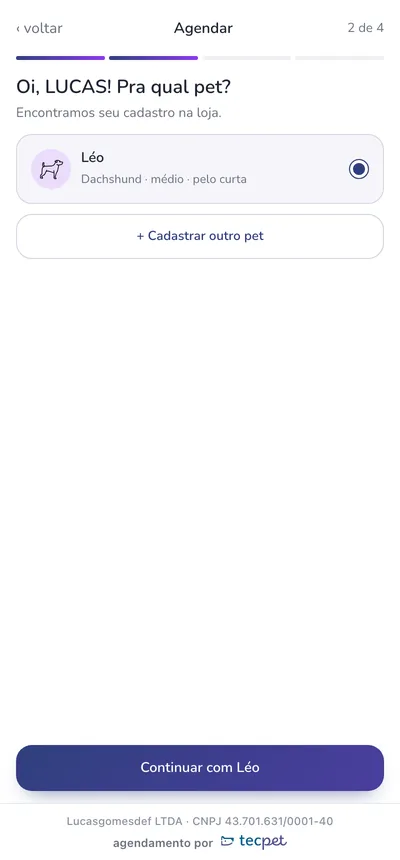
Section titled “Step 4: Choose the pet”The Pra qual pet? (Which pet is it for?) screen lists the pets on file with breed, size and coat. The pet owner taps the pet and then Continuar com (Continue with) and the pet’s name.\n\nFor a new pet, the owner taps Cadastrar outro pet (Register another pet) and fills in name, species, breed, size, coat and sex (and, if the store asks, birth date and weight, both optional). Choosing the breed already suggests size and coat. When the store’s price depends on the breed, the breed is required (with no defined breed, the owner picks SRD, mixed breed). If the store does not allow pet registration, the WhatsApp button appears instead.
Step 5: Choose the services
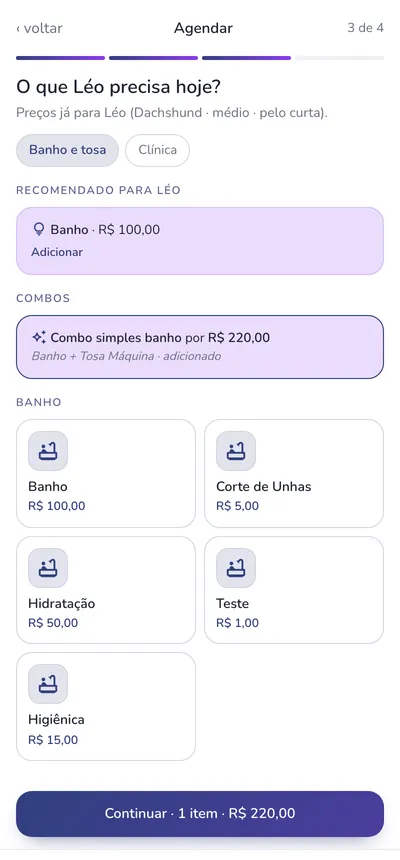
Section titled “Step 5: Choose the services”The O que [pet] precisa hoje? (What does [pet] need today?) screen shows prices already calculated for the pet (size and coat). At the top are the tabs for the segments with online booking, in the order set by the store. Then come:\n\n- Recomendado para [pet] (Recommended for [pet]): suggestions from Service recommendation, when turned on for the link;\n- Combos: the pet owner taps the combo to apply it;\n- the main services, grouped by category.\n\nThe owner picks the main service and taps Continuar (Continue), which already shows the item count and the total. On the next screen, Quer aproveitar e incluir? (Want to add something?), the matching add-ons appear (including pickup and delivery, if offered). The owner checks what they want or taps Seguir sem adicionais (Continue without add-ons).\n\nIf the store chose not to show prices, prices do not appear on any of these screens.
Step 6: Choose the professional (if the store allows it)
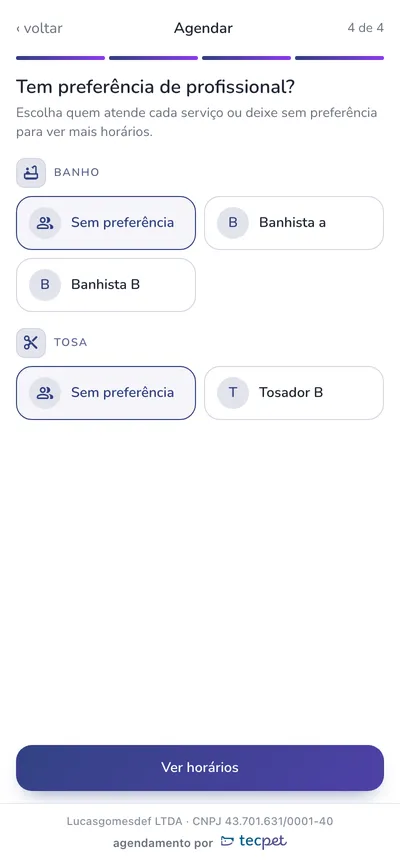
Section titled “Step 6: Choose the professional (if the store allows it)”With Permitir escolher profissional (Allow choosing a professional) turned on, the Tem preferência de profissional? (Any professional preference?) screen shows, for each category of the booking (for example Banho e Tosa), the professionals who work there and the Sem preferência (No preference) option. Leaving it on no preference shows more times. The pet owner taps Ver horários (See times). With the option off, this screen does not appear and the schedule distributes the service as usual.
Step 7: Choose the day and time
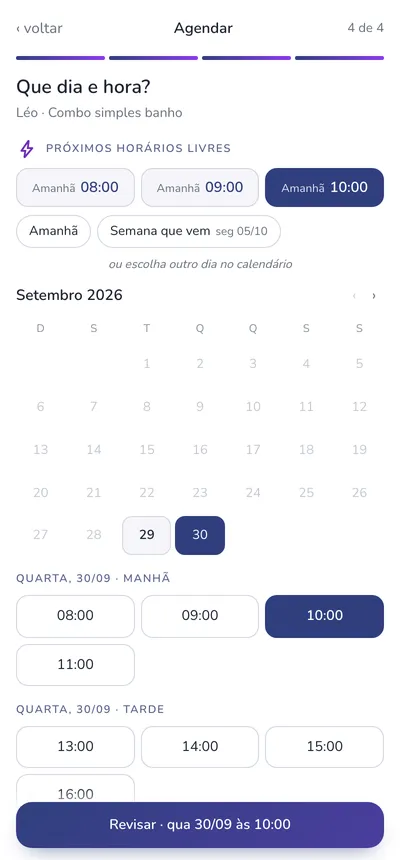
Section titled “Step 7: Choose the day and time”The Que dia e hora? (What day and time?) screen opens with the Próximos horários livres (Next free times) so the owner can book in one tap, and the calendar below. When a day is chosen, that day’s times appear split into morning and afternoon. Only real times show, free on the schedule, within the days window and respecting the minimum notice and the display interval set by the store. The pet owner taps the time and then Revisar (Review).
Step 8: Review and confirm
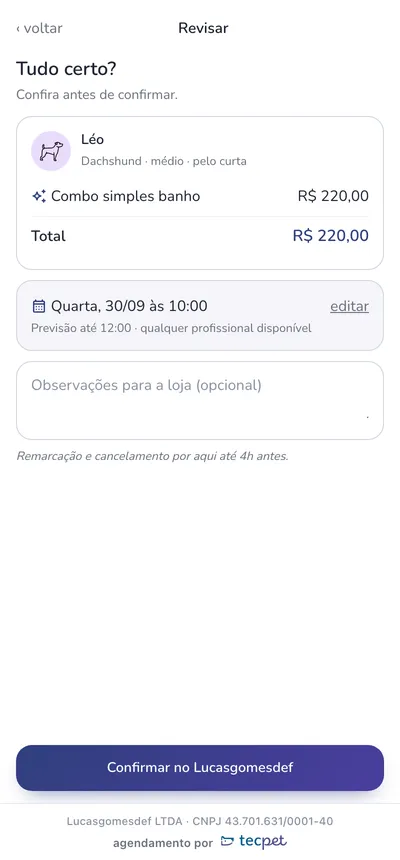
Section titled “Step 8: Review and confirm”The Tudo certo? (All good?) screen shows the pet, the services, the total, the day and time, with the estimated end time and who will serve. There is an Observações para a loja (opcional) (Notes for the store, optional) field and, if the store asks and the customer does not have them on file yet, the CPF and endereço (address) fields. At the bottom it shows until when the booking can be rescheduled and canceled on the page. The pet owner taps Confirmar no (Confirm at) followed by the store name.
Step 9: Booking confirmed
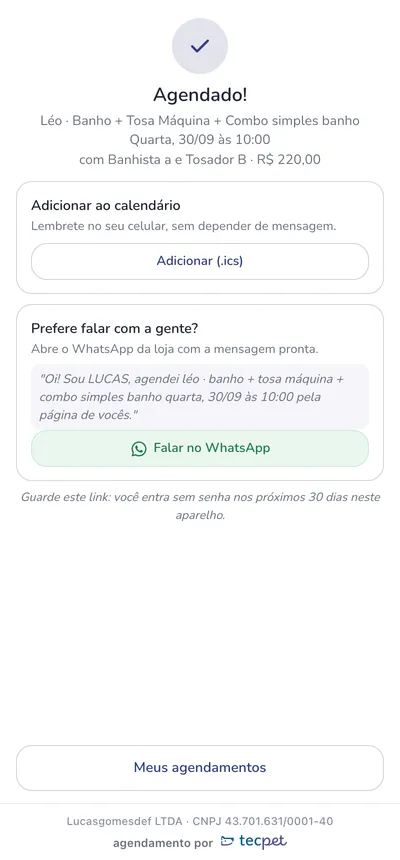
Section titled “Step 9: Booking confirmed”The Agendado! (Booked!) screen confirms the pet, the services, the day, the time, the professionals and the price. From there the pet owner can:\n\n- Adicionar ao calendário (Add to calendar) (an .ics file), to get the reminder on the phone without depending on a message;\n- Falar no WhatsApp (Chat on WhatsApp), which opens the conversation with the store with a ready message describing the booking;\n- go to Meus agendamentos (My bookings).\n\nIf the store turned on Enviar “Novo agendamento” pelo WhatsApp (Send “New booking” by WhatsApp), the pet owner gets the store’s new booking message right away; if it turned on Enviar confirmação pelo WhatsApp (Send confirmation by WhatsApp), the confirmation message also goes out on WhatsApp, at the configured time. If it turned on Oferecer os mesmos serviços para outro pet (Offer the same services for another pet), the Agendar o mesmo para outro pet (Book the same for another pet) button appears.
Step 10: Follow up in My bookings
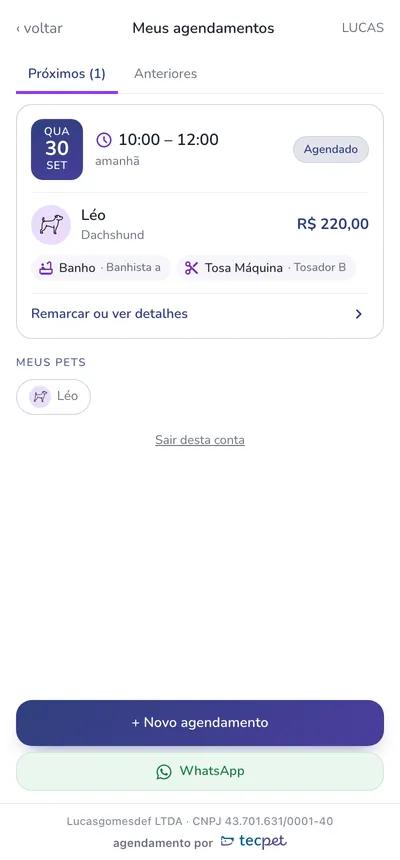
Section titled “Step 10: Follow up in My bookings”In Meus agendamentos (My bookings), the Próximos (Upcoming) tab lists the scheduled bookings with date, time, status, pet, services, professionals and price, and the Anteriores (Past) tab shows the history. At the bottom are Meus pets (My pets), Sair desta conta (Sign out of this account), Novo agendamento (New booking) and WhatsApp. On each booking, Remarcar ou ver detalhes (Reschedule or see details) opens the details.
Step 11: Reschedule or cancel
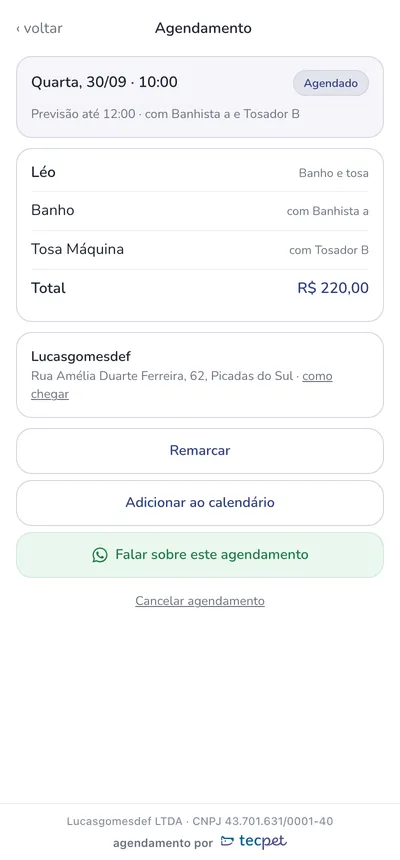
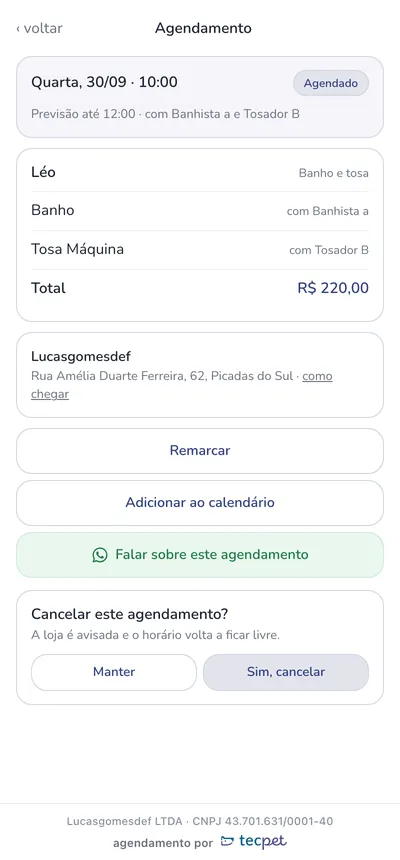
Section titled “Step 11: Reschedule or cancel”The booking details show the services, the professionals, the total and the store address with como chegar (directions), and the buttons Remarcar (Reschedule), Adicionar ao calendário (Add to calendar), Falar sobre este agendamento (Talk about this booking) and Cancelar agendamento (Cancel booking).\n\n- Remarcar: the pet owner picks a new day and time and confirms.\n- Cancelar agendamento: the page asks “Cancelar este agendamento?” (Cancel this booking?) and warns that the store is notified and the time slot becomes free again. The owner confirms with Sim, cancelar (Yes, cancel) or backs out with Manter (Keep).\n\nBoth only work if the store allows rescheduling and canceling through the link, and only up to the minimum notice. Outside that, the page tells the pet owner to talk to the store on WhatsApp.
The cancellation confirmation:
When the pet owner comes back
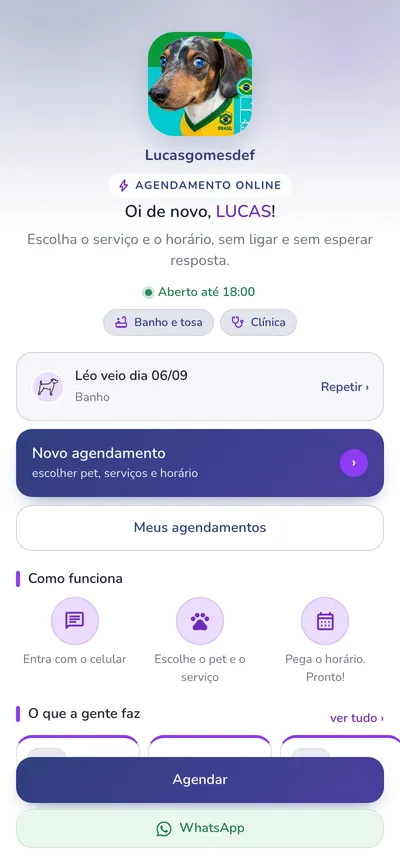
Section titled “When the pet owner comes back”On later visits, on the same device, the page already recognizes the pet owner (Oi de novo, Hi again), shows the last visit with the Repetir (Repeat) button, which starts a new booking with the same services, and the Novo agendamento (New booking) and Meus agendamentos (My bookings) buttons. This way a loyal customer books again in a few seconds.