
Edit or remove a plan or package
Plans and packages live in Settings and work like a template: it’s from them that you sell a plan to a customer. Here you’ll learn how to edit that template (change price, services, type, discount, description) and how to remove a plan you no longer want to offer. The most important point: changing the template does not change the plans that were already sold: every customer who already bought keeps the conditions from the time of purchase. If you haven’t created a plan yet, see Create a plan or package; to track what was already sold, see Track plans and packages.
Step 1: Open the plan list in Settings
Section titled “Step 1: Open the plan list in Settings”In the side menu, go to Settings (it asks for the admin password) → Records → Plans. The Registered plans screen opens, with one row per plan, a search field, the Reorder button and the New Plan button at the end.
Hover over the row to see the actions, the edit button appears on hover, it is not fixed on the row.
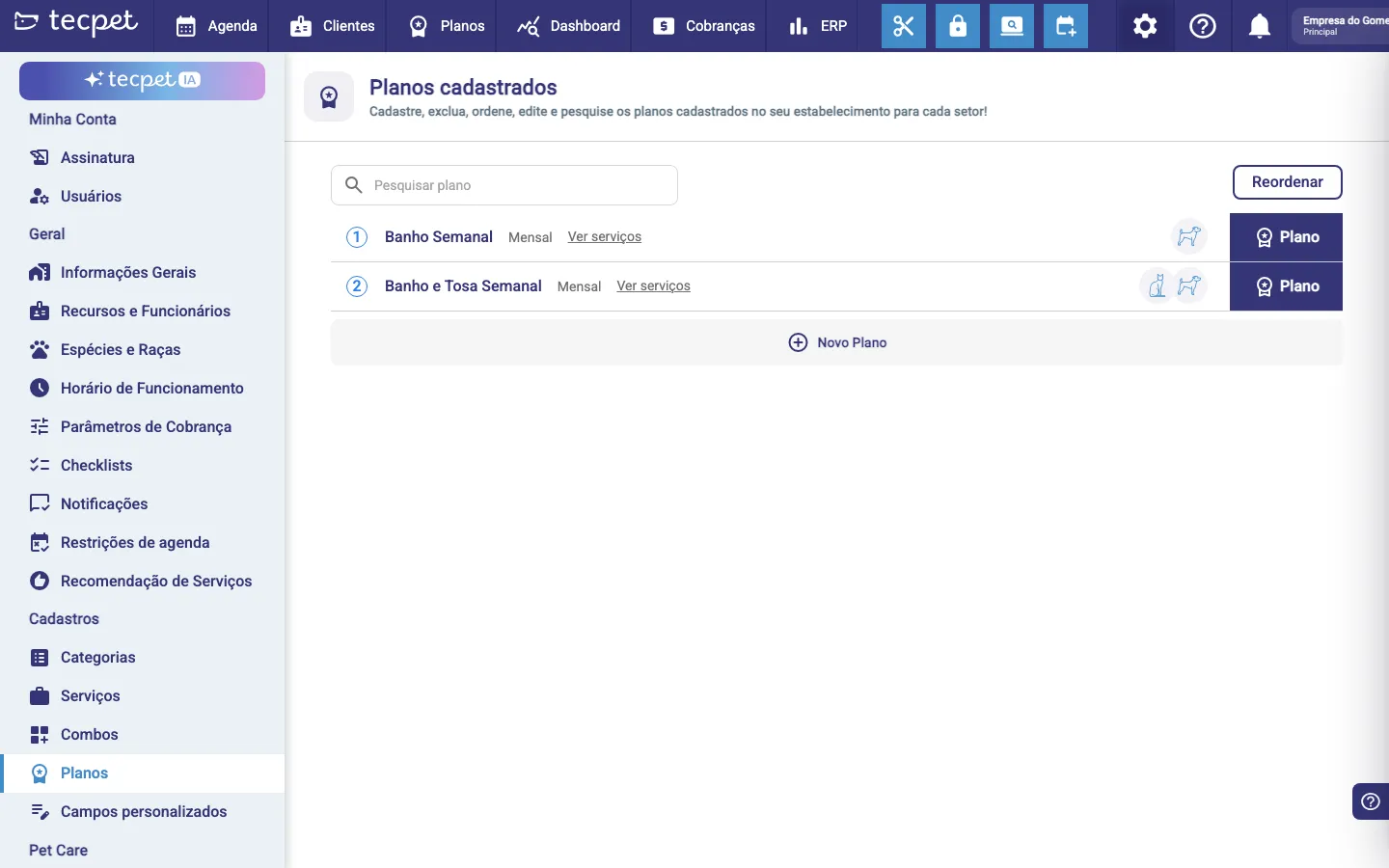
This is a different screen from the one in the top menu: that one is only for tracking sold plans. This is where you register and adjust the templates.
Step 2: Click the plan to edit
Section titled “Step 2: Click the plan to edit”Click the plan’s row. The same 6-step wizard used to create it opens, now in edit mode: the title reads Edit plan with the name just below, every field is already filled and the Live preview on the right shows how the plan looks today.
You can jump straight to any step by clicking it in the left column, no need to go through all of them.
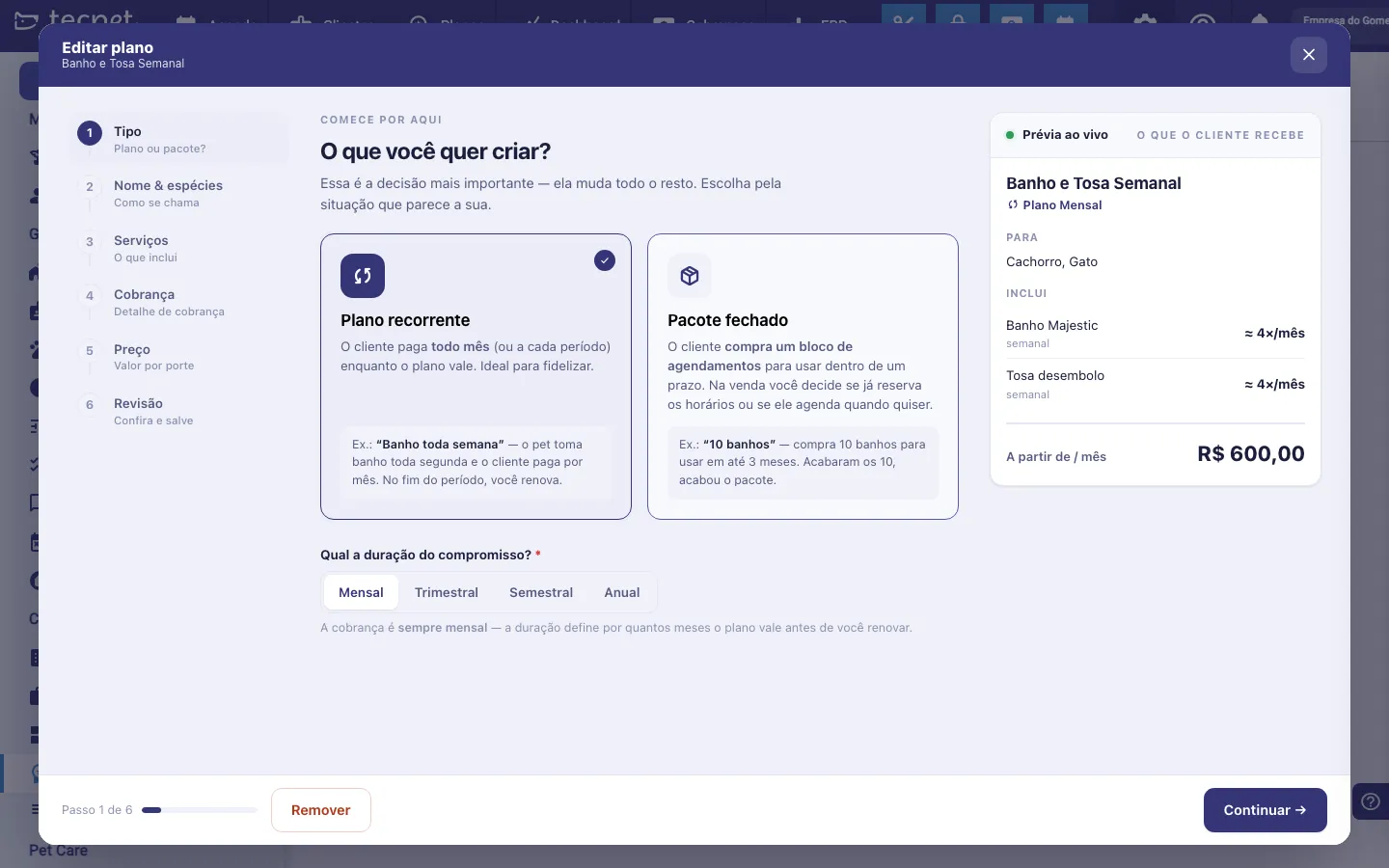
What you can adjust
Section titled “What you can adjust”These are the same fields as when creating. The main ones:
- Plan name*: the name shown at sale time and in the list. It must be unique among active plans;
- Show on PetBot: Yes or No; controls whether the WhatsApp assistant may offer this plan;
- Accepted species: which species the plan applies to;
- Plan type: defines whether it’s a recurring plan (Monthly, Quarterly, Semiannual or Yearly) or a Package (one-off, with a fixed duration). When you choose Package, the Package duration (1 to 12 months) and the Billing cycle (charge once, or every X bookings) appear;
- Applied discount: the discount percentage on the price table;
- Description: free text that explains the plan;
- Services: which services are included, with each one’s quantity and the Reserve time slots? option (when the service is recurring: Weekly or Biweekly);
- Price table: the price by Size × Coat (or by Breed, in shops that charge by breed). The payment method isn’t here, it’s chosen at sale time.
Step 3: Save the changes
Section titled “Step 3: Save the changes”Review the fields and click Save. The changes take effect from now on, only for new sales: the next time you sell this plan, it goes out with the new price, services and validity. Plans that were already sold stay the same: nobody is charged more or loses a service because of the edit.
Step 4: Remove a plan you’ll no longer offer
Section titled “Step 4: Remove a plan you’ll no longer offer”To take a plan out of circulation, open it (Step 2) and click the Remove button in the wizard footer. It only shows in edit mode.
The confirmation is explicit about the effect: “Remove [plan name]?”, warning that the plan stops appearing for new sales and that plans already sold keep working normally. Confirm with Remove or go back with Cancel.
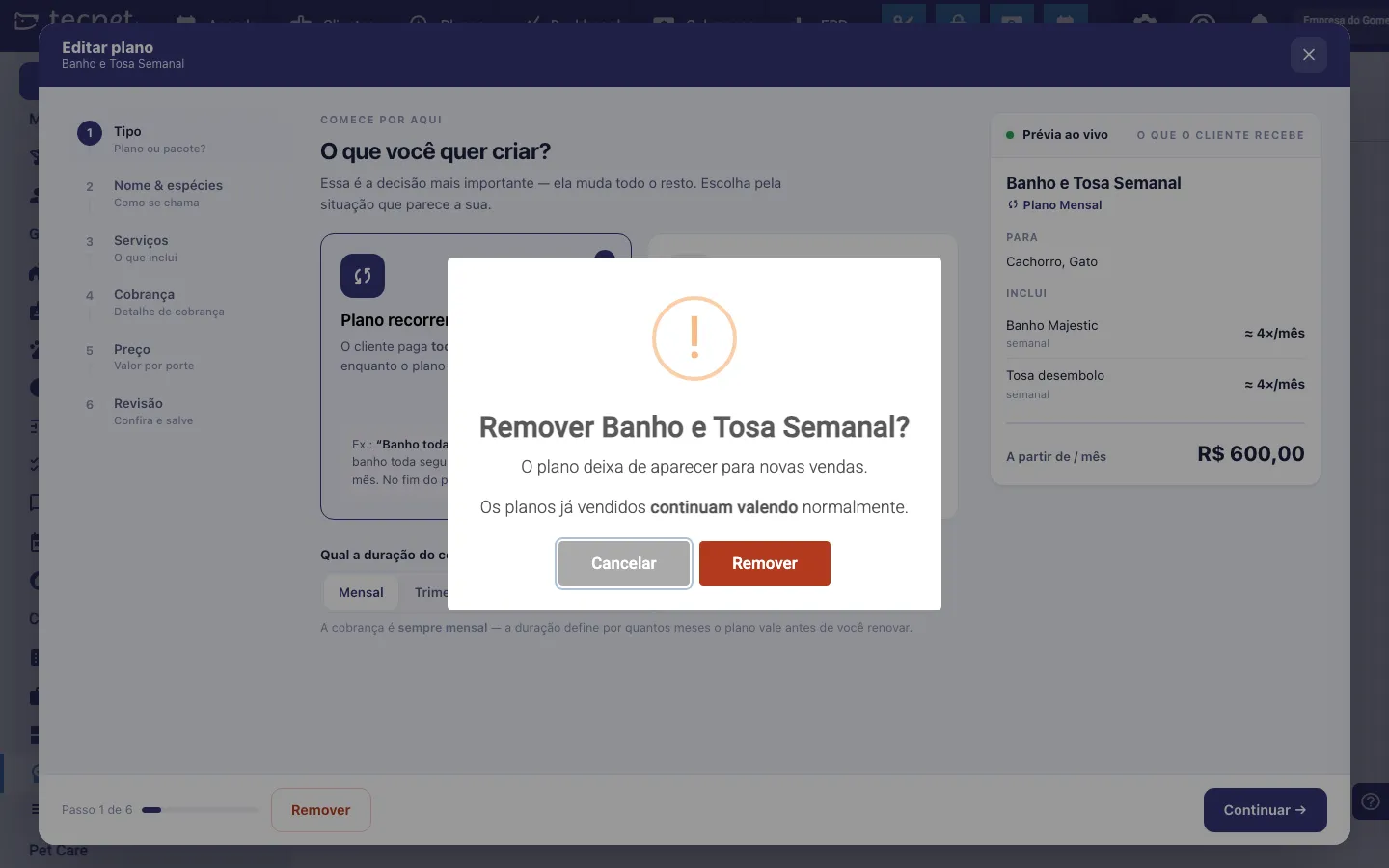
The plan disappears from the registered plans list and stops being offered in new sales. Important: this does not delete plans that were already sold from that template, nor their history, customers who already bought keep using them normally until the end. The only thing that changes is that you can no longer sell this plan to new customers.
How to undo or revert
Section titled “How to undo or revert”There’s no “restore” button for a removed plan. If you removed one by mistake or want to offer it again, just create a new plan with the same settings, the removed plan’s name is free to reuse. Plans that had already been sold with the old template are not affected by any of this.