
Business hours
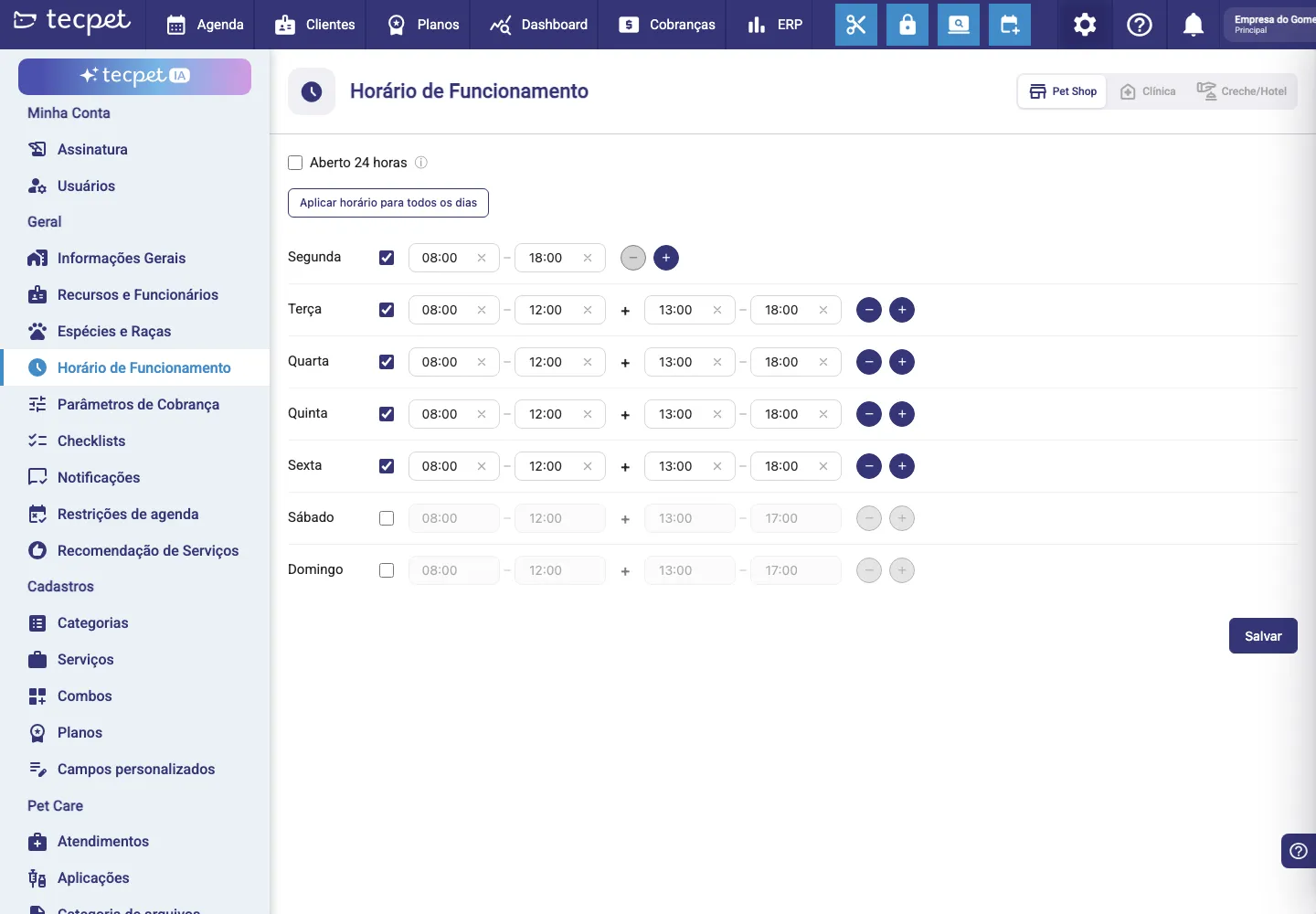
Under Settings → Business Hours you define when the store is open. These are the hours the calendar and the AI use to offer (or not) slots to the customer. Hours are set per segment: Pet Shop, Clinic and Daycare/Hotel each have their own, on the tabs at the right end of the header. The screen has the Open 24 hours checkbox at the top, the Apply hours to every day button, one row per weekday (from Monday to Sunday) with a checkbox and the time fields, and the Save button at the bottom.
Step 1: Pick the segment
Section titled “Step 1: Pick the segment”At the right end of the header are the tabs for the segments your store has: Pet Shop, Clinic and Daycare/Hotel. The active tab is highlighted; the others look dimmed. Click the tab of the segment you want to configure, the screen reloads with that segment’s hours.
Step 2: Check the days the store opens
Section titled “Step 2: Check the days the store opens”Every day has a checkbox right after its name:
- Checked: the store opens that day; the time fields and the − / + buttons are active;
- Unchecked: the day is saved as closed; the fields turn dimmed, but the times stay written there.
Unchecking erases nothing: check the day again and it comes back with exactly the times that were there. On the screenshot that is the case of Saturday and Sunday: dimmed, but still showing 08:00, 12:00 + 13:00, 17:00.
Days that never had hours saved show the default 08:00, 12:00 + 13:00, 17:00 (two ranges, with a lunch break).
Step 3: Set the time of each range
Section titled “Step 3: Set the time of each range”A day’s row reads from left to right: day name → checkbox → the start, end pair of fields → the round − button → the round + button.

The time fields are not typed into: click the field and a picker opens right below it, with two parts:
- at the top, the hour and minute spinners: each with an up and a down arrow and the big value in the middle (e.g.
08 : 00). Using the arrows changes the value and keeps the picker open; - below, a scrollable list of times in 15-minute steps, from
00:00to23:45. Clicking an option on the list closes the picker right away.
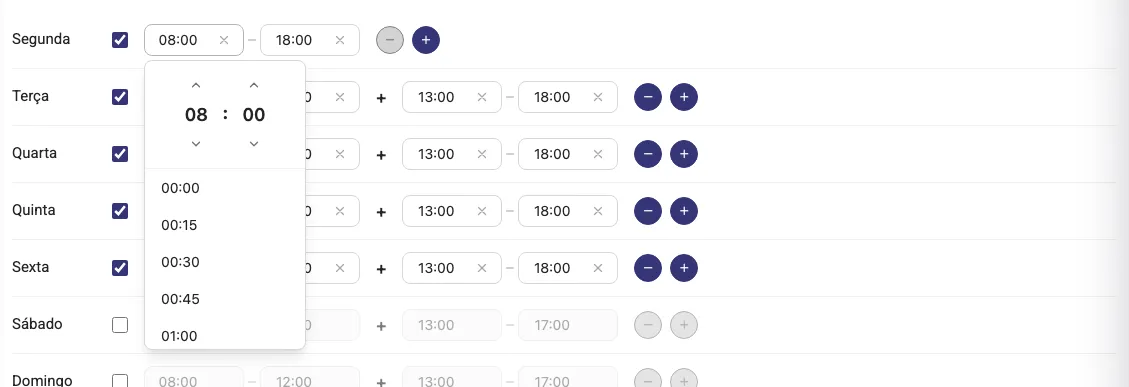
Every filled field shows an x on the right to clear the value. An empty field shows —:— with a clock icon.
Step 4: Add a break, if you need one
Section titled “Step 4: Add a break, if you need one”Do you close for lunch or a shift change? Use the round + button at the end of the row: it adds a new empty range at the end of the day, which you fill in the same way (by clicking the fields). The space between two ranges is the stretch when the store does not serve.
When there is more than one range, a grey + appears between the pairs, like this: 08:00, 12:00 + 13:00, 17:00. There is no limit of ranges per day: you can have three, four or more.

The round − button removes the last range of the day. It turns grey (disabled) when only one range is left, at least one time slot must always remain.
Step 5: Apply the same hours to every day (optional)
Section titled “Step 5: Apply the same hours to every day (optional)”Click Apply hours to every day. The button gives way to a small panel with the text “Set the hours that will be applied to every day”, a row of ranges just like the days’ and the Cancel and Apply buttons.
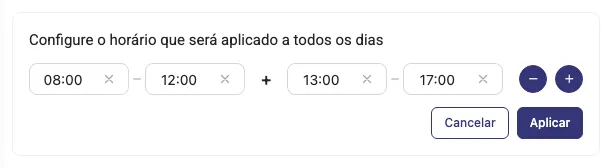
The panel always opens with 08:00, 12:00 + 13:00, 17:00: it does not copy Monday or any other day. Build the schedule you want there (with the same fields, the + and the −) and click Apply.
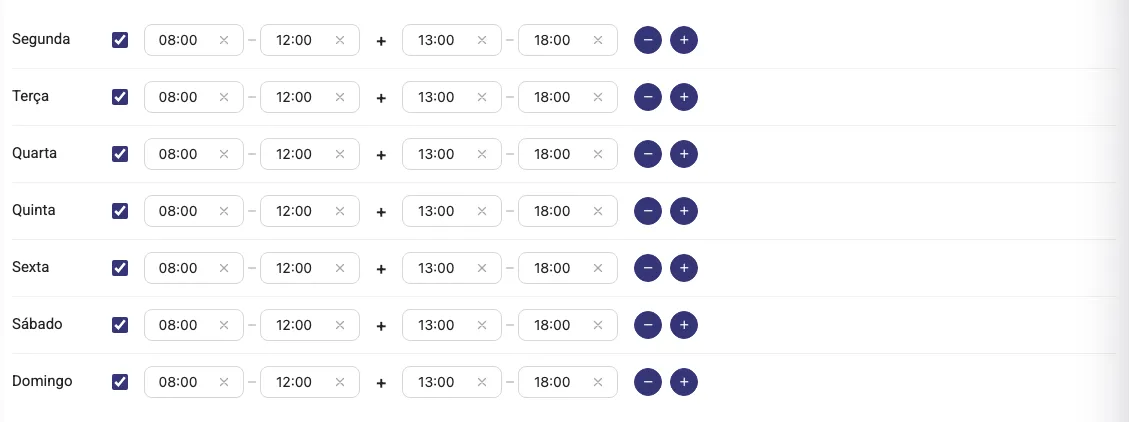
Cancel closes the panel without touching anything. If the schedule built in the panel is invalid, a red Invalid hours message appears with the rule that was broken and nothing is applied.
Step 6: Open 24 hours (optional)
Section titled “Step 6: Open 24 hours (optional)”If the unit never closes (a hotel that takes guests any time, for instance), check the Open 24 hours box at the top. The ⓘ next to it explains: “The store serves at any time in this segment.”
When you check it:
- all 7 days become checked as open;
- each day gets a single 00:00, 24:00 range;
- the time fields and the − / + buttons turn dimmed (no editing);
- the Apply hours to every day button also turns disabled.
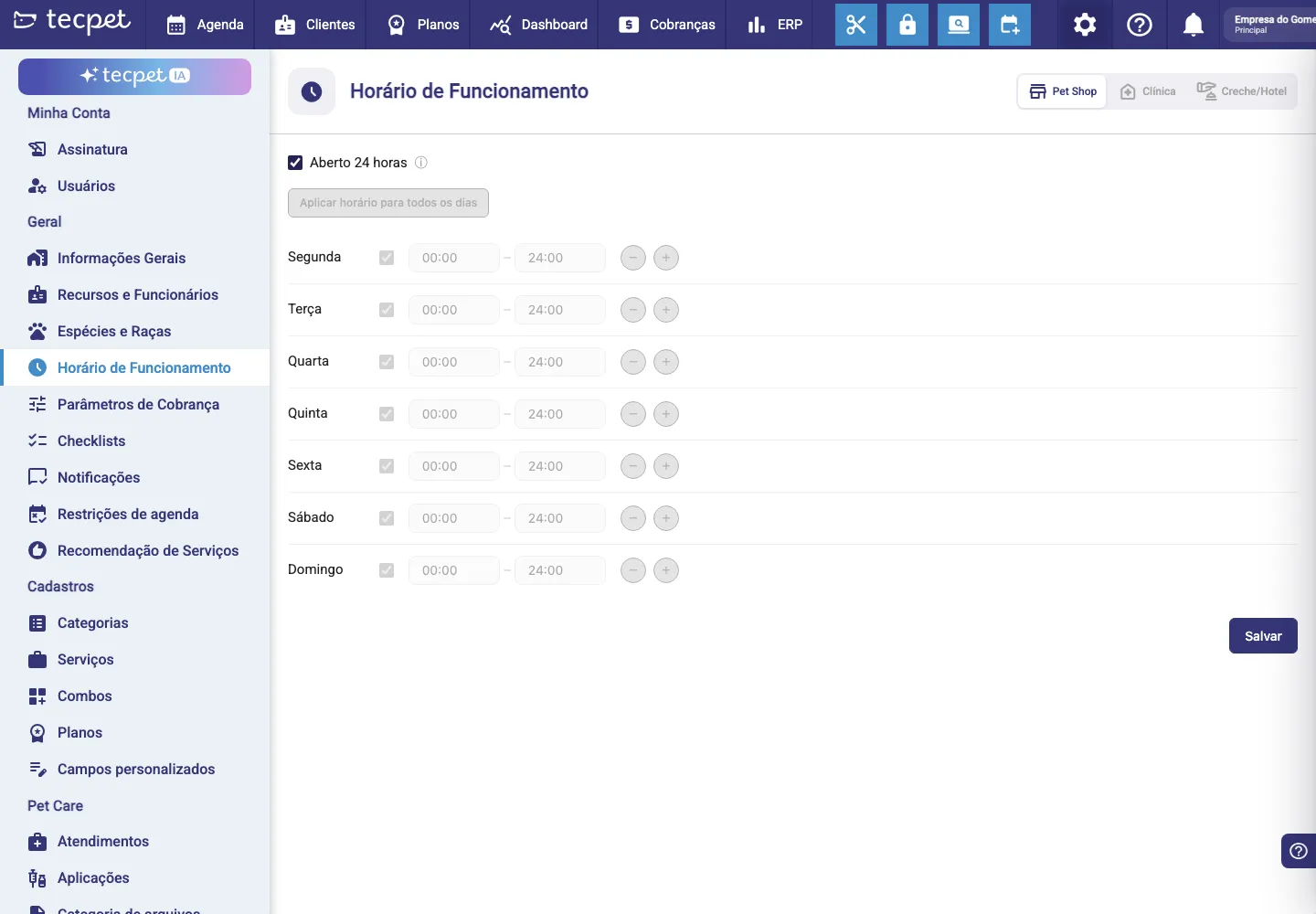
Unchecking it brings the screen back exactly to the setup it had before you checked it.
The value 24:00 exists only here: it does not appear on the time picker’s list, which goes up to 23:45.
Step 7: Save
Section titled “Step 7: Save”Click Save, at the bottom right. While it saves, the button turns grey. On success, a green message appears at the bottom-right corner with the title Success and the text “Business hours saved”. If the connection fails, the message is red: Error / “Business hours not saved”.
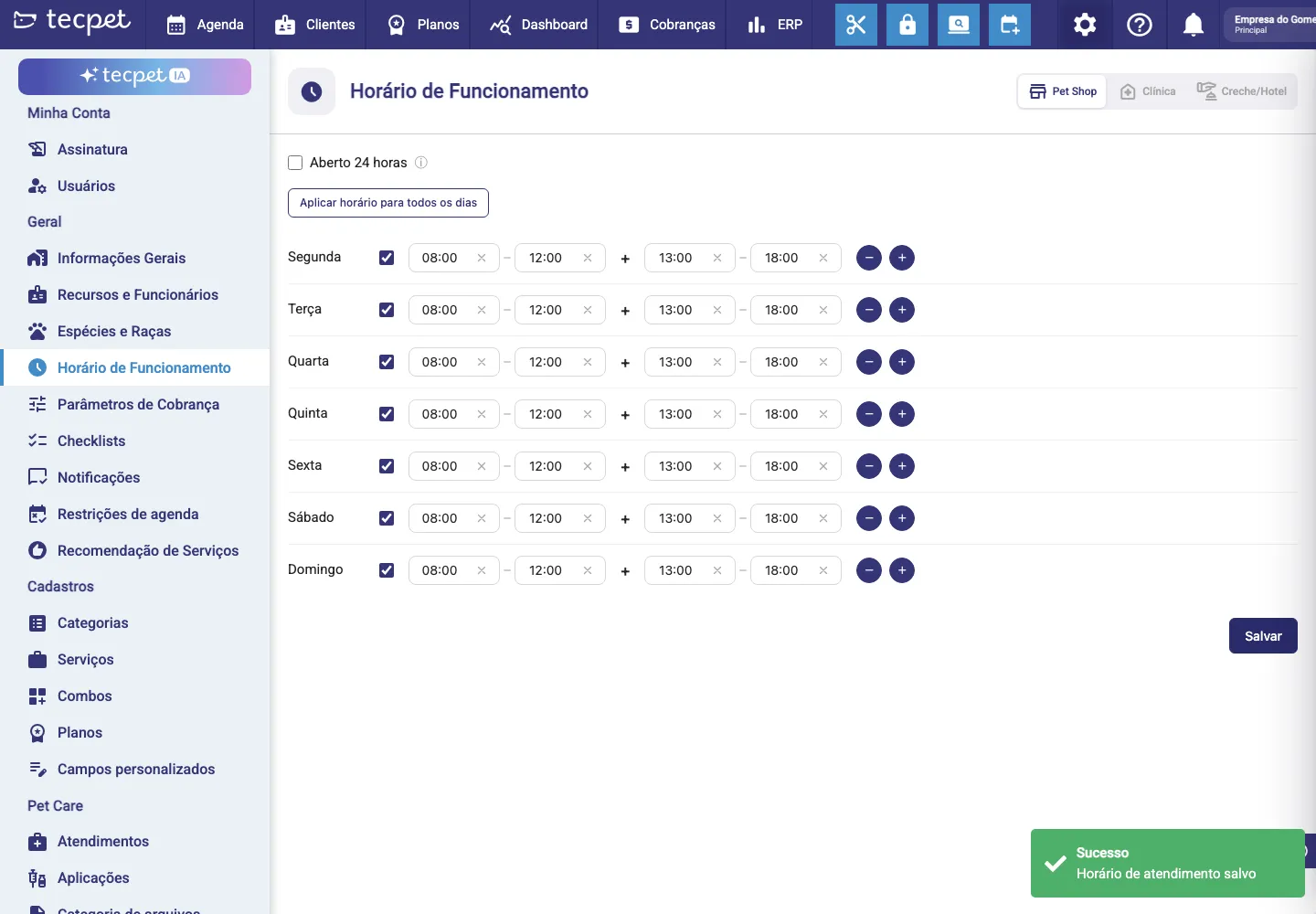
The Dashboard calendar starts respecting the new hours right away; the AI may take a few minutes, because it reads the store settings through a path with its own cache. If you changed more than one segment, save each tab.
When the hours turn red
Section titled “When the hours turn red”The screen warns you as you type: the problem fields get a red border and the message appears in red right below the day’s row. The three possible messages are:
- “The end time must be later than the start time.”: the end is earlier than or equal to the start (e.g. 18:00, 08:00);
- “Fill in the start and end of every time range.”: a range was left with only one of the two fields filled;
- “Time ranges must be sequential, with no overlap.”: a range starts before the previous one ends (e.g. 08:00, 12:00 + 11:00, 17:00).

A completely empty range (both fields cleared) is simply ignored: it raises no error and is not saved.
The screen’s controls, one by one
Section titled “The screen’s controls, one by one”- Segment tabs (right end of the header), Pet Shop, Clinic, Daycare/Hotel; only the segments the store has appear. Each tab has its own hours and must be saved separately;
- Open 24 hours: single box at the top, with the explanatory ⓘ. Checked, it opens all 7 days from 00:00 to 24:00 and blocks editing;
- Apply hours to every day: opens the panel to build a schedule and drop it on all 7 days (all of them become open). Disabled while Open 24 hours is checked;
- Day checkbox: checked = the store opens; unchecked = closed (the times stay written, only dimmed);
- Start, end fields: the range’s hours. Click to open the picker (hour/minute spinners + list in 15-minute steps, from 00:00 to 23:45). The x clears the field; empty it shows —:—;
- Round − button: removes the last range of the day. Disabled when only one is left;
- Round + button: adds an empty range at the end of the day. No limit of ranges;
- Save: stores the hours of the selected segment.
Rules and behaviors
Section titled “Rules and behaviors”- Unchecked day = closed: the calendar and the AI offer no slot that day;
- The gap between two ranges takes no appointment: the space between 12:00 and 13:00, for instance, is the break;
- Unchecking does not erase: the times stay on the screen and come back when you check the day again;
- Default for a day with no saved hours: 08:00, 12:00 + 13:00, 17:00;
- Hours per segment: Pet Shop, Clinic and Daycare/Hotel are independent;
- Hours work together with the calendar restrictions and the calendar block: even within business hours, those features can close specific times.
How to change or undo it later
Section titled “How to change or undo it later”Go back to Settings → Business Hours, pick the segment tab and adjust whatever you need, the day checkboxes, the time fields or the ranges. As long as you do not click Save, nothing has been stored: to discard what you changed, just reload the page and the screen returns to the last saved hours. Once saved, the only way back is to set it up again and save. Remember to repeat on each segment you need to change.