
Service recommendations
Service Recommendations lets you create rules that automatically suggest services based on the pet’s and customer’s traits. When a rule matches, the service shows up highlighted on the booking (with a “thumbs up” icon and the reason for the suggestion) and, if you want, also in the chatbot/AI offer during the WhatsApp visit. It’s the way to offer the right service at the right time and grow the ticket. The screen lives under Settings → Service Recommendations and works per segment (Pet Shop, Clinic, Daycare/Hotel). The chatbot part depends on the AI/Petbot module being active in your store.
How to earn more on every bath you already do? #

Stop leaving money on the table
Every bath without an add-on is margin that quietly evaporated.
“The owner would have bought. Someone just had to offer at the right moment.”
Moisturizing, nail trimming, dental brushing: in the rush, the team forgets to offer. It's not the customer saying no, it's the sale that never happened.
With recommendation rules, the right service shows up on its own on the booking and in the AI's WhatsApp offer, with the justification ready. Offering the add-on becomes part of every visit, without relying on anyone's memory.
Step 1: Open the screen and pick the segment
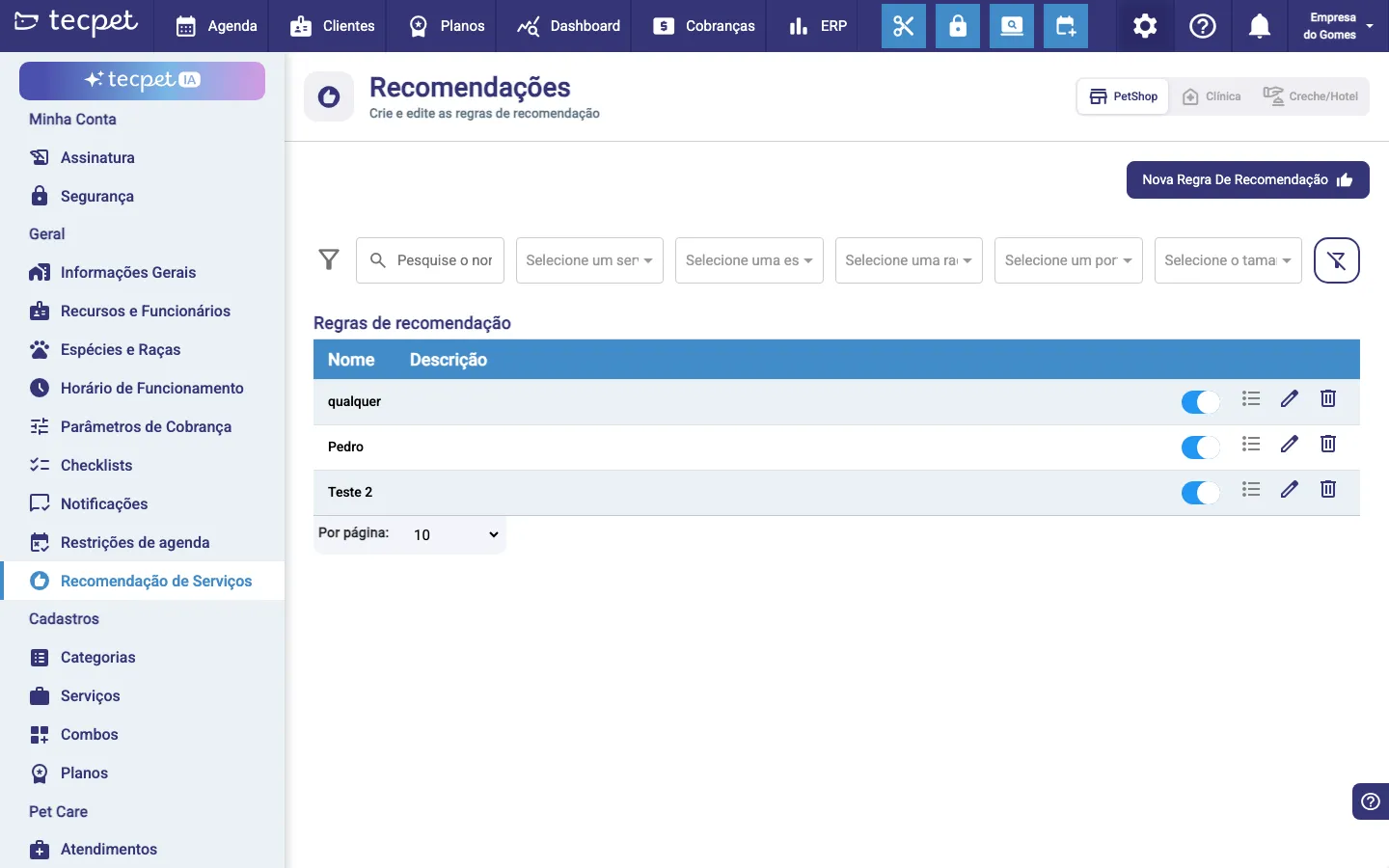
Section titled “Step 1: Open the screen and pick the segment”In the Settings menu, click Service Recommendations. At the top there are segment tabs: Pet Shop, Clinic, Daycare/Hotel, Hotel (only the ones your store uses appear). Pick the tab for the segment the rule should apply to and click the New Recommendation Rule button. Existing rules show in the list, each with a switch to turn it on/off and edit and delete icons.
Step 2: Name it and choose where the rule acts
Section titled “Step 2: Name it and choose where the rule acts”The Recommendation rule window opens. At the top of it:
- Segment: a fixed badge (Pet Shop, Clinic, etc.) showing which segment the rule is being created for; it’s not editable here (it comes from the tab picked in Step 1);
- Rule name*: required; a short name that identifies the rule (e.g. “Moisturizing for long coats”);
- Show in AI/Petbot: a Yes / No toggle (defaults to Yes). On Yes, the rule is also used in the chatbot/AI offers; on No, it applies on the schedule only.
Step 3: Build the conditions
Section titled “Step 3: Build the conditions”In the Conditions section, click the colored buttons to add criteria that trigger the rule. For each condition you pick a value (e.g. the breed, the size). You can combine several conditions:
- The and / or buttons between conditions set the logic, and requires all of them to be true; or only needs one of the group;
- The copy icon duplicates a condition (handy to list several values of the same type, e.g. several breeds with or);
- The x removes the condition.
You need at least one condition to save.
The condition types
Section titled “The condition types”Each button opens a different criterion:
- Breed: a specific breed (the list comes from the accepted species and breeds);
- Size: Micro, Small, Medium, Big or Giant;
- Coat: Short, Medium or Long;
- Species: Dog, Cat, etc. (the store’s active species);
- Age: pick an operator (equal, not equal, greater than, greater or equal, less than, less or equal) and type the age in years;
- Gender: Male or Female;
- Pet Status: the pet’s situation (Active, Suspended, Blocked, etc.);
- Customer: a specific customer (search by name);
- Pet: a specific pet (search by name).
Step 4: Choose what to recommend
Section titled “Step 4: Choose what to recommend”In the Recommendations section there are two tabs. You can fill in one or both:
- On the first service offer: the services to suggest up front, as soon as the conditions match (the primary offer);
- On the add-on offer: services to suggest as a complement, after the customer has already chosen a service (the additional offer).
You need at least one complete recommendation (in either tab) to save.
Tab: On the first service offer
Section titled “Tab: On the first service offer”- Recommended services: pick one or more services to suggest when the conditions match;
- Justification: a short text (up to 500 characters) explaining the reason for the recommendation; it’s what guides the AI to argue the suggestion to the customer.
The Add services with a new justification button creates a new block to recommend another set of services with a different justification.
Tab: On the add-on offer
Section titled “Tab: On the add-on offer”- If the customer selects this service: the trigger service: the add-on offer only fires after that service is chosen. There’s also an Any service option, which makes the recommendation apply no matter what the customer chose;
- Recommend these services: the complementary services to suggest (this field only enables after you pick the trigger above);
- Justification: the reason for the recommendation (up to 500 characters), used to guide the AI.
The Add new recommendation button creates another trigger → complementary services line.
Step 5: Describe and save
Section titled “Step 5: Describe and save”At the end, the Description field (optional, up to 500 characters) holds an internal note about the rule. Click Save. If the name, a condition or a complete recommendation is missing, the system warns you and won’t save. The rule applies immediately to the chosen segment, you’ll see it in the list, already on.
How to edit later
Section titled “How to edit later”In the Service Recommendations list, use each rule’s switch to turn it on or off without deleting anything. Click the pencil (edit) icon to reopen the window with everything filled in and adjust conditions and services; the title becomes Edit recommendation rule. The trash (delete) icon removes the rule for good. To find rules in the list, use the filters by name, service, species, breed, size and coat.