
Keep your Meta account healthy (WhatsApp)
After connecting WhatsApp to the official API, the risk of losing your number drops a lot, but it doesn’t reach zero. The shops that were banned even on the official channel always went down for the same reason: their business account at Meta was weak. This page gathers what keeps your number up, what the WhatsApp screen already shows you about the account’s health, and what to do when Meta limits or blocks your sending. It’s the security companion to the connection walkthrough and to how much the official WhatsApp costs.
Is this Meta bureaucracy, or is it what keeps my number alive? #
A weak account takes down a strong number
The official API greatly cuts the risk of a ban, but what holds your number is your account's health.
“What takes a shop down on the official channel isn't the message, it's the poorly explained account.”
There's a promise going around the market: "move to the official API and you'll never get banned again". It isn't true, and believing it is what makes shops relax on exactly the part that decides. The shops that did go down on the official channel went down for the same reason: their business account at Meta was weak, unverified, with no website, and with a business activity code that, read by a robot, looks like something else.
The part almost nobody tells you: the official description of your business activity code mentions "live animals" and "veterinary medicines and drugs", and both are on Meta's list of things you cannot sell over WhatsApp. It isn't about changing the code, it's about giving context: a simple website with the company number, the address and what the shop does turns a suspicious word into a real business. Once that's done, your daily conversation cap goes up, the number's quality goes up with it, and you start seeing, inside the system, every notice Meta sends about your account.
The truth nobody tells: official cuts the risk, it doesn’t remove it
Section titled “The truth nobody tells: official cuts the risk, it doesn’t remove it”There’s an idea going around that, on the official API, the number never goes down again. It isn’t so. The official channel gives you three things the QR Code never did, and that’s where the real gain is:
- You see the reason. When something goes wrong there’s a panel with the notice, not a number that simply vanishes;
- You can fix it. The pending issue has a name and a path to resolution;
- You can appeal. If you disagree, you contest it with Meta.
On the QR Code, the number vanishes with no panel, no reason and no appeal. What changes the game is the combination: official channel plus a healthy account.
The part nobody tells: your activity code looks suspicious to Meta
Section titled “The part nobody tells: your activity code looks suspicious to Meta”The one analyzing your company at Meta isn’t a person, it’s a robot, and it reads the official description of your business activity code exactly as it appears on your company registration document.
The two most common codes in the pet market are:
- Retail trade of live animals and pet articles;
- Trade of veterinary medicines and drugs.
Now compare that with the WhatsApp Business policy, which prohibits selling: live animals, medicines and drugs, and medical products. The words match literally. To the robot, that’s a red flag.
Across the shops served by the tecpet, 78% have at least one activity code in this situation, and there has been a shop banned for exactly this: the code included the sale of medicines and there was no website linking the company number to the shop. With no context, Meta read what was written.
The fix isn’t changing the code, it’s having a website
Section titled “The fix isn’t changing the code, it’s having a website”The activity code correctly describes your business, it isn’t the problem. What’s missing is context for whoever reads it.
The path is simple:
- The code says “live animals”;
- Your website explains company number, address, and that this is a pet shop selling food, grooming, flea treatment;
- Meta cross checks the two and understands: “this is a real pet shop”.
Details that make the website work for this purpose:
- The company number and legal name must appear on the site, typically in the footer. That number is how Meta links the site to the company on the registration document;
- Describe what the shop does in text, not only in images;
- Address and contact visible;
- An official Facebook page or an Instagram help, but to raise the daily conversation limit what counts is the website.
With no website, all that’s left is the loose word, and the loose word looks like something else.
Business verification and the 250 conversations a day cap
Section titled “Business verification and the 250 conversations a day cap”Business Verification is Meta confirming your company really exists. Until it comes through, Meta limits how many conversations your shop can start per day.
The tiers are:
| Situation | Started conversations per day |
|---|---|
| Without business verification | 250 |
| Verified business | 1,000 |
| As the number proves quality | 10,000 |
| Top tier | Unlimited |
The limit rises on its own as you send quality messages, but the first step only unlocks with verification. And going over the limit repeatedly without verifying raises the risk of a ban.
How to do it, in Meta Business (business.facebook.com):
- Open Business settings → Security Center. If there are red items at the top, those are exactly the issues dragging your quality down;
- Click Business verification and follow the steps;
- Meta asks the type of business, how it’s registered, and requests a document: the company registration document or the articles of incorporation, as a PDF (a screenshot is not accepted);
- Provide the company website, the same one carrying the company number in the footer;
- Submit and wait. The review usually takes a few business days.
Number quality and what drags it down
Section titled “Number quality and what drags it down”Beyond the limit, Meta gives your number a quality rating: high (green), medium (yellow) or low (red). It doesn’t come from your message content (Meta says it doesn’t read conversations), it comes from how recipients behave.
What drags quality down:
- Clients blocking your number or marking messages as spam. We’ve seen a ban with very few reports;
- Sending to people who aren’t expecting you, including old numbers that changed owner;
- A large imbalance between how many conversations you start and how many clients start with you. A number that only sends and never receives is a clear spam signal;
- Bulk blasting, even done by hand in the app, even via broadcast list.
What recovers it: send only to those expecting you, cut the volume for a few days and improve the content. Meta releases it on its own when quality improves.
Where to see the account’s health inside the system
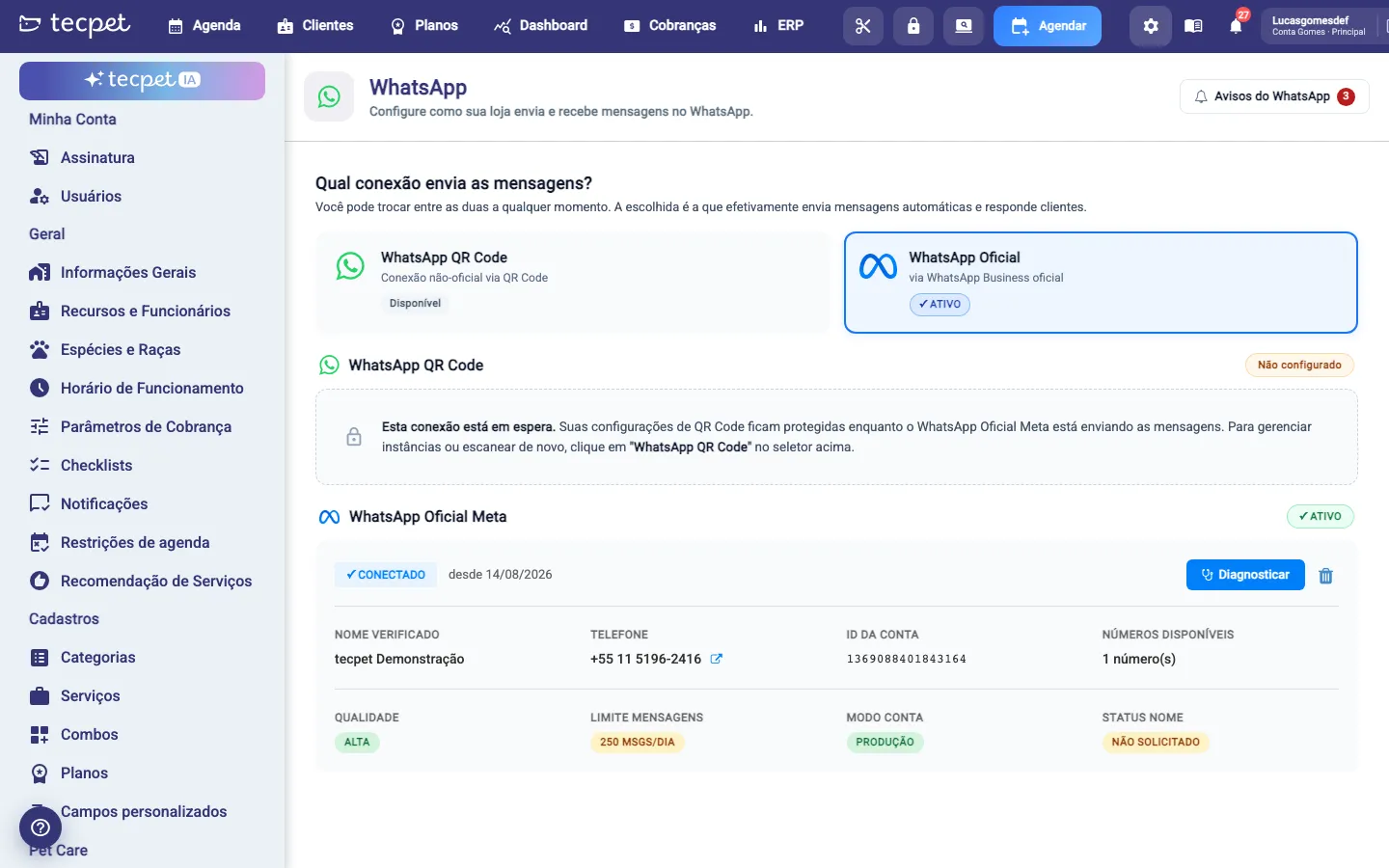
Section titled “Where to see the account’s health inside the system”You don’t need to log into Meta to know how your number is doing. In Settings → System → WhatsApp, the Official Meta WhatsApp card shows, when the connection is active:
- Verified name: the name your client sees;
- Phone: the connected number;
- Account ID and Available numbers;
- Quality: the number’s rating (high, medium, low);
- Message limit: how many conversations you can start per day (this is where the 250 msgs/day shows for those who haven’t verified the business yet);
- Account mode: production or test;
- Name status: whether the display name is already approved by Meta.
Top right are the Diagnose and WhatsApp notices buttons, and the trash icon disconnects the account.
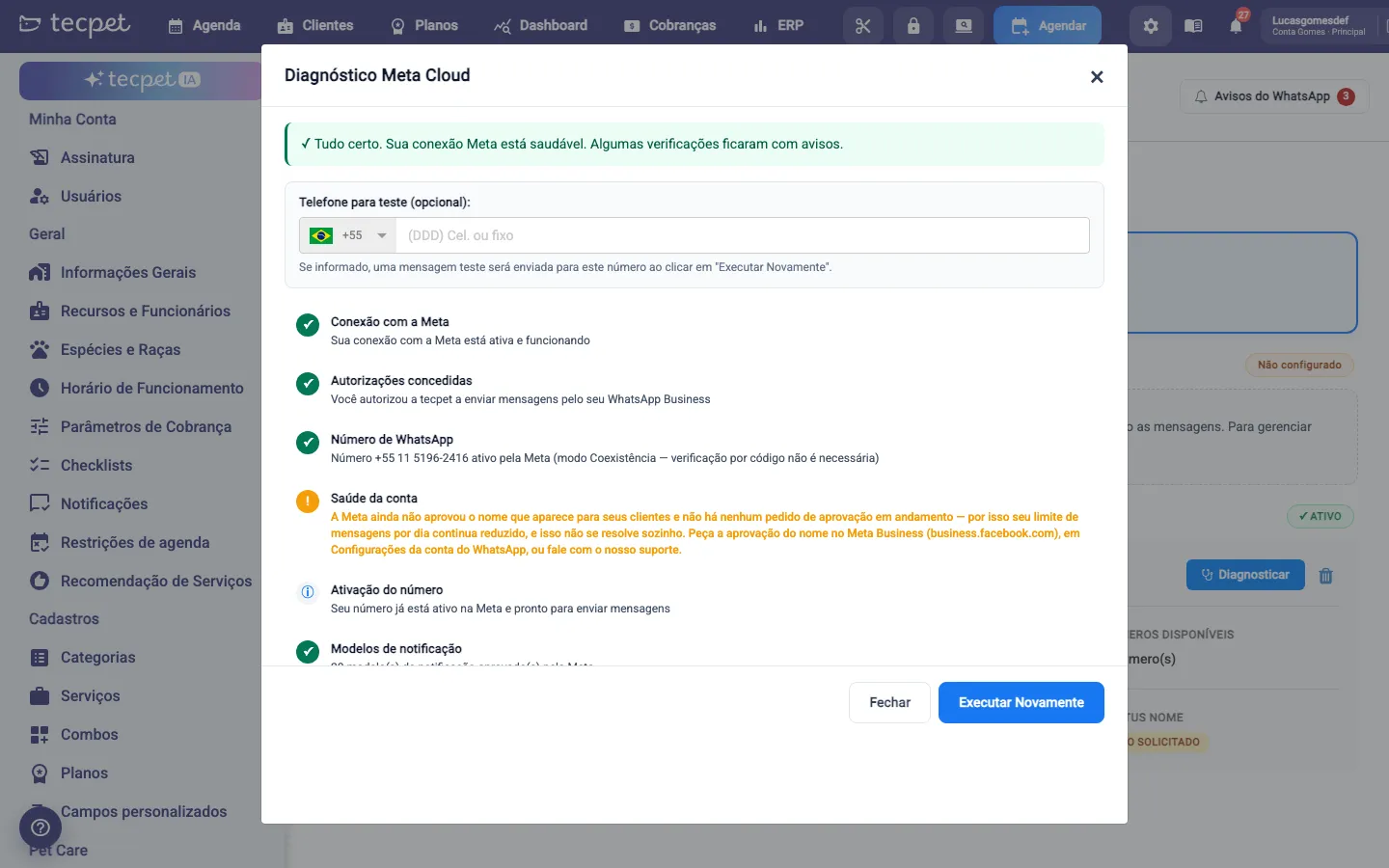
The diagnostic: seven checks in one click
Section titled “The diagnostic: seven checks in one click”The Diagnose button opens the Meta Cloud Diagnostic window, which runs the checks on the spot and explains, in plain language, what’s pending:
- Connection with Meta: confirms the tecpet can still talk to Meta;
- Authorizations granted: the permission for the tecpet to send through your WhatsApp Business is still active;
- WhatsApp number: the number was confirmed by Meta (in Coexistence, code verification isn’t needed);
- Account health: whether there are blocks, limits or active notices at Meta. This is where, for example, the notice appears that the display name isn’t approved yet and so the daily limit stays reduced;
- Number activation: the number is ready to send;
- Notification templates: how many templates Meta has already approved;
- Test message: optional. Type a phone in the field at the top and click Run Again to receive a real message and confirm end to end.
Each item shows an icon: green (all good), orange (attention, with the text of what to fix) or blue (informative). Run the diagnostic whenever a notification stops reaching clients.
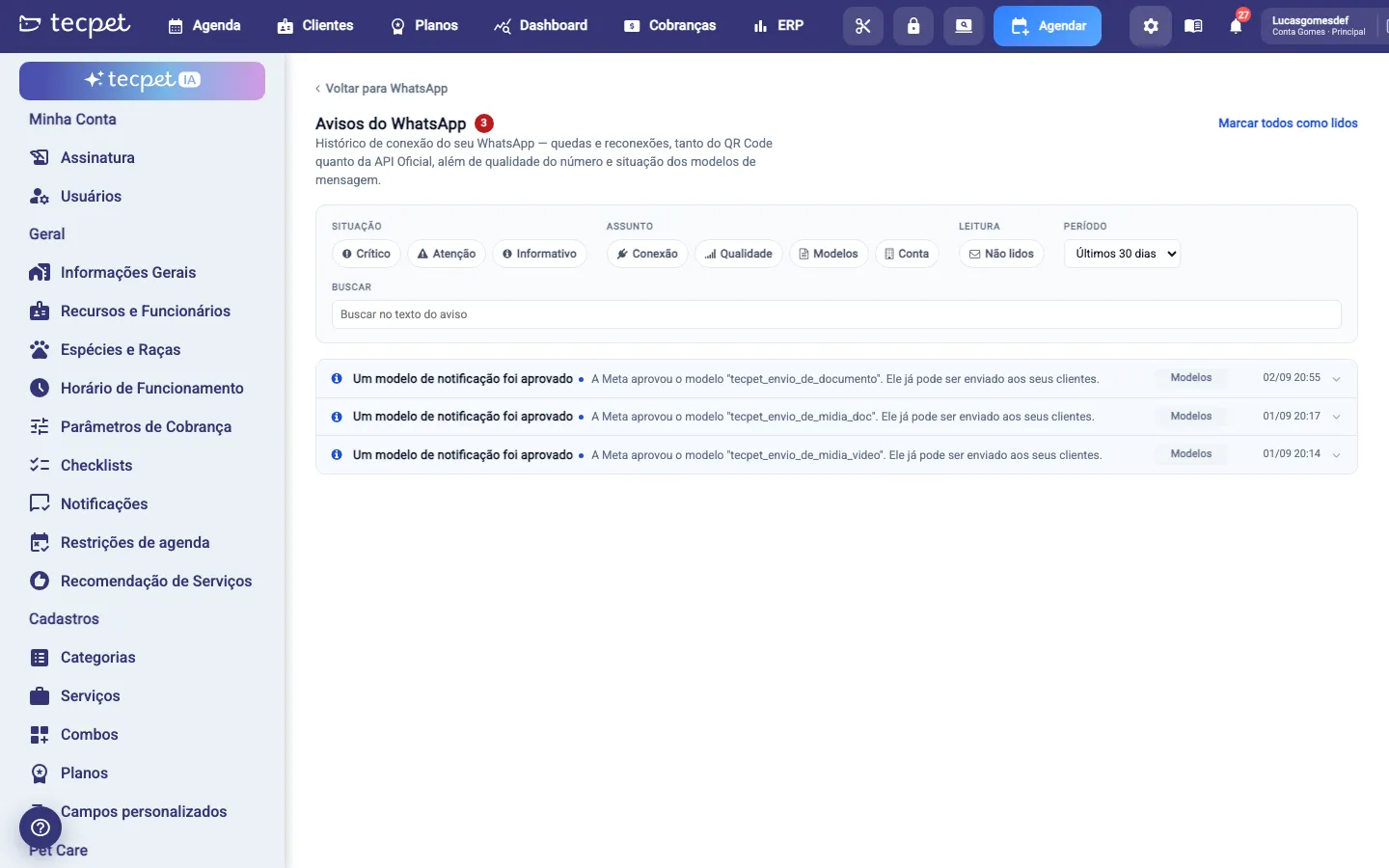
WhatsApp notices: your account’s history
Section titled “WhatsApp notices: your account’s history”The WhatsApp notices screen keeps the history of everything that happened to your connection: drops and reconnections (both QR Code and official API), number quality changes and message template status. It’s the panel the unofficial channel never had.
The filters help you find what matters:
- Status: Critical (stopped working), Attention (about to stop or limited) and Informative;
- Subject: Connection, Quality, Templates and Account;
- Read: only the Unread ones;
- Period: last 7, 30 or 90 days, or all time;
- Search: by word in the notice text.
The red counter next to the button shows how many notices you haven’t read, and Mark all as read clears the list.
What Meta warns you about here
Section titled “What Meta warns you about here”The most common notices, and what each one means:
Connection
- Your WhatsApp was disconnected from the tecpet (critical): meanwhile, automatic notifications don’t go out and automated service is stopped. The reasons Meta usually reports are: the account was disconnected from the shop’s app; the number was registered on regular WhatsApp, which undoes the link to the official API; the number was changed; the main phone went around 14 days without opening WhatsApp Business; a connected device went around 30 days unused; or the number was registered again on another device (phone swap, reinstall or backup restore);
- Your WhatsApp was reconnected (informative): it’s working again;
- Your QR Code WhatsApp was disconnected (critical): the old connection dropped, usually because the phone lost internet, stayed off too long or was disconnected in Linked devices;
- Your official WhatsApp is ready to activate (informative): Meta released the account, you just need to confirm activation on the WhatsApp screen.
Quality
- Your number’s quality dropped (attention): Meta rated the number as medium or low quality. Send only to those expecting you to recover the score.
Templates
- A notification template was approved (informative): it can now be sent;
- A notification template was rejected (attention): until it’s fixed and approved, that notification is not sent;
- A notification template was paused by Meta (attention): paused for low quality, and also not sent.
Account
- Meta blocked your WhatsApp account (critical): Meta found a rules violation. Go to Meta Business to see the notice and contest it if you disagree;
- Meta limited your account’s message sending (attention): a temporary restriction;
- Your automatic messages are not being sent (critical): Meta is still blocking your sending, resolve the issue at Meta Business.
When Meta limits or blocks: the issues and what to do
Section titled “When Meta limits or blocks: the issues and what to do”The diagnostic translates the issue Meta reported. These are the ones that show up, and the path for each:
- Spam: many people marked your messages as spam or blocked your WhatsApp. Send only to those who agreed to receive, cut the volume for a few days and improve the content. Meta releases it again on its own once quality improves;
- Policy violation: some message broke the WhatsApp Business rules. Go to Meta Business to see the notices and contest if you disagree;
- Payment: inactive card or unpaid invoice. Confirm at Meta Business that the card is active and the invoices are paid;
- Business verification: the company hasn’t completed verification. Meanwhile Meta limits sending and may decline the payment method, so swapping the card alone won’t fix it. The path is Settings → Security Center;
- Display name: the name your clients see wasn’t approved, and so the daily limit stays reduced. Depending on the case, the diagnostic text says whether it’s in review (up to 48 hours, automatic), with no request in progress (won’t fix itself, you have to request approval), declined (pick another name) or expired (request it again). All in WhatsApp account settings, at Meta Business;
- Quality: the number’s rating dropped. Send only to clients who genuinely expect your messages;
- Reduced limit: normal for new accounts, the limit rises on its own as you send quality messages;
- Sending blocked: Meta blocked the account’s sending. See the reason at Meta Business and, if you need help, talk to the tecpet support.
The checklist of what actually protects you
Section titled “The checklist of what actually protects you”It isn’t bureaucracy, it’s what keeps the number alive:
- ✅ Verified business at Meta;
- ✅ Up to date company registration document, in PDF, ready to send;
- ✅ Website live explaining what the shop does, with company number and address;
- ✅ Same name everywhere: the same company name on the registration document, on the site, on the Facebook page and in the WhatsApp display name;
- ✅ Only what the pet parent expects: relationship messages, about a service they have booked or already hired;
- ✅ No broadcasting in the app: no broadcast lists, no manual bulk blasting.
If you only do one item this week, do the first one: business verification is the only one where Meta controls the clock.
But I don’t even use Facebook
Section titled “But I don’t even use Facebook”It’s the question that always comes up, and the answer changes how you see the whole thing: here Facebook isn’t social media, it’s the key to the safe. You don’t need to post anything.
What it actually is:
- It’s where the account lives. Your company’s official WhatsApp account sits inside Meta Business, which is Meta’s management panel (Meta owns WhatsApp, Instagram and Facebook);
- It’s the login that authorizes. It’s what you use to authorize the tecpet to send messages through your WhatsApp Business;
- It’s where payment sits. The card Meta charges for messages is registered there;
- It’s where verification and the name live. Business verification and the name your client sees are in that panel.
To get there: log into your Facebook, open See more → Pages, go to your company’s page (with website, contact and email filled in) and click Meta Business Suite.