
Track your billing
The Billing screen is where you track every invoice of your clients in one place: what is open, what has been paid, what is overdue. The numbers sit at the top, the filters live on the screen itself, and each row opens the full invoice, from where you settle the payment, send the charge on WhatsApp or reverse a payment recorded by mistake.
Step 1: Open the Billing screen
Section titled “Step 1: Open the Billing screen”In the top menu, click Cobranças (Billing). The screen opens with the title Faturas (Invoices) and already lists the invoices created in the last 30 days.
Step 2: Read the status indicators
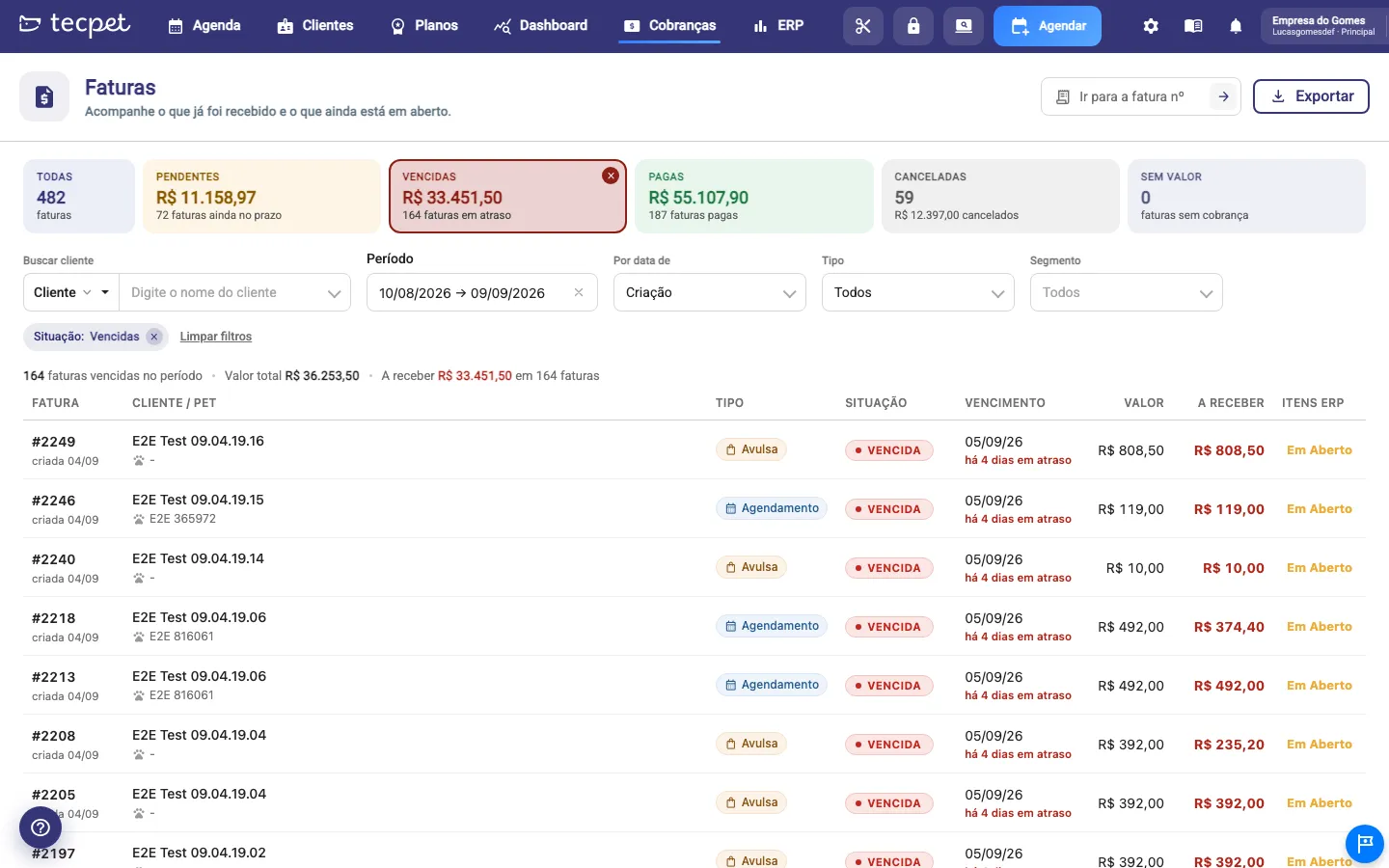
Section titled “Step 2: Read the status indicators”Right below the title there are six cards, one per status. They add up everything in the chosen period and filters:
- All: how many invoices exist in the period;
- Pending: the amount still to fall due and how many invoices are within the term;
- Overdue: the amount in arrears and how many invoices are past due;
- Paid: the amount received and how many invoices were paid;
- Canceled: how many were canceled and the amount that stopped being charged;
- No value: invoices with nothing to charge (zero value).
Click a card to filter the list by that status. The other cards keep their numbers, so you can jump from one status to another without losing the big picture. To see everything again, click the × on the selected card or All.
Step 3: Adjust the filters
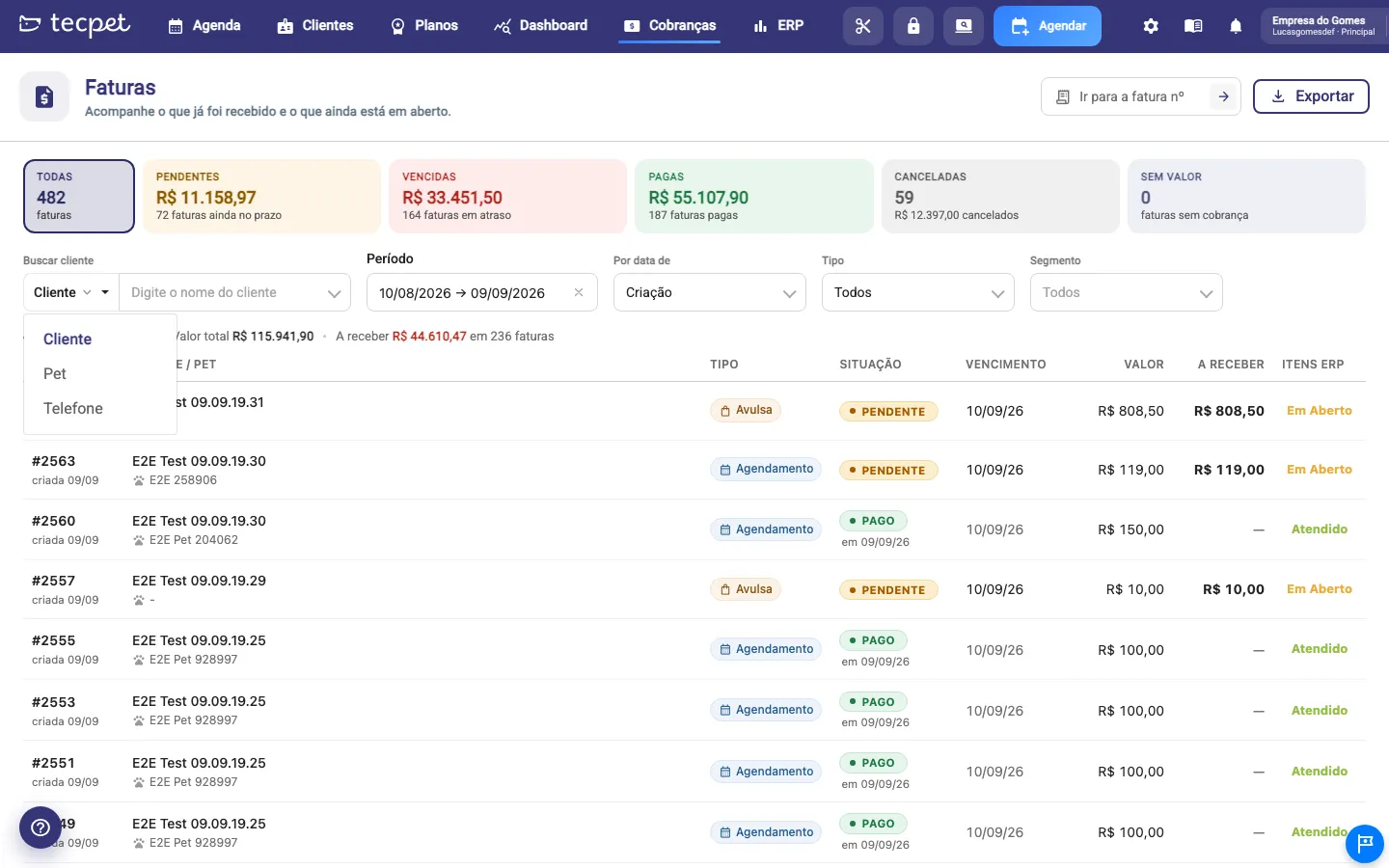
Section titled “Step 3: Adjust the filters”The filters live on the screen itself, on the row below the indicators. Every change reloads the list at once, with no apply button:
- Search client: first pick what you will type, Client, Pet or Phone, then type at least 3 letters. The clients found show up; pick one to see only their invoices;
- Period: the date range. Comes with Today, Last 7 days, Last 30 days and Current month ready, or pick both dates by hand. The range can span at most 12 months;
- By date of: says which date the period looks at: Creation (the default), Due date or Payment;
- Type: All, Booking, Plan/Package, Standalone or Voucher;
- Segment: only shows up when the shop works with more than one segment (Pet Shop, Clinic, Daycare/Hotel). Comes with all of them selected.
The filters in use appear as chips above the list (status, client and type), each with an × to remove it. Clear filters goes back to the default. Right below, the result line sums it up: how many invoices there are in the period, the total value and the receivable (with the count of open invoices). With a status selected, those totals become that status only.
Step 4: Find an invoice by number
Section titled “Step 4: Find an invoice by number”In the top right corner, the field Go to invoice no. looks for one specific invoice by its number. Type only the digits (no #) and press Enter or click the arrow.
This search is different from the filters: the number is looked up across the whole shop, so period, status, type and segment are suspended while it is active. The screen says so in a blue strip. To go back to the normal list, clear the field with the × or click Back to the list.
Step 5: Understand the invoice list
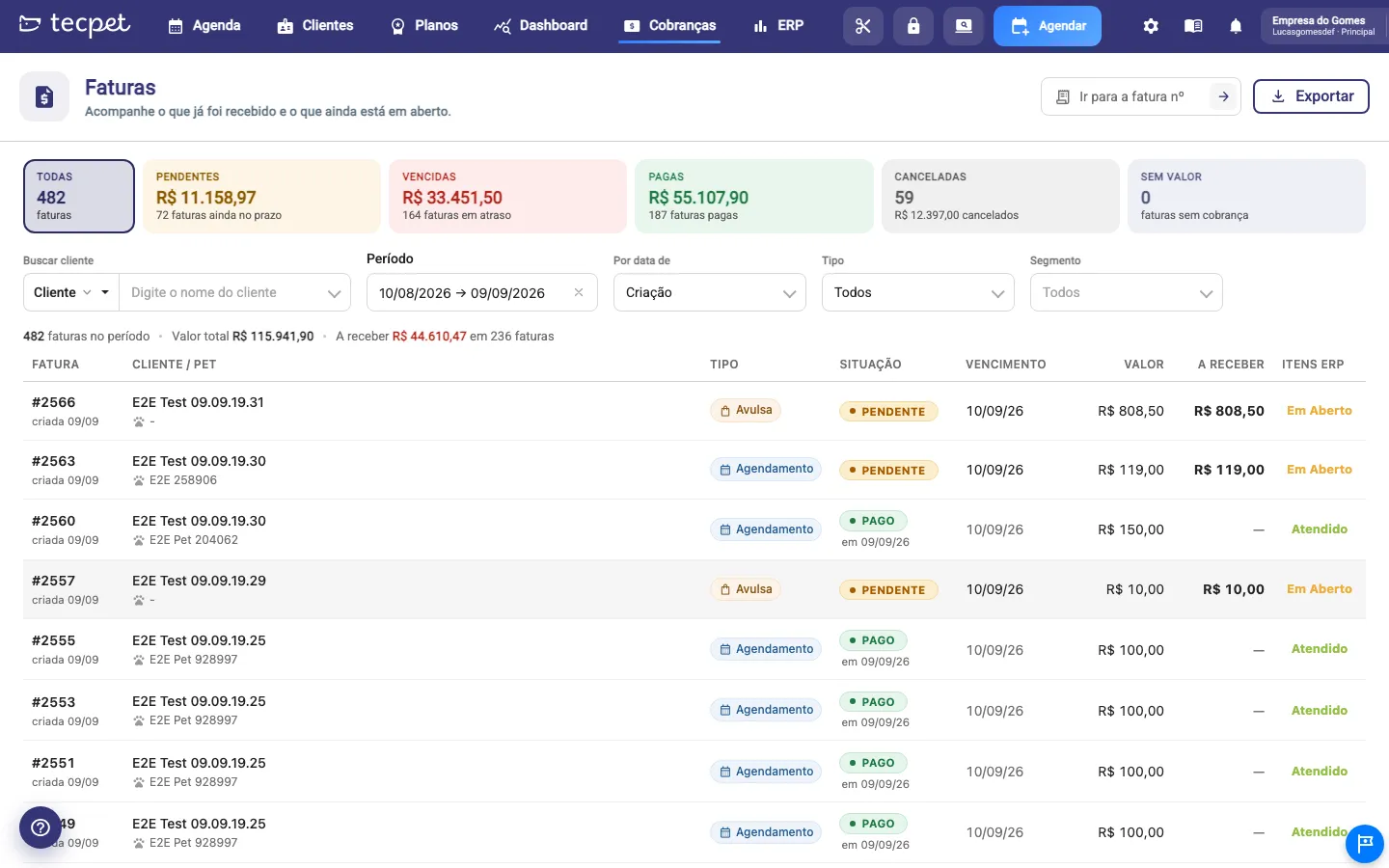
Section titled “Step 5: Understand the invoice list”Each row is one invoice. The columns show:
- Invoice: the number (e.g. #2566) and, below it, the date it was created;
- Client / Pet: the client’s name and the pet linked to the invoice. Clicking the client’s name opens their profile. If the client’s or the pet’s name was different when the invoice was made, the old name shows next to it, with a pencil;
- Type: Booking, Plan, Standalone or Voucher, each with its own color;
- Status: Pending, Overdue, Paid, Canceled or No value. On a paid invoice you also see the payment date;
- Due date: the due date and, on an overdue invoice, how many days late it is;
- Value: the invoice total;
- Receivable: how much is still to receive; a settled, canceled or no-value invoice shows a dash;
- ERP items: only shows up when the shop has an integrated ERP; shows the fiscal/ERP status of the invoice.
When there are more invoices than fit on a page, pagination appears in the footer. Changing the indicator or a filter goes back to the first page.
Step 6: Open the invoice and act on it
Section titled “Step 6: Open the invoice and act on it”Click anywhere on the row (or on the invoice number) to open the full invoice. There are no more action buttons in the list: everything happens inside the invoice, which brings the items, the discount, the note and the footer with Pay, Send and Reverse. That modal is explained in Inside the invoice.
To settle the payment:
- Open the invoice and click Pay;
- Pick the Payment method (cash, card, Pix, etc.);
- Check the Amount to receive* (required field). In cash, the system works out the change; on card or Pix, an extra amount if there is a surplus;
- If the client has a Voucher balance, tick Use Voucher to deduct it from the credit;
- Click Pay. The invoice moves to Paid and the list refreshes on its own.
To send the charge, use Send inside the invoice: the message goes straight to the client’s WhatsApp. To reverse a payment recorded by mistake, use Reverse (only shows on an invoice already paid): every payment on that invoice is undone at once and it goes back to open.
Pay, send or print several invoices at once
Section titled “Pay, send or print several invoices at once”Batch selection left the Billing screen and now lives in the client’s profile: open the client and click See pending items. There, tick the invoices you want and use Pay invoices (from two selected; only in a shop without an integrated ERP), Send or Print. Since the selection is per client, a batch payment never mixes invoices from different clients.
Export the list
Section titled “Export the list”The Export button, next to the search by number, downloads a spreadsheet with the invoices of the period and filters on the screen. Handy for reconciling with your finance team or accountant.
What changes with your ERP
Section titled “What changes with your ERP”Without an integrated ERP, the ERP items column does not show in the list. In the client’s See pending items you get the Pay invoices button, which settles several at once. Settling only marks the invoice as paid in tecpet; the fiscal document, if you issue one, is done separately in your issuer.
If you use VHSYS
With VHSYS integrated, the ERP items column appears showing the status in the ERP’s own terms (Open, Fulfilled, Error, Canceled…). The batch Pay invoices button does not show in See pending items: with an integration, each invoice is paid one by one to keep the items in sync with VHSYS. Reverse remains available inside the invoice.