
Connect WhatsApp to the official API (Meta)
The tecpet talks to your clients on WhatsApp in two ways: the unofficial QR Code connection (the old one, where you scan a QR Code with your phone) and Meta’s official API: the official WhatsApp Business, with a verified account and no spam-ban risk. This screen, under Settings → System → WhatsApp, is where you choose which connection sends the messages and where you migrate to the official API through a guided wizard that takes a few minutes. The chosen connection is the one that replies to clients and fires your automatic notifications and your chatbot and AI.
Two things decide whether this migration goes well, and each has its own page: how much you will pay per message (see how much the official WhatsApp costs) and what keeps your number up once connected, from business verification to your activity code and website (see keeping your Meta account healthy).
What if your shop's WhatsApp gets banned tomorrow? #
A banned number is a silent shop
An unofficial WhatsApp can be blocked any time, and your whole schedule stops with it.
“When you speak through Meta's official channel, you stop living in fear of losing your number.”
Your entire schedule comes in through WhatsApp. When the number is unofficial (scanned by QR Code), a single spike of messages can get it flagged as spam and taken down, then the phone goes silent, clients can't book, and no one warns you it fell.
With Meta's official API your shop becomes a verified account: messages land straight in the client's main inbox, you get the official badge, and the number stops risking a spam ban. And with Coexistence you don't even change numbers, your contacts, chats and history stay on the same WhatsApp, with automated service running on top of the official channel.
Step 1: Open the WhatsApp settings
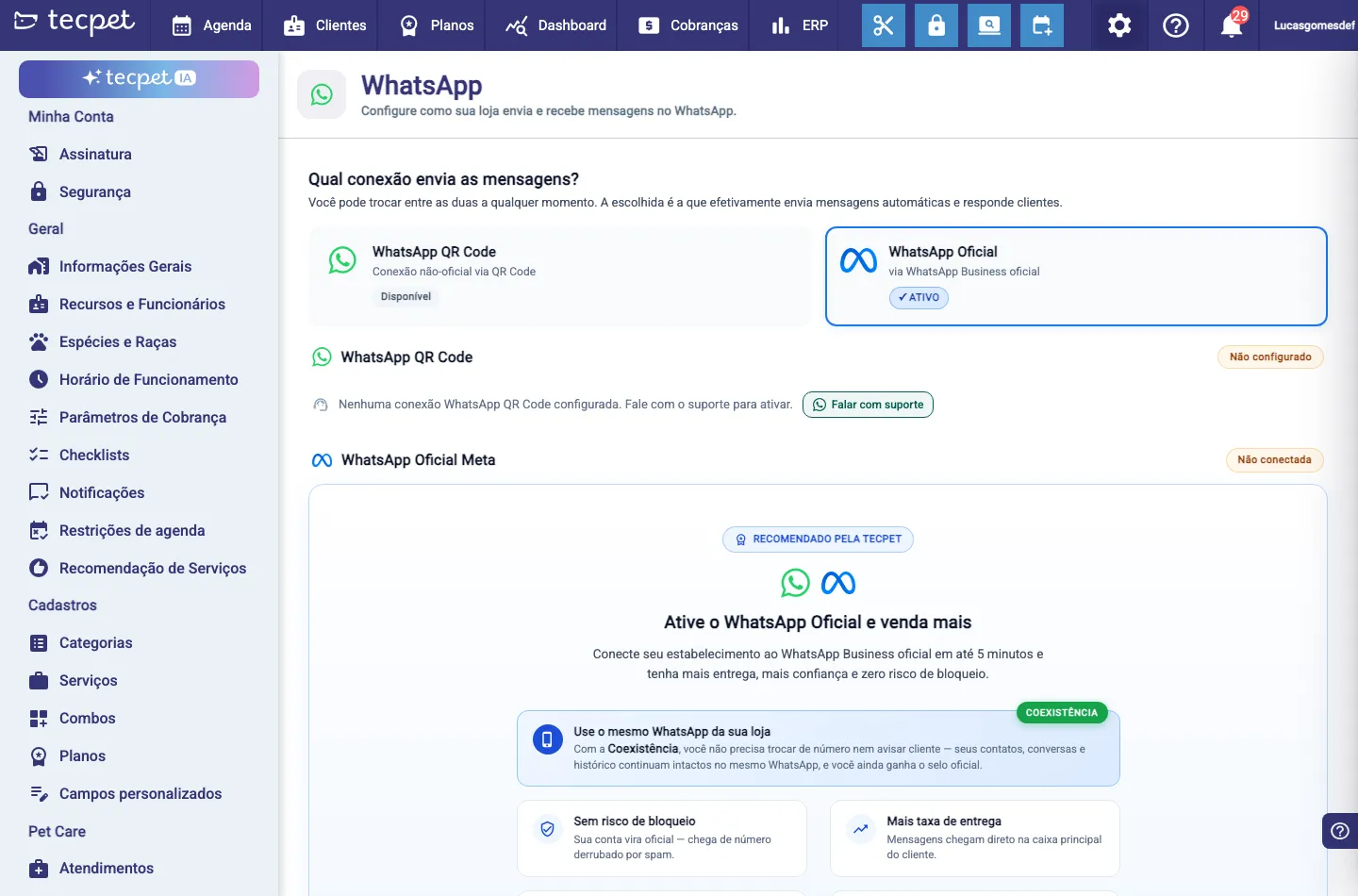
Section titled “Step 1: Open the WhatsApp settings”In the Settings menu, open System → WhatsApp (the system may ask for your administrator password). At the top, the Which connection sends the messages? block shows two cards: WhatsApp QR Code (the unofficial connection) and Official WhatsApp (Meta’s API). Just below, when the Official WhatsApp isn’t connected yet, the invite Activate the Official WhatsApp and sell more appears, with the button Connect now, takes 5 minutes.
Step 2: Start the connection wizard
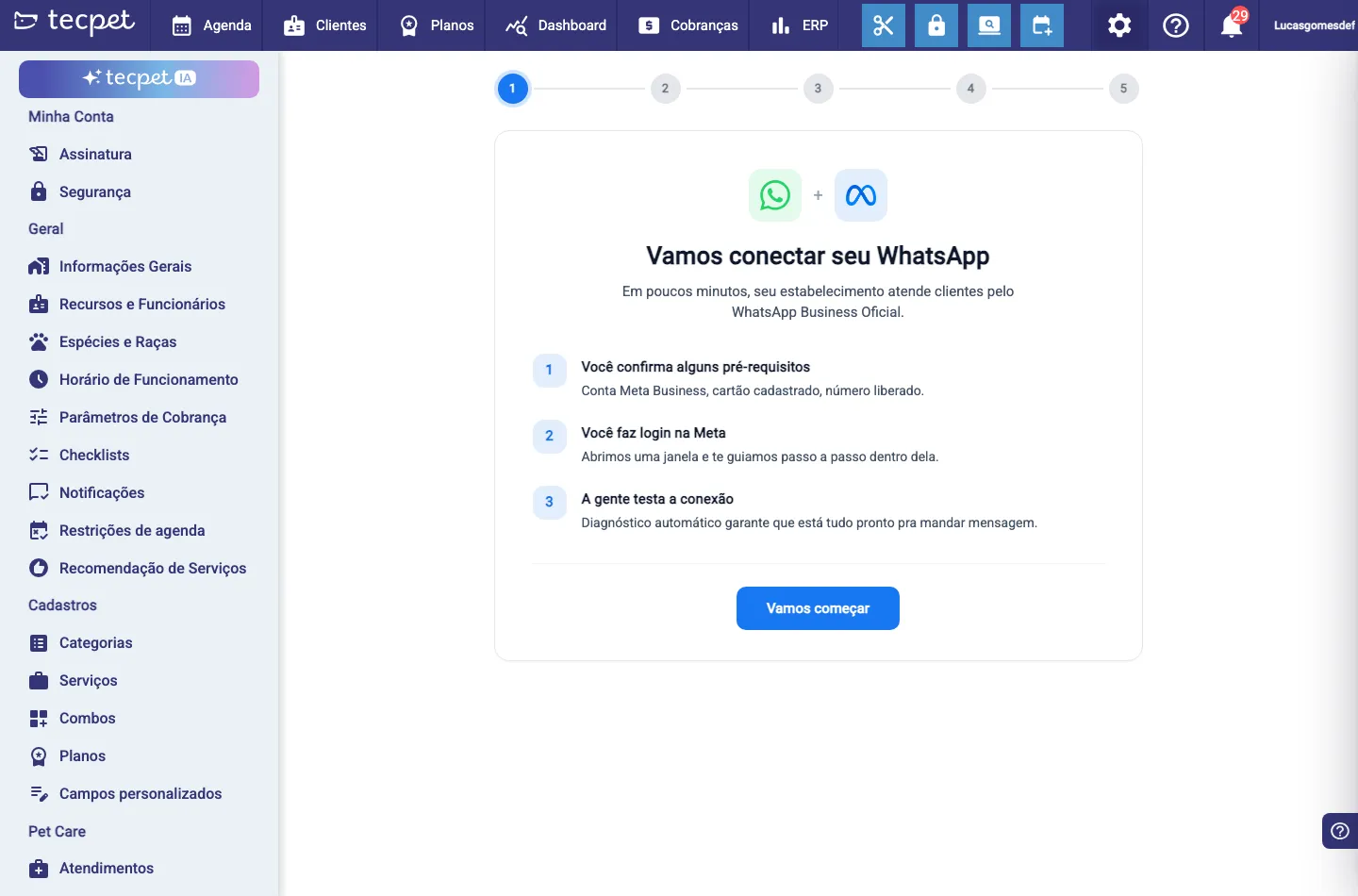
Section titled “Step 2: Start the connection wizard”Click Connect now, takes 5 minutes (or the Official WhatsApp card). The connection wizard opens, with a 5-step bar at the top. The first screen, Let’s connect your WhatsApp, sums up the path: you confirm some prerequisites, log in to Meta and the system tests the connection. Click Let’s start.
Step 3: Confirm the prerequisites
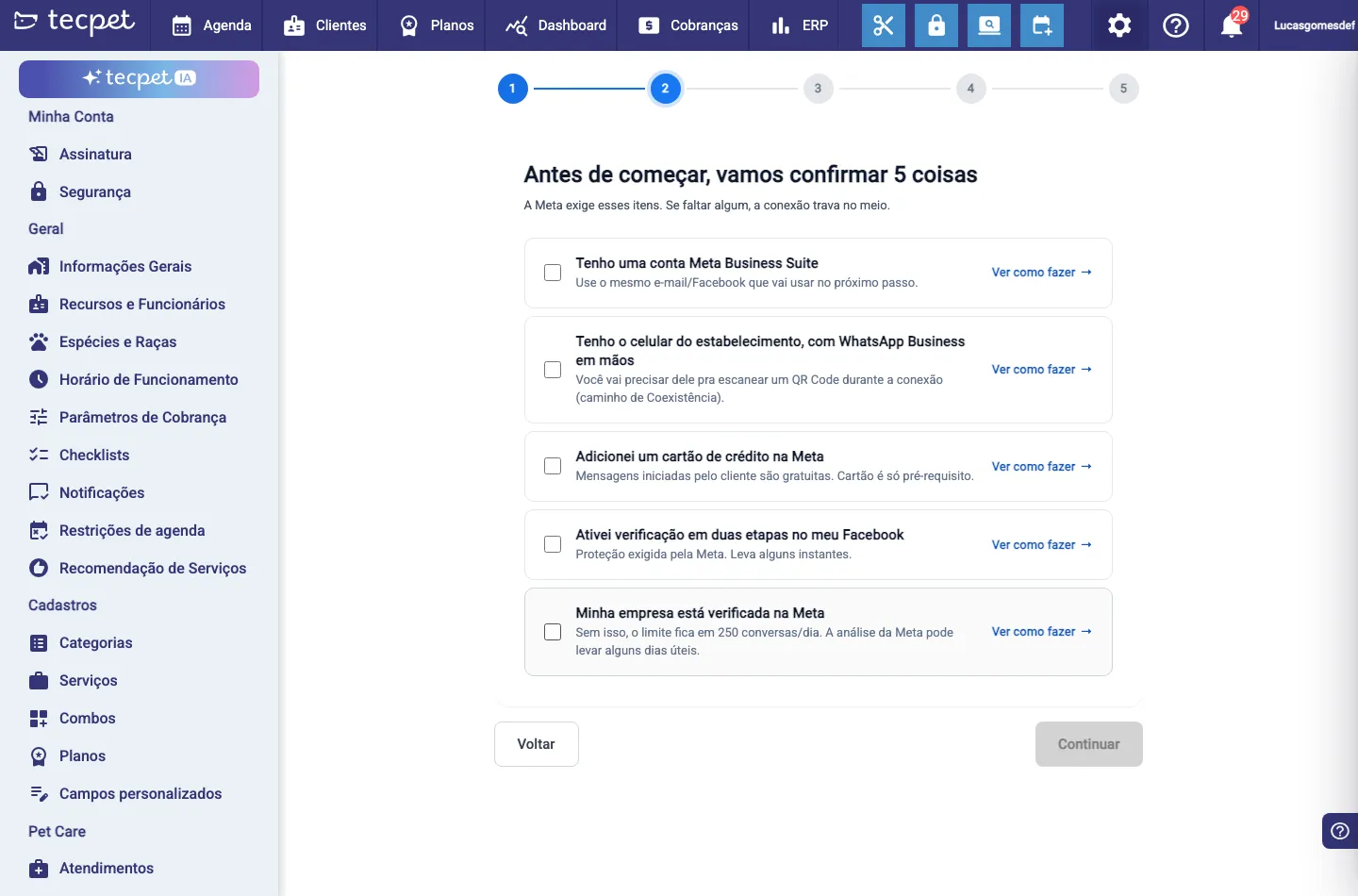
Section titled “Step 3: Confirm the prerequisites”The step Before we start, let’s confirm 5 things lists what Meta requires, if one is missing, the connection stalls halfway. Check all 5 items (each has a See how → link with the step by step) and click Continue. The button only enables with all 5 checked.
What each prerequisite means
Section titled “What each prerequisite means”- I have a Meta Business Suite account: use the same e-mail/Facebook you’ll use to log in on the next step (different accounts = Meta won’t find your business and it stalls). Facebook here isn’t social media, it’s the key to the safe: it’s where the official account lives and where payment, verification and the name your client sees are kept. Never give your password to anyone, not even to the tecpet.
- I have the shop’s phone, with WhatsApp Business at hand: you’ll scan a QR Code with it during the connection (on the Coexistence path). It’s WhatsApp Business (green icon with a “B”), not the regular WhatsApp.
- I added a credit card on Meta: Meta charges the messages straight to that card, and it currently tends to require an international card. Client-initiated messages are free; you only pay for what your shop sends, per message (not per conversation). The full breakdown is in how much the official WhatsApp costs.
- I enabled two-step verification on my Facebook: protection required by Meta, because that’s where the card lives. It takes a moment.
- My business is verified on Meta: without it, the limit stays at 250 started conversations per day, and Meta’s review can take a few business days. It’s the only item where Meta controls the clock, so start with it. How to do it, and why your activity code and website come into this, is in keeping your Meta account healthy.
Step 4: Connect with Meta (Facebook login)
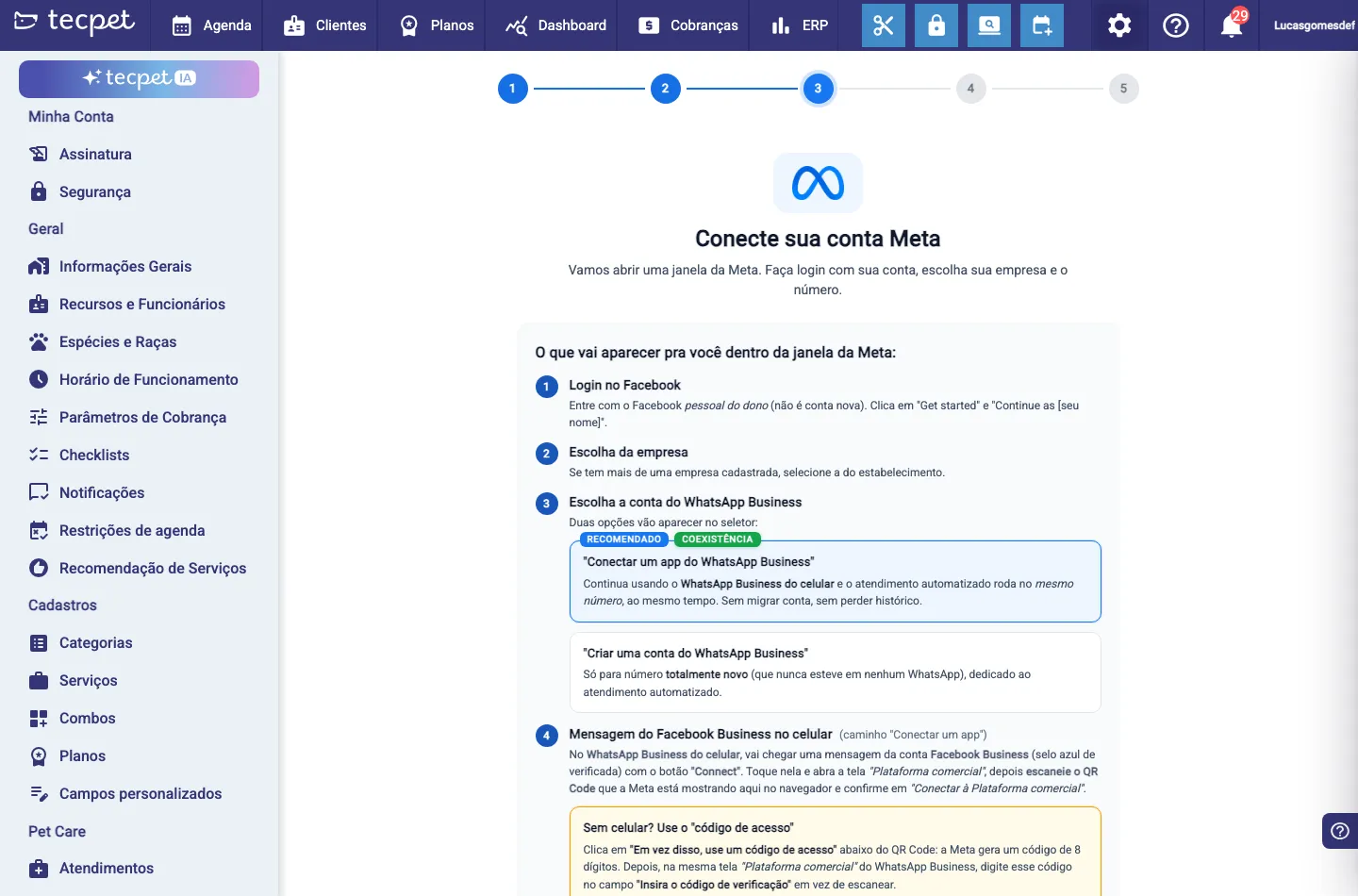
Section titled “Step 4: Connect with Meta (Facebook login)”The step Connect your Meta account explains, in 6 points, what will appear inside Meta’s window. Read it calmly and click Connect with Meta: a Meta window opens in a new tab. There you: (1) log in to the owner’s Facebook; (2) pick the business; (3) choose how to connect the number (see below); (4) confirm on the WhatsApp Business phone: a message arrives from the official Facebook Business account with a Connect button; open the Business Platform screen and scan the QR Code (or use the 8-digit access code); (5) verify the number by SMS/call (only when creating a brand-new number); (6) keep all permissions checked and click continue. When you finish, the window closes by itself and you return to the wizard.
Choosing how to connect the number
Section titled “Choosing how to connect the number”Inside Meta’s window, you choose between two options:
- Connect a WhatsApp Business app (recommended, Coexistence): you keep using the same number from the WhatsApp Business on your phone; automated service runs on top, at the same time. No account migration, no losing contacts or history, and nothing changes for the pet parent. It’s the path chosen by around 92% of those who migrated with the tecpet.
- Create a WhatsApp Business account: only for a brand new number (one that’s never been on any WhatsApp), dedicated to automated service. On this path, the number exists only in the API: no app, no history, no messaging by hand.
When in doubt, choose Coexistence: it’s the path that doesn’t touch the number your shop already uses.
About the Coexistence QR Code, three details that avoid a scare:
- It is not the WhatsApp Web QR Code nor the one under Linked devices. It’s the Business platform (business account) one, inside WhatsApp Business;
- Scanning usually takes 1 to 5 minutes to complete. That’s normal, it didn’t freeze;
- You do this only once, at connection time. After that, there’s no QR Code to re-scan every week.
If the number shows up in red when you type it, it’s because it’s already linked to another Facebook or Instagram page, or to another provider. In that case, remove the link there first and try again here.
Step 5: Automatic diagnostic
Section titled “Step 5: Automatic diagnostic”After login, the wizard runs a diagnostic (“Checking that everything is ready”) with several automatic checks, grouped into Your Meta account (account data, admin, payment, two-step, verified business), Technical connection (token, permissions, tecpet authorized), Your WhatsApp number (number free, registered, display name) and Ready to send (number quality, notification templates created and a test message). This is when your automatic notifications become Meta templates: that can take a few minutes. To finish, you can type your phone and click Send test: you get a “Hi!” and confirm everything works end to end. With everything passing, click Continue.
Step 6: Done! Activate and go back to the panel
Section titled “Step 6: Done! Activate and go back to the panel”The last step, Done! Your WhatsApp is connected, shows the connected number with the VERIFIED badge. If templates are still under Meta’s review, your automatic notifications stay paused until approval, but messages your client starts work normally right away. Click Back to the panel: the system asks you to log in again to apply the new setting. From then on, the official connection is the one sending messages and the WhatsApp QR Code goes on standby (your old settings are kept safe).
After connecting: the Official WhatsApp panel
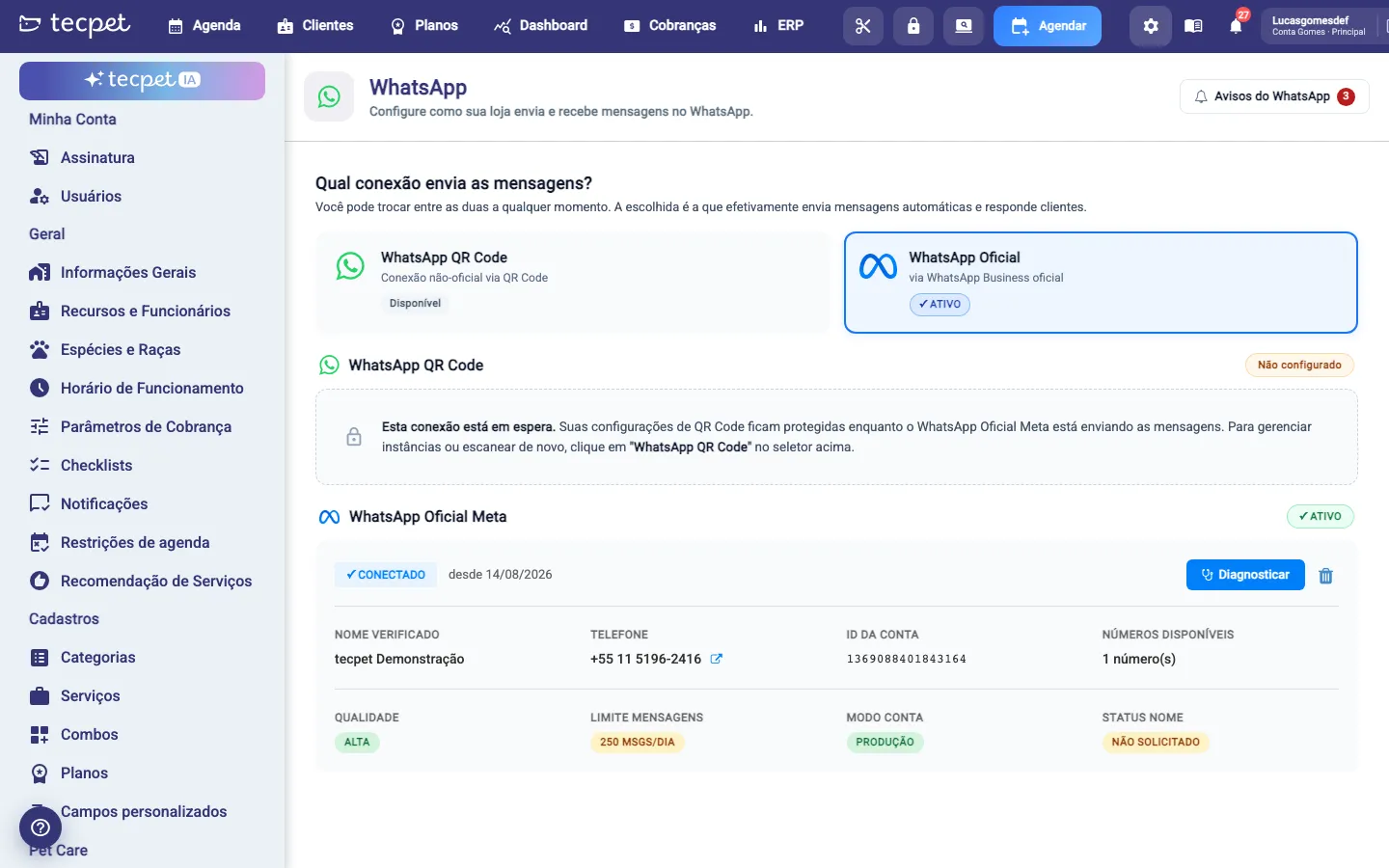
Section titled “After connecting: the Official WhatsApp panel”With the connection active, the WhatsApp screen starts showing the Official Meta WhatsApp card with the CONNECTED mark and the date the connection was made, plus your account details: Verified name, Phone, Account ID, Available numbers, number Quality, daily Message limit, Account mode and Name status. The WhatsApp QR Code block is marked as on hold, with the old settings kept.
At the top, two buttons become part of your routine:
- Diagnose: runs the connection checks on the spot and explains what’s pending;
- WhatsApp notices: the history of everything Meta reported about your account (drops, reconnections, number quality and message template status), with an unread counter.
Both are explained in detail in keeping your Meta account healthy.
How to switch the connection or go back to QR Code later
Section titled “How to switch the connection or go back to QR Code later”You can switch the active connection any time on the WhatsApp screen itself, by clicking the card of the connection you want:
- Activate the Official WhatsApp (when it’s already connected) opens a window that runs a quick diagnostic; with everything fine, just Confirm activation.
- Go back to WhatsApp QR Code pauses sending via Meta and returns to the QR Code, automatic notifications via Meta stay paused until you reactivate, but clients keep messaging normally and your Meta connection is kept.
With any switch, the system asks you to log in again to apply the change.
When something stalls
Section titled “When something stalls”- The number is already with another provider: if the chosen number is already linked to another connection (another provider or an old connection), Meta asks you to release/disconnect it there first and try again.
- The diagnostic found an error: activation only completes with the diagnostic error-free; resolve the pending item on Meta (payment, permissions, quality) and try again.
- Missing permissions: if a permission was unchecked in Meta’s window, redo the login keeping all of them checked.
- Business not verified: the limit stays at 250 conversations/day until Meta verifies your business.
In every case, the wizard shows the error and the buttons Try again / Talk to support.
If the problem is a low limit, falling quality or an account blocked by Meta, the path for each issue is in keeping your Meta account healthy.
Head office, branch or single store
Section titled “Head office, branch or single store”In a single store, you control your own connection right from this screen: connect, switch and disconnect whenever you want.
Head office (network)
If your shop is the head office of a network, only it can switch the active connection. Activating the Official WhatsApp applies the change to all stores in the network at once. See how the network works.
Branch
In a branch, the connection is managed by the head office (a lock 🔒 appears: “Managed by the head office”). The branch uses the connection set by the master store and can’t switch on its own, to change it, talk to the head office.