
Issue a controlled prescription
The Controlled prescription is the Pet Care record that generates, numbers and keeps the legal document for prescribing a controlled medicine: the Veterinary Prescription Notification (industrialized medicine) and the Special Control Prescription (compounded formulation or antimicrobial for human use). It uses the data already in tecpet (pet, owner, veterinarian and shop), builds the sheet with the right copies, numbers the compounded prescription in the MAPA/sequential/year pattern and leaves everything in the pet’s Pet Care History, where it can only be printed or cancelled, never edited or deleted. It is available to every account with the Pet Care module.
Why does this matter? #

A controlled prescription allows no erasures
A hand-filled pad is the inspection you do not want to receive.
“The right prescription, numbered and kept, is what separates the organized clinic from the clinic hoping nobody asks.”
Phenobarbital, tramadol, human-use antibiotic: prescribing these medicines requires a document with legal numbering, correct copies, owner and animal data and years of retention. When that lives on a paper pad, numbers get skipped, copies go missing, the handwriting is unreadable and nobody knows what was prescribed to the pet six months ago.
With the Controlled prescription in Pet Care, the veterinarian picks the modality, fills in the items and tecpet builds the document with the data already on record, numbers the compounded one on its own, prints all copies at once and keeps everything in the pet's history. Made a mistake? Cancel with a reason and generate another, without deleting anything. The clinic gains a standard, and the owner gets a prescription the pharmacy accepts without questions.
Before you start: register the veterinarian
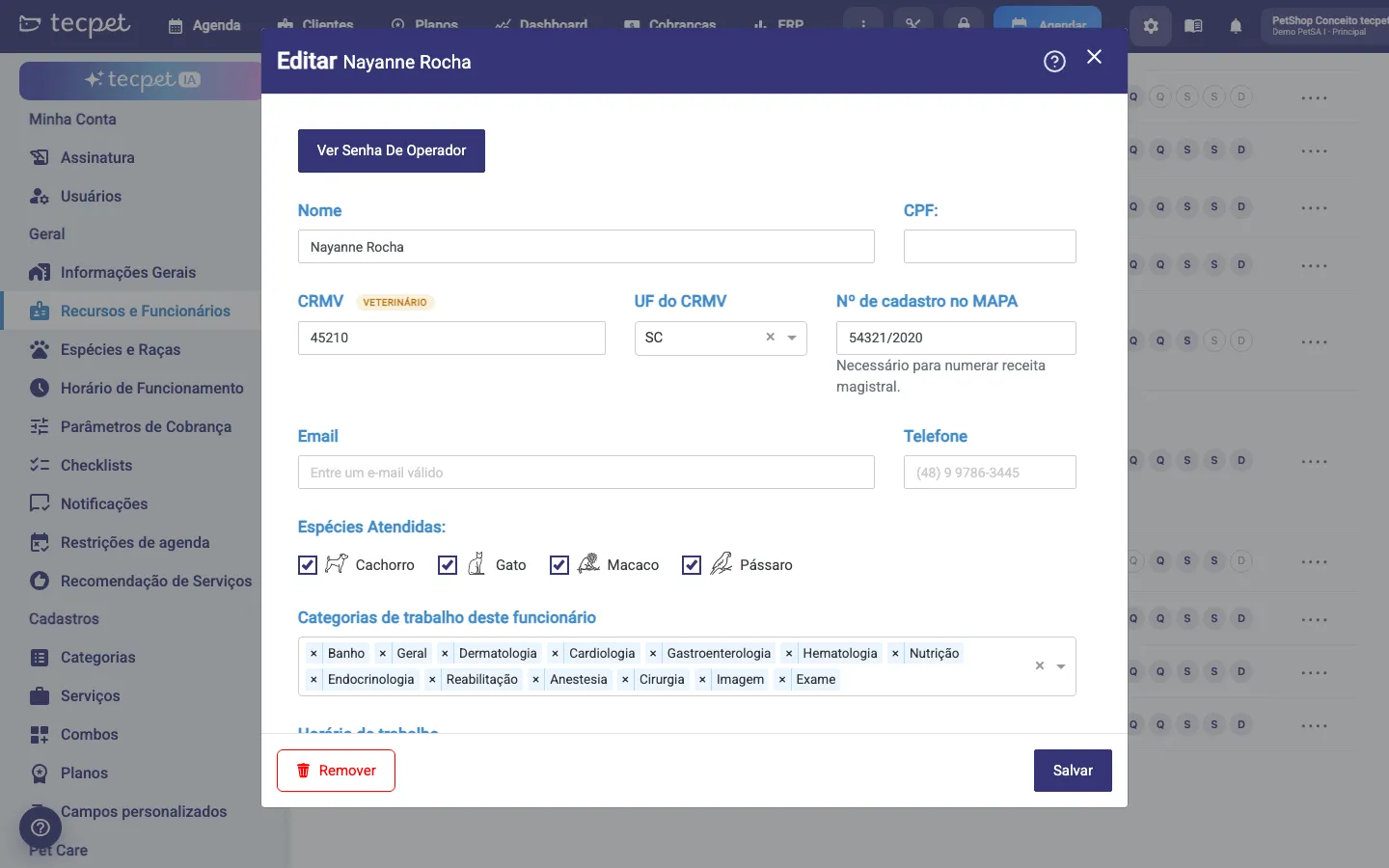
Section titled “Before you start: register the veterinarian”Only employees with a registered CRMV show up as prescribers. In Settings → General → Resources and Employees, open the veterinarian’s record and fill in:
- CRMV* and CRMV state*: the council number and state. With the CRMV filled in, the employee gets the veterinarian tag;
- MAPA registration no.: the SIPEAGRO registration, in the 54321/2020 format (digits and slash only). It is required to number the compounded prescription;
- Operator code: the issuance is confirmed only with the veterinarian’s own code, so they need one.
Without a veterinarian with CRMV, the prescription opens with the notice No veterinarian with CRMV registered and the Register veterinarian button.
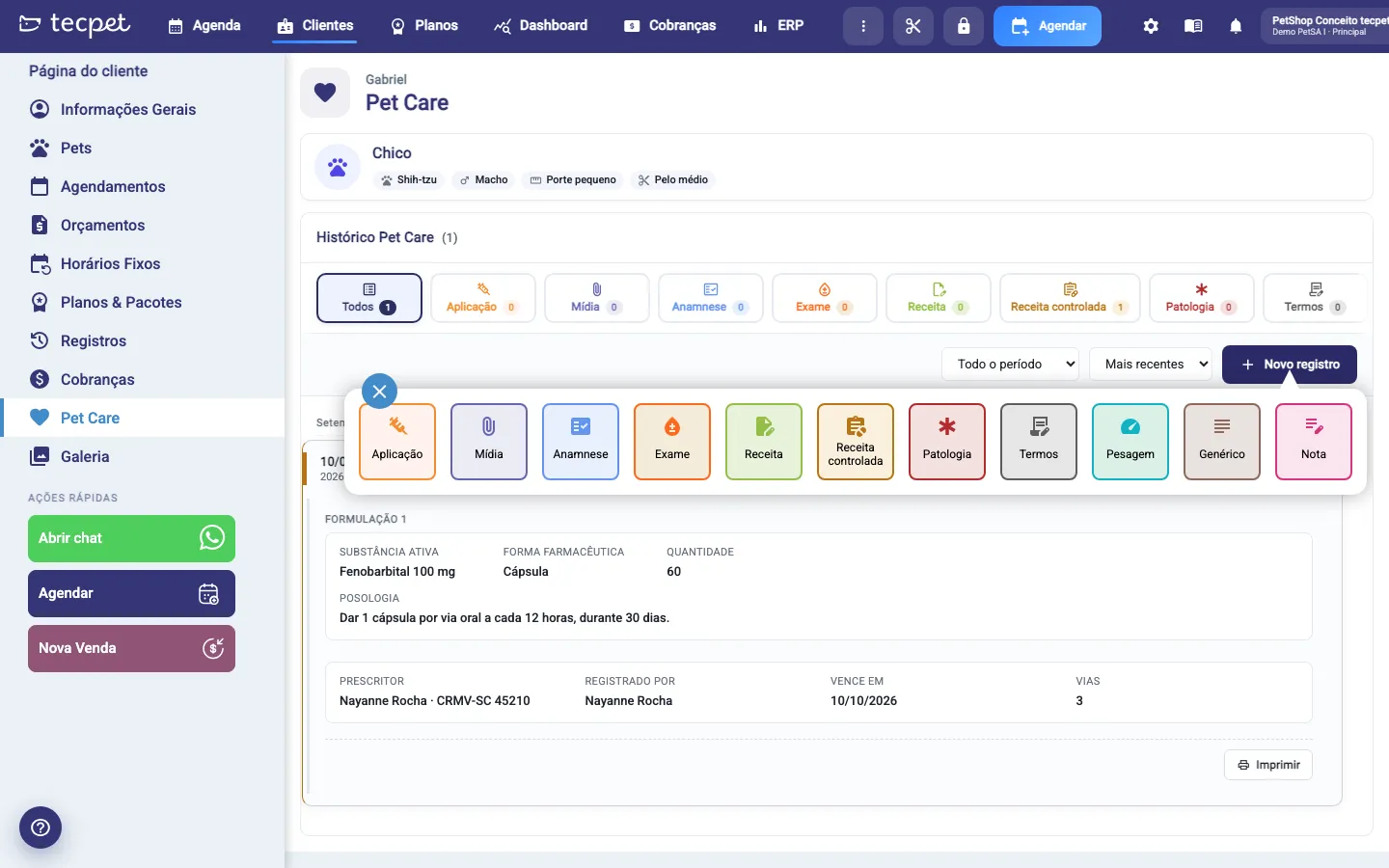
Step 1: Open the pet’s Pet Care and click New record
Section titled “Step 1: Open the pet’s Pet Care and click New record”On the customer profile, go to Pet Care, select the pet and click + New record. In the type selector, choose the Controlled prescription card. It also opens through the New controlled prescription button on the Controlled prescription tab of the history (when there is none yet) and through the Pet Care screen of a booking.
Step 2: Choose the prescription type
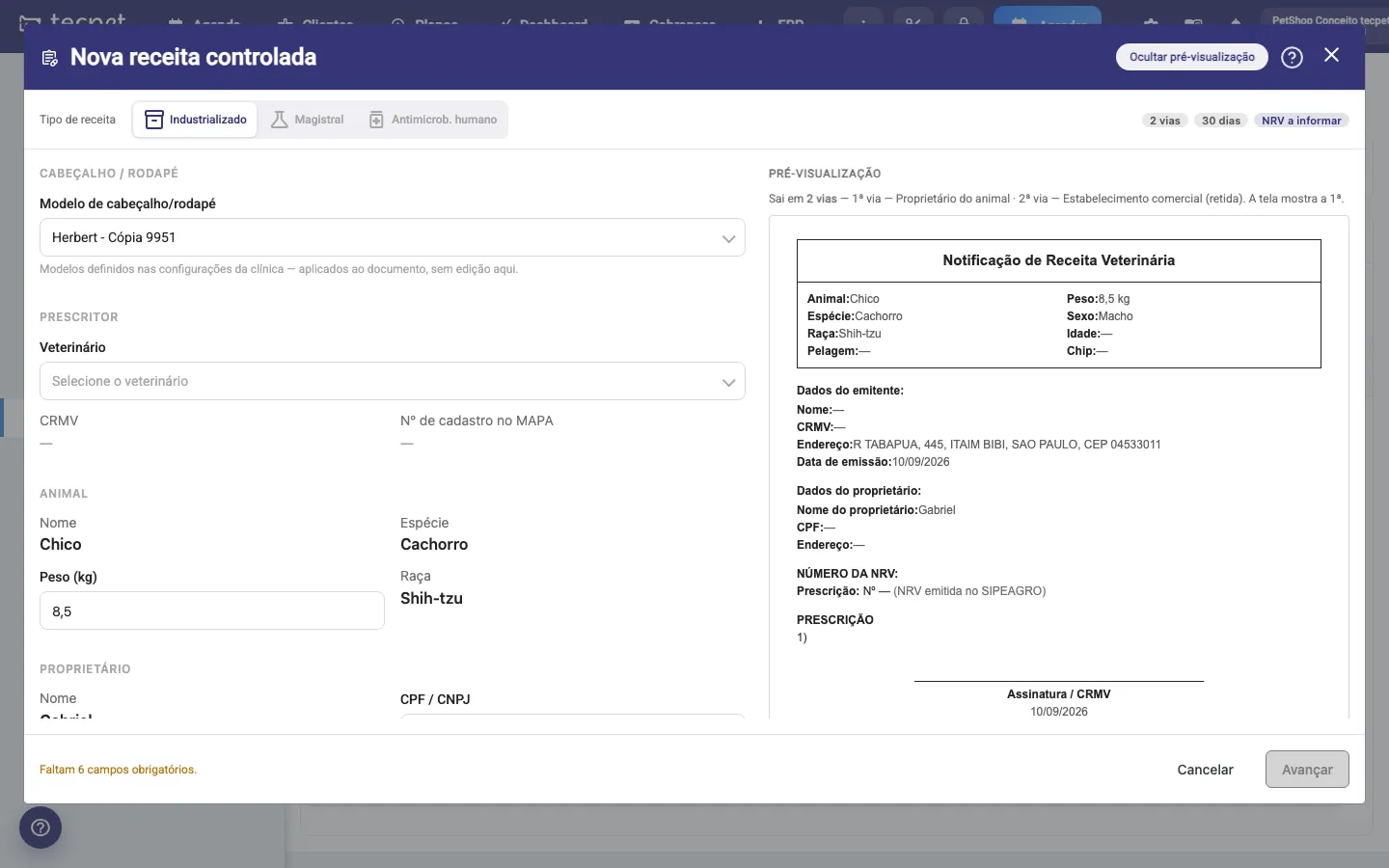
Section titled “Step 2: Choose the prescription type”The New controlled prescription window opens on Industrialized. Under Prescription type choose the modality; the badges next to it show the copies, the validity and the numbering of each one:
- Industrialized: generates the Veterinary Prescription Notification, in 2 copies (owner and retail establishment), valid for 30 days. The number is the NRV issued in SIPEAGRO, which you type; tecpet only transcribes it. Accepts 1 medicine;
- Compounded: generates the Special Control Prescription for compounding, in 3 copies (owner, compounding establishment and veterinarian), valid for 30 days. The number is generated by tecpet in the MAPA registration / sequential / year format (e.g. 54321/2020/01/26). Accepts up to 3 formulations;
- Human antimicrob.: Special Control Prescription for a human-use antimicrobial, in 2 copies, valid for a fixed 10 days, without a numbered pad. Accepts up to 3 medicines.
In the 30-day modalities, the Continuous use option extends the validity to 180 days. Switching modality keeps what you already typed in the common fields.
Step 3: Fill in the form
Section titled “Step 3: Fill in the form”The left column is the form and the right one is the preview of the 1st copy, updated with every field (the Hide preview button hides it). The blocks are:
- Header / footer: Header/footer template, optional, among the clinic’s Header and footer templates. It is saved on the prescription, but the print made by tecpet does not draw the letterhead on the sheet yet;
- Prescriber: Veterinarian* (only employees with CRMV). The CRMV and the MAPA registration no. appear for checking;
- Animal: Name, Species and Breed come from the record. Weight (kg) is required on compounded and antimicrobial (the dose depends on it), in the 12,5 format, and the value is saved on the pet’s record;
- Owner: the owner’s Name; CPF / CNPJ, required on industrialized and antimicrobial (if the customer has none, you type it here and it is saved on the customer’s record); Address, which applies only to this document;
- Medicine or Formulation N: on compounded, Active substance + concentration*, Pharmaceutical form* (Capsule, Tablet, Oral solution, Oral suspension, Syrup, Oral paste, Ointment, Cream, Gel, Sachet / powder, Injectable solution, Eye drops, Otic solution, Spray or Other…, which opens a field to describe) and Quantity* (digits only, the unit comes from the form). On industrialized and antimicrobial, Medicine* or Antimicrobial*, Presentation / concentration* and Quantity*. On all of them, Dosage (dose, interval, duration)*, up to 1,000 characters. + Add Preparation or + Add Medicine includes another item (up to 3);
- Prescription: Prescription date* (today by default, no future date), the calculated Validity and the Continuous use (validity extends to 180 days) box;
- Numbering & document: on compounded, the expected Number of this prescription and the Veterinarian’s sequence. If the veterinarian already issued compounded prescriptions outside tecpet this year, tick Incorrect sequential number and enter the Next correct number, so numbering is not repeated; this is only accepted before their first compounded prescription in tecpet. On industrialized, NRV number (issued in SIPEAGRO) and Issue date.
The footer says how many required fields are missing. When everything is right, click Next.
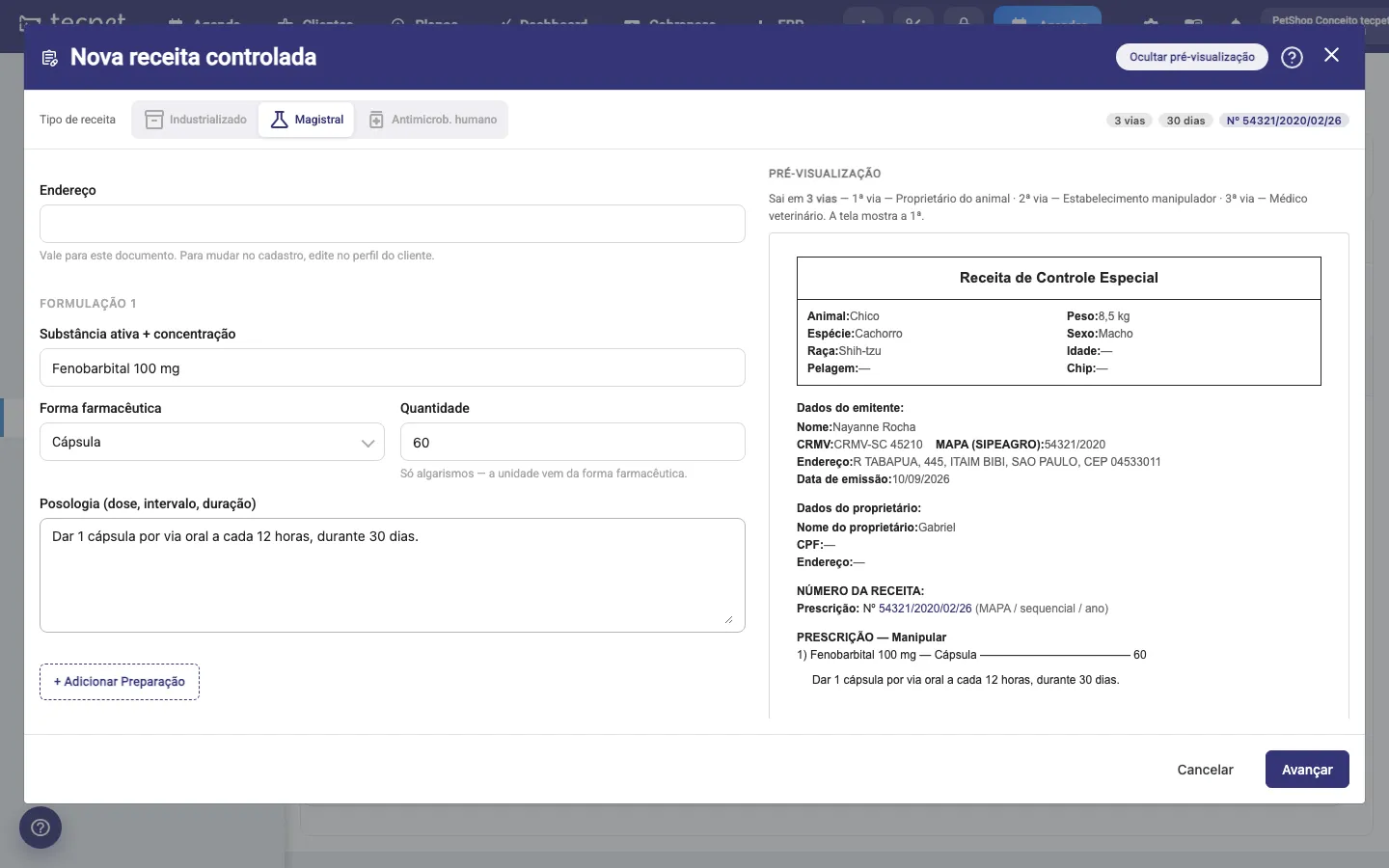
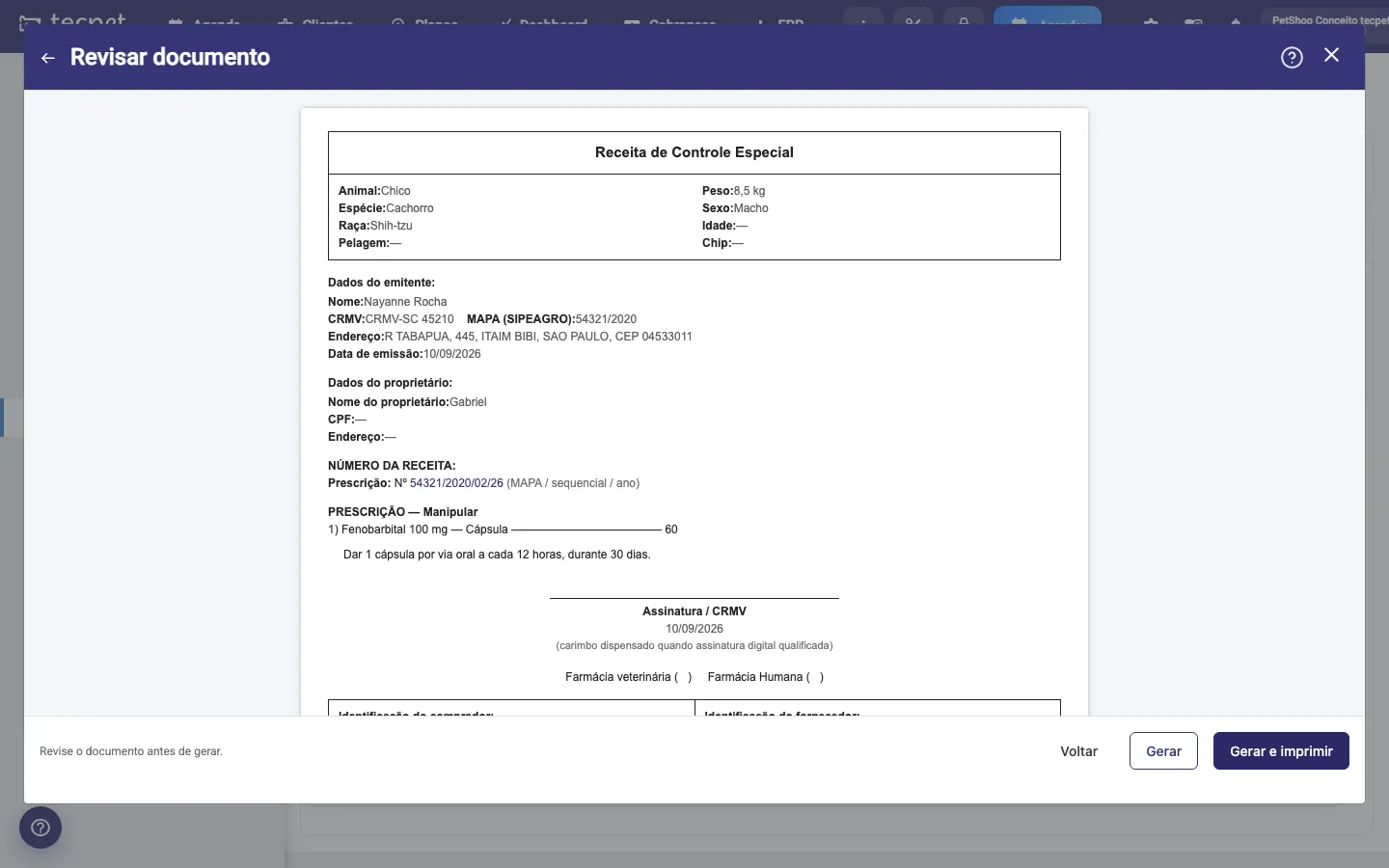
Step 4: Review the document
Section titled “Step 4: Review the document”The Review document screen shows the whole 1st copy as it will come out on paper. Check the animal, the issuer, the owner, the number and the prescription. If something is wrong, Back (or the arrow in the title) returns to the form without losing anything. The final buttons change with the modality: Register without printing / Register and print on industrialized (the NRV already exists, tecpet only registers it) and Generate / Generate and print on compounded and antimicrobial (the document is born here).
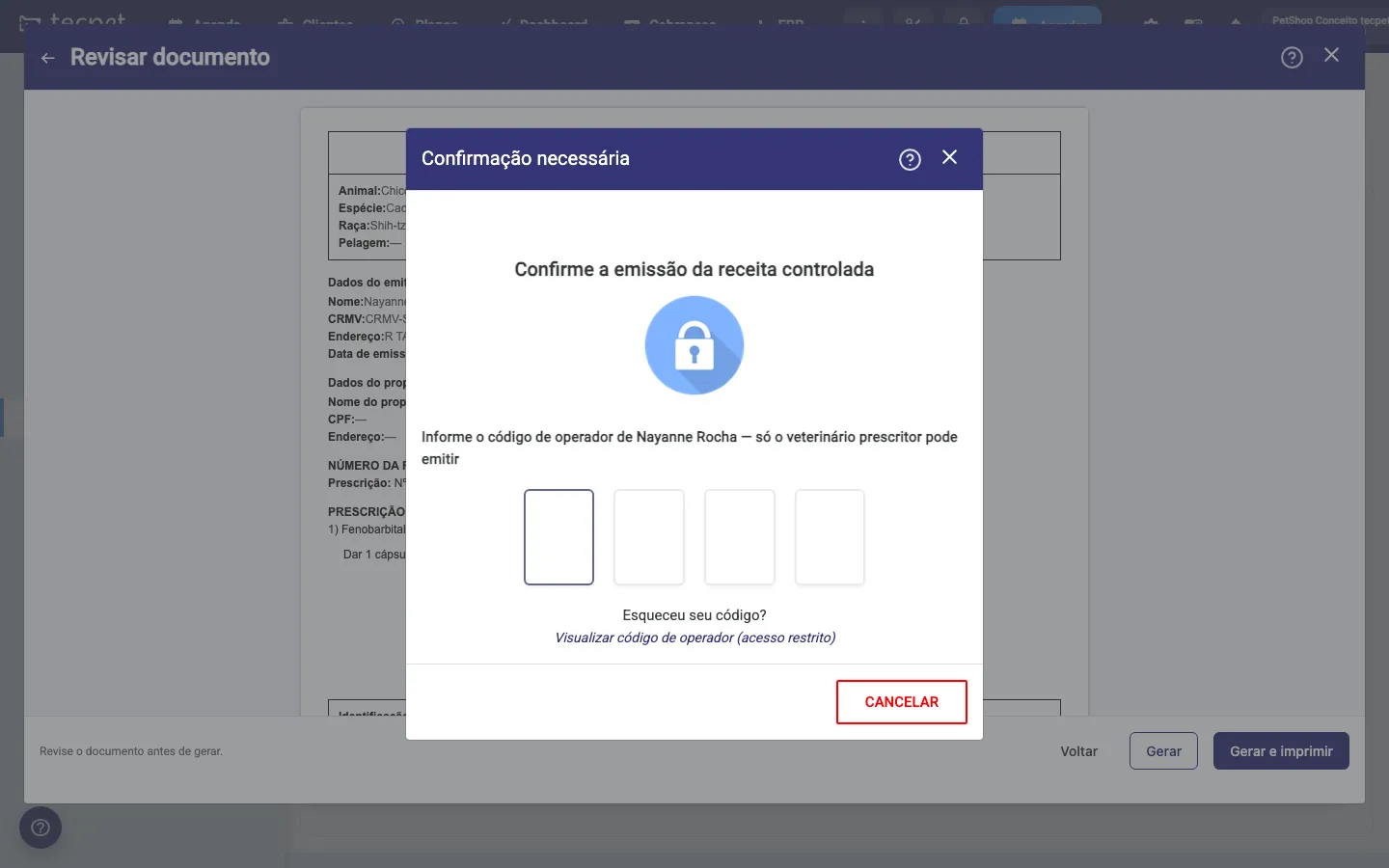
Step 5: Confirm with the veterinarian’s code
Section titled “Step 5: Confirm with the veterinarian’s code”The Confirm the issuance of the controlled prescription window asks for the prescribing veterinarian’s operator code, and only theirs: another employee’s code is refused, even in shops that do not require a code on other screens. On confirming, the prescription is saved, the compounded number is consumed, the typed weight and CPF are saved on the records and, if you chose to print, printing opens right away.
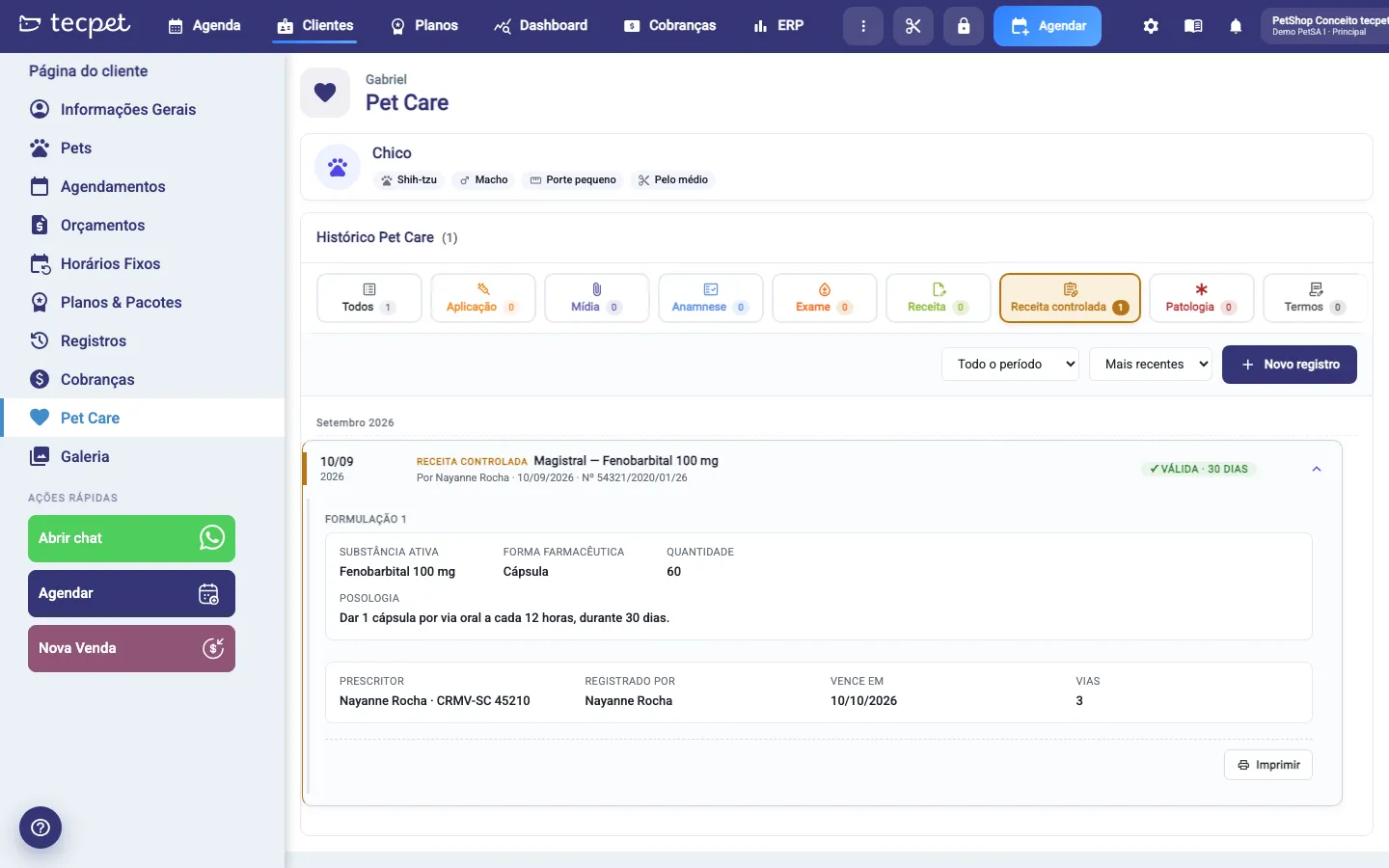
Step 6: Follow it in the history
Section titled “Step 6: Follow it in the history”The prescription enters the Pet Care History with the Controlled prescription tag, the title Modality, product (e.g. Compounded, Phenobarbital 100 mg), the prescriber, the date and the number. The status badge is calculated every day: VALID · N days, EXPIRES IN N DAYS (from 5 days before the end, 2 on antimicrobial), EXPIRED · N days ago or CANCELLED. The row opens expanded with each formulation or medicine, the dosage, the prescriber with the CRMV, who registered it, Expires on and the Copies, plus the Print button. The Controlled prescription tab of the history filters only this type.
Printing and reprinting
Section titled “Printing and reprinting”Print (on the row or right after generating) opens the browser’s own print with all the copies, one per A4 sheet, identical and identified in the footer (1st copy, Animal owner, 2nd copy, Compounding establishment…). The veterinarian’s signature and stamp go by hand on the paper. On an expired prescription, tecpet warns Expired prescription and offers Generate new from this one or Print anyway. On a cancelled prescription, every sheet comes out with the CANCELLED stripe.
Cancelling a prescription
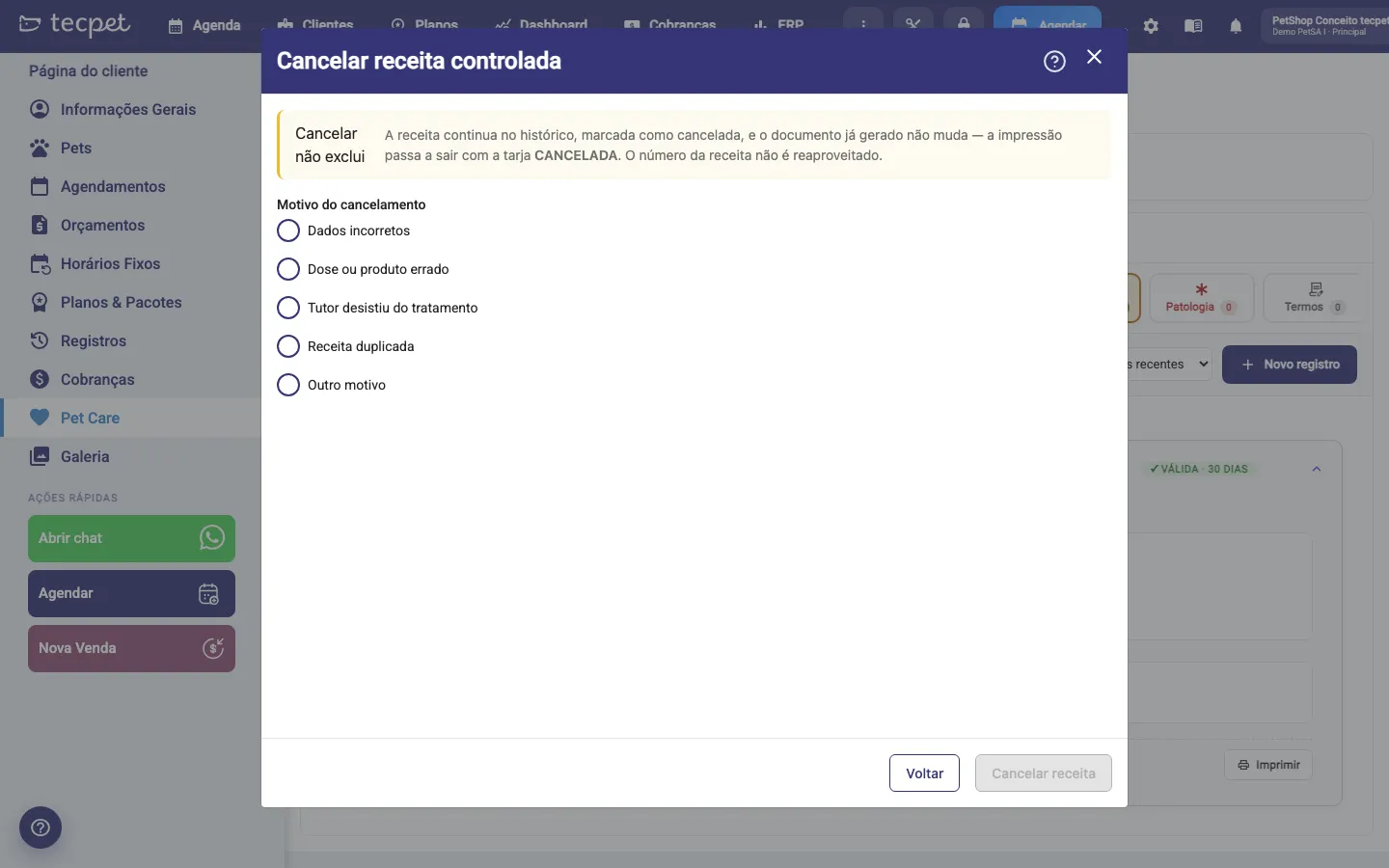
Section titled “Cancelling a prescription”Since the prescription cannot be deleted, the way to invalidate it is to cancel: the block icon on the row (Cancel prescription) opens the Cancel controlled prescription window. Choose the Cancellation reason: Incorrect data, Wrong dose or product, Owner gave up the treatment, Duplicate prescription or Other reason (with a required description), click Cancel prescription and confirm with an operator code (here it can be any employee’s; they are recorded as who cancelled). The prescription stays in the history with the CANCELLED badge, the number is not reused and the document now prints with the stripe.
Generate new from this one
Section titled “Generate new from this one”On an expired or cancelled prescription, the Generate new from this one button opens the form already filled in with the same modality, the prescriber and all the items. Date, validity and numbering are born new, and the previous prescription remains intact in the history. On industrialized, the NRV and the issue date are not copied, because each notification has its own.
How to edit or undo later
Section titled “How to edit or undo later”An issued prescription cannot be edited or deleted, by legal requirement: tecpet refuses both actions. Got some data wrong? Cancel the prescription with the right reason and use Generate new from this one to issue the corrected version. The data the prescription saved on the records (pet weight and owner CPF) can be corrected normally on the customer profile.