
The top menu
The purple top bar is present on every screen of tecpet, it’s the system’s main navigation. Here’s what each part does.

The navigation buttons
Section titled “The navigation buttons”On the left are the main areas:
- Calendar, the home screen, with the day’s appointments;
- Customers, customer and pet list and registration;
- Plans, the plans and packages sold;
- Dashboard, business reports and indicators;
- Billing, the invoices (pending, paid, overdue);
- ERP: the invoicing/stock module (when contracted).
The tecpet logo always takes you back to the Calendar.
The quick shortcuts
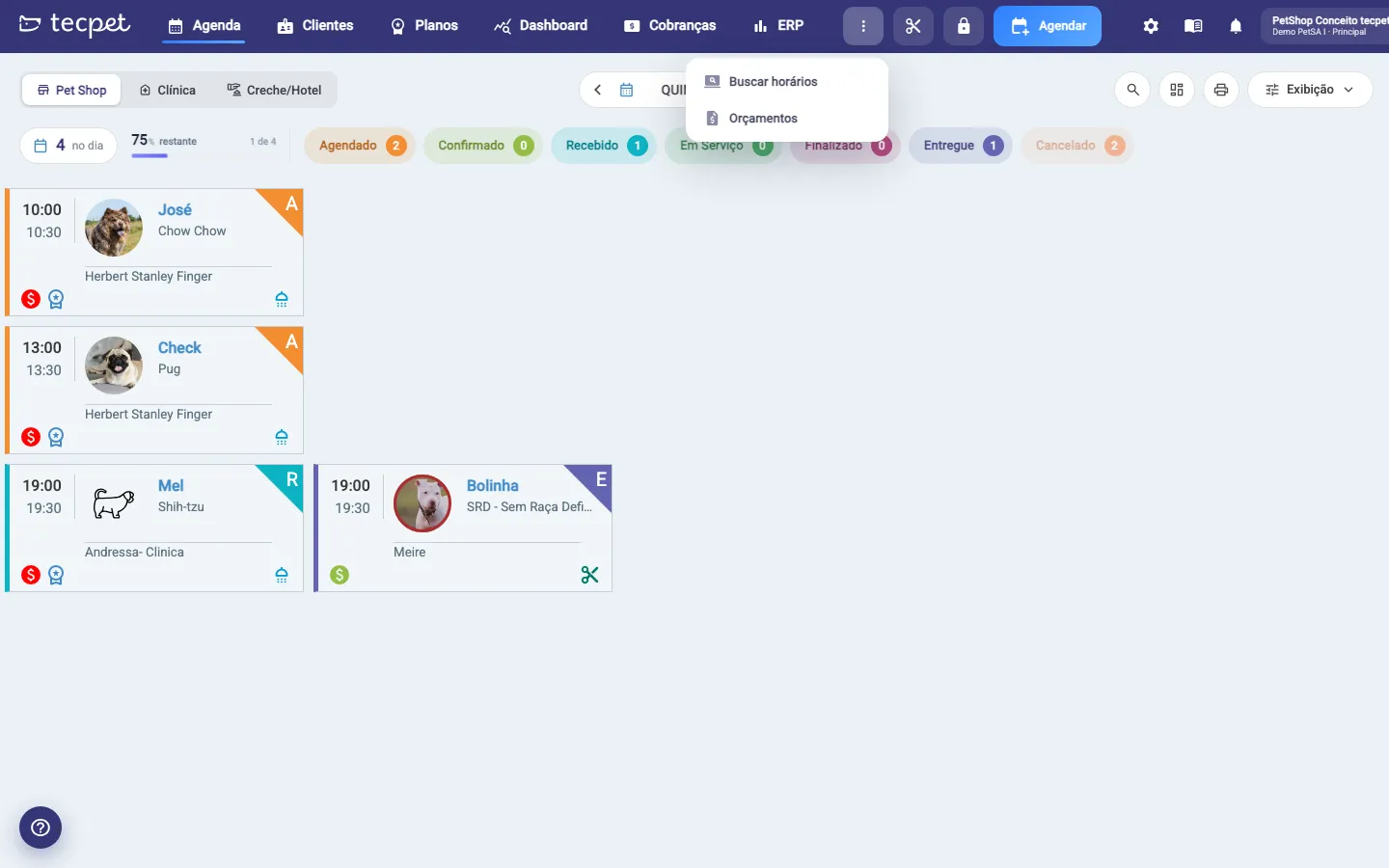
Section titled “The quick shortcuts”The block of highlighted icons holds the day-to-day operation shortcuts, in this order:
- More actions (three dots): opens a menu with Search slots (the quick search for slots and prices) and Quotes, which opens the quote wizard;
- Services Area (scissors): opens the Services Area in another tab;
- Calendar block (padlock): opens the staff’s scheduled blocks;
- Book (blue button): opens the new booking wizard from any screen. On narrower screens only the calendar-with-”+” icon remains. If the account has bookings locked, the button turns grey with a notice to contact the onboarding team.
Settings, help, notices and account
Section titled “Settings, help, notices and account”On the right are:
- ⚙️ Settings: opens the settings area (asks for the admin password);
- ❓ Help center: manual, support and the setup guide;
- 🔔 Notices: the Notices panel;
- Account name: account menu (Change password, Log out) and, in networks, shows the unit.
Notices panel
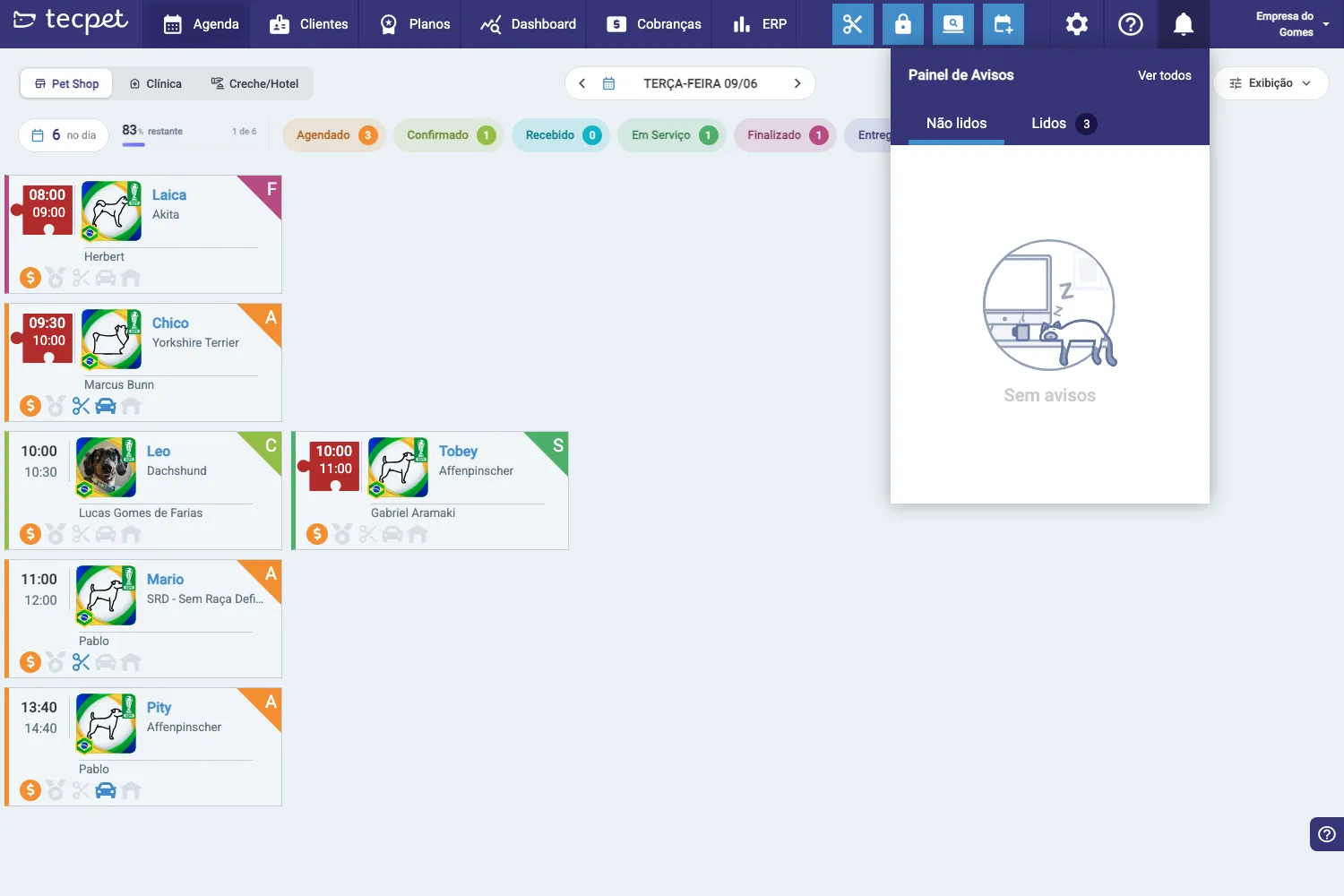
Section titled “Notices panel”The bell (🔔) opens the Notices panel, where the system shows important notifications for you. It splits notices into Unread and Read, and the See all link opens the full list. When there’s nothing pending, it shows “No notices”.
Help center and the Setup guide
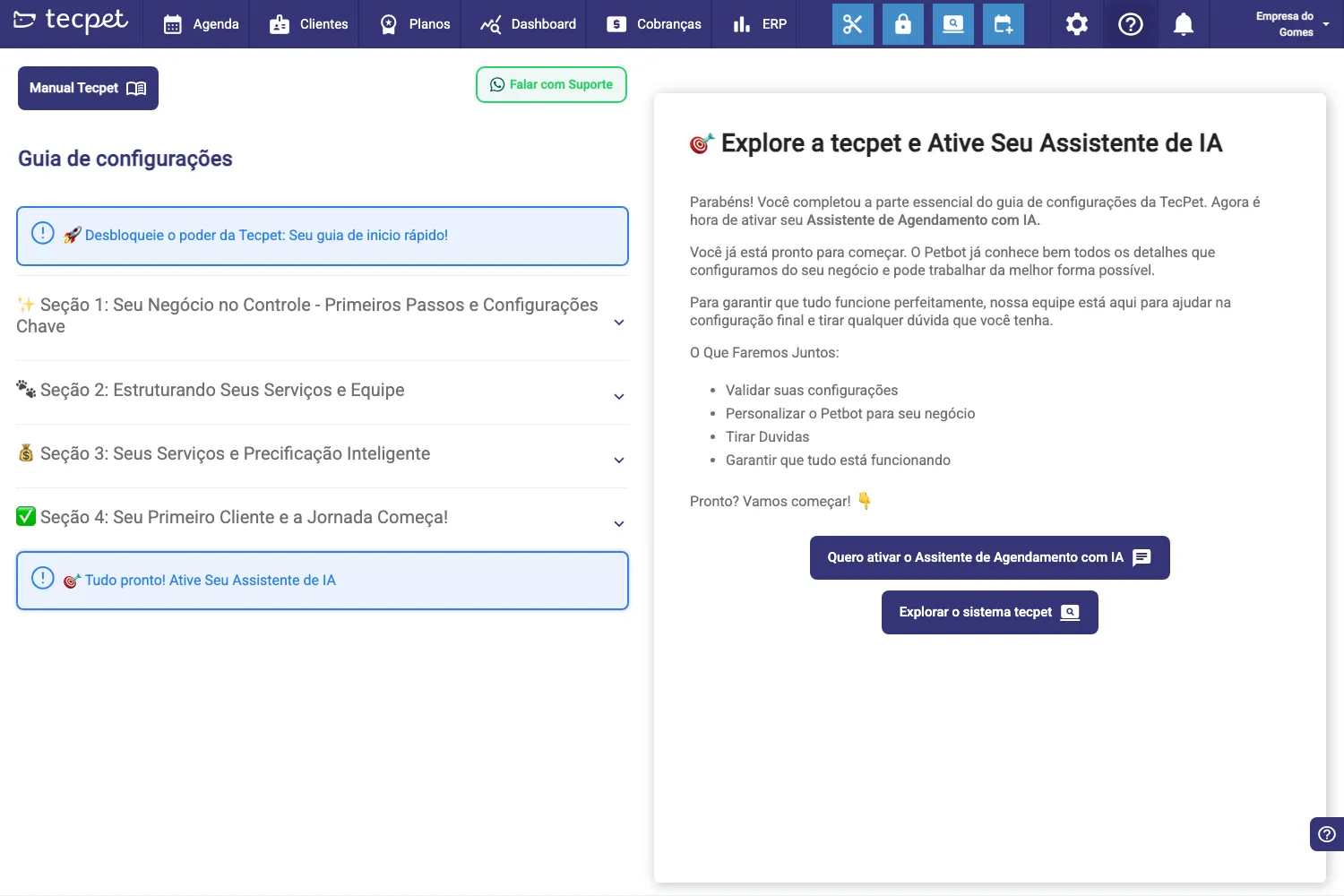
Section titled “Help center and the Setup guide”The ❓ opens the Help center, with:
- tecpet Manual: the documentation;
- Contact Support: direct contact;
- Setup guide: a first-use step by step, split into sections (Your business in control, Structuring services and team, Pricing, First customer) up to activating the AI Assistant.
The guide is especially useful for new accounts: it shows what’s still missing and helps get the system ready to operate.
Was this helpful? Thanks for your feedback!