
Calendar block
A calendar block closes days or time slots so they don’t take appointments, useful for holidays, maintenance, events or a professional’s day off. Blocked slots stop appearing as available (including for the AI).
Where it is
Section titled “Where it is”Go to Settings (admin password) → General Information and click View/Edit Blocks. A window opens with a calendar: days with a block are marked (see the Legend: blocked, selected date and today).
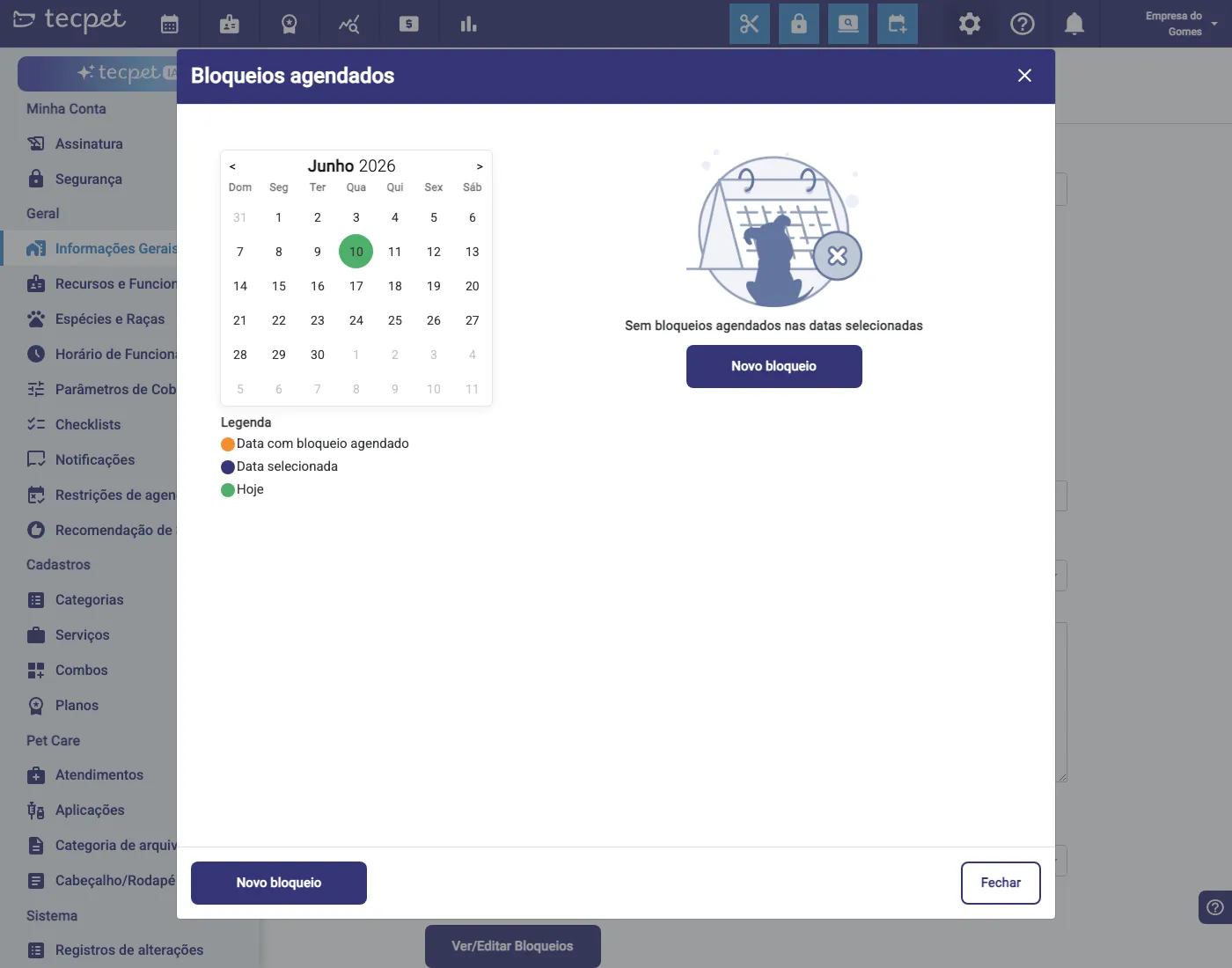
Step 1: New block
Section titled “Step 1: New block”Click New block. On the calendar, click the date(s) you want to block (you can select more than one day, they show under “The change will be applied to the following dates”).
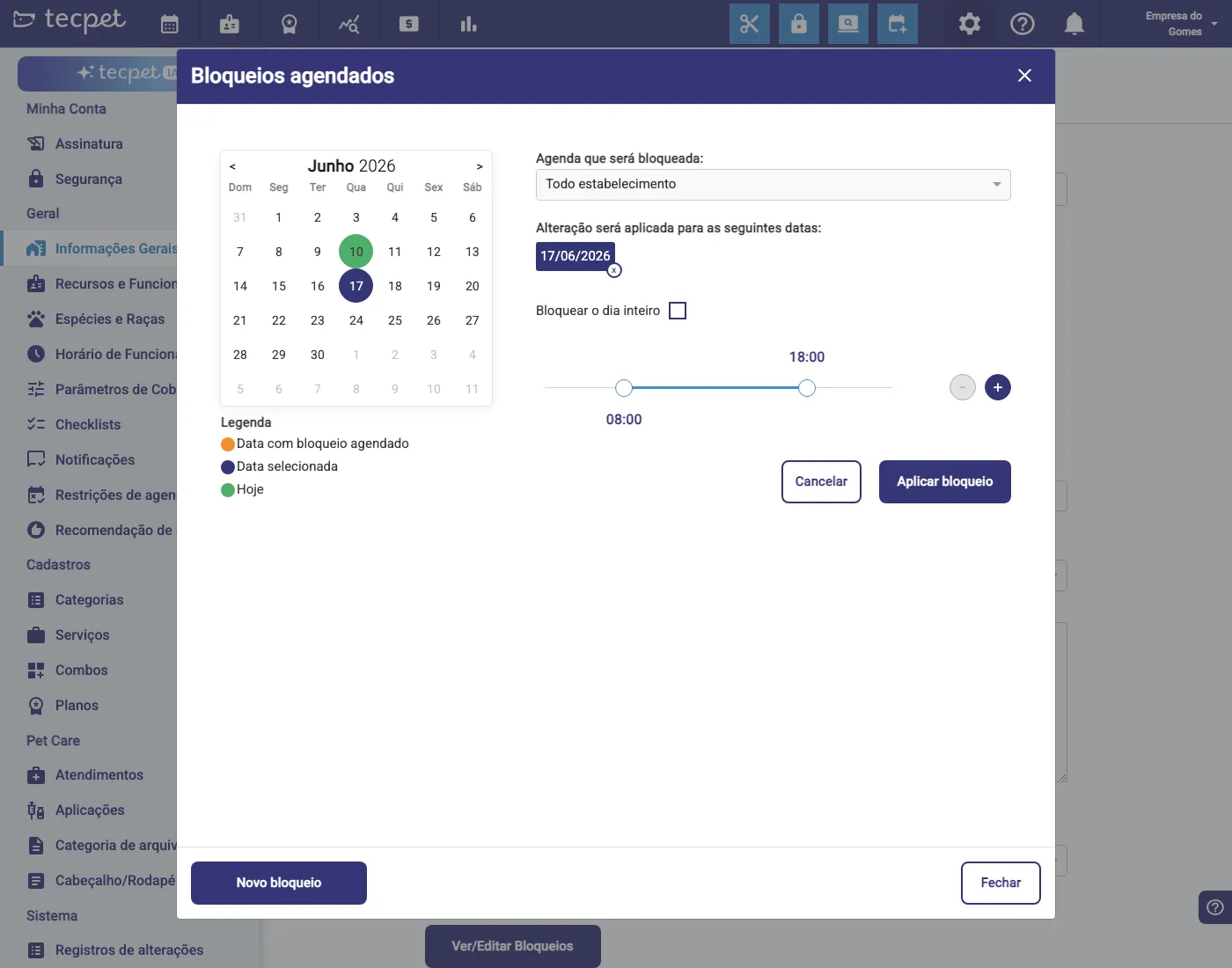
Step 2: For whom (store or professional)
Section titled “Step 2: For whom (store or professional)”Under Agenda to be blocked, choose:
- The whole establishment: closes the entire calendar on that day/time;
- a specific professional: blocks only that staff member’s agenda (handy for one person’s day off, without stopping the store).
Step 3: Whole day or a period
Section titled “Step 3: Whole day or a period”Check Block the whole day to close the entire day. If you leave it unchecked, use the time control to set a period (e.g. from 12:00 to 14:00), only that range is blocked, the rest of the day stays available.
Step 4: Apply
Section titled “Step 4: Apply”Click Apply block. The blocked dates now appear marked on the calendar. To remove or edit, open View/Edit Blocks again, select the date and adjust.