
Fixed Schedule: appointments that repeat every week
Fixed Schedule is for the client who always comes on the same day and time. You set the recurrence once and tecpet creates the appointments on its own: the next 30 days go into the schedule right away and the following weeks are generated automatically, every day. A fixed schedule lives inside the client profile, covers one pet and feeds the schedule like any other appointment, including notifications and billing, which stay per visit.
What is a client who never disappears worth? #

Next week's schedule is empty
A loyal client with no booked slot is a client the competition books first.
“Whoever has a slot held doesn't have to decide every week whether to come back.”
You know which clients come every week. In practice, though, every visit depends on someone remembering to rebook: the owner forgets, calls at the last minute, the good slot is gone, and what was a routine turns into a negotiation. At the end of the month, the gaps in your schedule didn't come from lost clients, they came from clients who simply were never rebooked.
With Fixed Schedule you agree once and tecpet handles the rest: the next 30 days go into the schedule right away, the following weeks are created automatically every day, and the slot stays held so nobody books over it. Client on holiday? Pause it with a return date. Routine changed? Change the day and time without undoing anything.
Step 1: Open the client’s Fixed Schedules
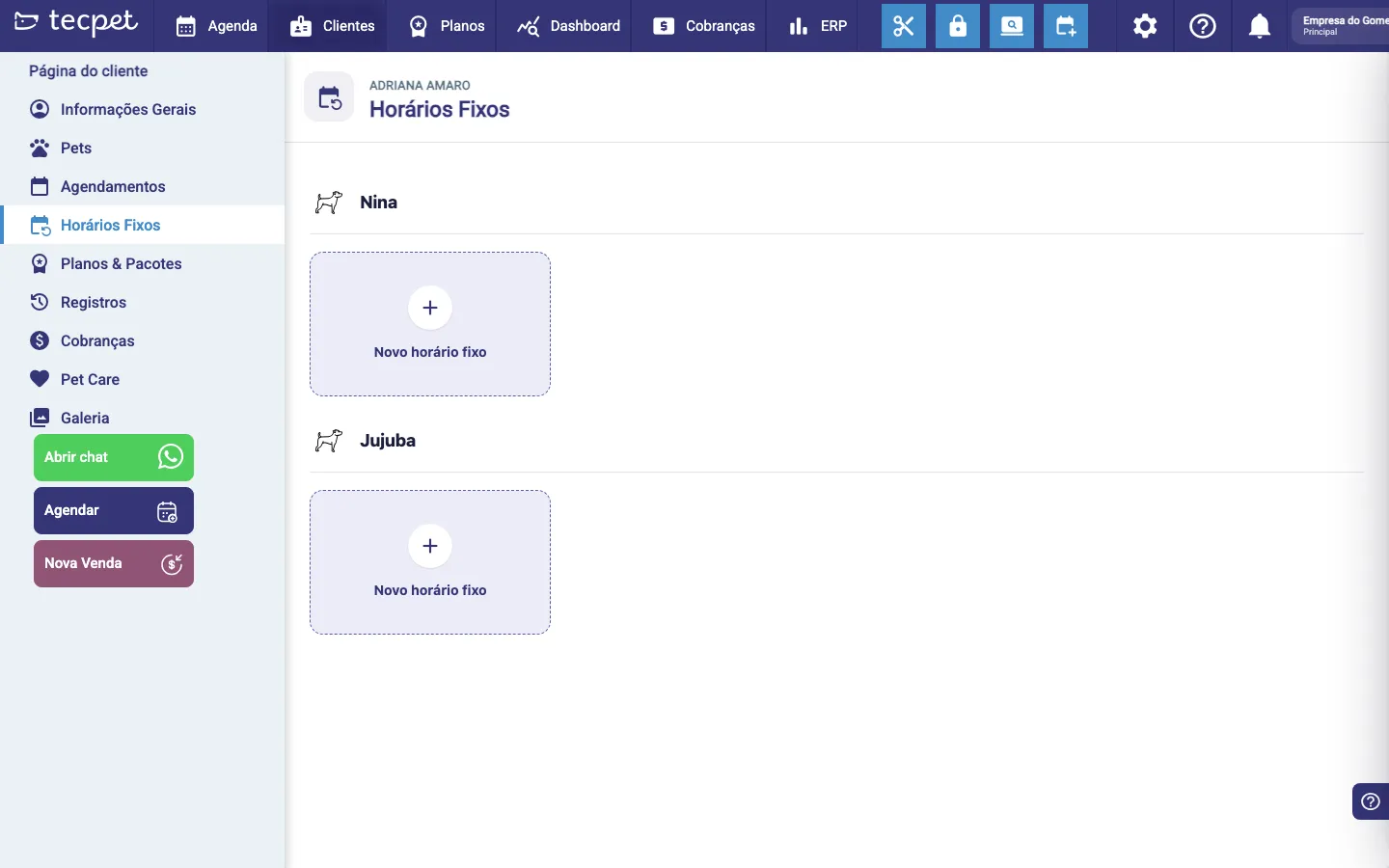
Section titled “Step 1: Open the client’s Fixed Schedules”In the top menu, click Clients, open the client and, in their side menu, click Fixed Schedules. The screen lists one block per pet. If there is nothing yet, only the New fixed schedule card appears.
Click New fixed schedule on the desired pet’s block to open the wizard.
Step 2: Choose the pet
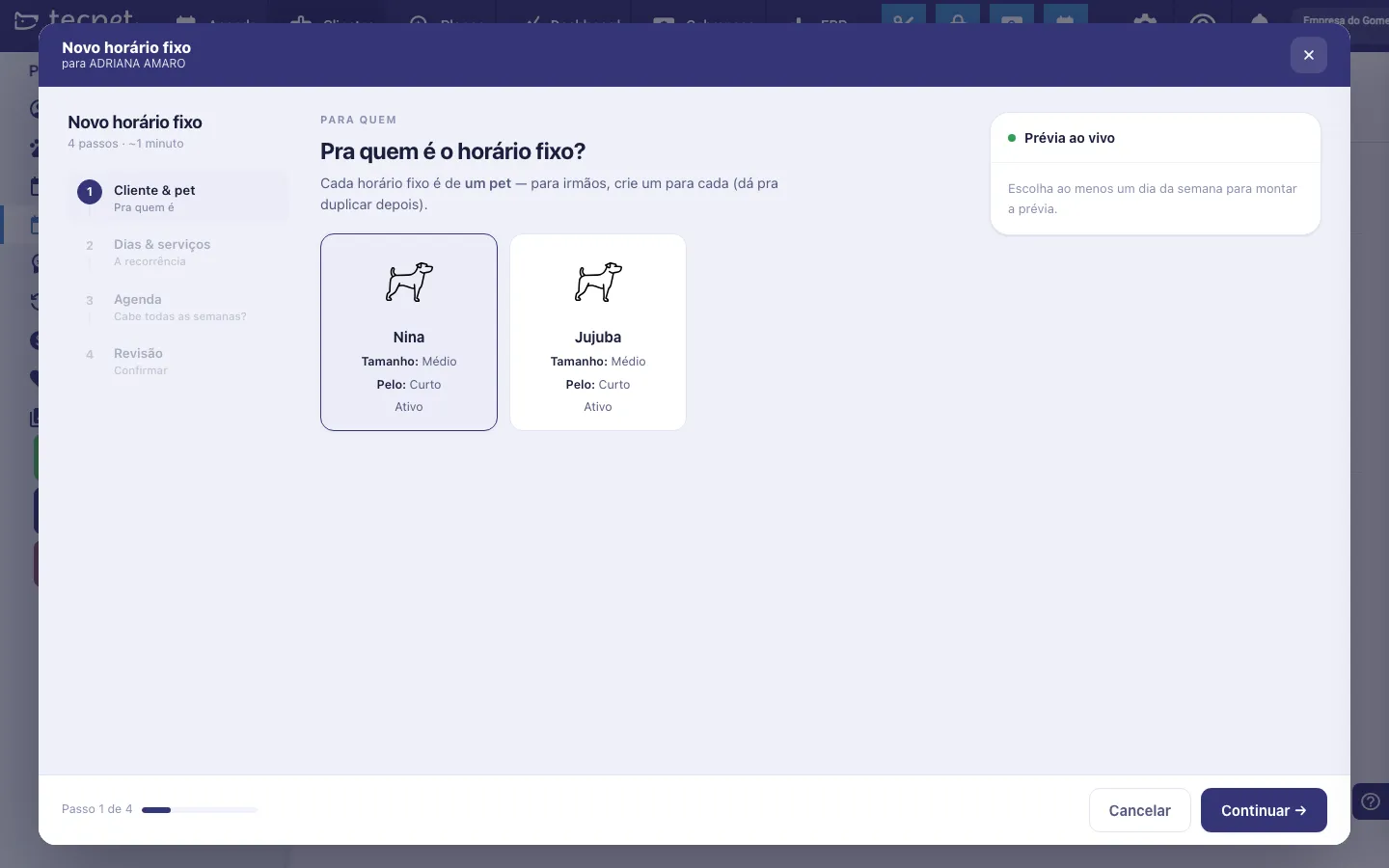
Section titled “Step 2: Choose the pet”The wizard has 4 steps and opens on Who is it for. Click the pet card.
If the client has a single pet, this step is skipped automatically and the wizard starts at the recurrence.
Step 3: Set the days and services
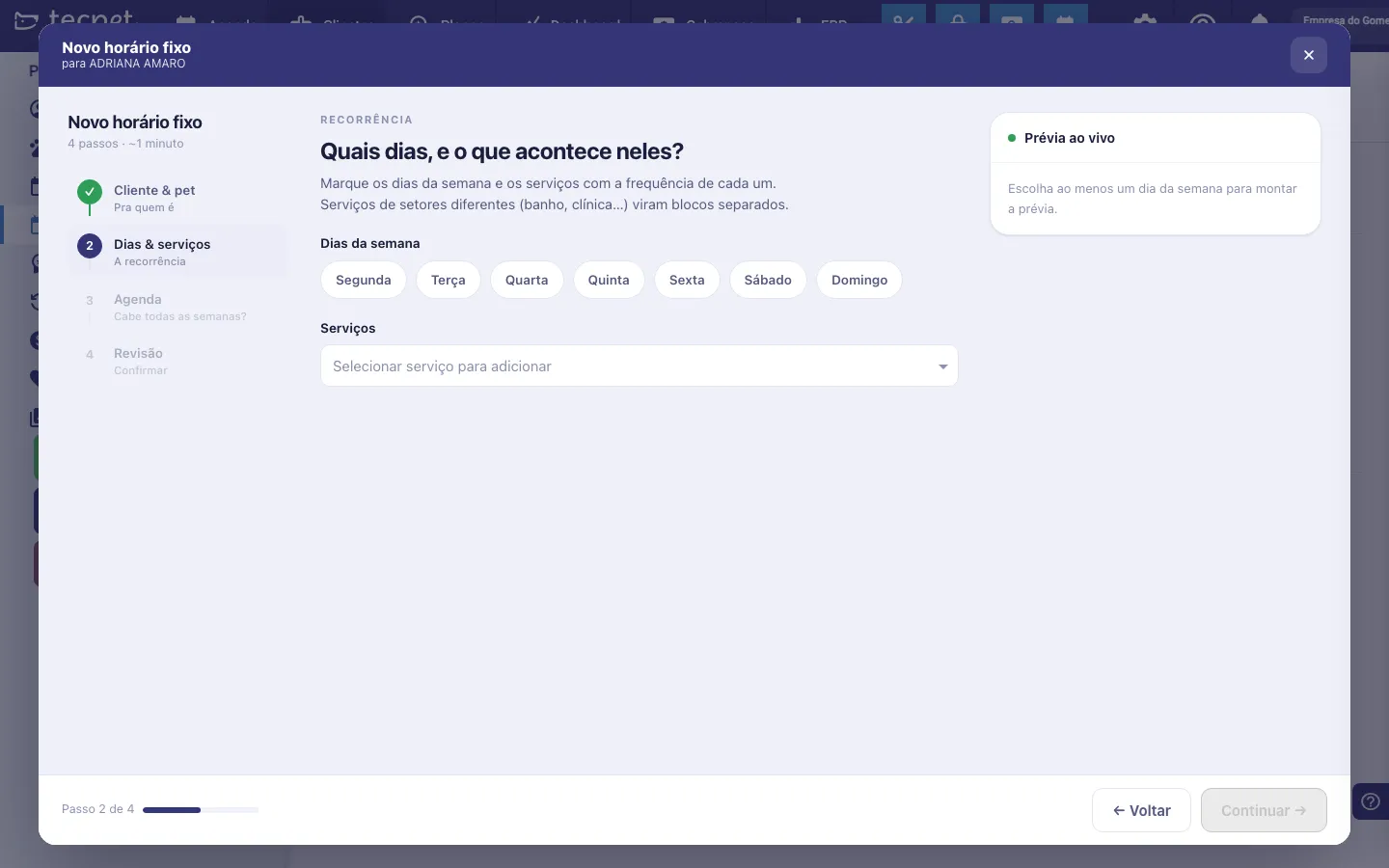
Section titled “Step 3: Set the days and services”This is the step that describes the recurrence.
The fields on the Days & services step
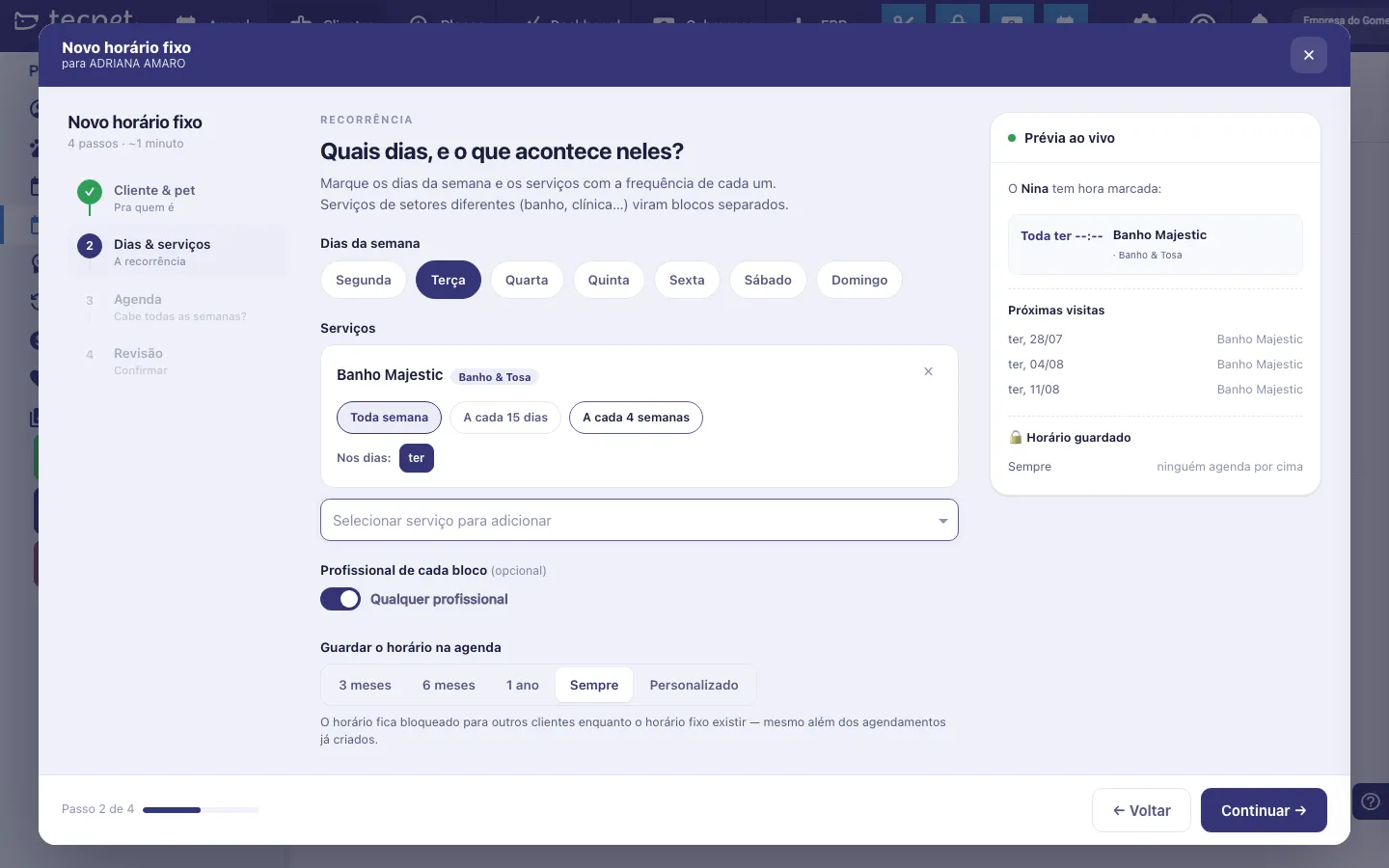
Section titled “The fields on the Days & services step”- Weekdays*: click the days the pet comes (Monday to Sunday). You can pick more than one.
- Services*: use the Select a service to add field and pick from the shop catalog. Each added service becomes a card, and services from different sectors (grooming, clinic…) become separate blocks on the schedule.
- Frequency of each service: inside the service card: Every week, Every 15 days or Every 4 weeks. You can also choose on which of the selected days that service happens.
- Professional for each block (optional), leave Any professional on for the system to choose, or turn it off and pick the employee for each day.
- Hold the slot on the schedule: how long the slot stays reserved for this client: 3 months, 6 months, 1 year, Forever or Custom (in days). While the hold is active, nobody can book over that slot.
Step 4: Confirm the schedule fits
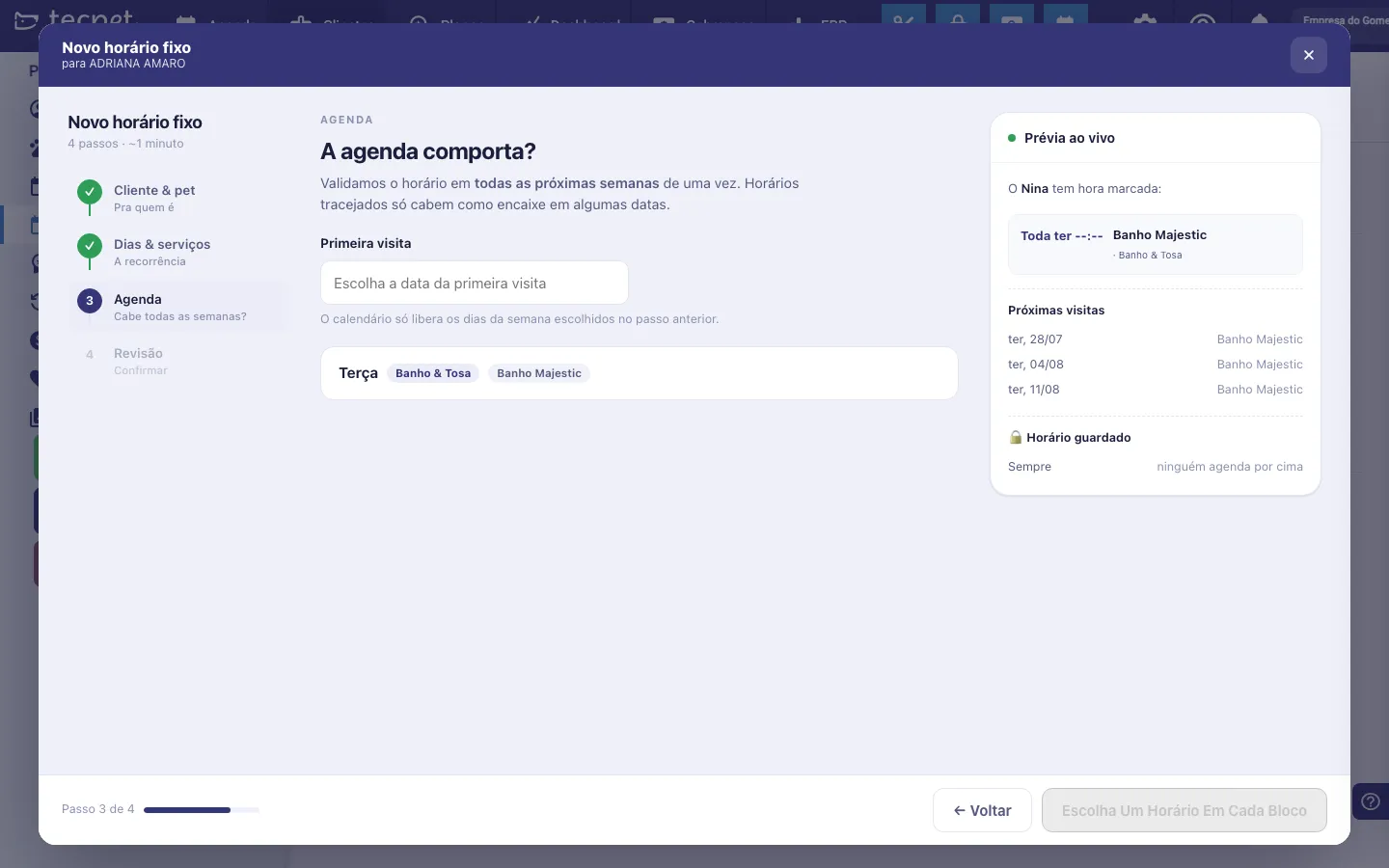
Section titled “Step 4: Confirm the schedule fits”The Schedule step validates the slot across all the coming weeks at once, not just the first one.
- Under First visit, pick the start date. The calendar only enables the weekdays chosen in the previous step.
- For each block, the system loads the times and splits them into two lists: Free every week and Only as an overbooking on some dates (these appear dashed). When you pick a time from that second list, you choose the type of overbooking, and the choice also applies to the weeks generated automatically later. See Overbooking and blocking overbooking.
- Click the desired time in each block. While any block is missing a time, the continue button stays disabled.
If the shop is closed on some of the dates, the step itself tells you how many will be skipped.
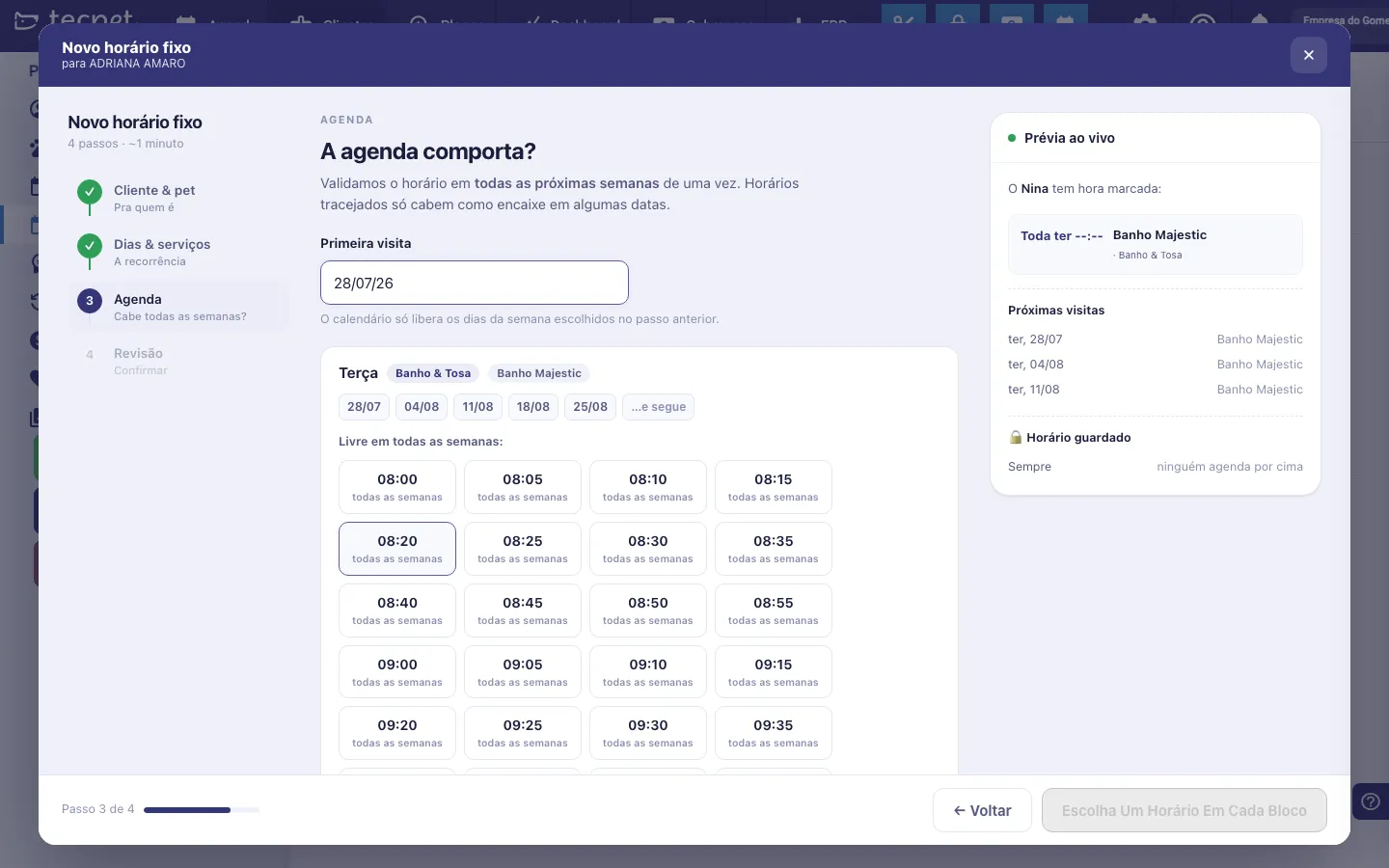
Choosing the time
Section titled “Choosing the time”Once the first visit date is chosen, the times appear in the block. Next to each time, the system shows on how many of the coming dates it is free.
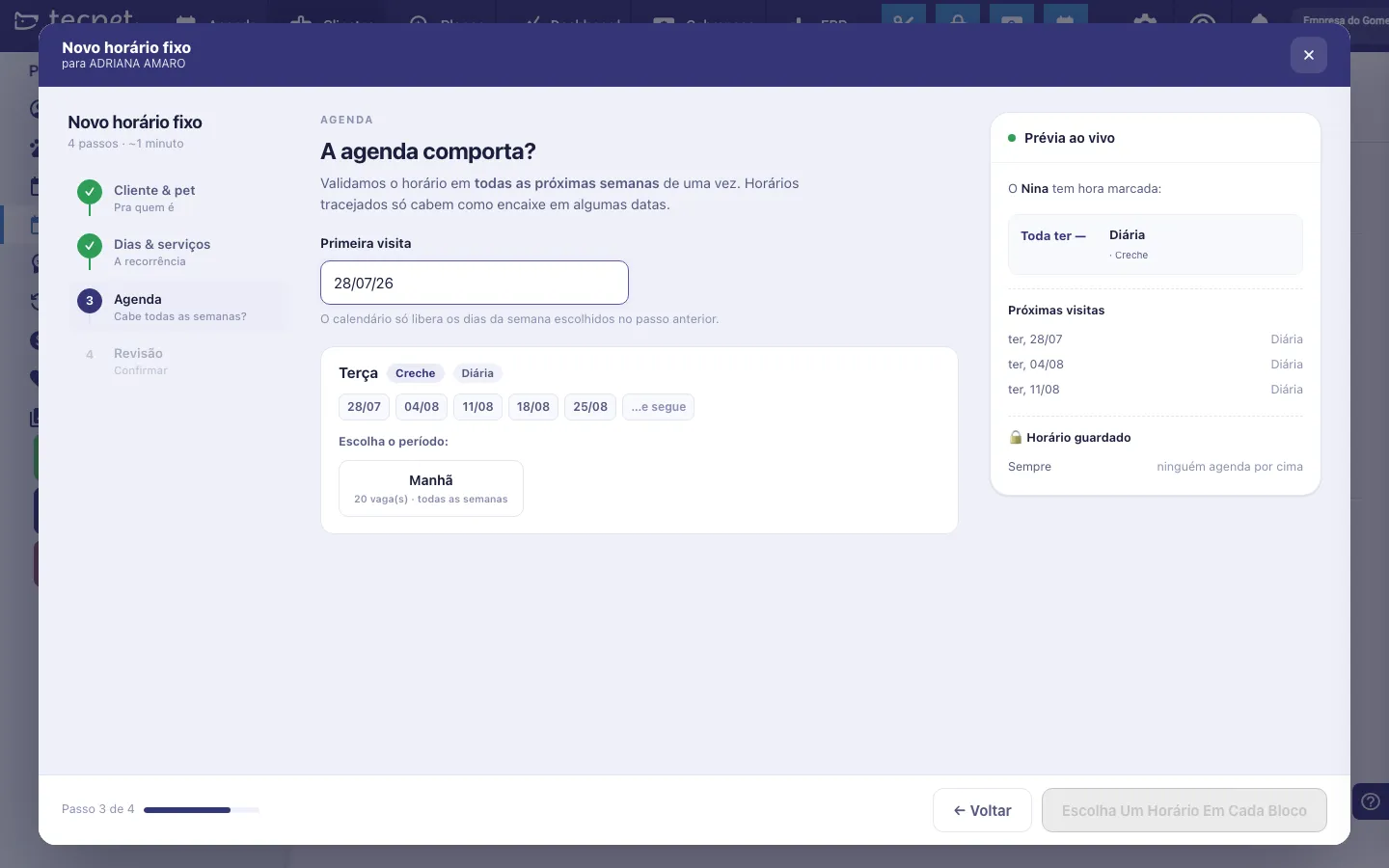
On Day Care and Hotel: periods, not times
Section titled “On Day Care and Hotel: periods, not times”When the block’s service is capacity-based: the case for Day Care and Hotel, the Schedule step swaps the time grid for a period grid. Instead of picking 08:00, you pick Morning, Afternoon or Full day.
Each period shows how many spots are left and on how many of the coming dates it is free (e.g. 20 spot(s) · every week). A full period shows as no spots and cannot be picked.
The periods on offer are the ones enabled on the service, with the capacity set in Create a service, if your shop only uses the Morning, only the Morning shows up here.
Step 5: Review and confirm
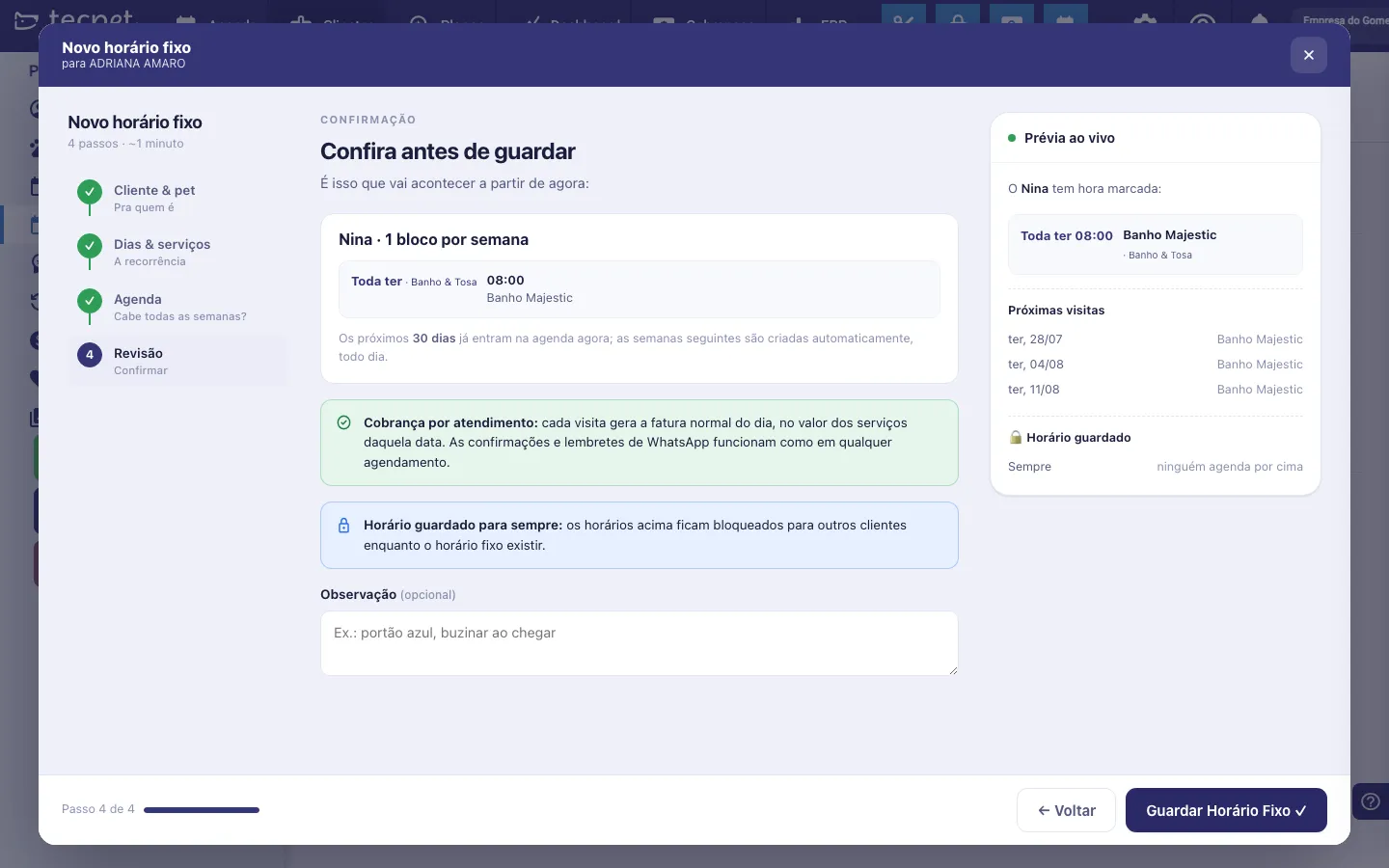
Section titled “Step 5: Review and confirm”The Review screen shows exactly what will happen: the pet, the weekly blocks, the time, the services and the chosen hold. There is also an Observation field (optional) for day-to-day instructions, for example, which gate to pick the pet up at.
Two important notices appear here:
- Billing per visit: a fixed schedule is not a plan or package; each visit generates the normal charge for the service;
- Slot held: confirms how long the slot stays blocked for other clients.
Step 6: Say who is creating it
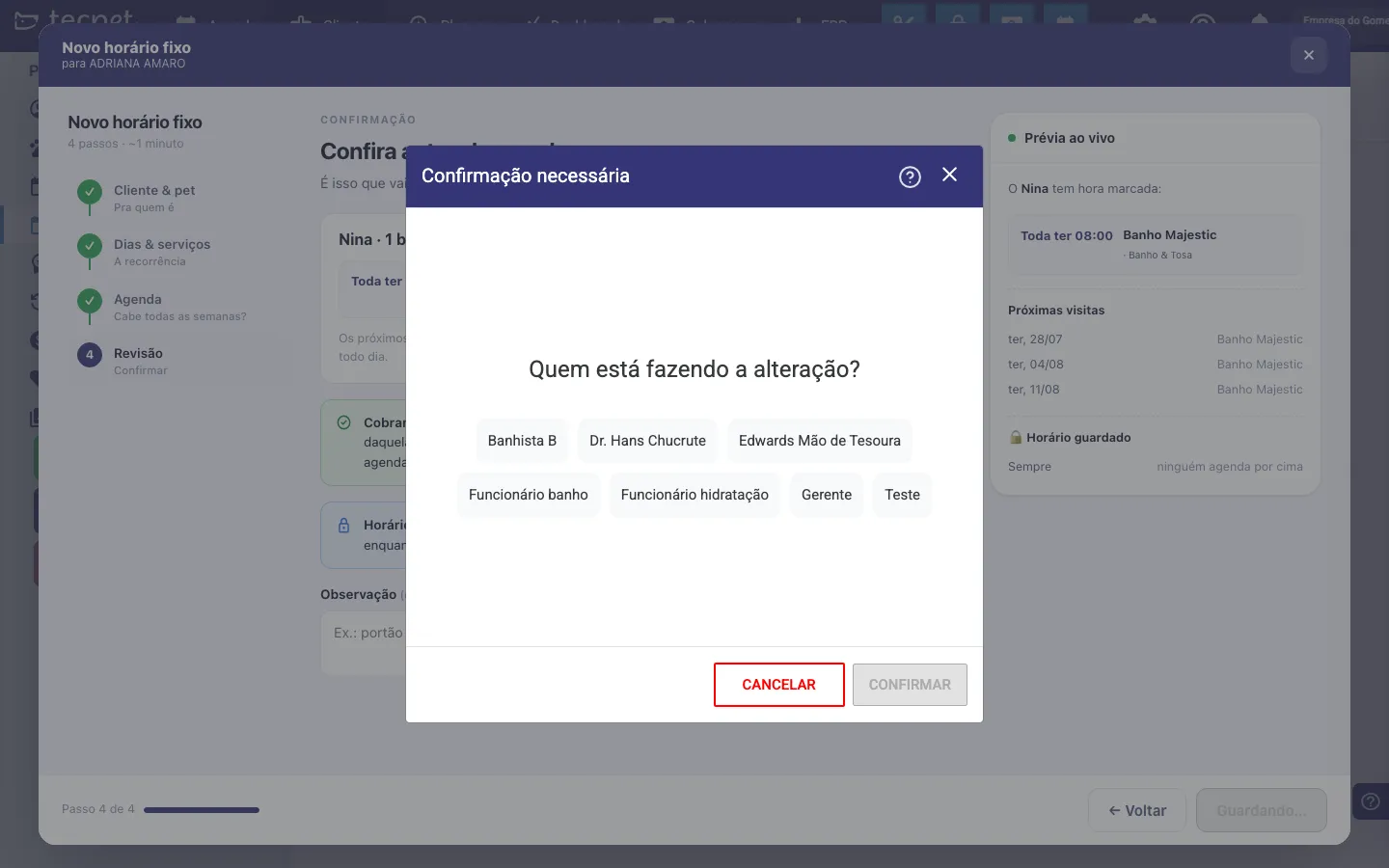
Section titled “Step 6: Say who is creating it”On confirming, the system asks Who is making the change?. Click the employee’s name and then CONFIRM. Without choosing an employee, the confirm button stays disabled.
This identification is the same used across the other schedule records and feeds the Commissions Panel.
Step 7: Done
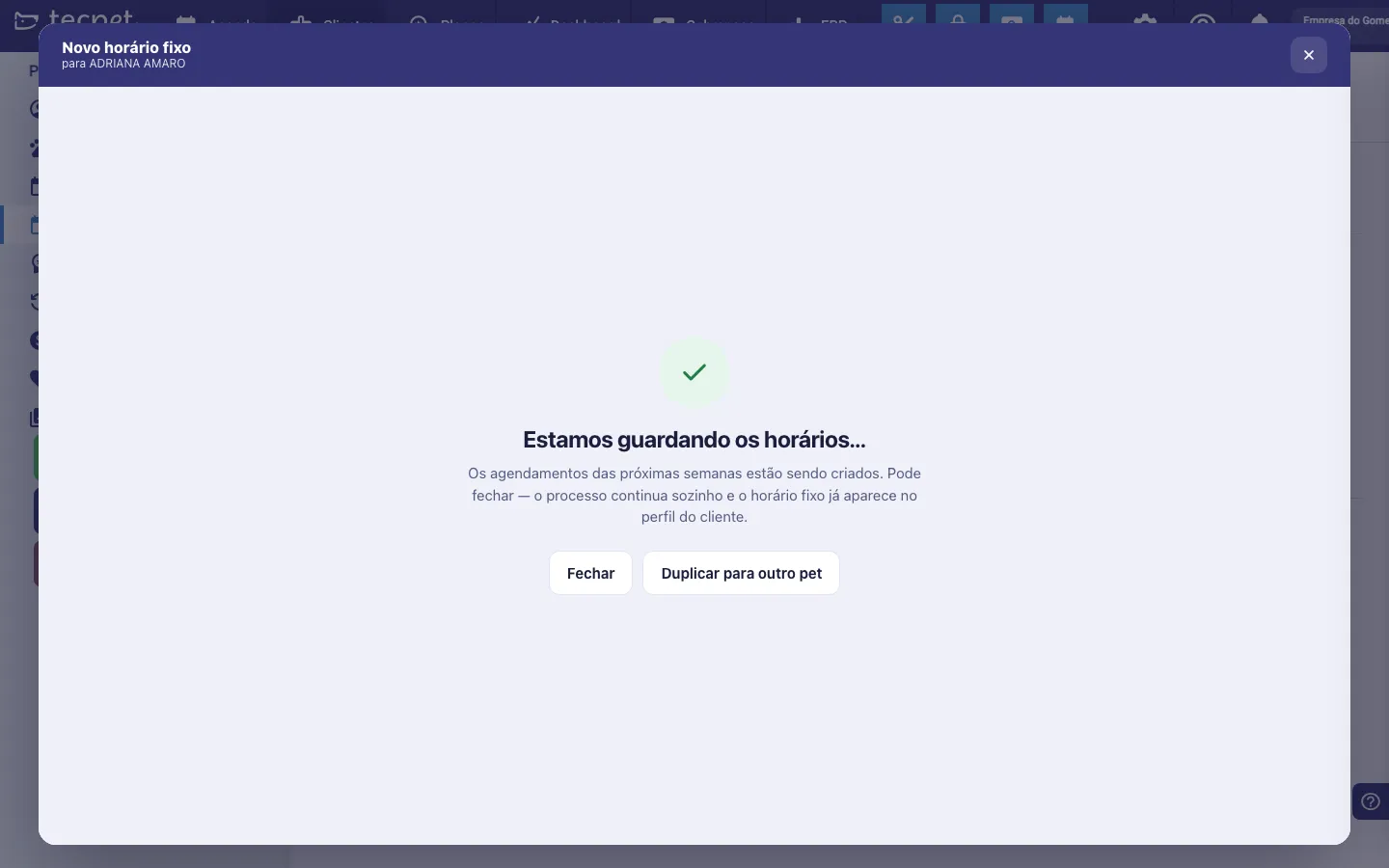
Section titled “Step 7: Done”The wizard confirms that the slots are being saved. The appointments for the coming weeks are created in the background, you can close the window and the process carries on by itself.
If the client has another pet that comes along, use Duplicate for another pet without redoing everything.
The client’s fixed schedule list
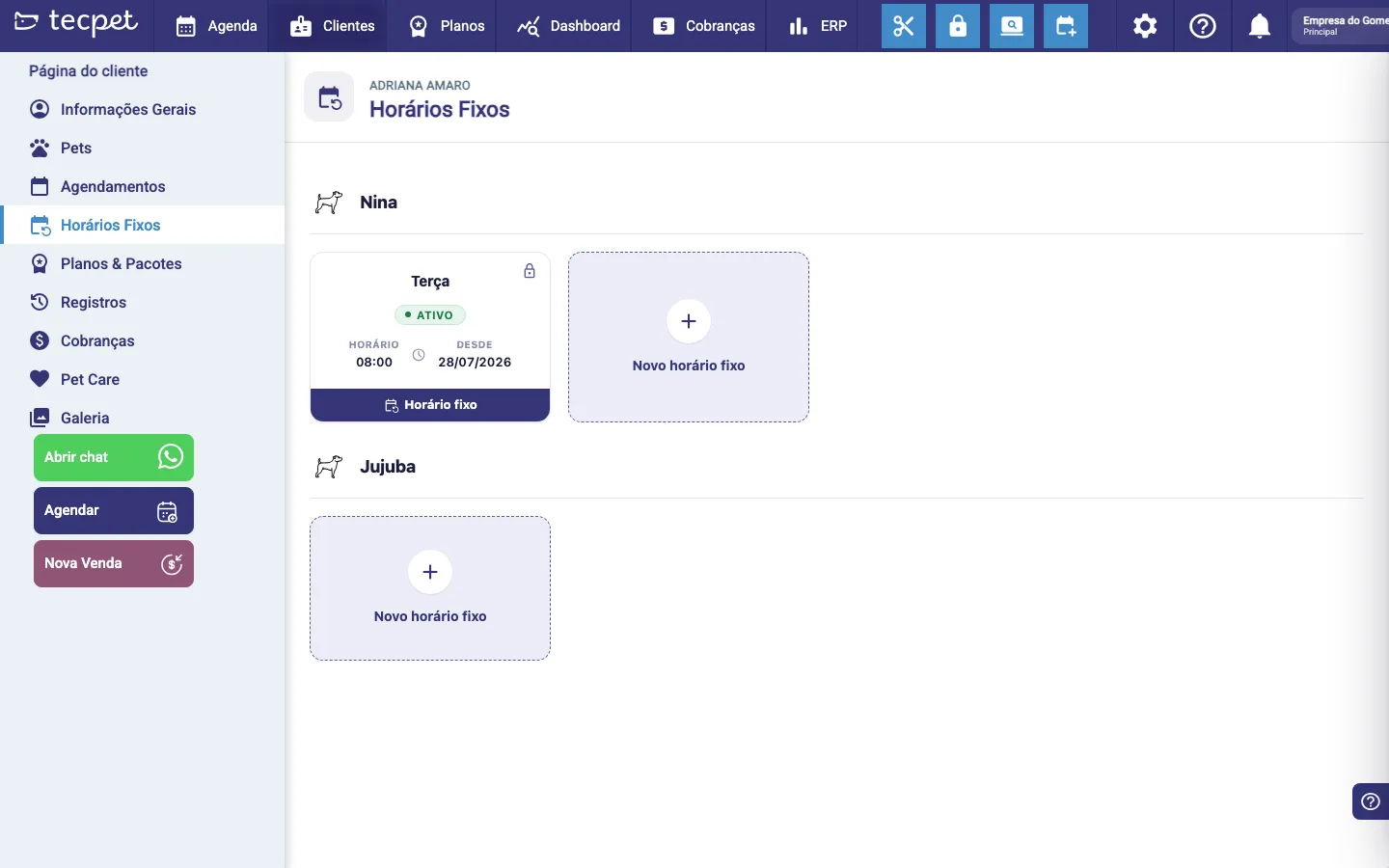
Section titled “The client’s fixed schedule list”Back on Fixed Schedules, each recurrence becomes a card inside the pet’s block, with the days, the time, the start date and the status. The padlock in the corner means the slot is held (reserved).
The possible statuses are:
- ACTIVE: generating appointments normally;
- PAUSED: on hold (holiday), generating no new visits in the period;
- CANCELING: cancellation in progress;
- CANCELED: closed.
The fixed schedule screen
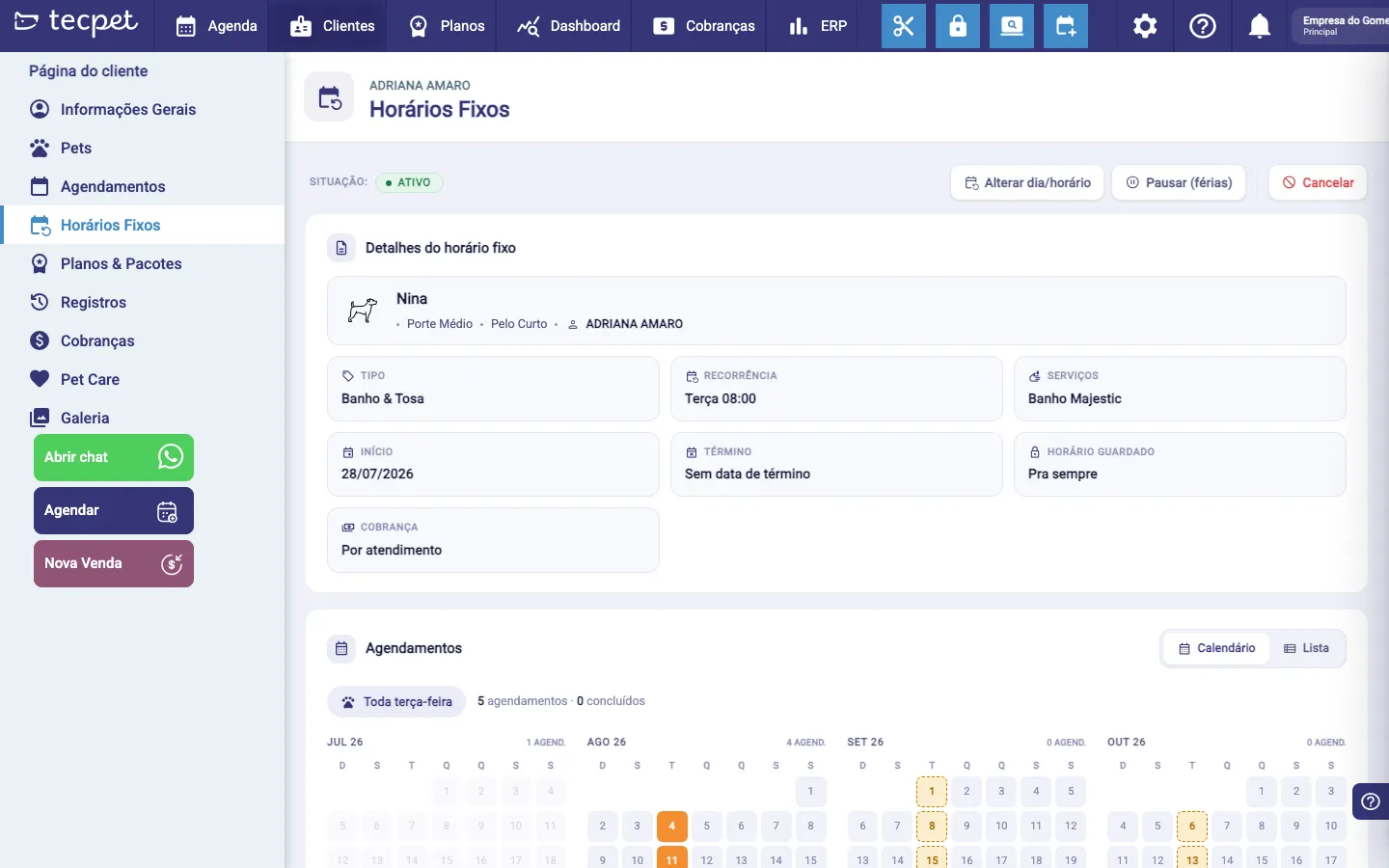
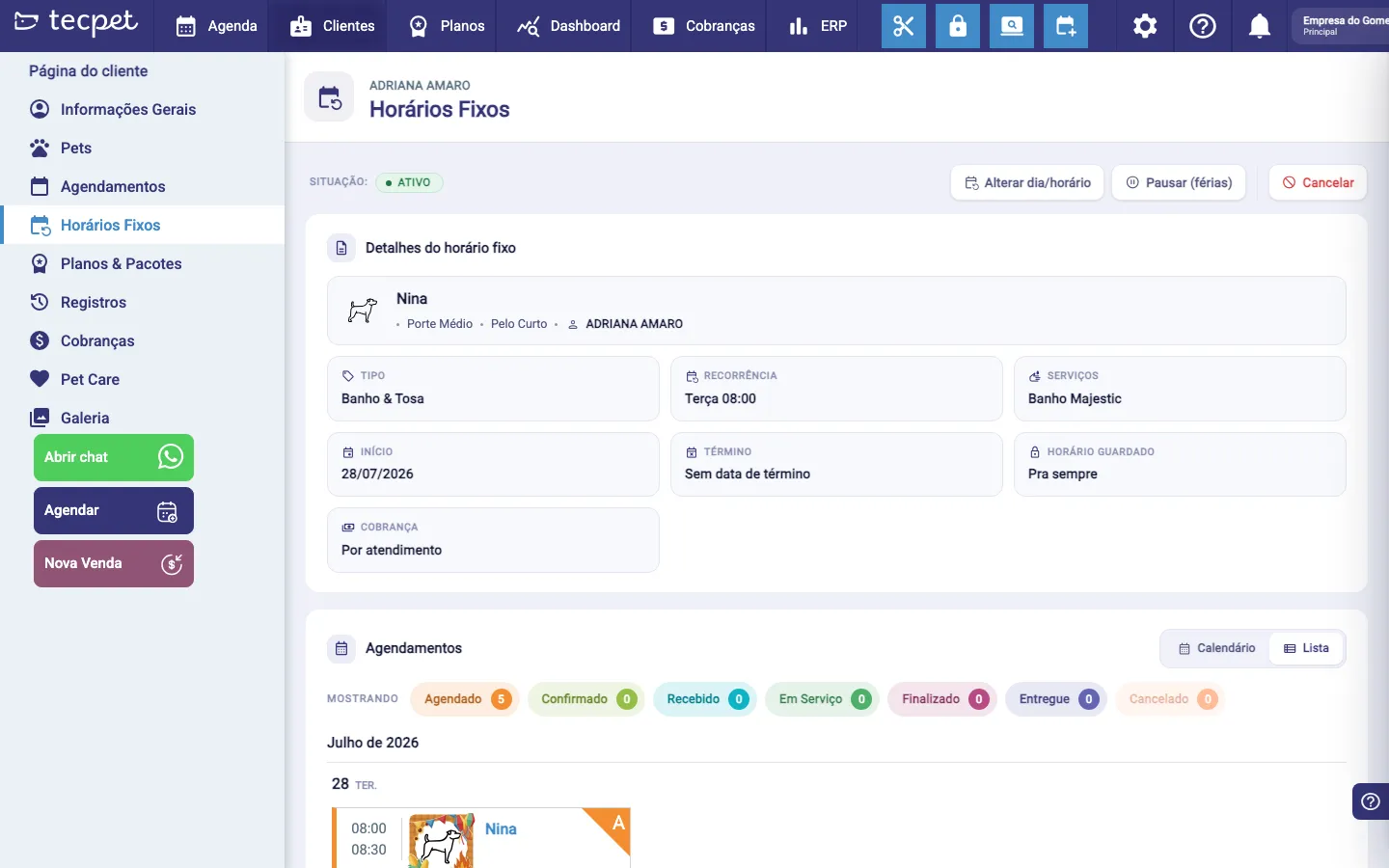
Section titled “The fixed schedule screen”Click the card to open the detail. At the top are the status and the three actions, Change day/time, Pause (holiday) and Cancel.
Under Fixed schedule details you see:
- Type: the service sector (Grooming, Clinic, Day Care/Hotel);
- Recurrence: the agreed weekday and time;
- Services: what is done on each visit;
- Start and End: when it began and until when it runs (it can be No end date);
- Slot held: how long the slot stays reserved;
- Billing: Per visit.
Just below, the Appointments panel shows the generated visits, with the total and how many are already completed.
See the visits as a calendar or a list
Section titled “See the visits as a calendar or a list”In the Appointments panel, switch between Calendar: which highlights the generated dates month by month, and List, which brings each visit with date, time and status. The History tab records everything that happened to that fixed schedule (creation, changes, pauses and cancellation).
Change history
Section titled “Change history”The History is the fixed schedule’s timeline, useful when the client asks since when the time changed or who made the change.
How to change the day or time
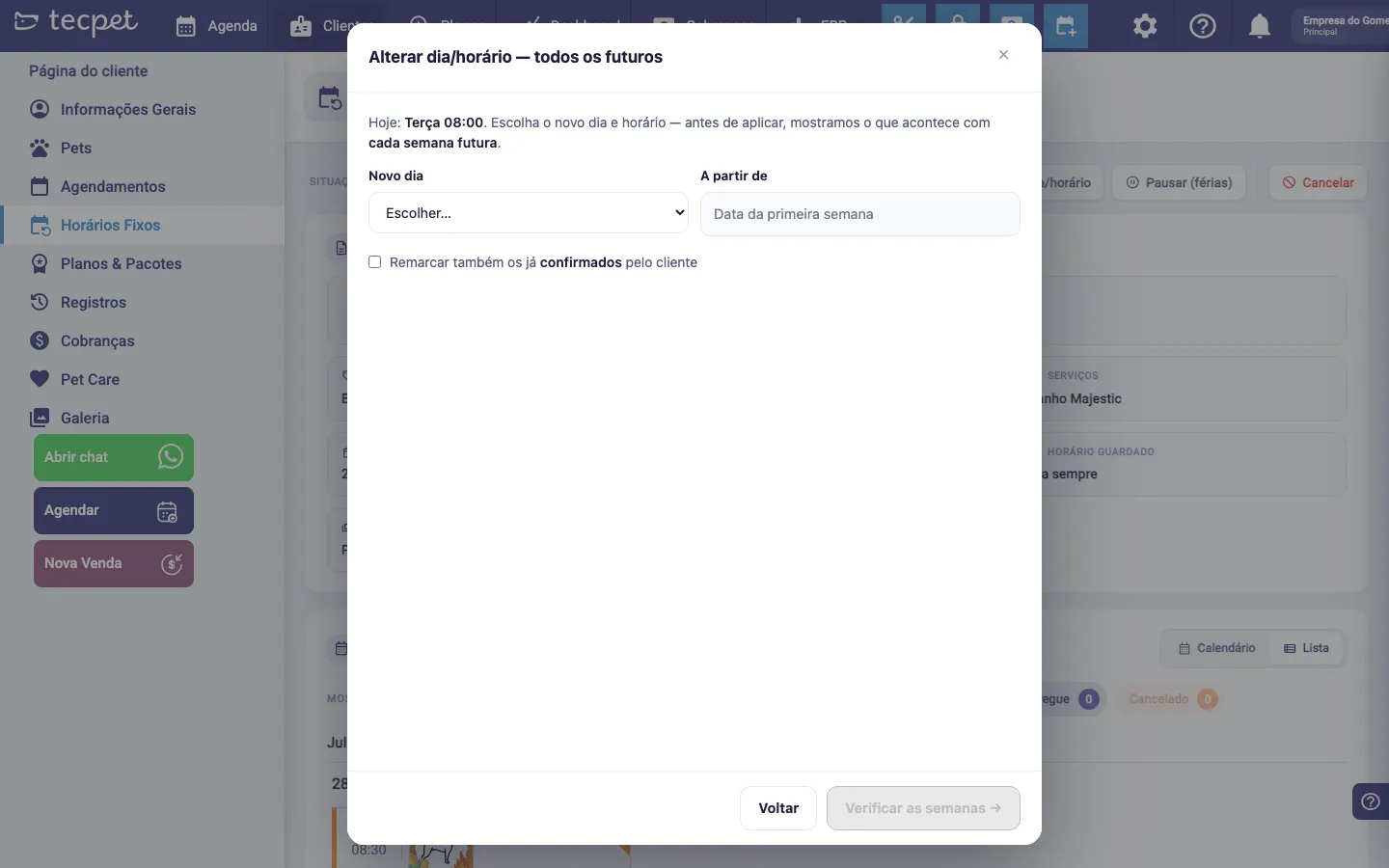
Section titled “How to change the day or time”Click Change day/time and choose from which date the change applies. The system recalculates availability and rebuilds the future appointments, visits already completed are untouched.
How to pause for a holiday
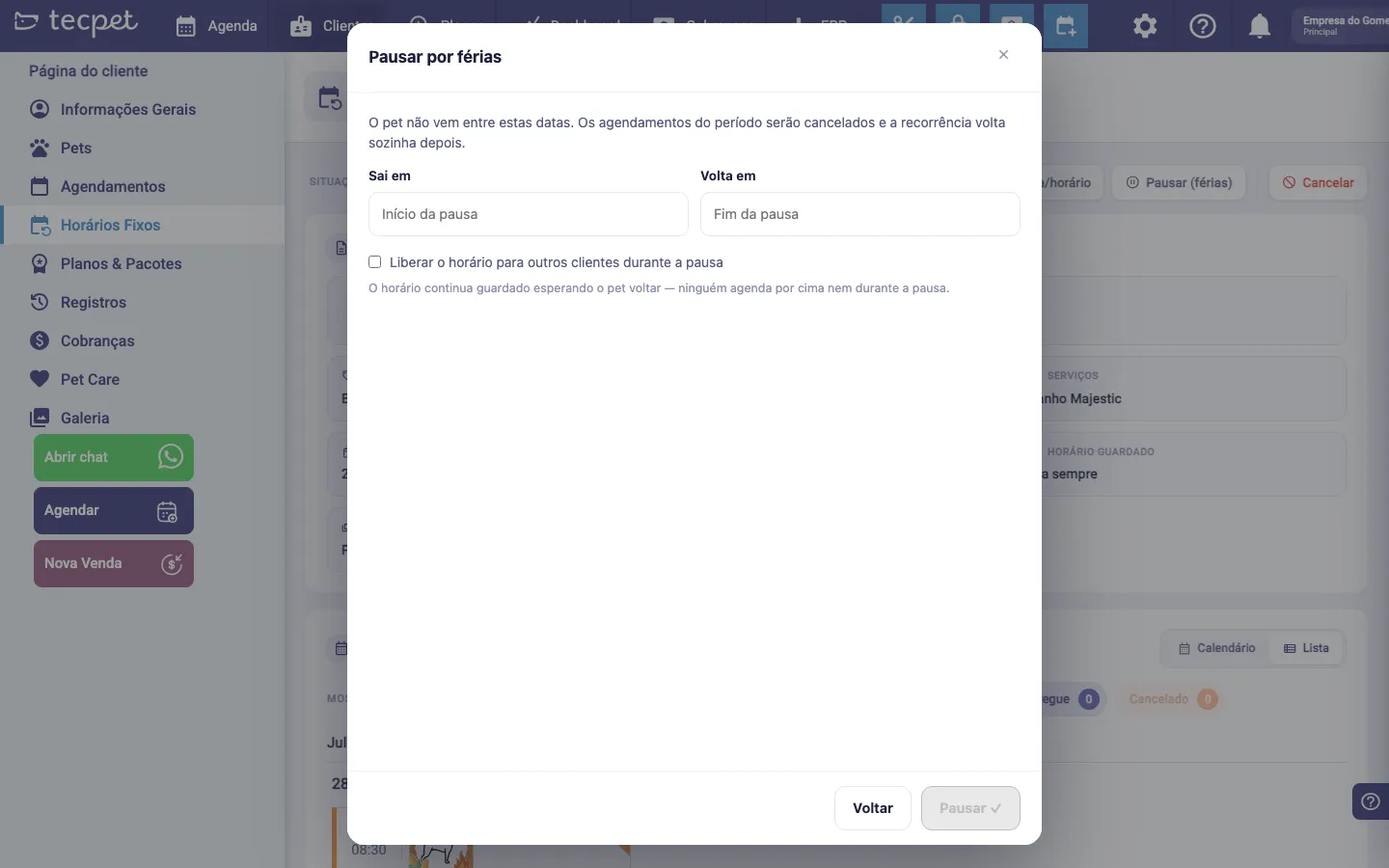
Section titled “How to pause for a holiday”Click Pause (holiday) and fill in Leaves on and Returns on. During the pause no visit is generated; on the return date the recurrence resumes on its own.
The Release the slot to other clients during the pause option decides whether the reserved slot becomes available for the shop to sell in that interval. Leave it unchecked if you want to guarantee the client finds the same time when they return.
How to cancel
Section titled “How to cancel”Click Cancel to end the recurrence. The system asks what to do with future visits that already have a paid invoice: the Also cancel visits with a paid invoice option should only be checked once the financial settlement with the client is agreed.
What to expect day to day
Section titled “What to expect day to day”- The generated appointments show up on the schedule like any other and follow the normal status, notification and billing flow;
- Generation is continuous: there are always around 30 days of visits created ahead, renewed automatically every day;
- While the slot hold is active, that time is not offered to other clients, neither at the counter nor over WhatsApp service;
- If the shop is closed on a date (holiday, schedule block), that week is skipped without breaking the recurrence.